
5 Best DiskWarrior Alternatives for Mac

Is DiskWarrior failing to recover the files you need? Or, have you found that it doesn’t actually support your Mac’s drive format? If so, it’s no wonder you may begin to question its efficacy as a recovery tool. You may want to instead check out these 5 alternatives that we’ve tested in real-world data recovery scenarios on macOS with both APFS & HFS+ drives.
Can’t wait to see what the best DiskWarrior alternatives are? The following quick overview lists our top picks.
| Karma | 3 |
| Bang for the buck | 2 |
| Usability | 2 |
| Recovery performance | 1 |
| Extras | 0 |
| Scan speed | 4 |

| Karma | 5 |
| Bang for the buck | 4 |
| Usability | 5 |
| Recovery performance | 5 |
| Extras | 4 |
| Scan speed | 5 |

| Karma | 4 |
| Bang for the buck | 4 |
| Usability | 4 |
| Recovery performance | 3 |
| Extras | 1 |
| Scan speed | 4 |

| Karma | 3 |
| Bang for the buck | 4 |
| Usability | 3 |
| Recovery performance | 3 |
| Extras | 1 |
| Scan speed | 5 |
When DiskWarrior Works (and When It Doesn’t)
DiskWarrior is a well-known data recovery application for macOS that has been around since 1998. It has some reliable features worthy of praise, but also some that fall short.
Where DiskWarrior works reliably:
- Rebuilding corrupted HFS/HFS+ directories on external drives.
- Preventative directory maintenance on older Mac setups (pre-High Sierra internal drives: works on internal drives running macOS Sierra 10.12 and earlier, where the internal disk is still HFS+).
- Recovering lost files from damaged directory nodes with directory-level recovery, restoring access to missing files that the OS can’t see due to directory corruption. DiskWarrior scavenges the directory to find all salvageable file and folder data, even data contained in damaged nodes.
- Repairing Time Machine, FileVault, and Core Storage (Fusion Drive) volumes when formatted with a supported file system (HFS+ only).
That being said, it’s important to realize that DiskWarrior isn’t built for every scenario. Let’s take a brief look at some of its shortcomings to know when an alternative makes more sense.

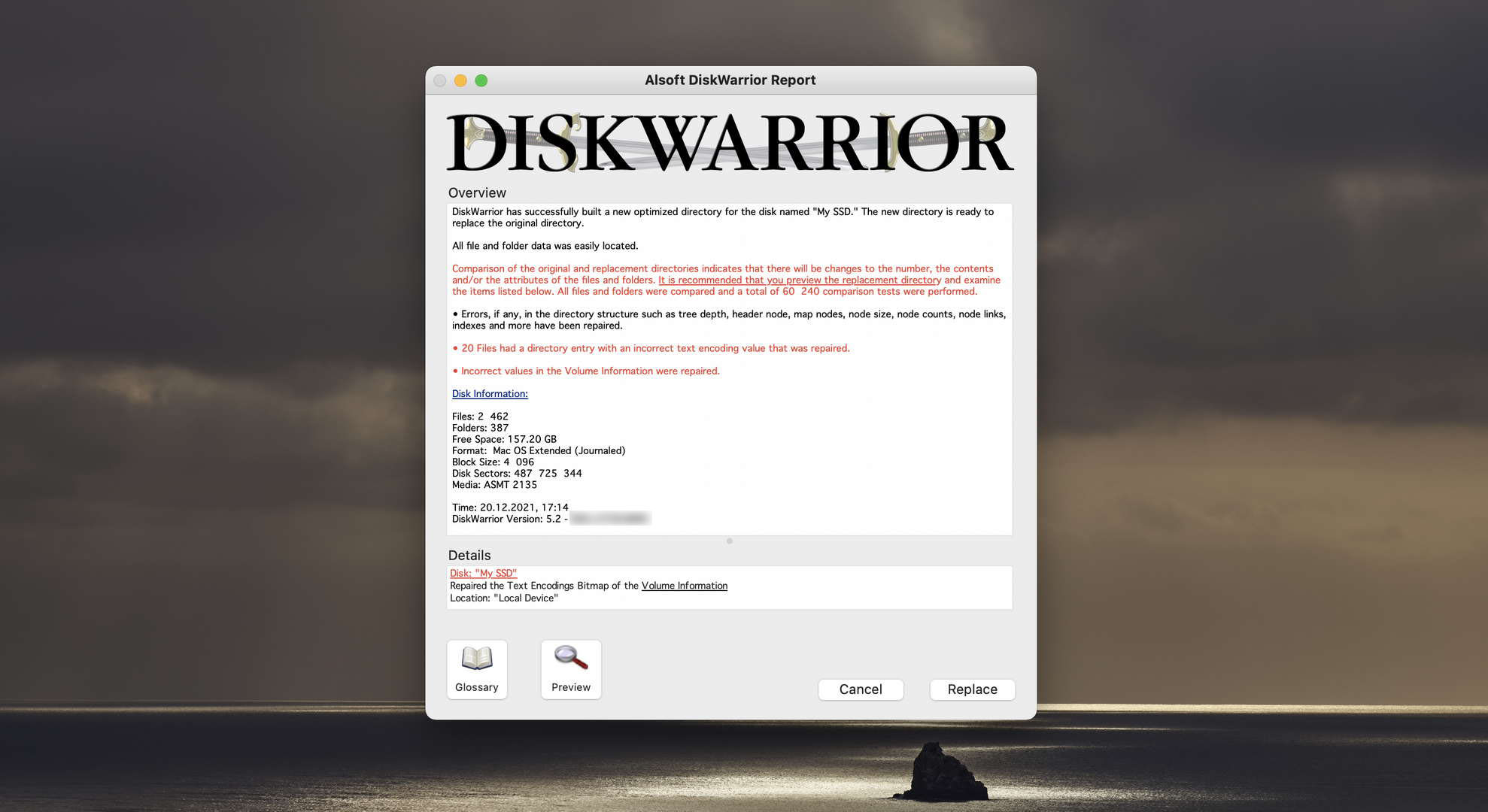
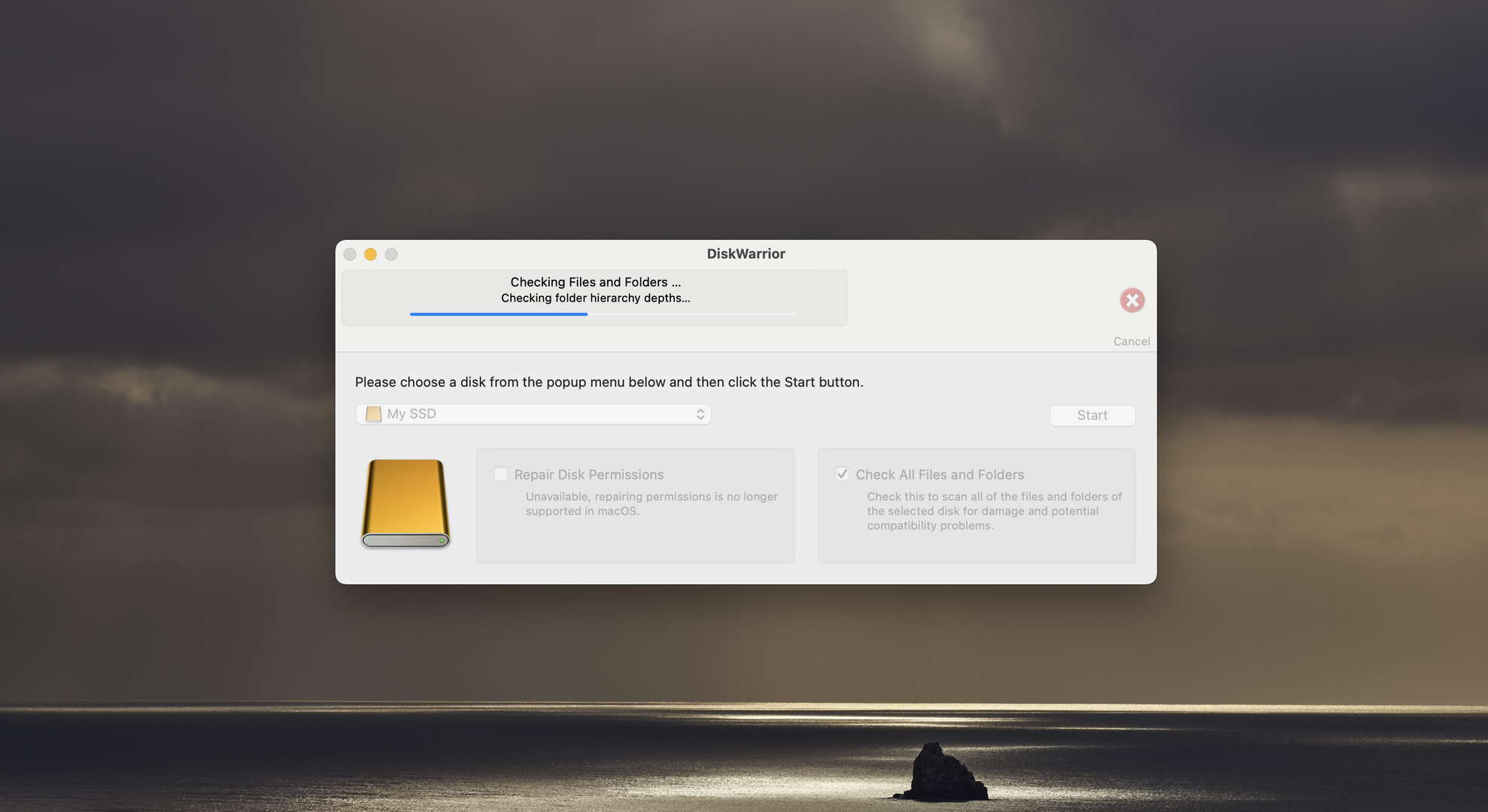

Why You Might Need a DiskWarrior Alternative
Even with all of the good things it has going for it (of which we break down in our full DiskWarrior review), it was made obvious during testing that there are some scenarios where DiskWarrior plain and simply misses the mark. For instance, when:
- Recovering deleted files. Critically, Alsoft specifically states that it only recovers missing files and folders in its feature list, not deleted or overwritten files.
- Your Mac runs macOS High Sierra or newer (2017+), as DiskWarrior can only rebuild external disks on High Sierra through Tahoe.
- Your internal startup SSD is formatted as APFS, which DiskWarrior explicitly does not support. That covers virtually every Mac sold since 2017.
- Your drive is failing, and you need to image it first. DiskWarrior has no byte-to-byte disk imaging or cloning capability. Before attempting any repair on a failing drive, the best practice is to create a byte-for-byte copy. DiskWarrior only alerts you to back up, but it can’t make that backup for you.
- You’re on an Apple Silicon Mac (M1-M5) and need to boot into recovery. Recovery HD and Internet Recovery are explicitly not supported on Apple Silicon. Running DiskWarrior from a recovery environment – the safest way to repair a startup disk – is not an option on modern hardware.
- Your drive uses any format other than Mac OS Extended (HFS+). DiskWarrior only supports HFS+. If you’re working with APFS, exFAT, FAT32, or NTFS drives, including external drives, SD cards, or drives shared with Windows, DiskWarrior cannot touch them.
- You want to know what’s recoverable before paying. DiskWarrior costs $119.95 with no free trial. Unlike alternatives that let you scan and preview results first, you pay upfront with no guarantee it resolves your specific problem.
Now, enough beating around the bush. Let’s finally look at what alternatives are available to DiskWarrior.
Top 5 DiskWarrior Alternatives Compared
All of the alternatives we’ve mentioned were tested on APFS and HFS+ volumes, using the latest version of macOS 26 “Tahoe” on Apple Silicon Macs. We primarily focused on the specific gaps that DiskWarrior leaves, like deleted file recovery, file system breadth, disk imaging, file previews, and the like. All tests were in line with our testing methodology that we use for all reviews.
1. Disk Drill for macOS
Overview
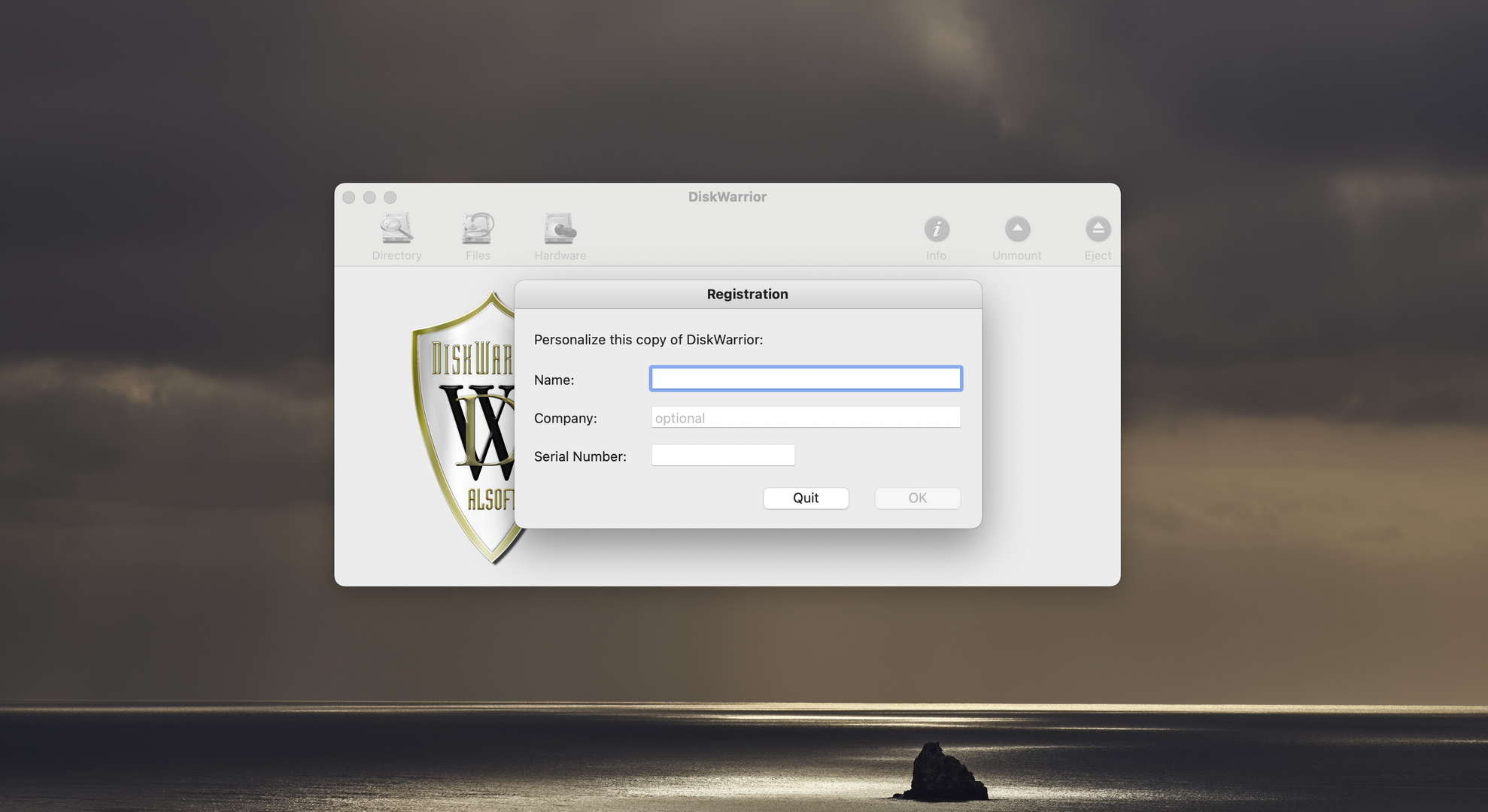
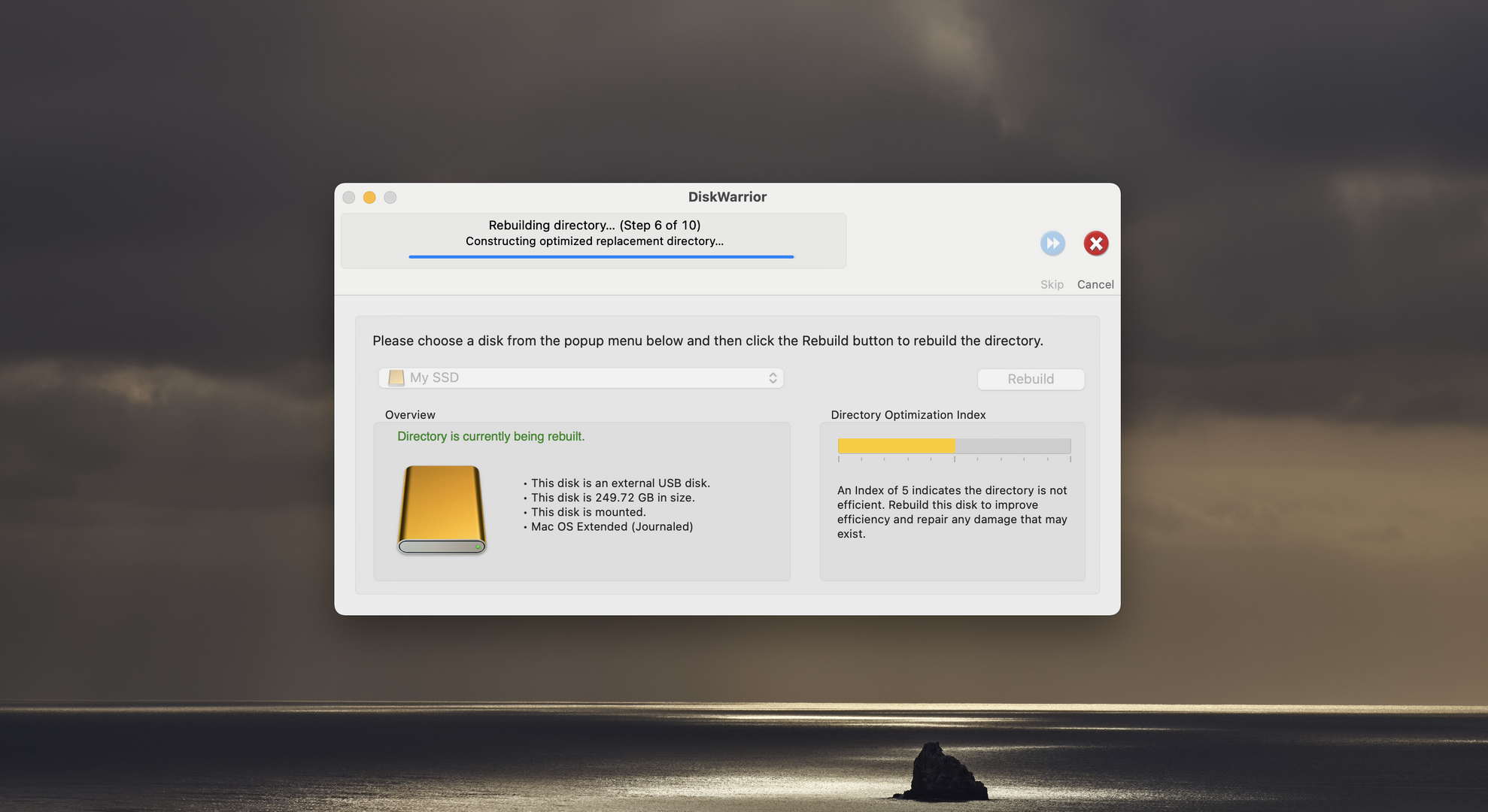
Disk Drill is the best data recovery app we’ve ever reviewed—by a wide margin. Just take a look at the screenshots below and compare them with the DiskWarrior screenshots above. That’s the difference a team of dedicated software developers that constantly releases new updates can make.
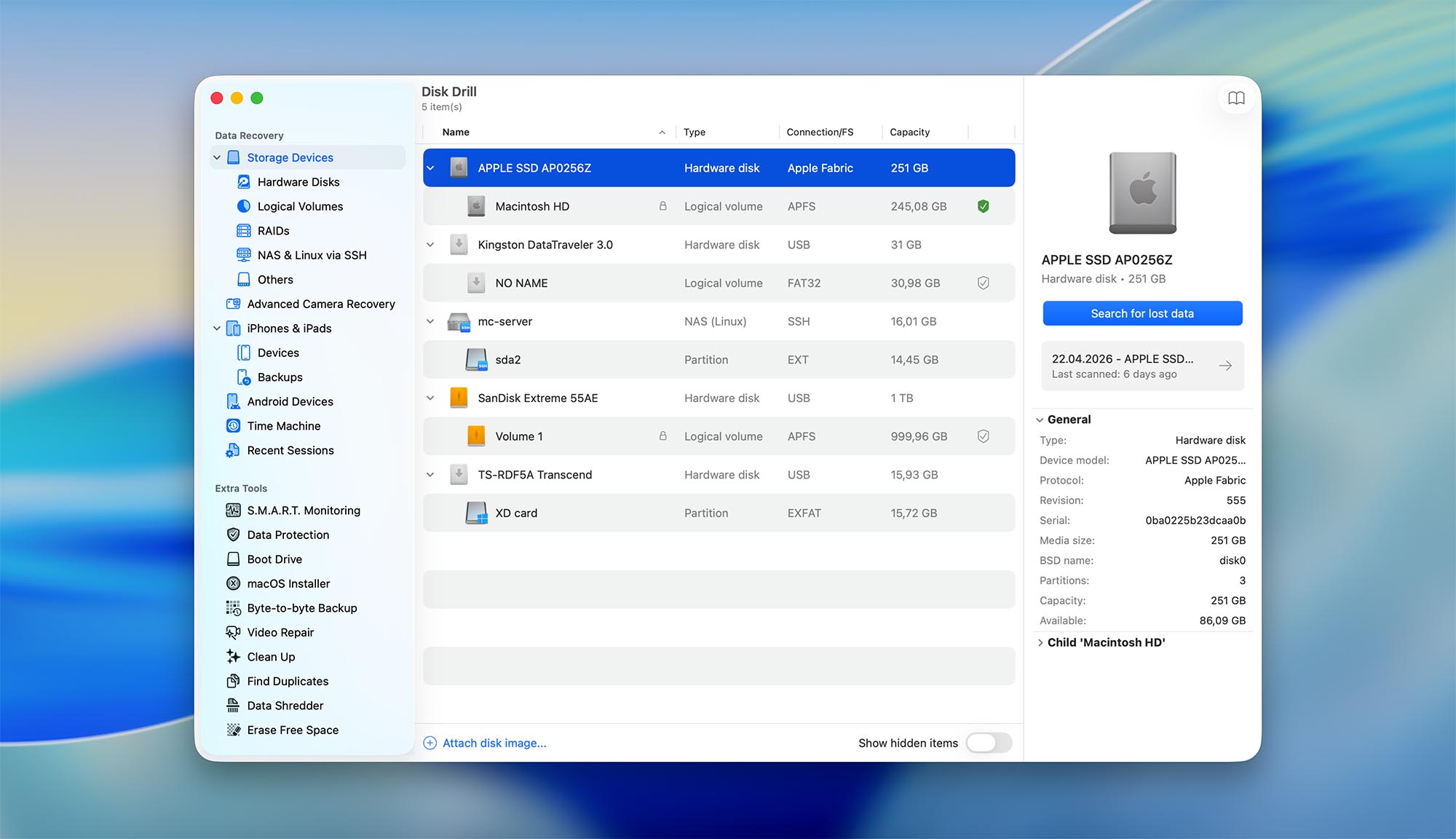
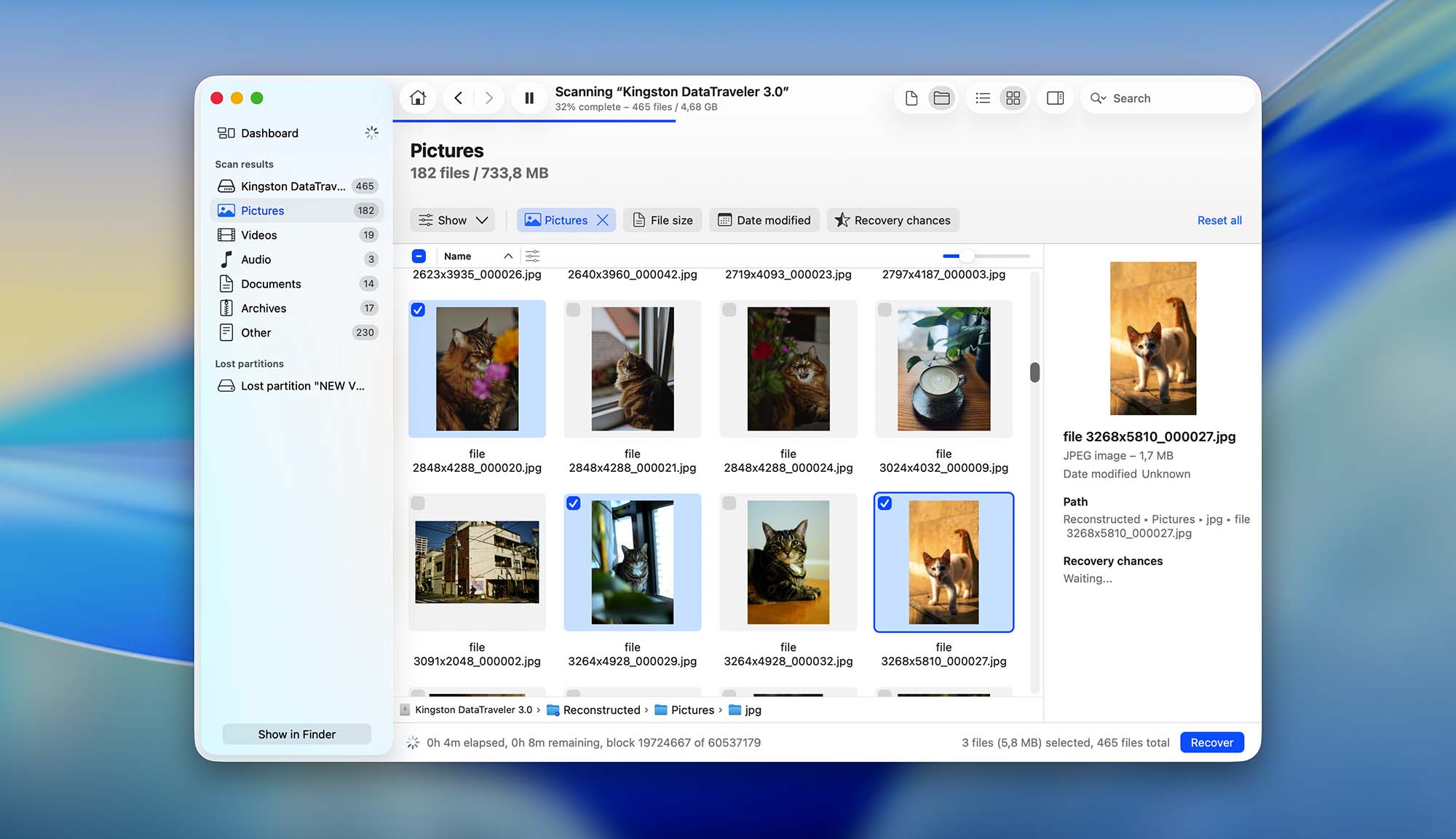
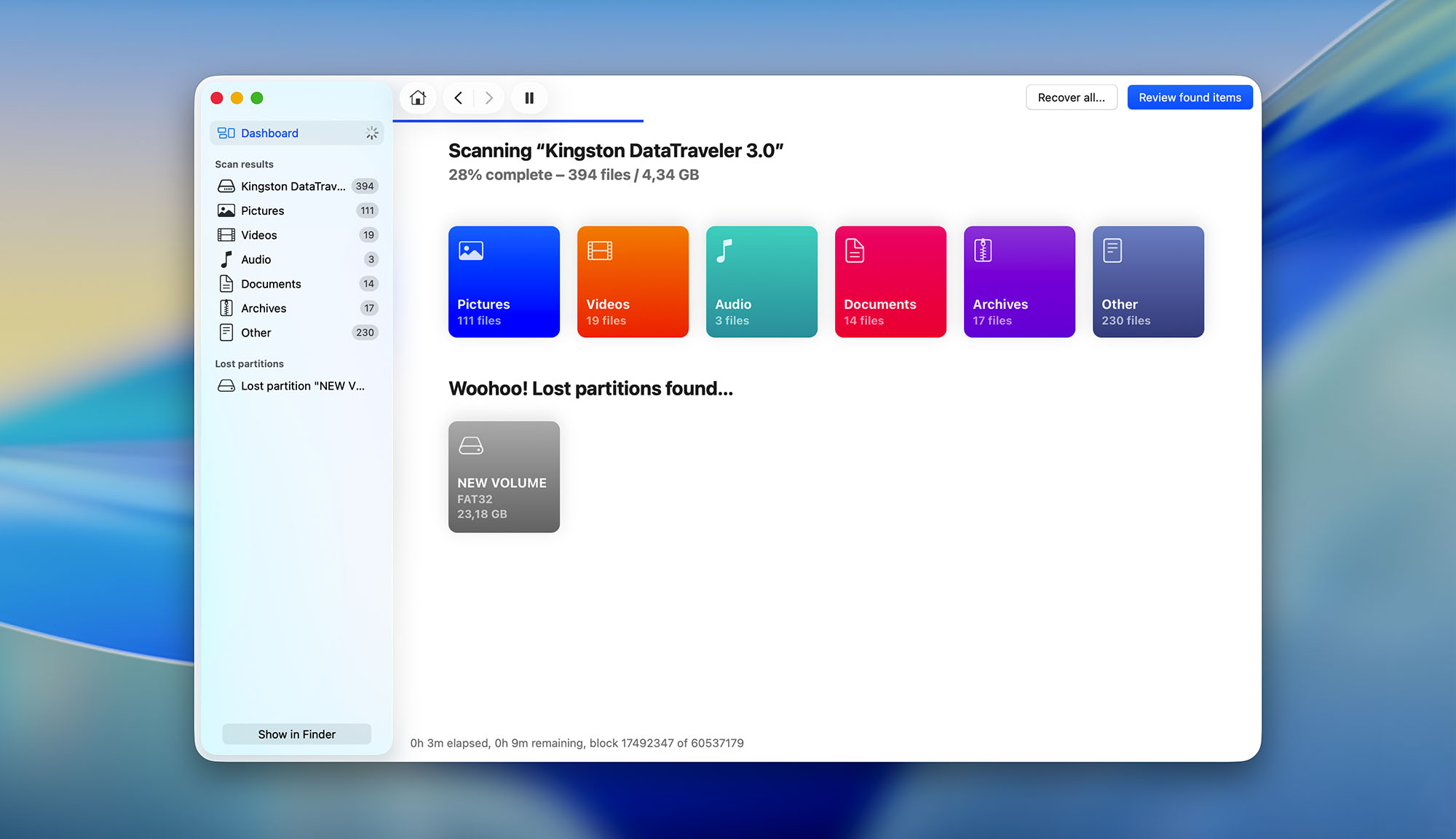
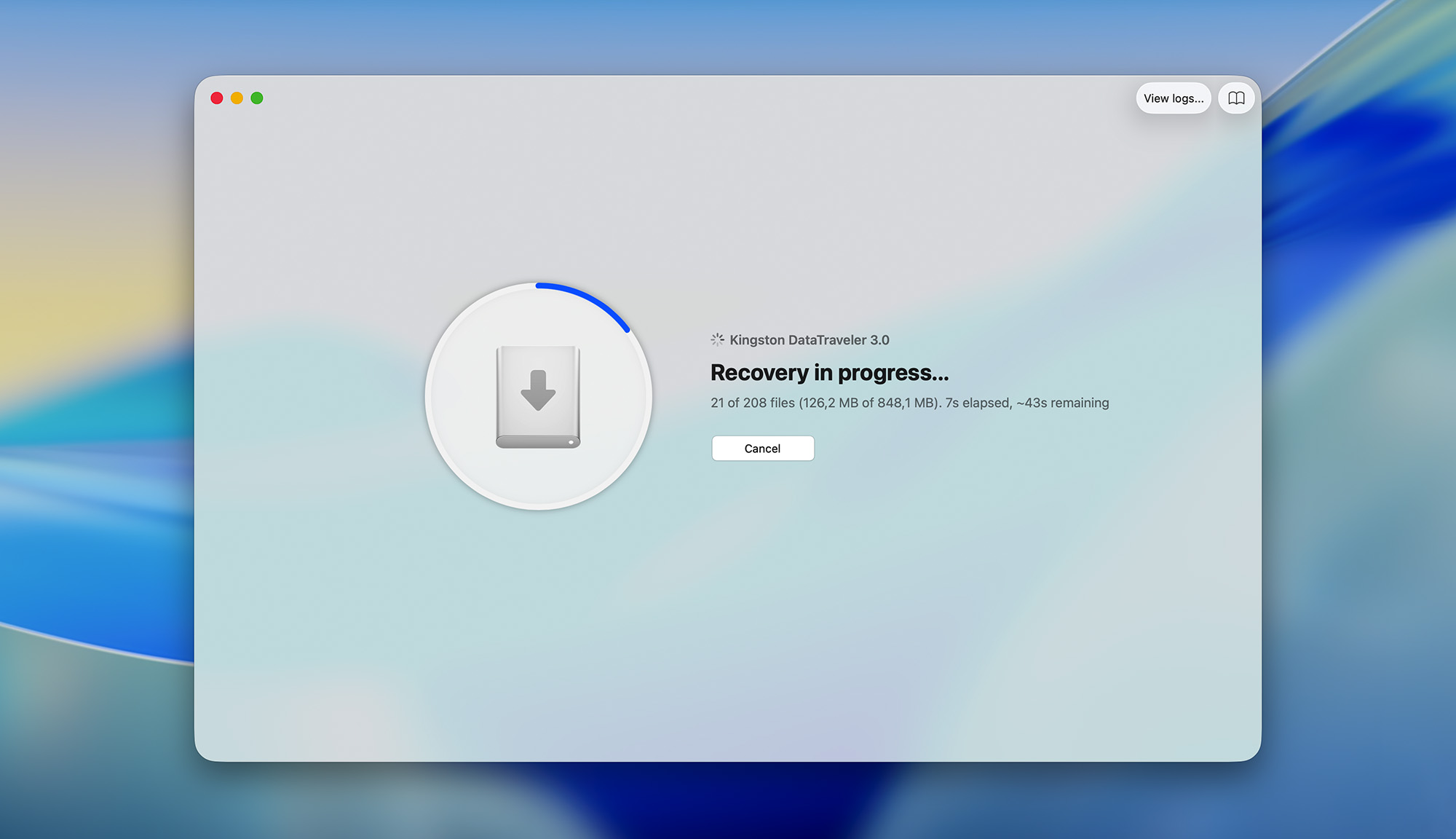
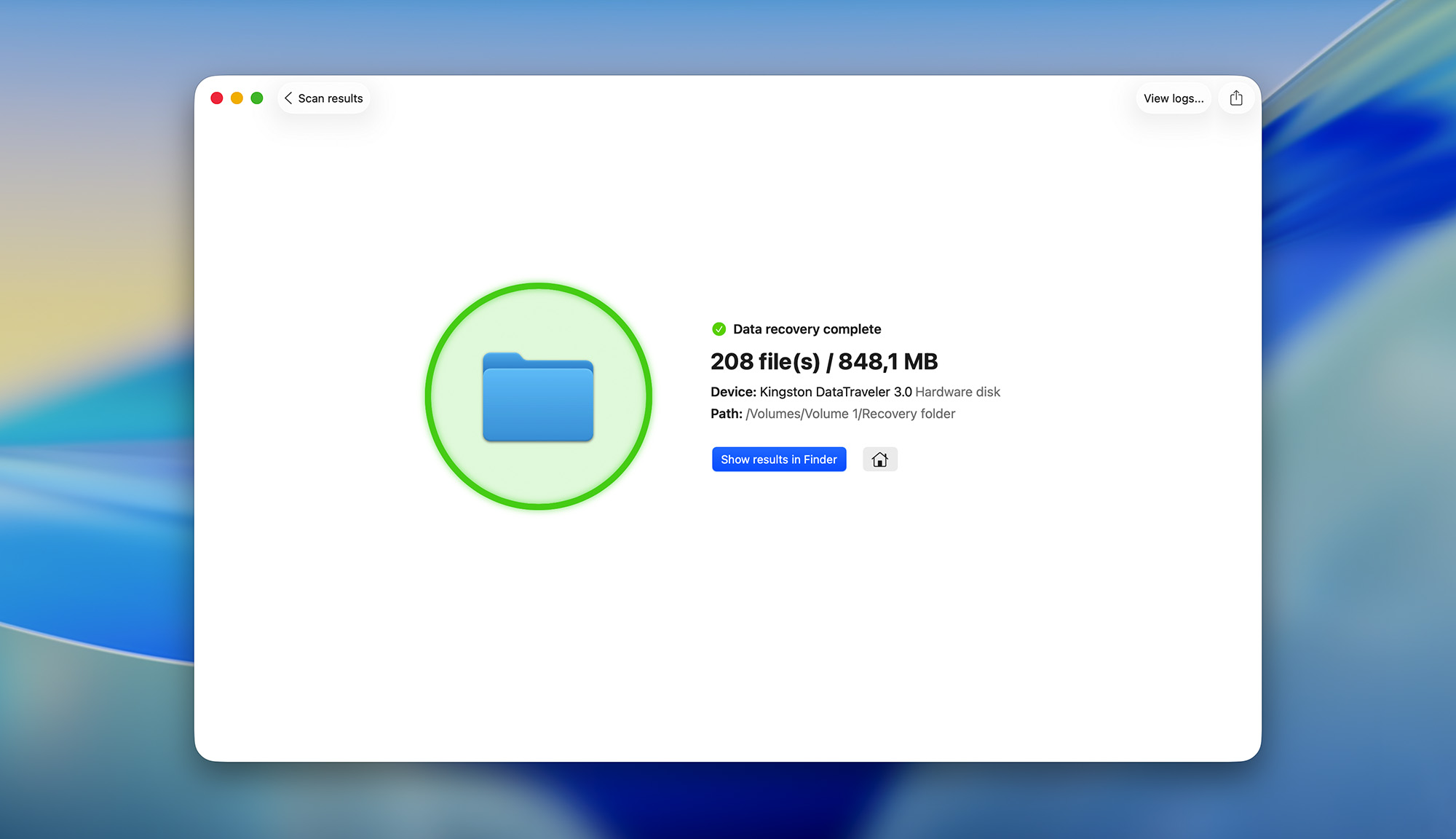
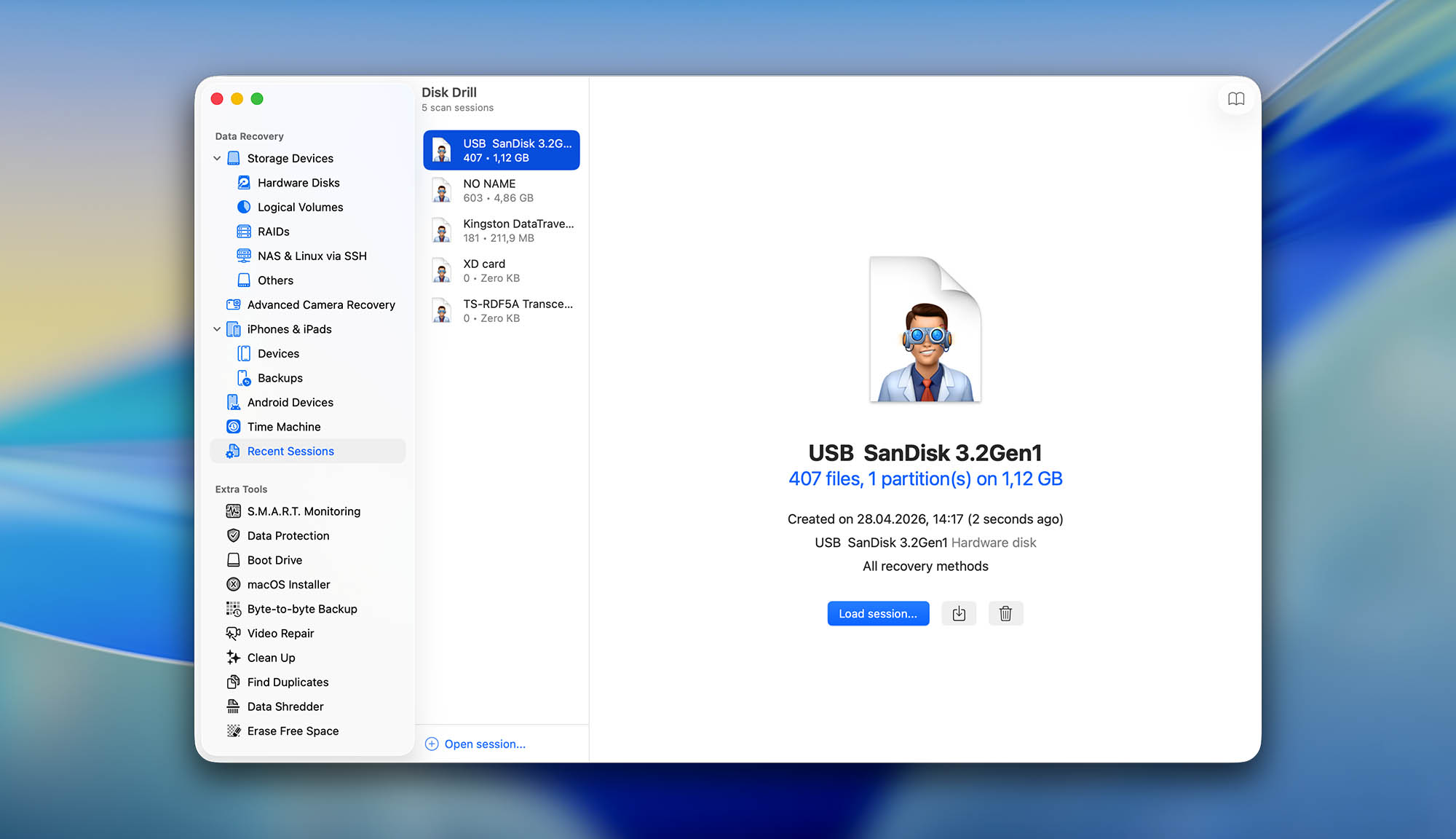
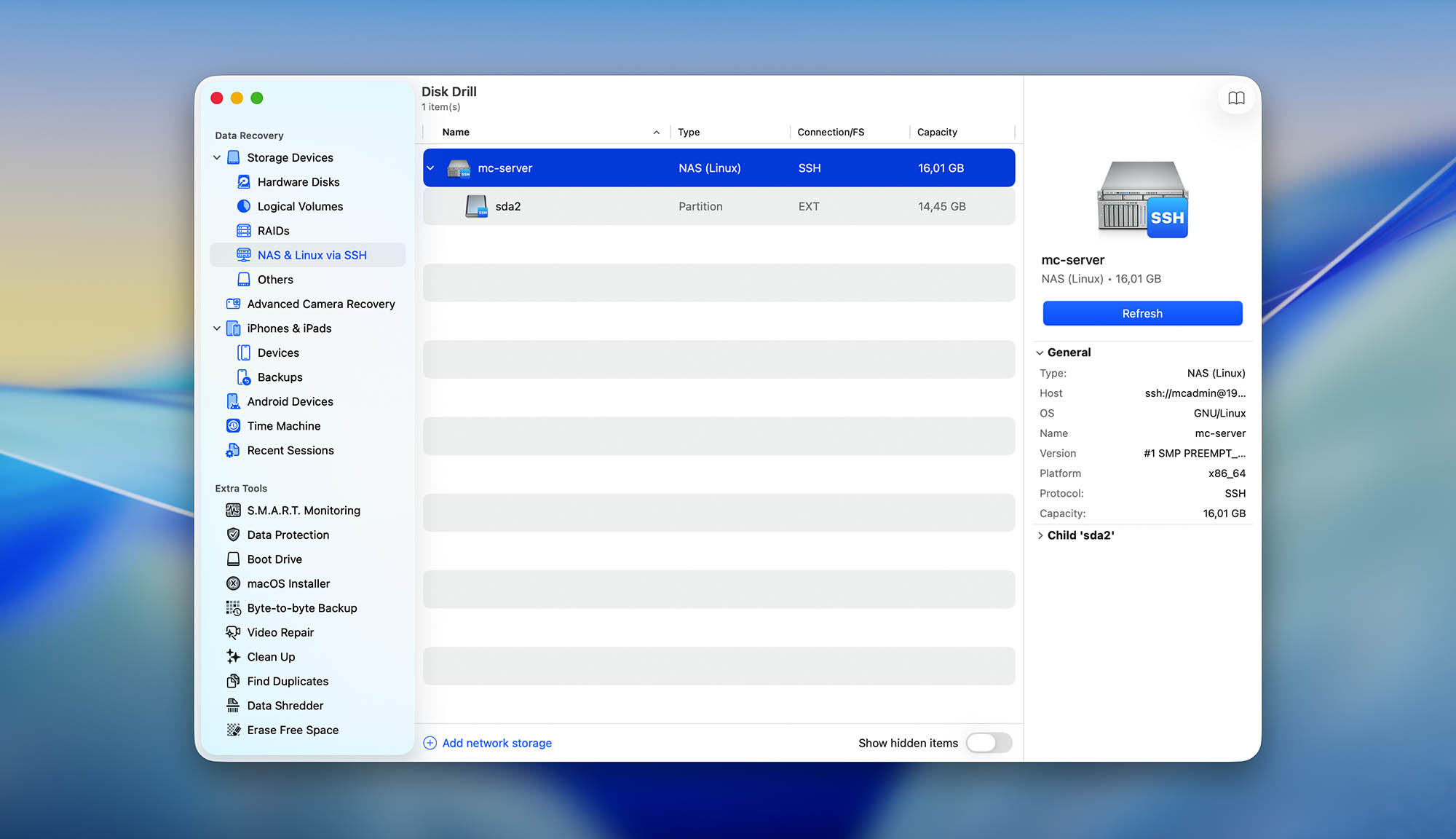
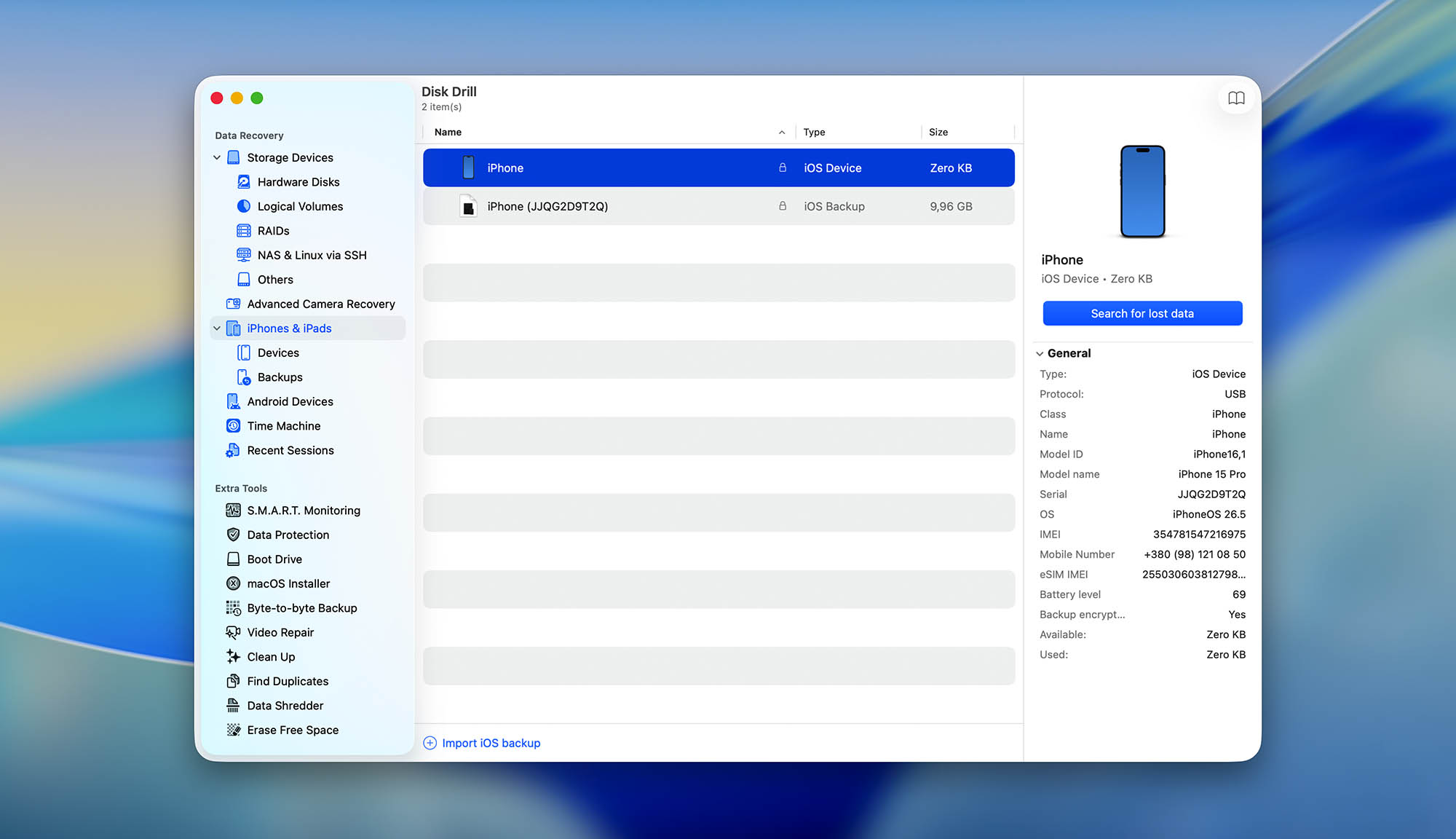
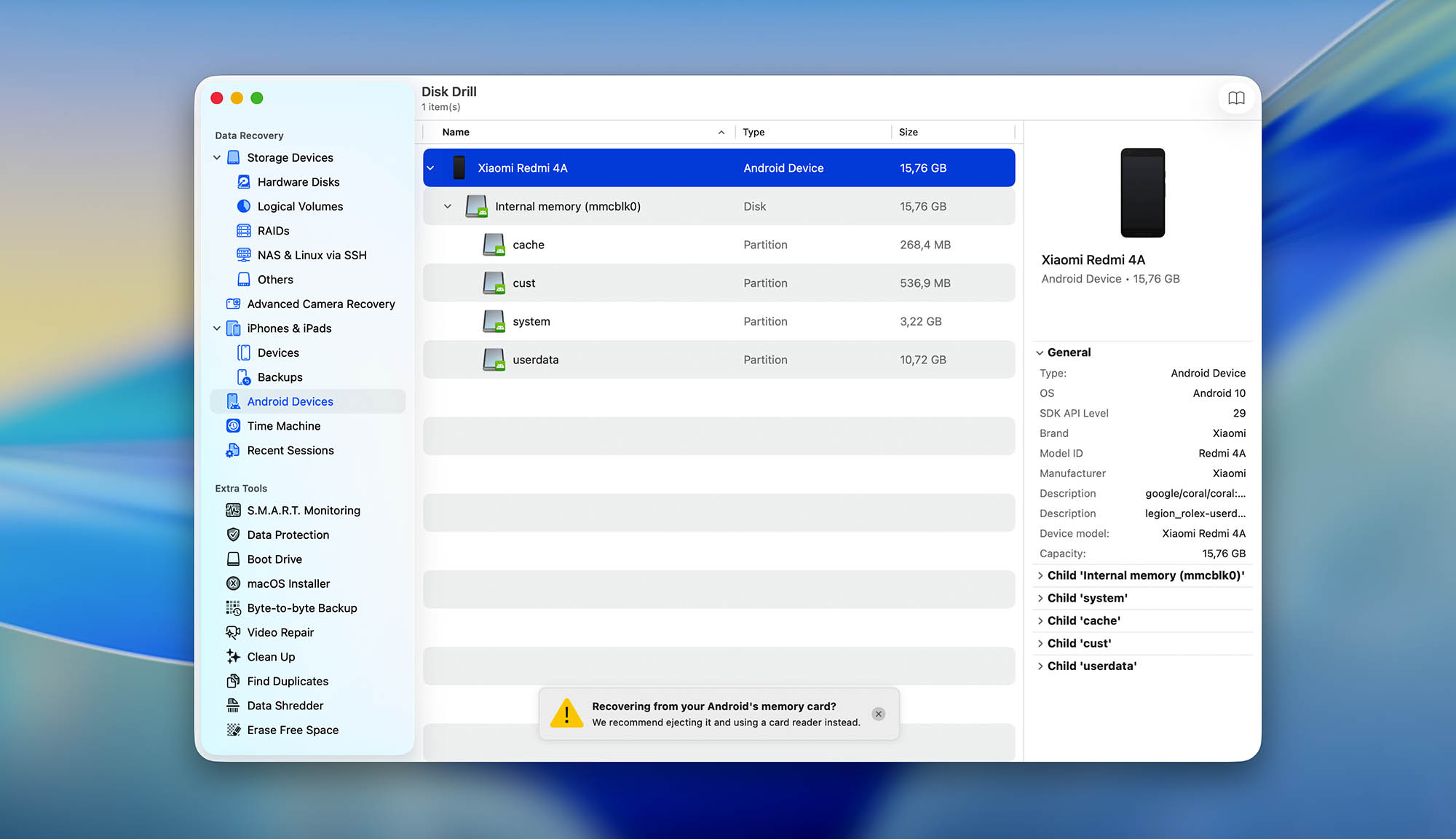
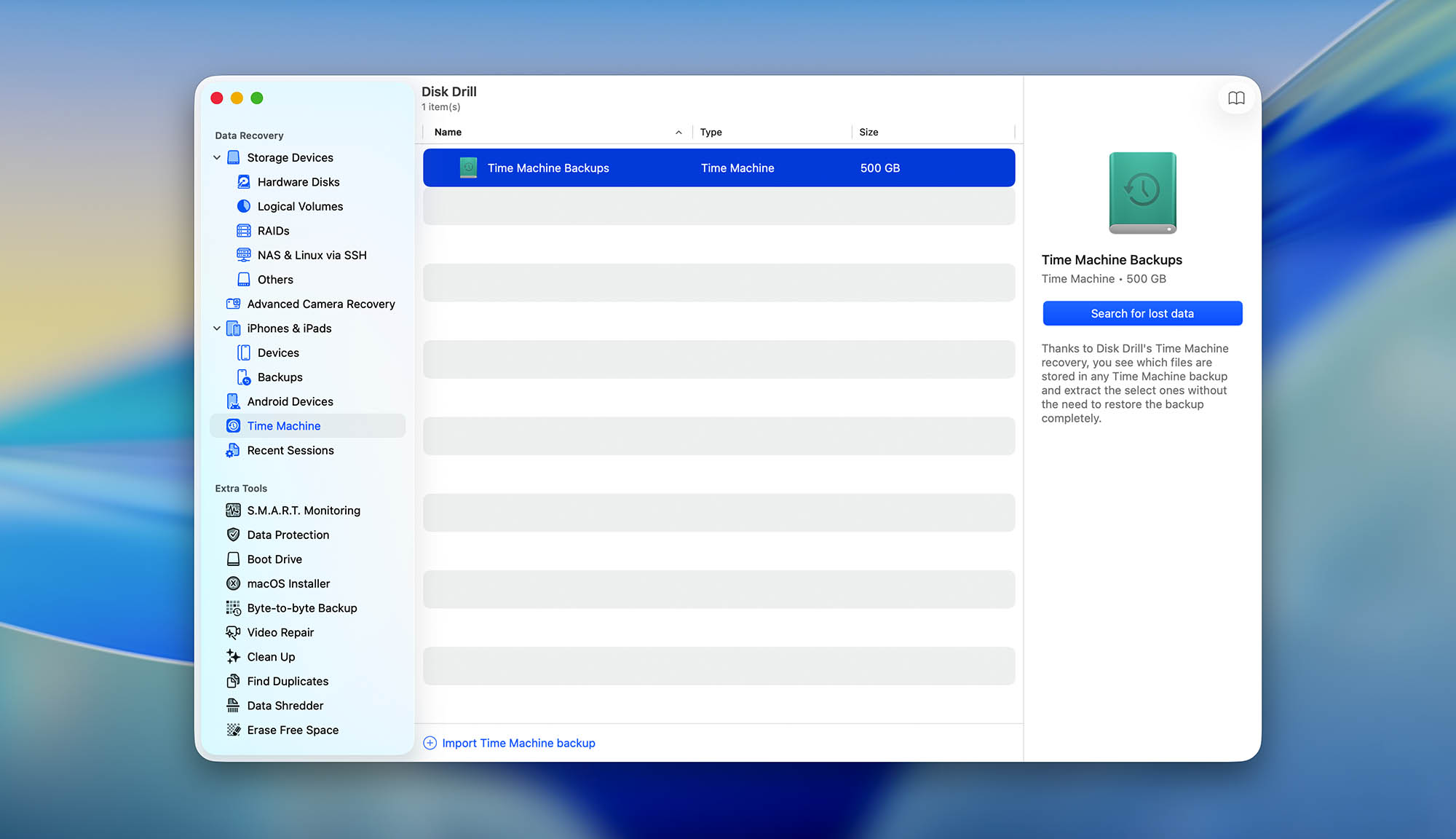
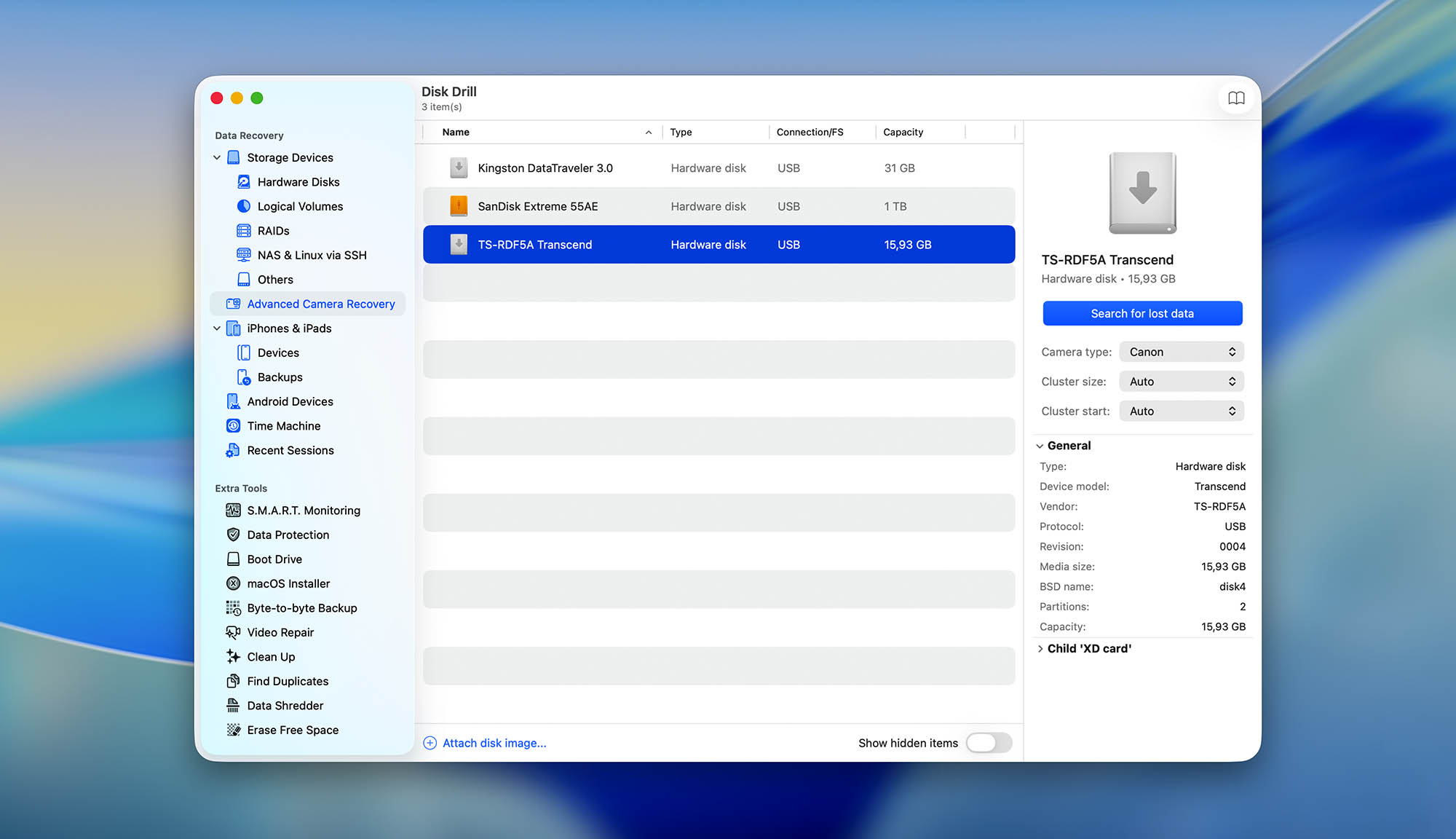
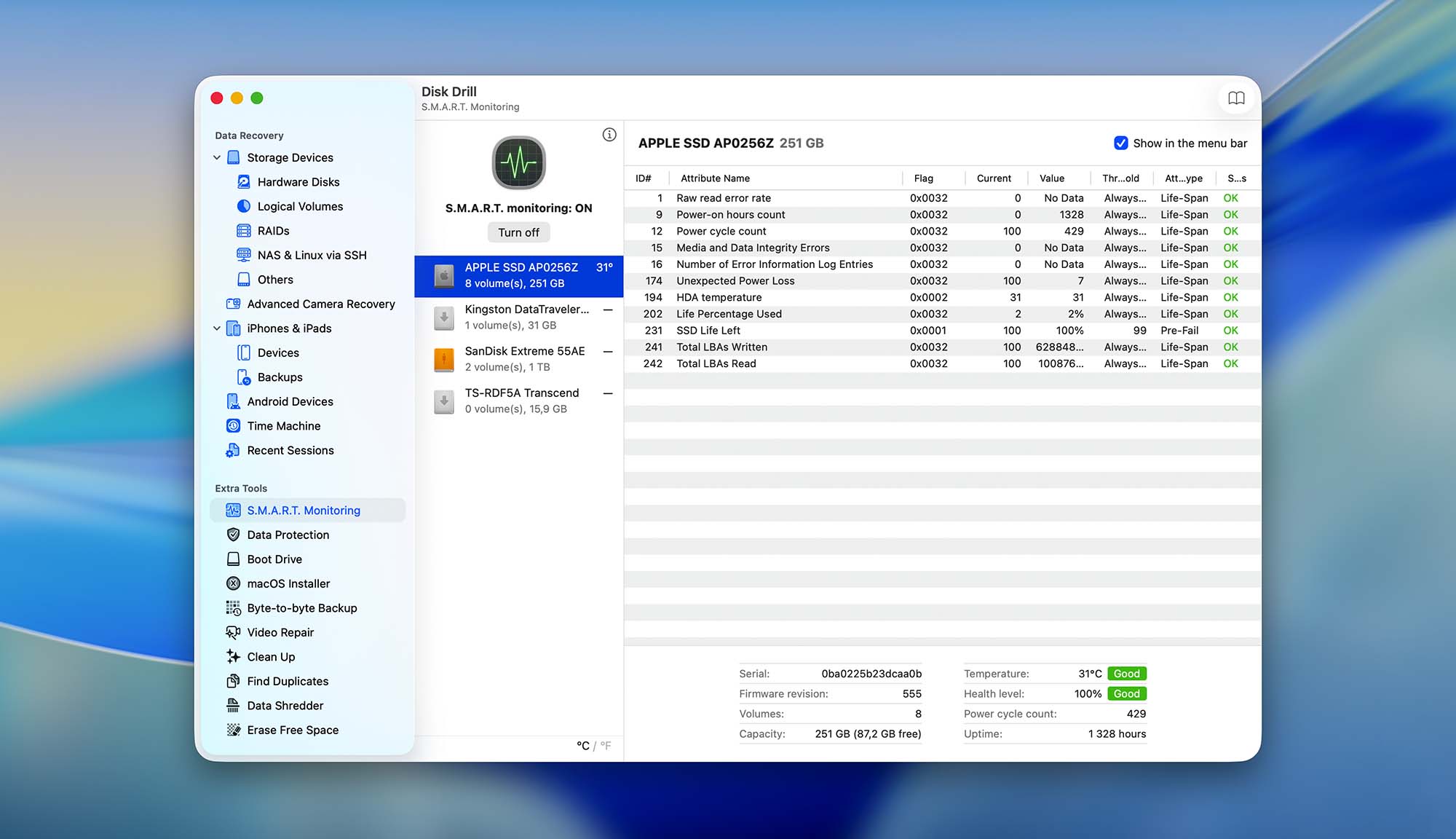
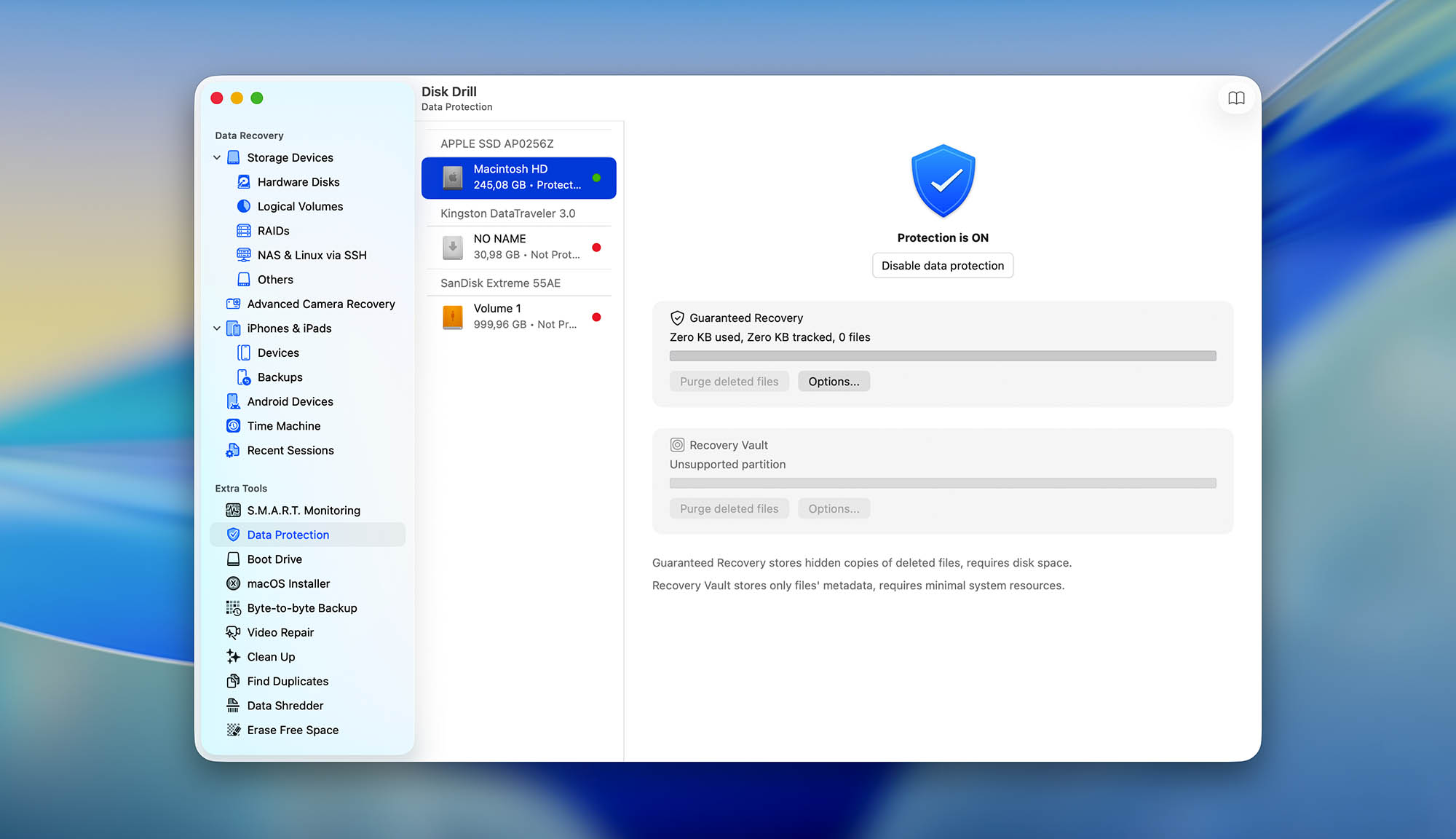
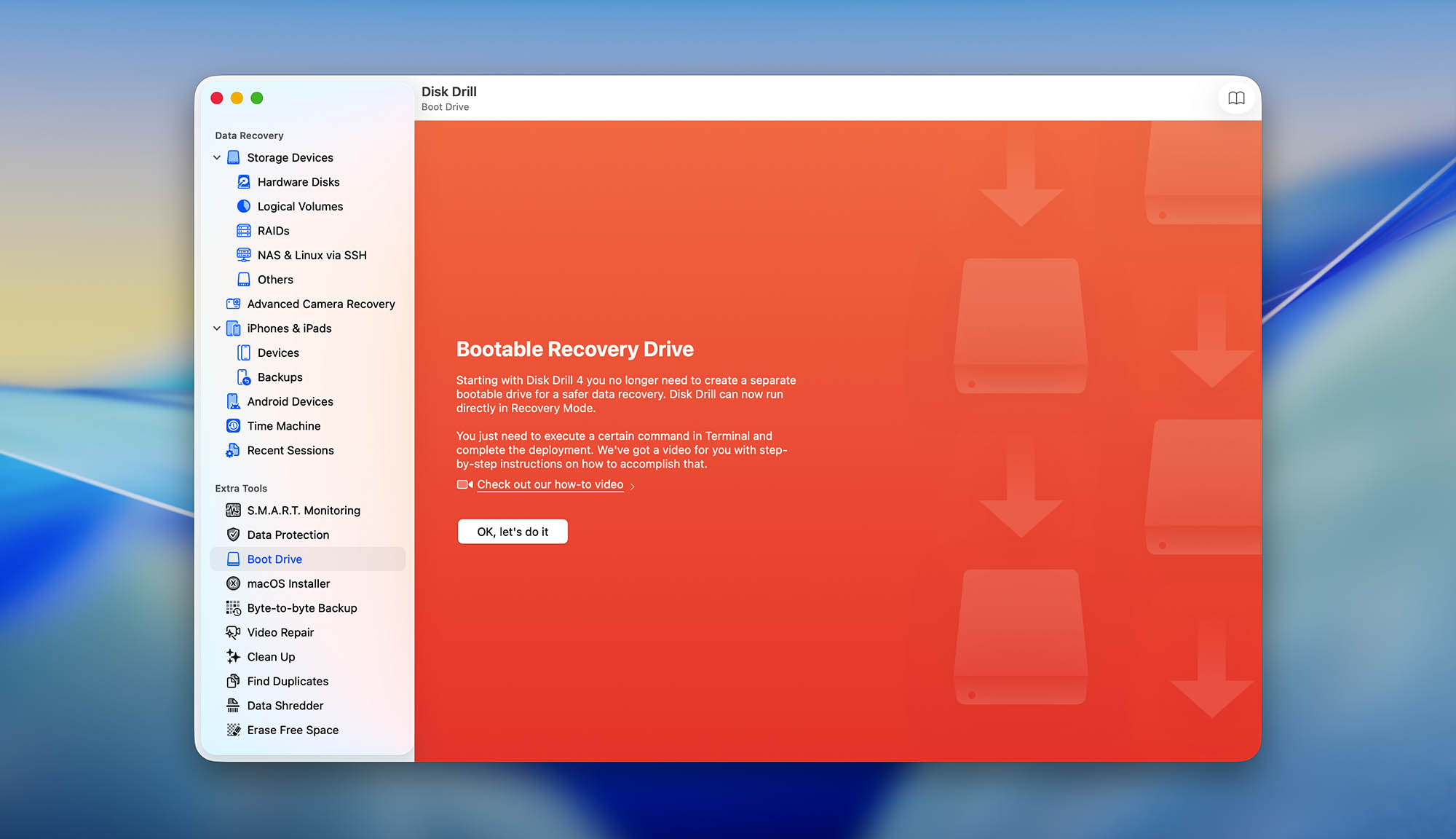
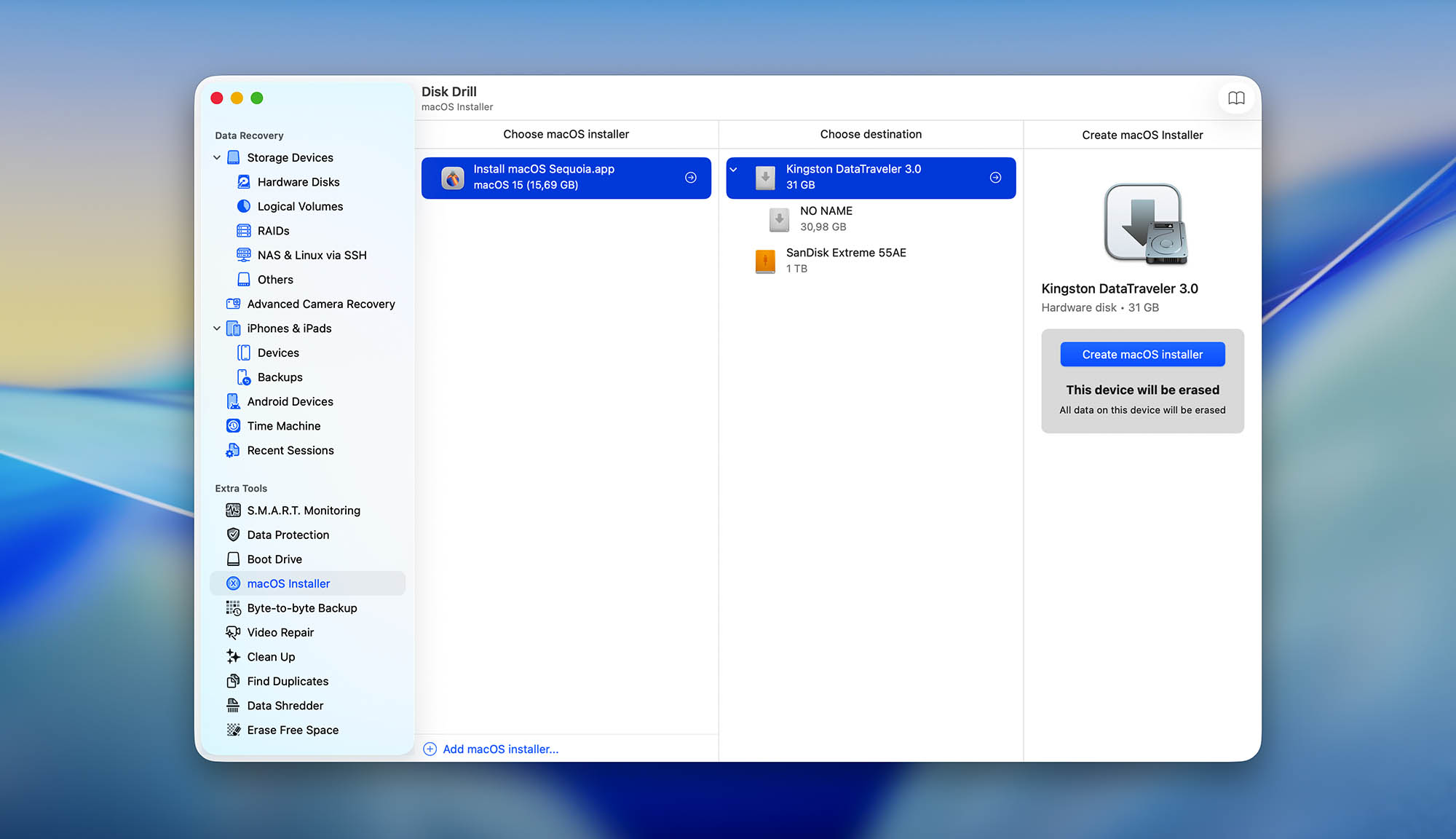
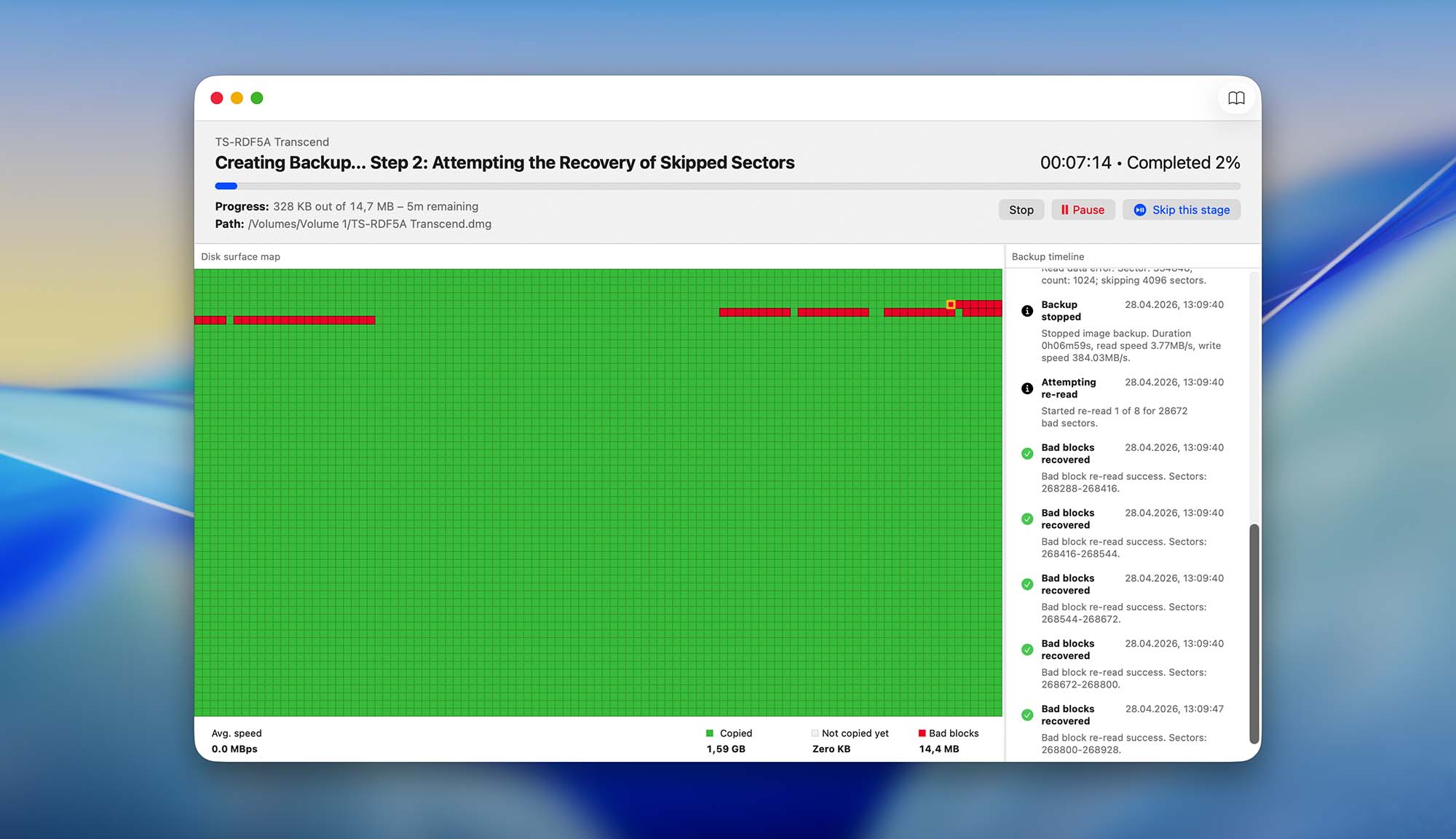
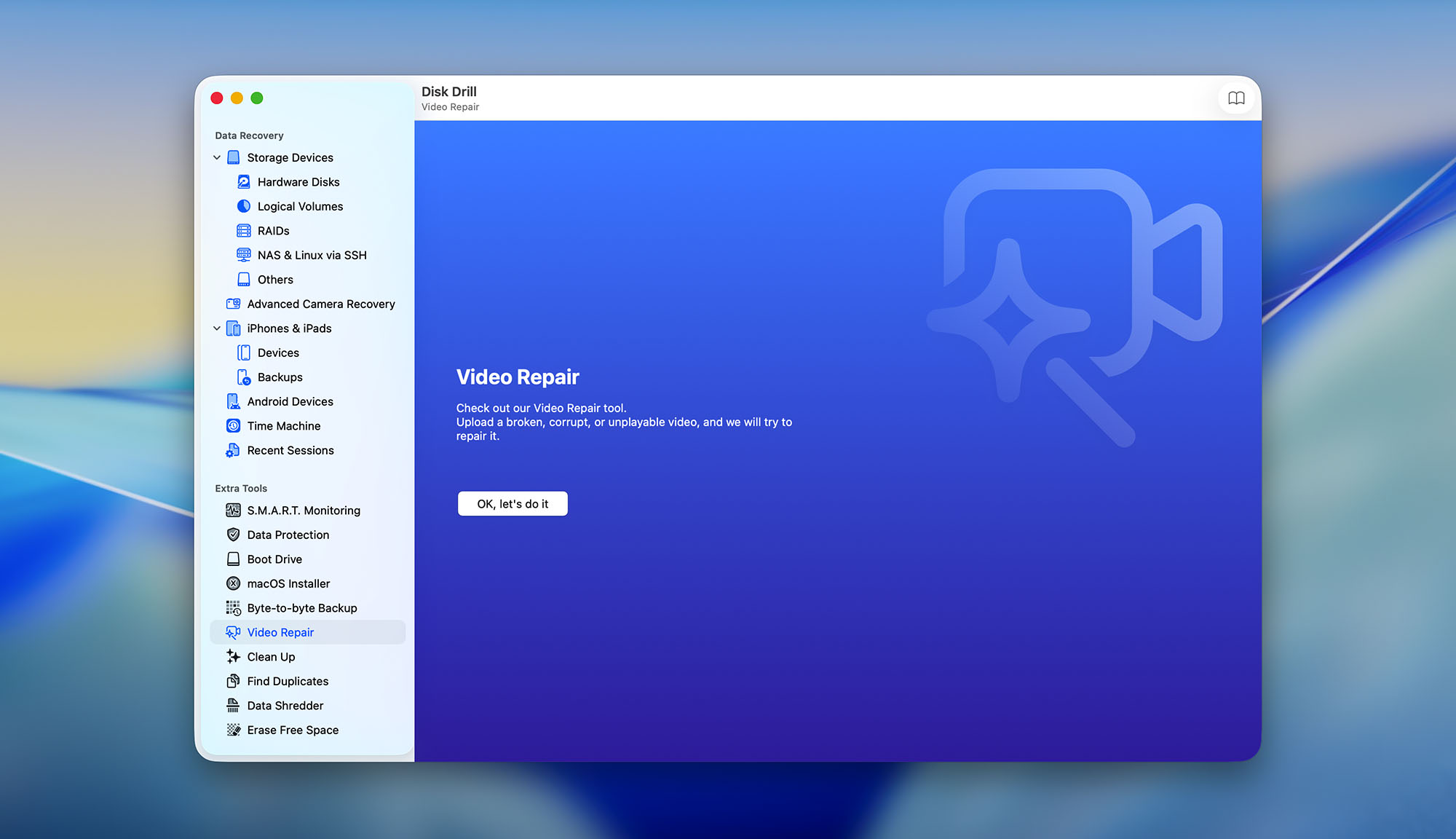
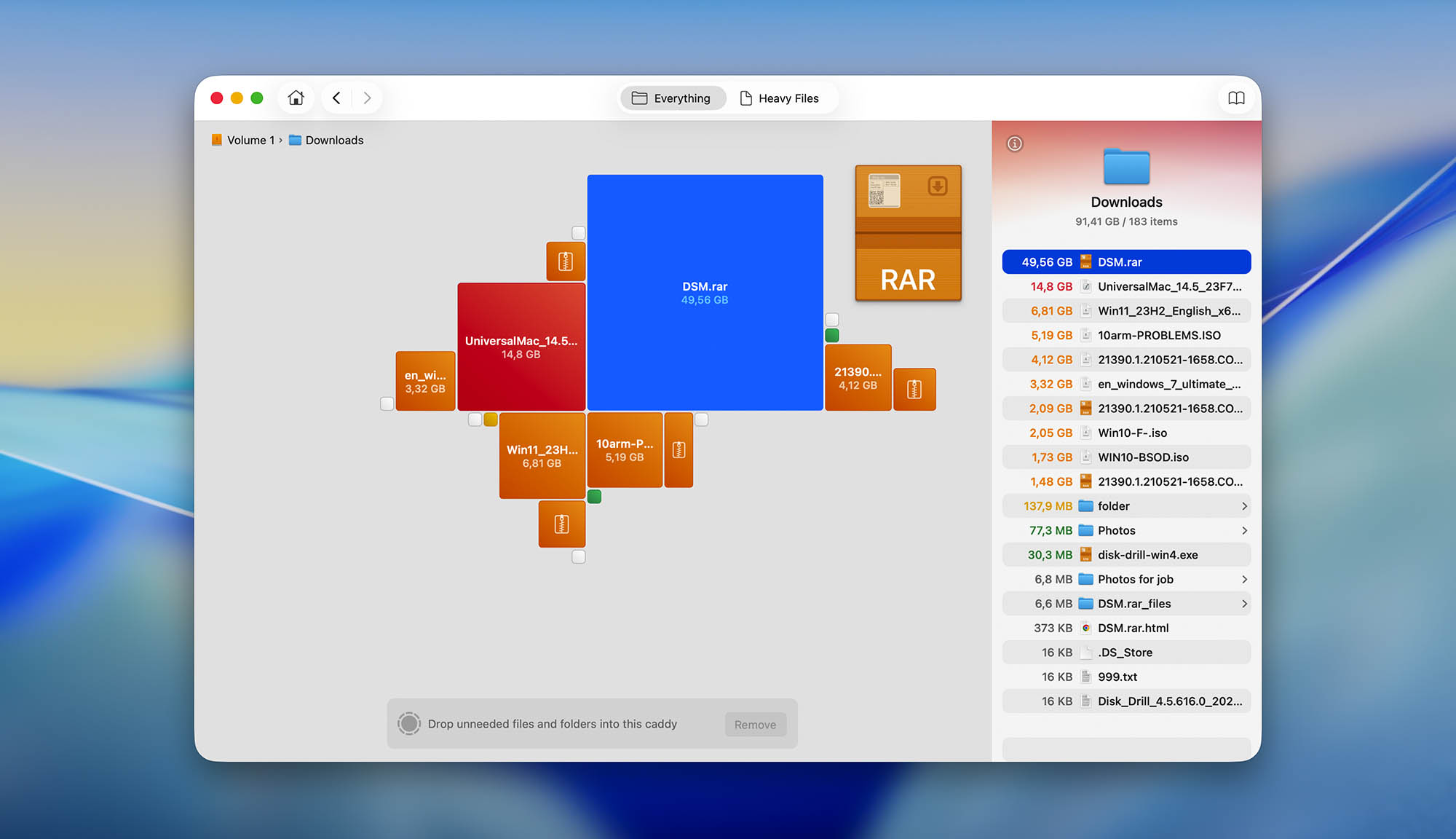
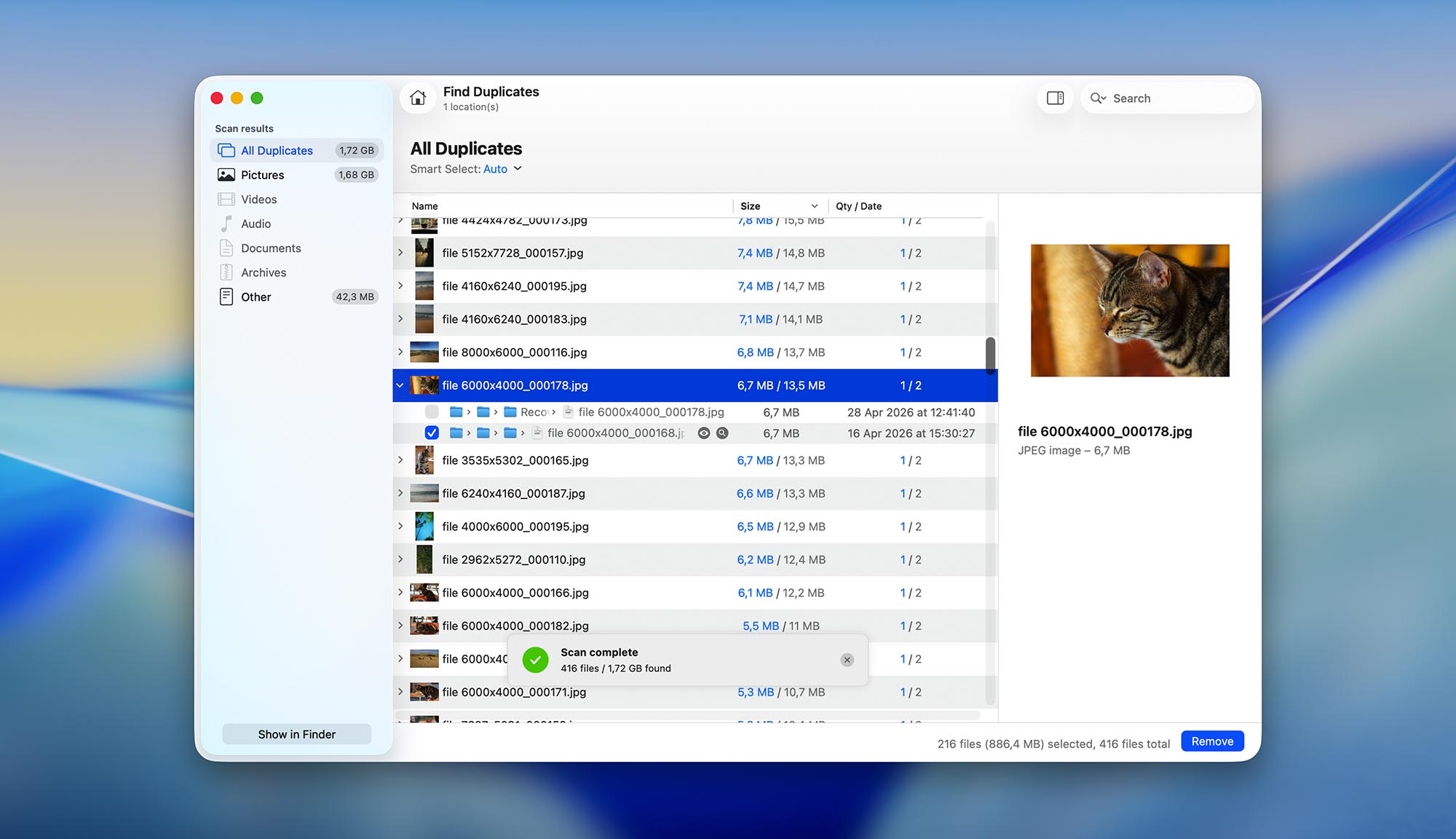
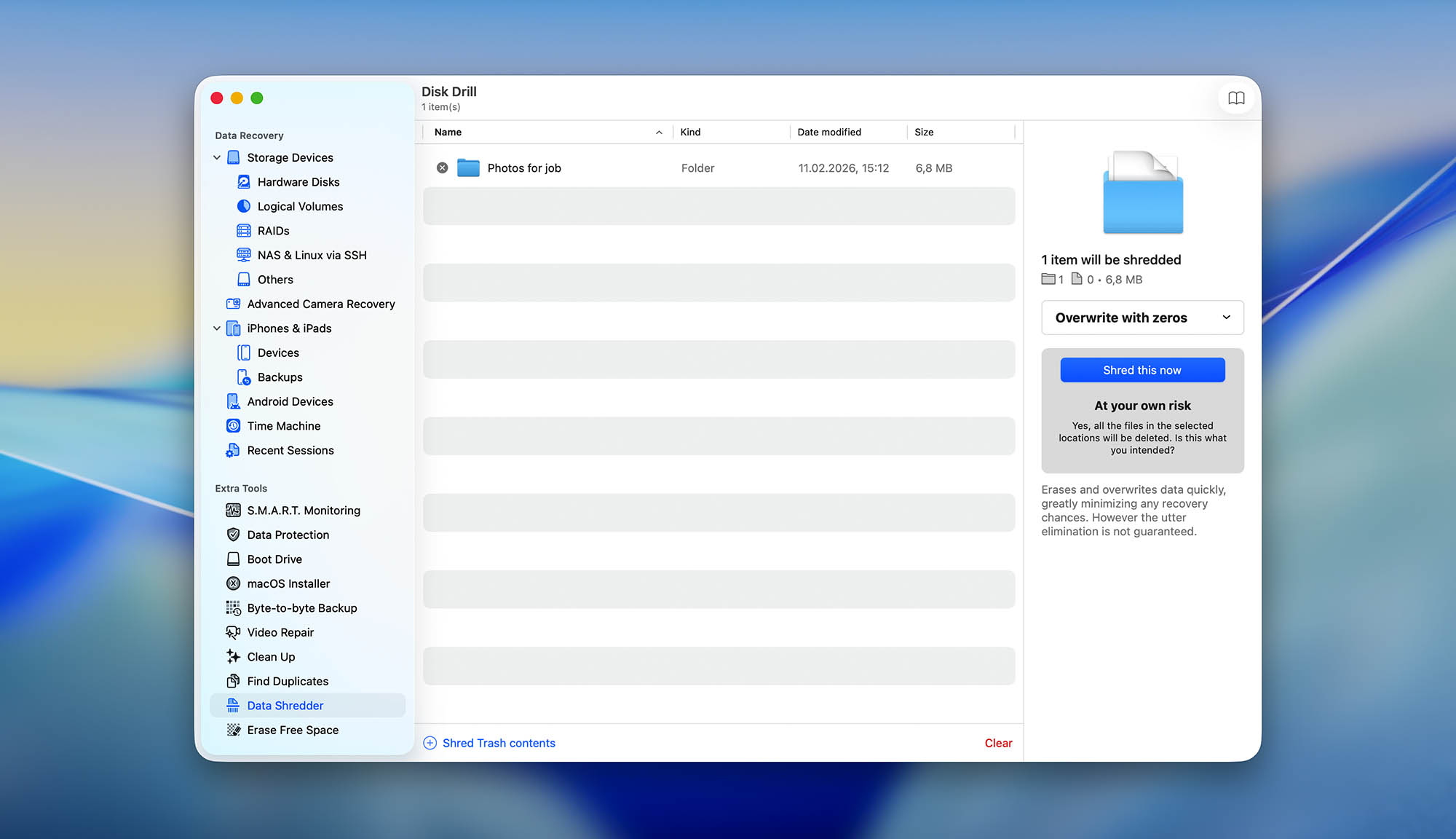
When it comes to data recovery performance and features, Disk Drill and DiskWarrior don’t even compete in the same league. Not only does Disk Drill support all modern file systems that Mac users are likely to encounter, its one-click data recovery process allows even complete newbies to achieve excellent results.
Key differences: Disk Drill vs DiskWarrior

| # | Feature | DiskWarrior | Disk Drill |
|---|---|---|---|
| 1 | Starting price | $119.95 / Lifetime | $89.00 / Annual |
| 2 | Latest macOS supported | good | good |
| 3 | FAT32 partitions scan | bad | good |
| 4 | exFAT partitions scan | bad | good |
| 5 | Raw photo recovery | base-cons | base-pros |
| 6 | Video formats recovery | base-cons | base-pros |
| 7 | Document formats recovery | base-cons | base-pros |
| 8 | Preview recoverable items without interrupting the scan | bad | good |
| 9 | Multiple view modes in scan results | bad | good |
| 10 | Data protection | bad | good |
| 11 | Native deep scan of system drives on T2/M1-powered Macs | bad | good |
| 12 | S.M.A.R.T. | bad | good |
| 13 | Trial version available | cons | pros |
Disk Drill beats DiskWarrior in every regard, even price. Its broad file system support means it works in more scenarios, and the combination of file system and carving-based scanners maximizes how much data is found. Even after recovery, it has built-in data protection features to help reduce data loss in the future. One key difference is that recovering deleted data is one of its main functions, not just data that’s missing. It offers free scans so you can see what data can be recovered, making it a low-risk option to download and try.
There are more differences to discover.
Read full Disk Drill versus DiskWarrior comparisonDisk Drill is a good alternative to DiskWarrior because:
Compatible with the latest version of macOS
Supports modern file systems and file formats
Easy-to-use interface
Affordably priced
Actively developed
Disk Drill is a poor alternative to DiskWarrior because:
Disk Drill doesn't specialize in hard drive repair
2. EaseUS Data Recovery Wizard for Mac
Overview
EaseUS Data Recovery Wizard for Mac is widely regarded as one of the most straightforward apps of its kind. The free version of this software can recover up to 500 MB of data, plus another 1.5 GB bonus if you share it on social media, so you may be able to get all your files back without paying.
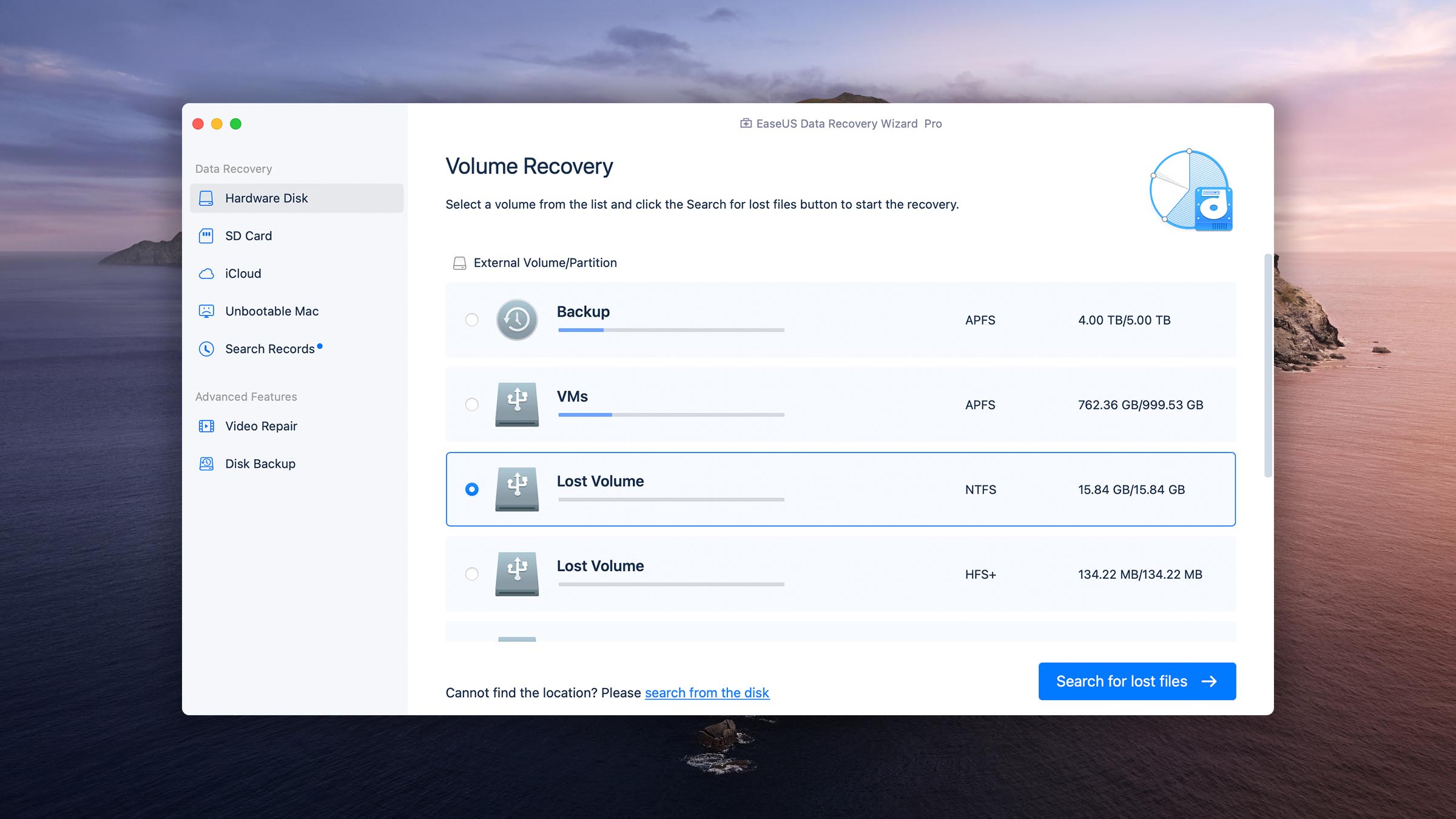
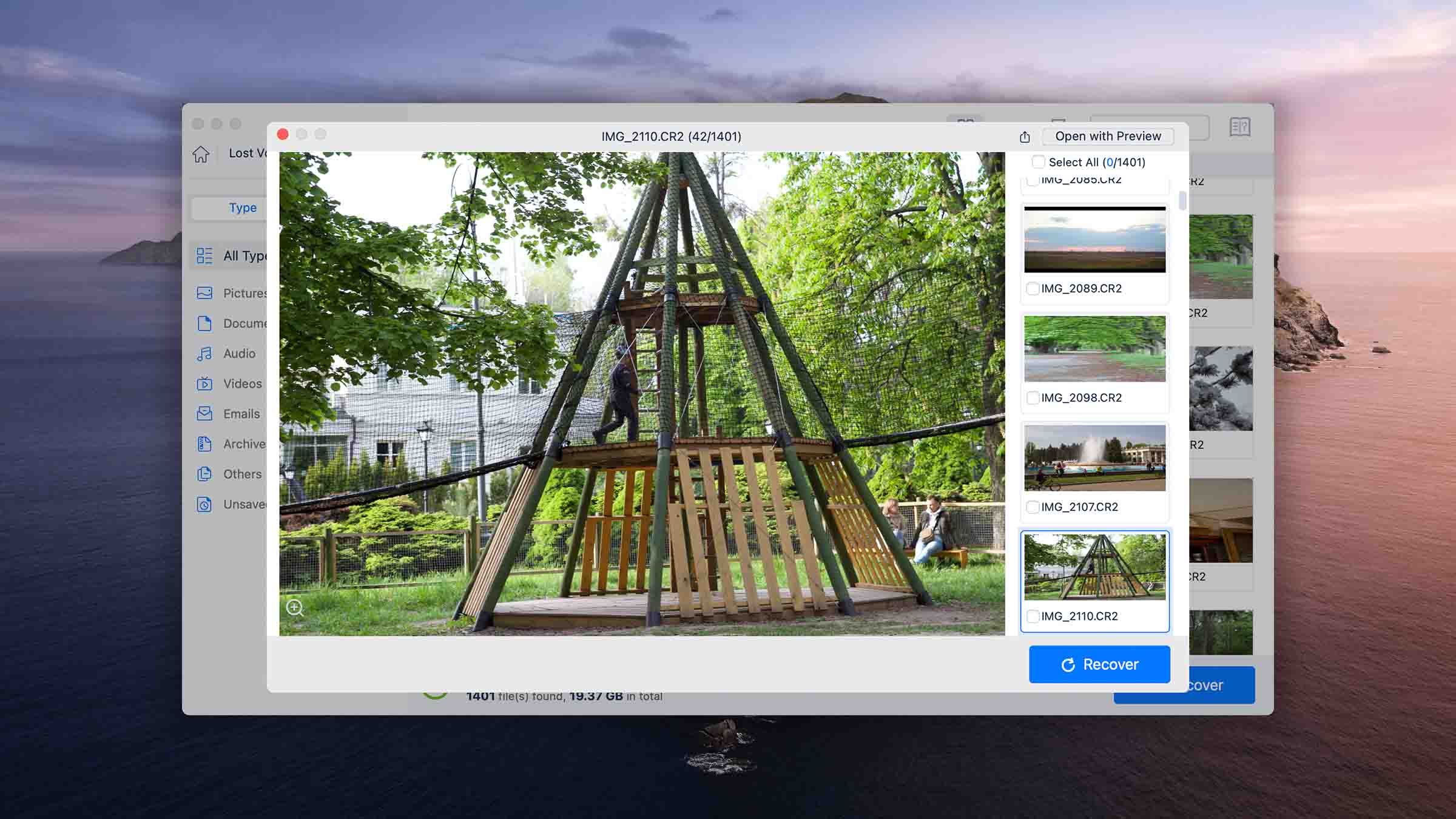
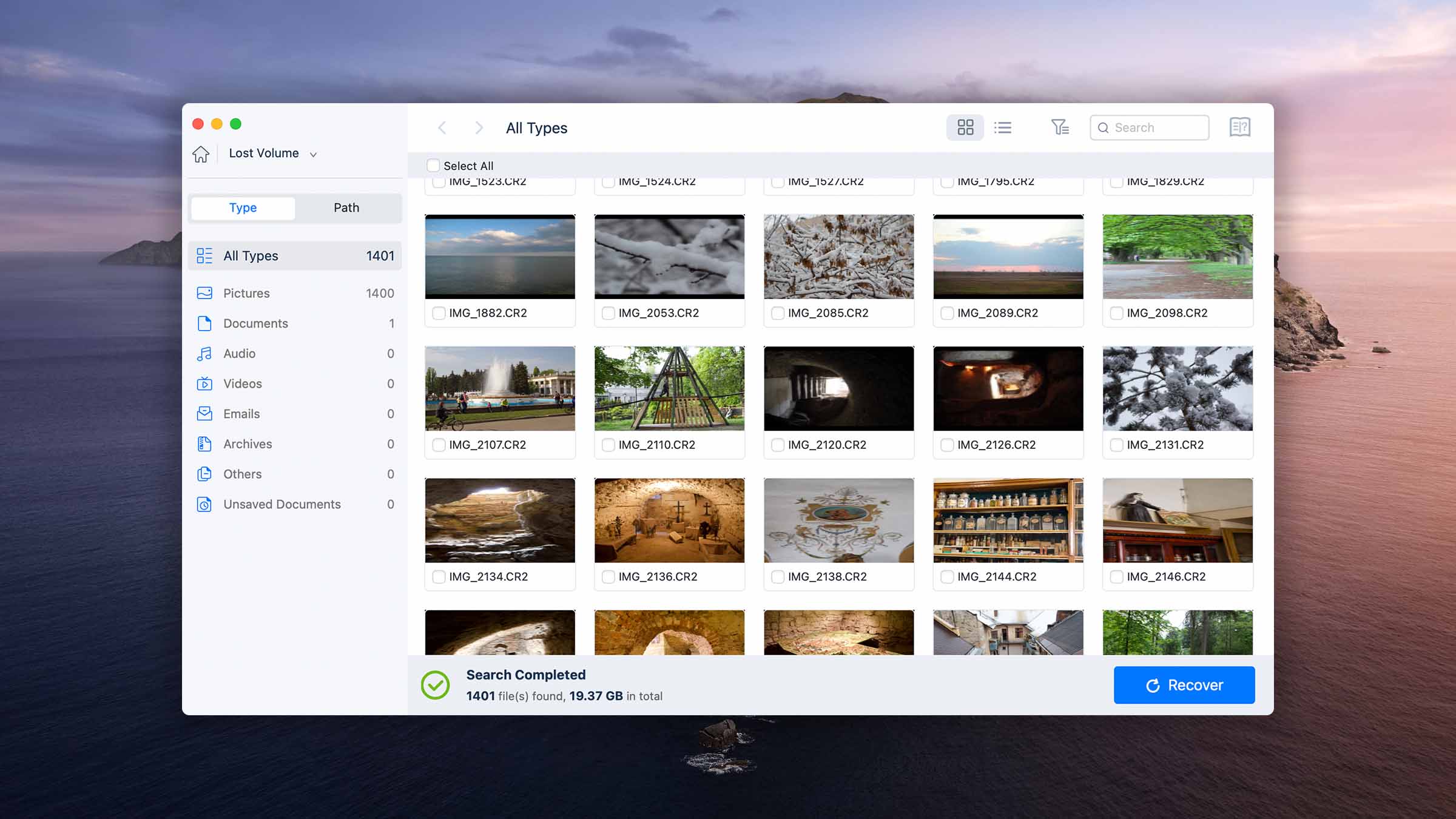
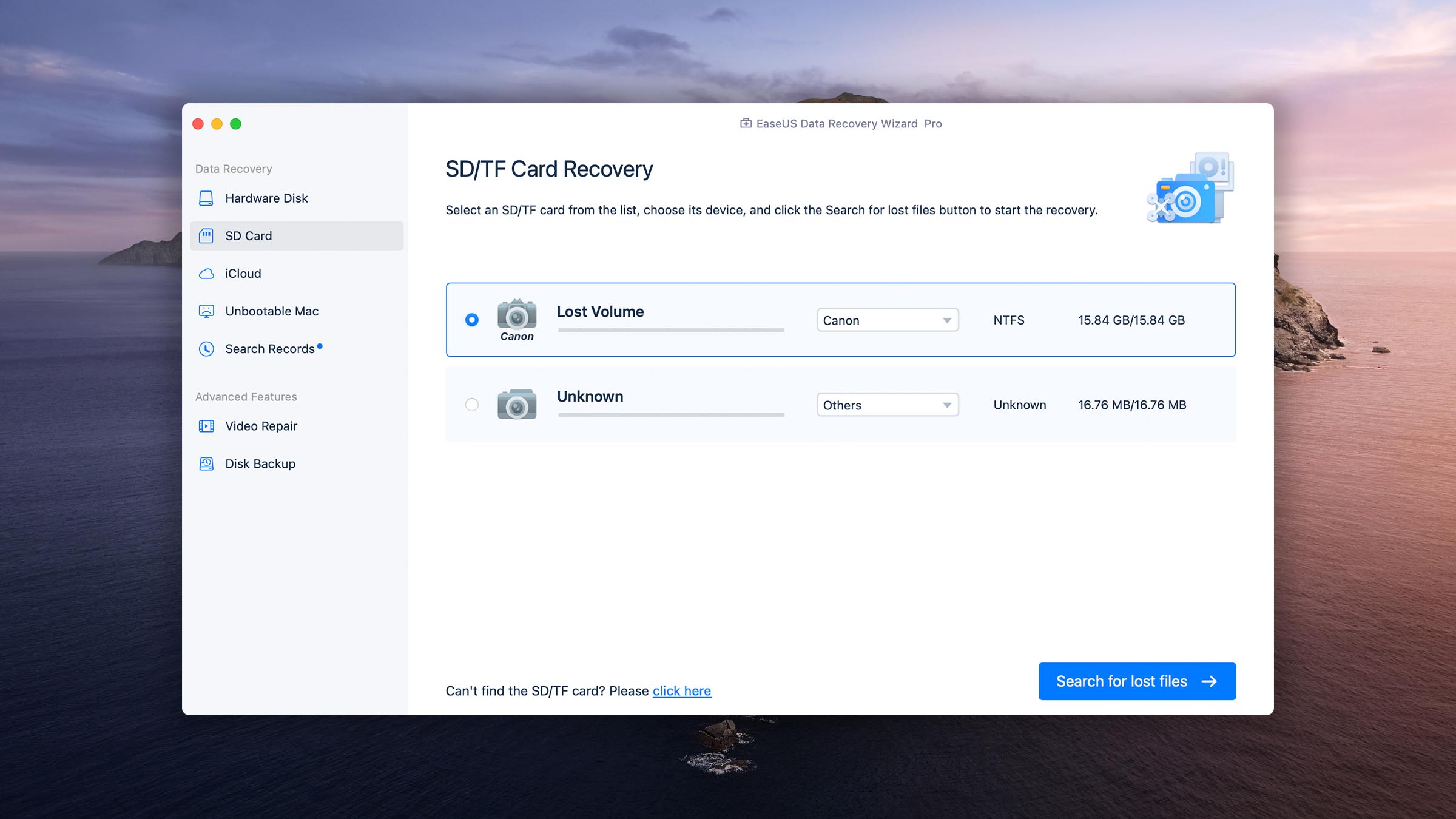
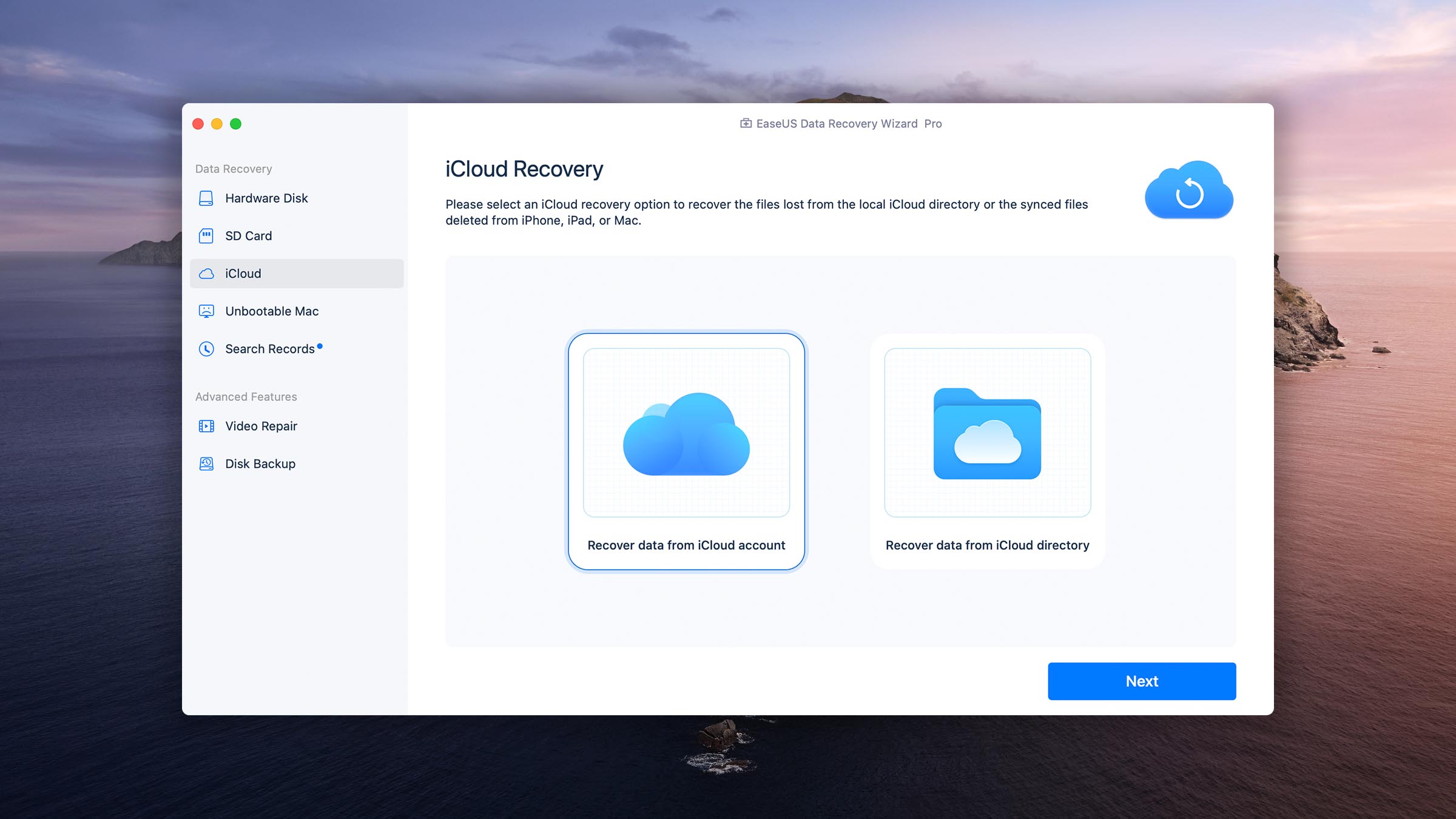
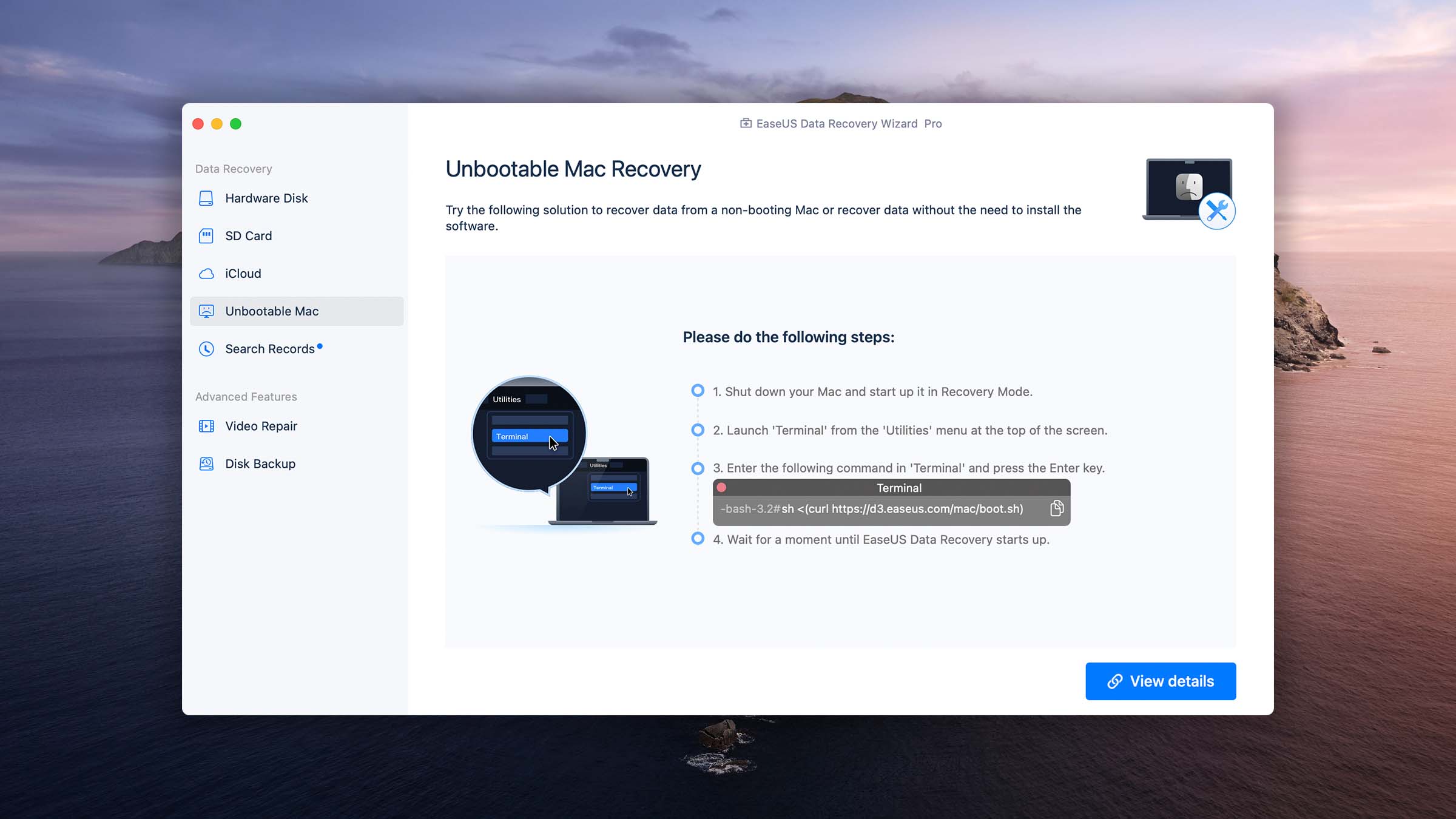
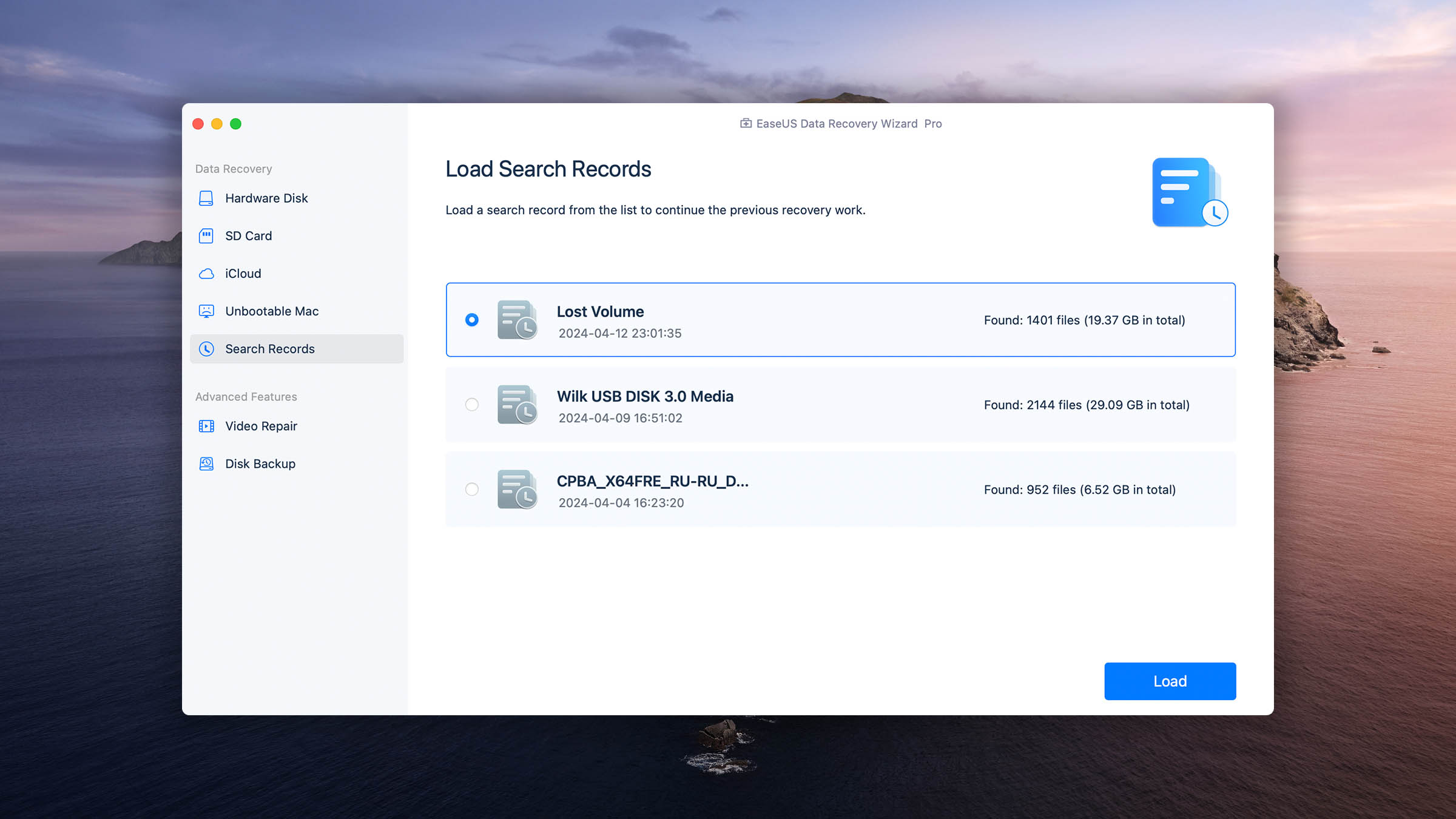
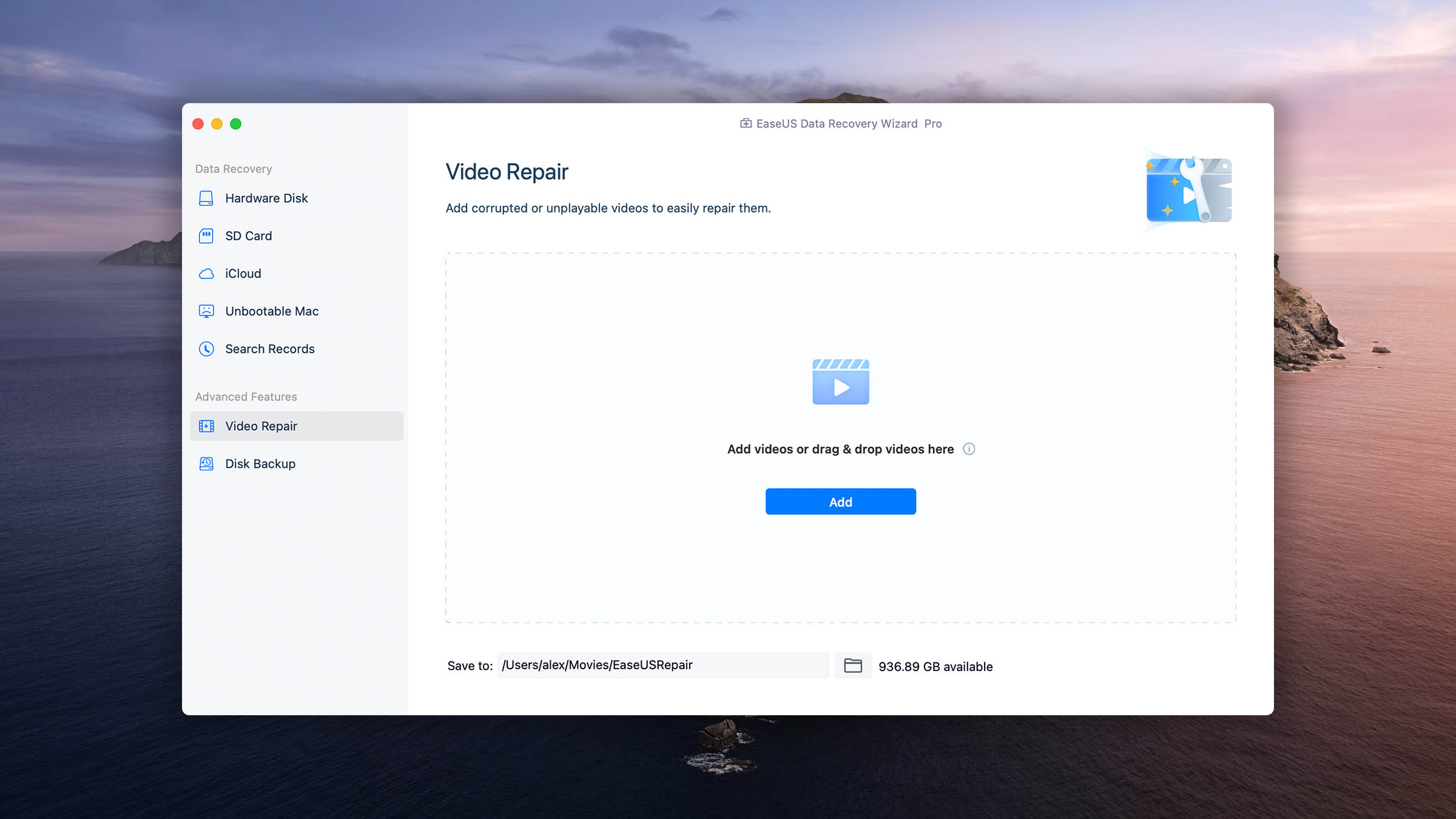
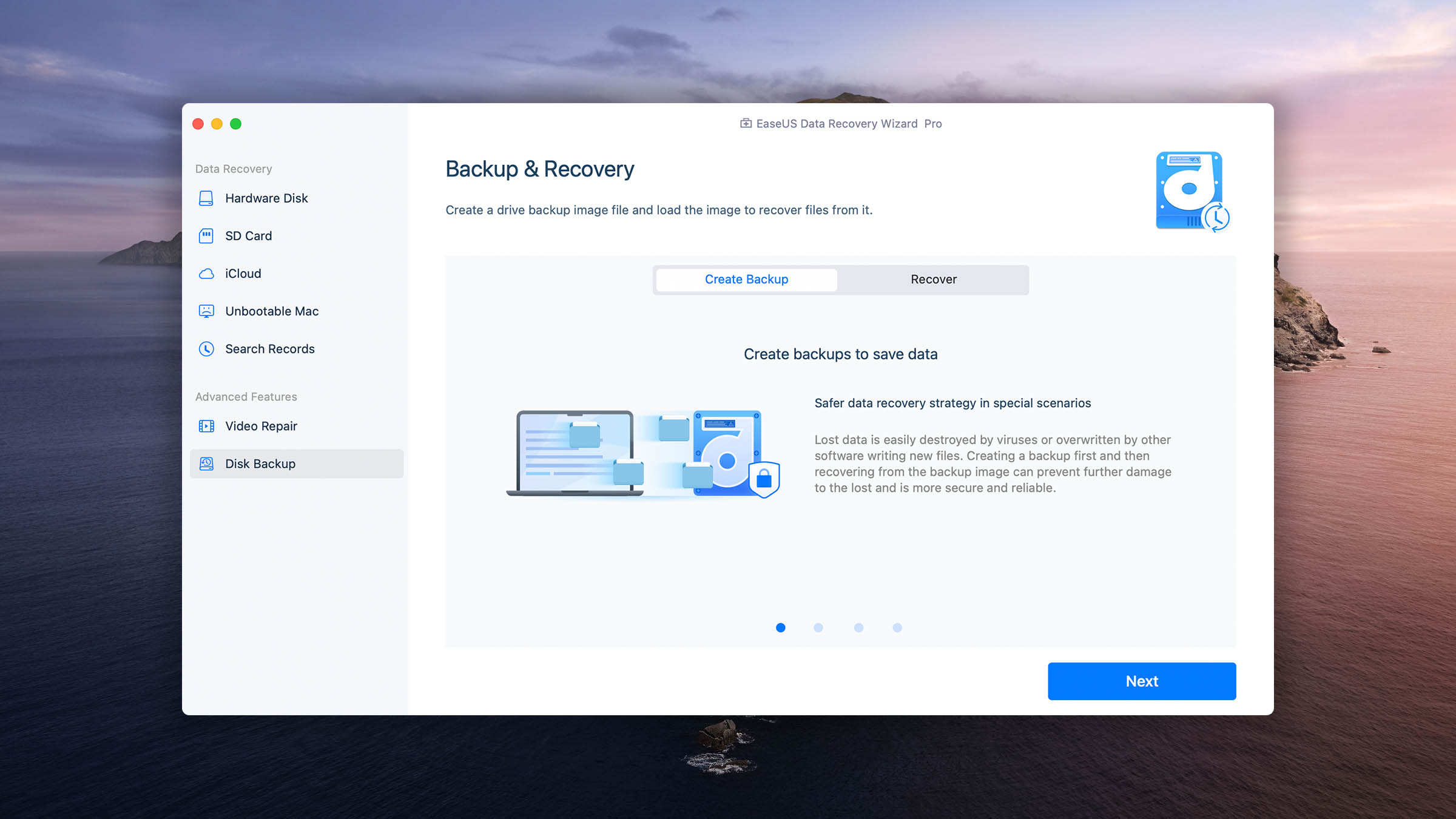
One of the biggest downsides of DiskWarrior is the lack of support for APFS partitions. In this regard, EaseUS Data Recovery Wizard fares better but not as well as Disk Drill. While APFS partitions are supported, the results you get are often mixed. Still, the overall performance is miles ahead of DiskWarrior.
Key differences: EaseUS Data Recovery Wizard vs DiskWarrior

| # | Feature | DiskWarrior | EaseUS Data Recovery Wizard |
|---|---|---|---|
| 1 | Starting price | $119.95 / Lifetime | $89.95 / 1 month |
| 2 | Raw photo recovery | base-cons | base-pros |
| 3 | Partial file recovery | bad | good |
| 4 | Modern user-friendly interface | bad | good |
| 5 | Easy-to-locate features | bad | good |
| 6 | Built-in updater | bad | good |
| 7 | Live chat | bad | good |
| 8 | HFS+ directory rebuild | good | bad |
| 9 | Overall non-intrusive read-only algorithms | good | bad |
| 10 | Mount recoverable items as disk | good | bad |
EaseUS Data Recovery Wizard for Mac is better than DiskWarrior in most ways. The few areas in which it lags behind are not that important—perhaps with the exception of its lack of non-intrusive read-only algorithms.
EaseUS Data Recovery Wizard is a good alternative to DiskWarrior because:
Modern user interface
Recovers a large number of file formats
Supports the APFS file system
Great raw photo recovery performance
More affordable
EaseUS Data Recovery Wizard is a poor alternative to DiskWarrior because:
Doesn’t use non-intrusive, read-only scans
Can't mount recoverable items as disk
Lacks disk repair features
3. R-Studio for Mac
Overview
R-Studio for Mac appeals to the same group of users as DiskWarrior: Mac power users who can appreciate advanced features and plenty of control over the recovery process. The difference is that R-Studio is actively developed and constantly improved while DiskWarrior isn’t.
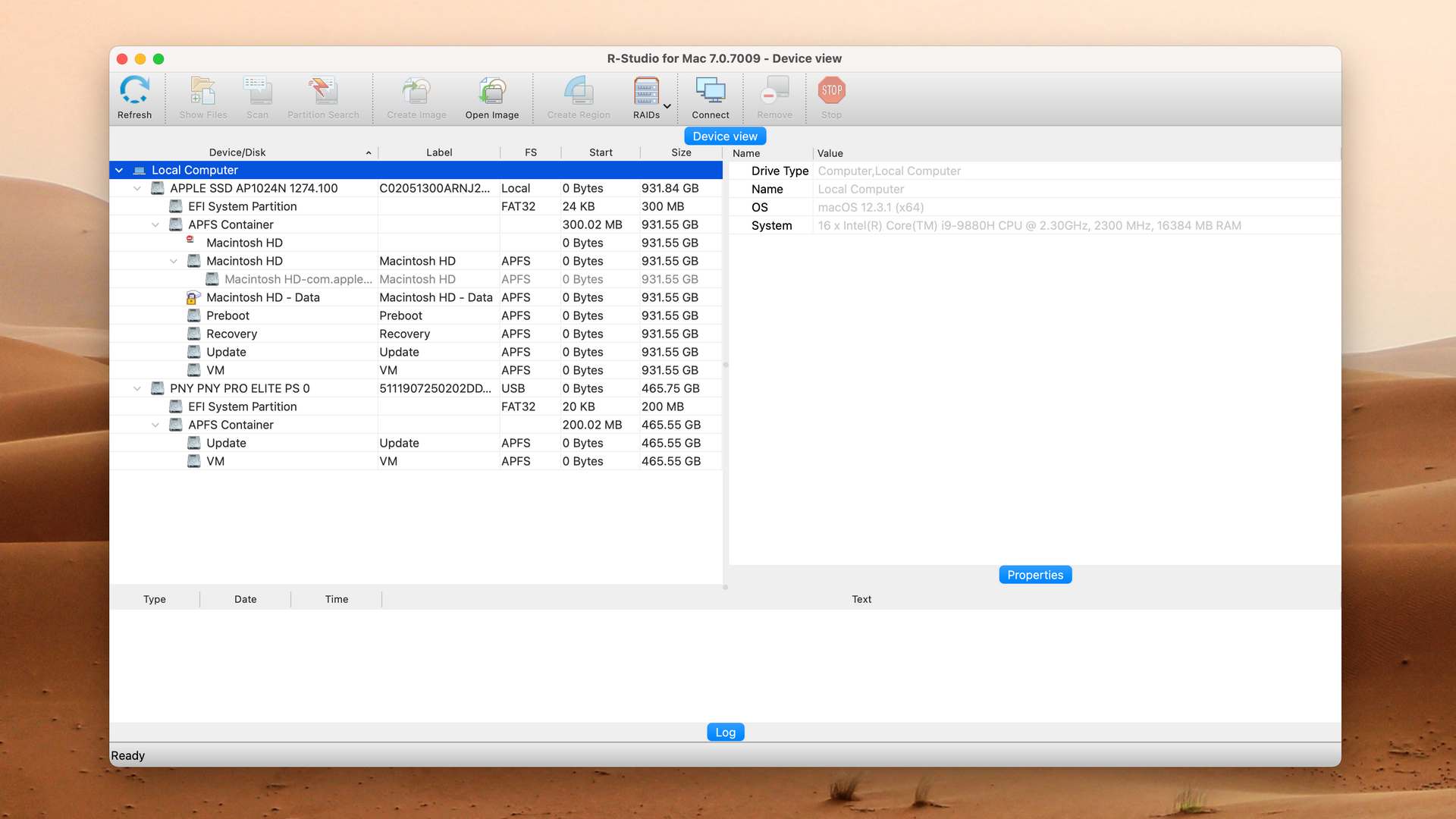
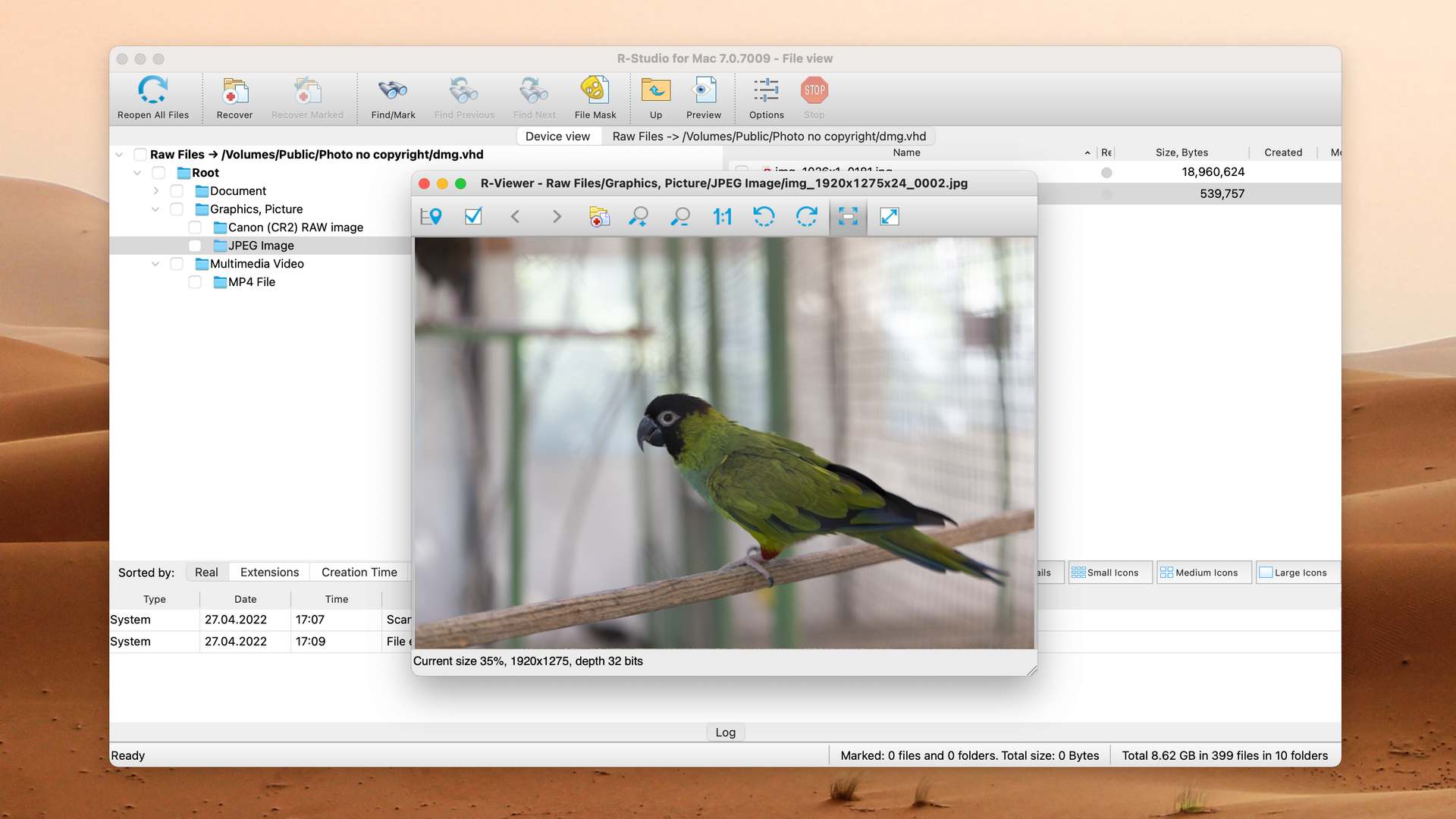
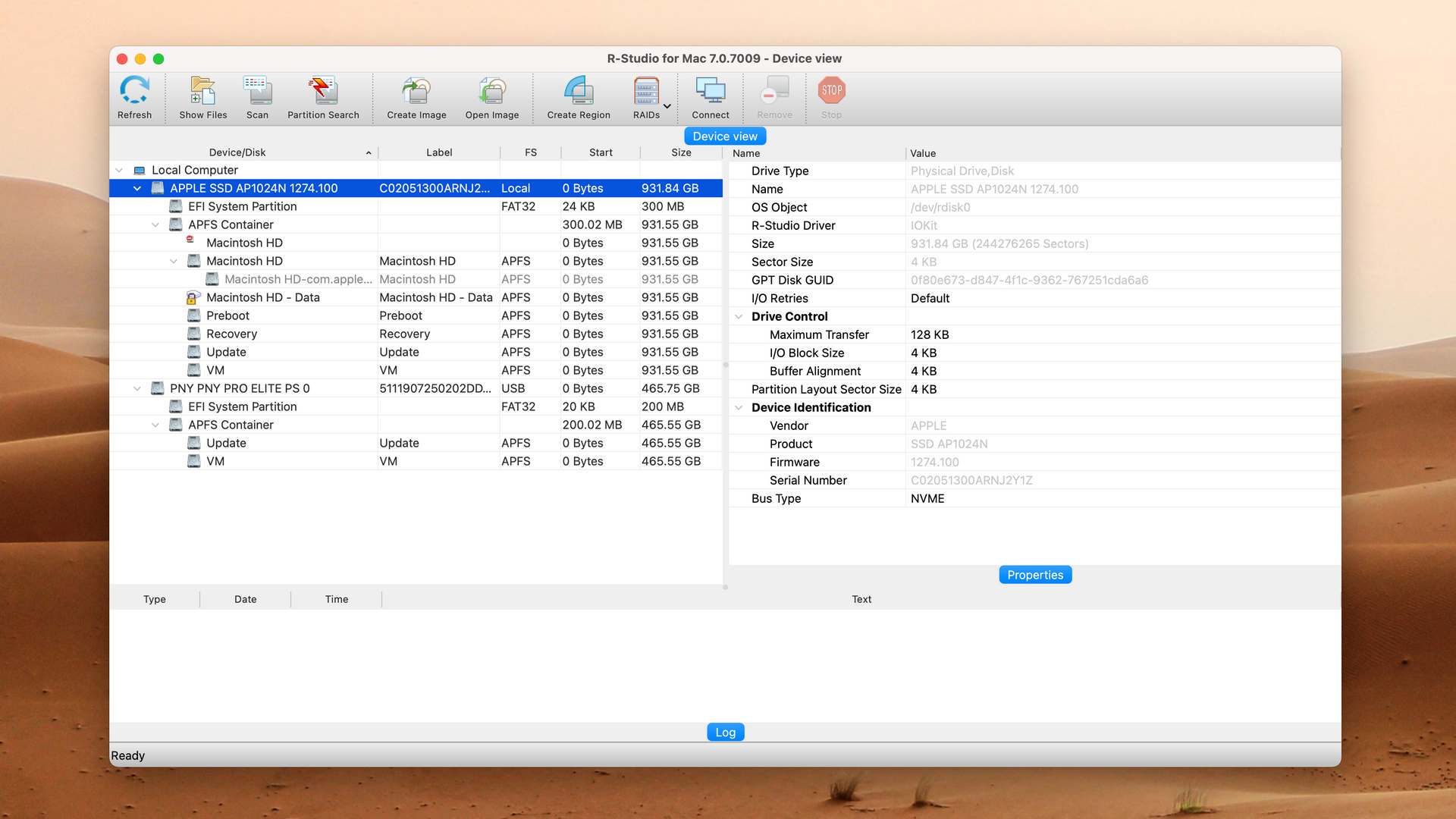
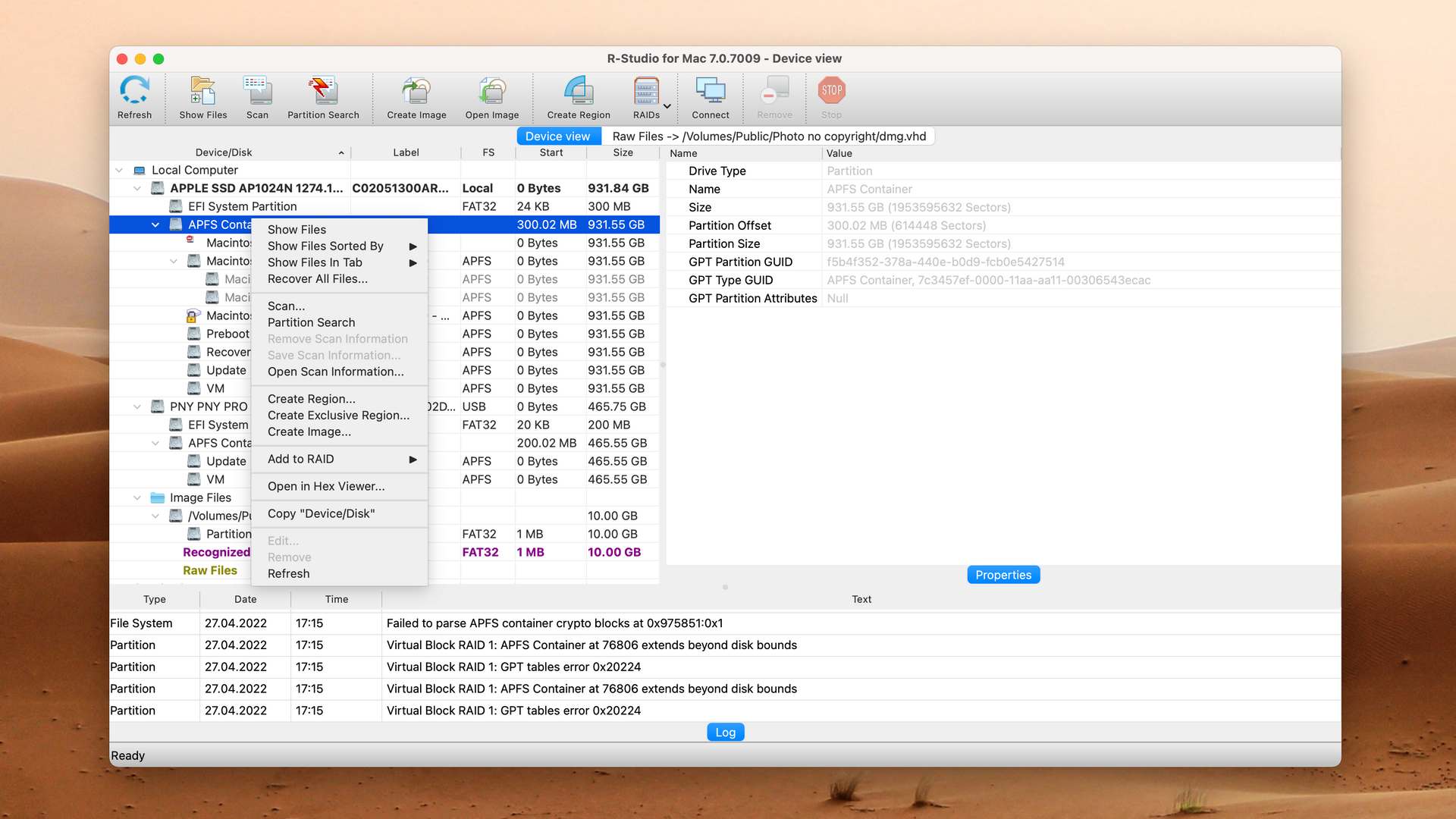
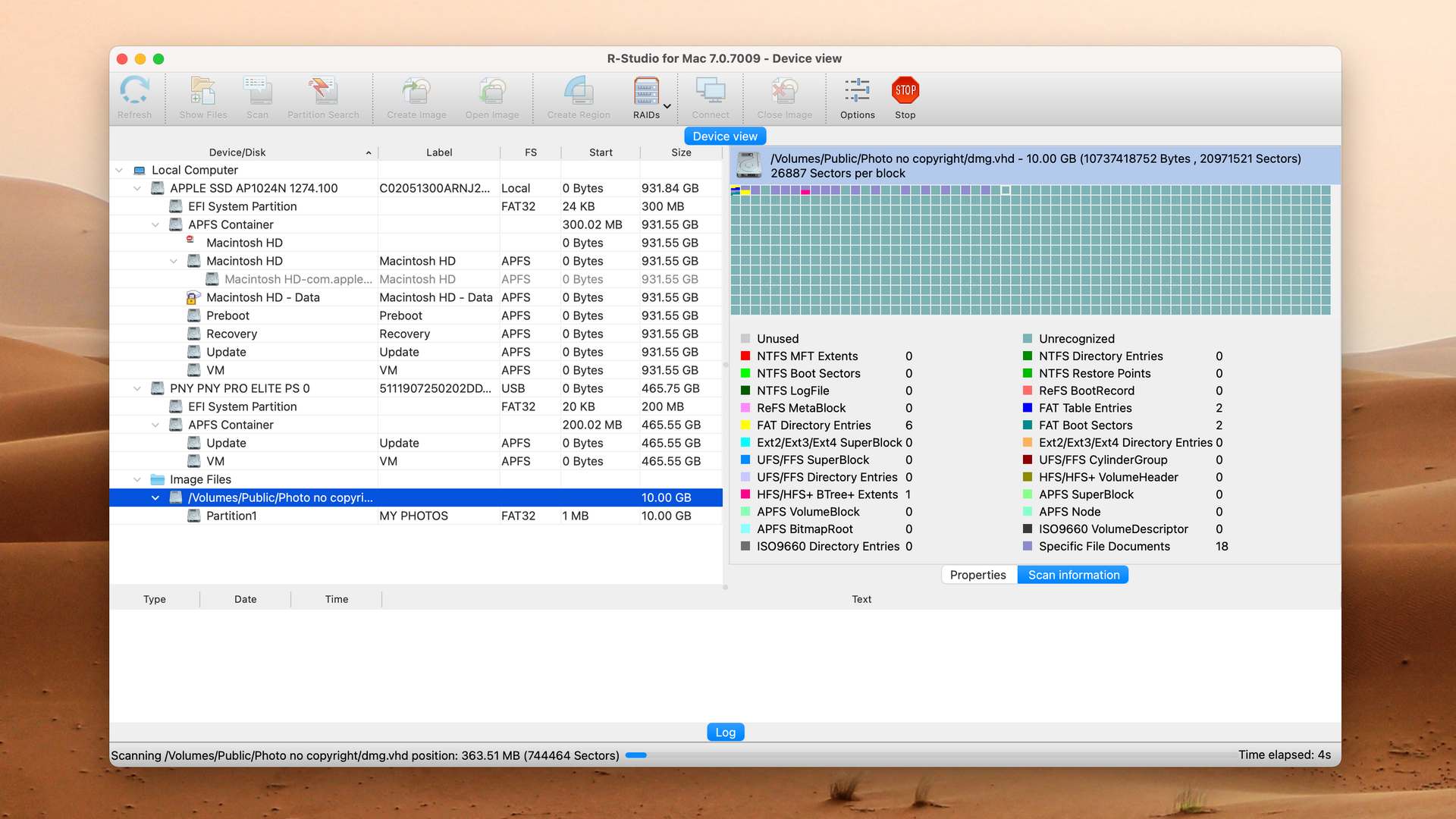
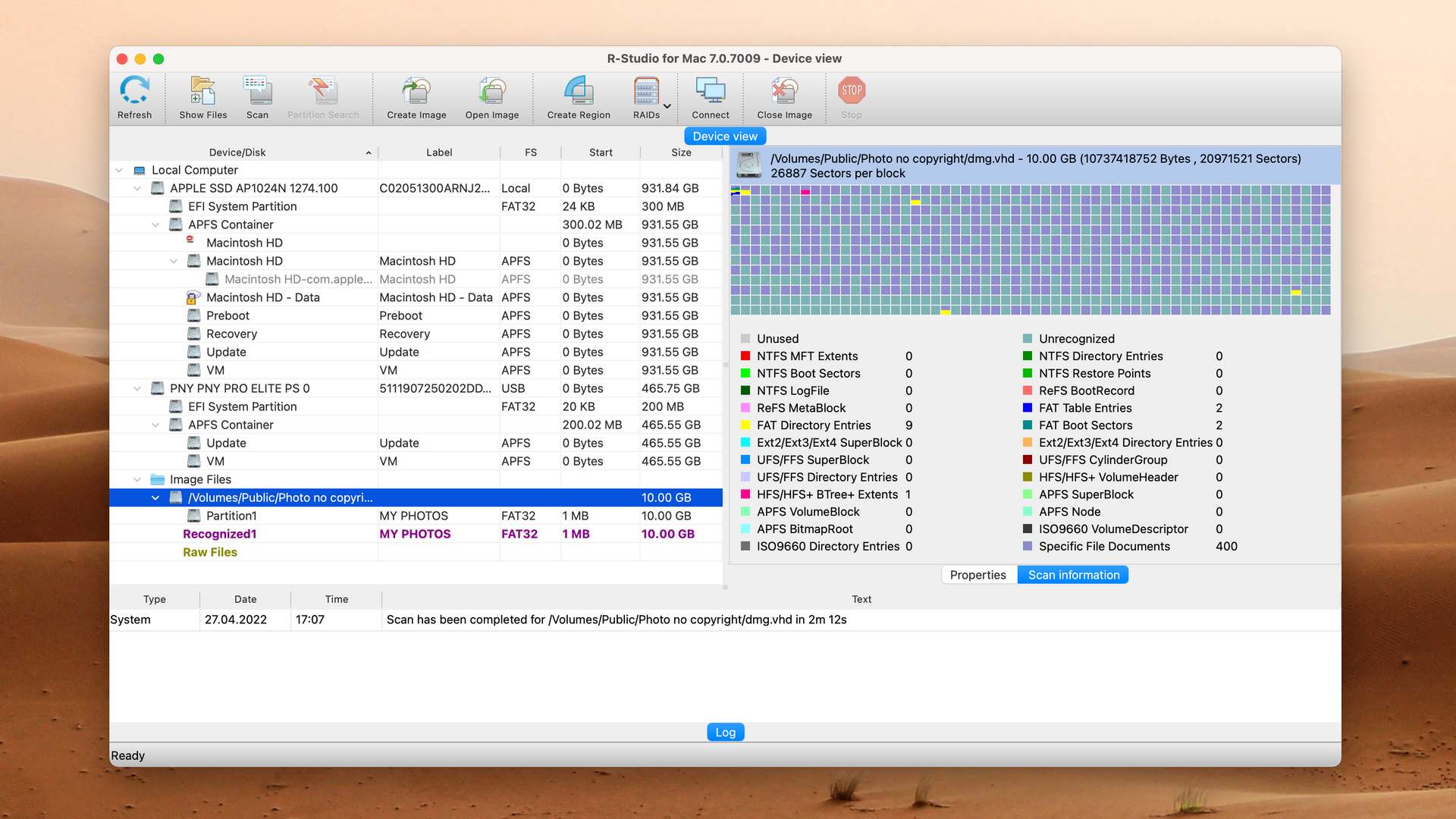
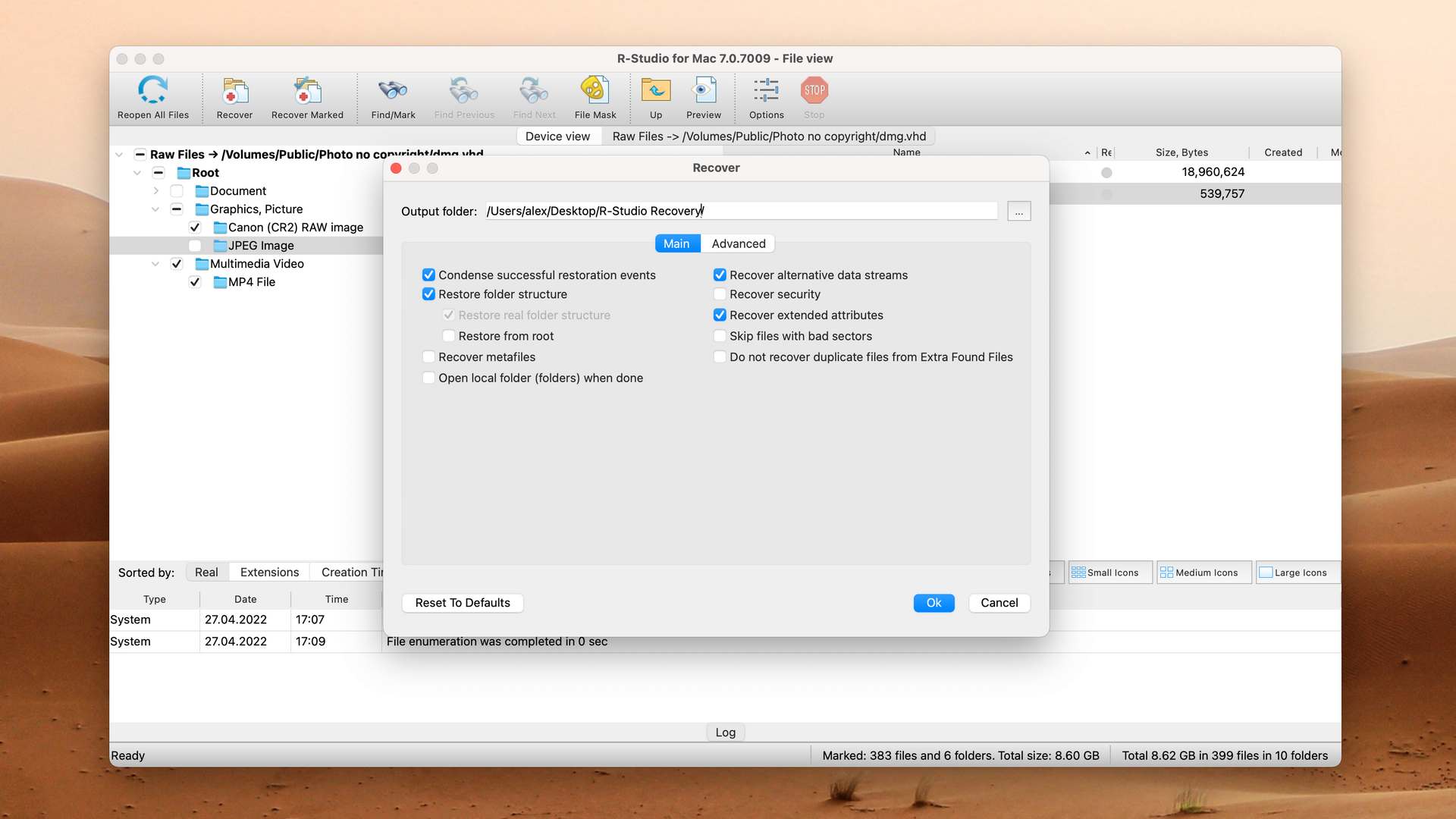
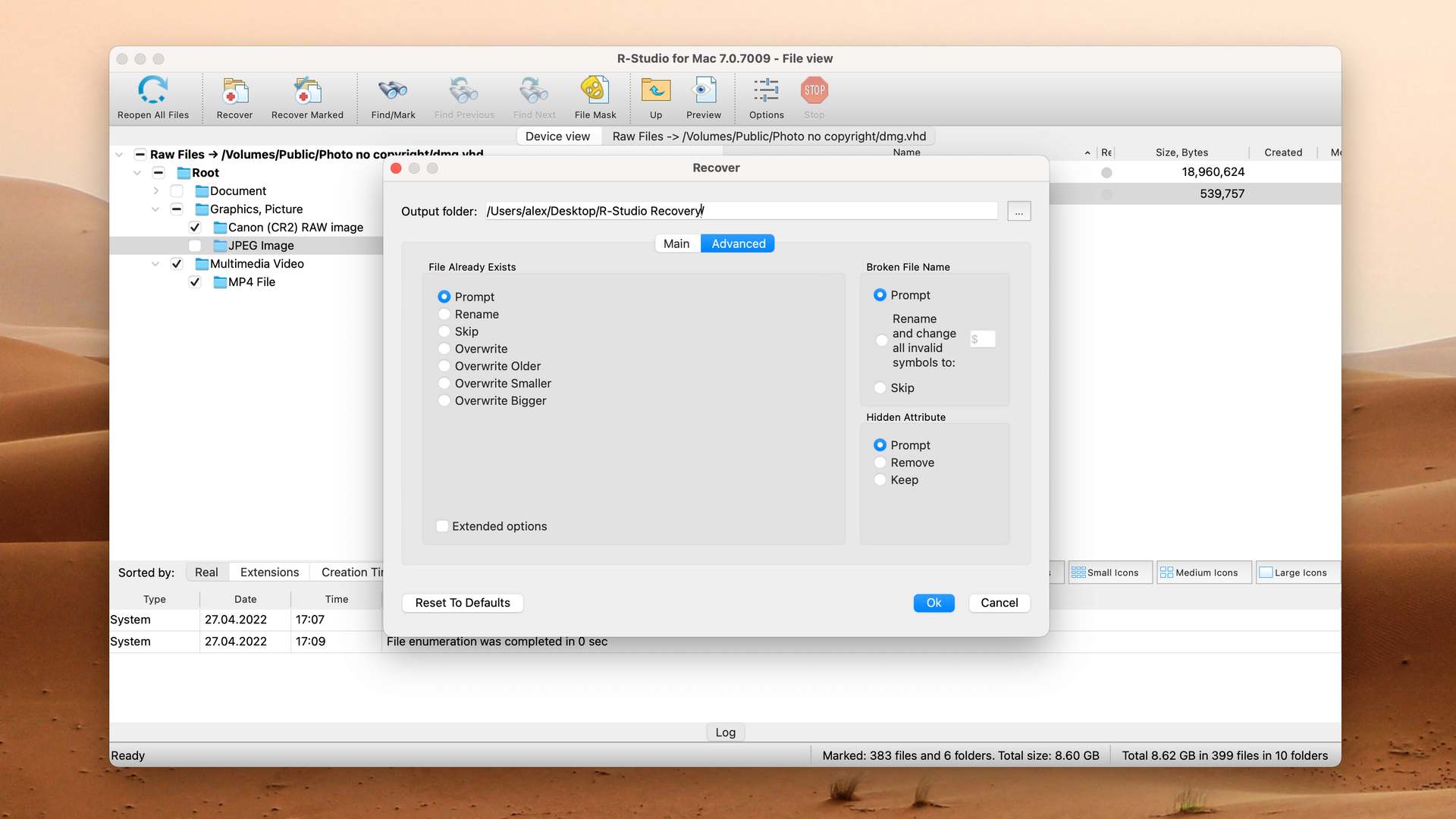

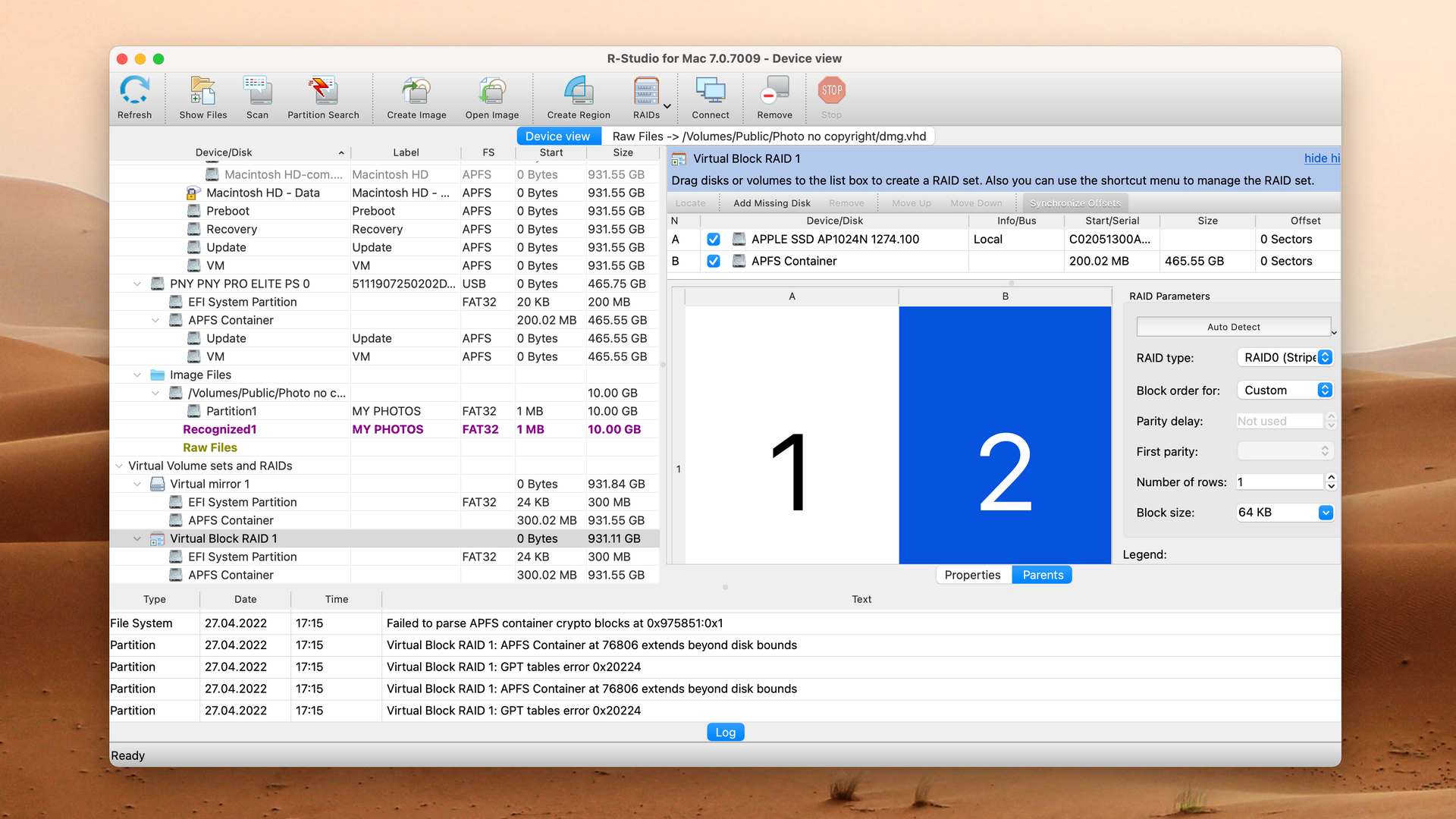
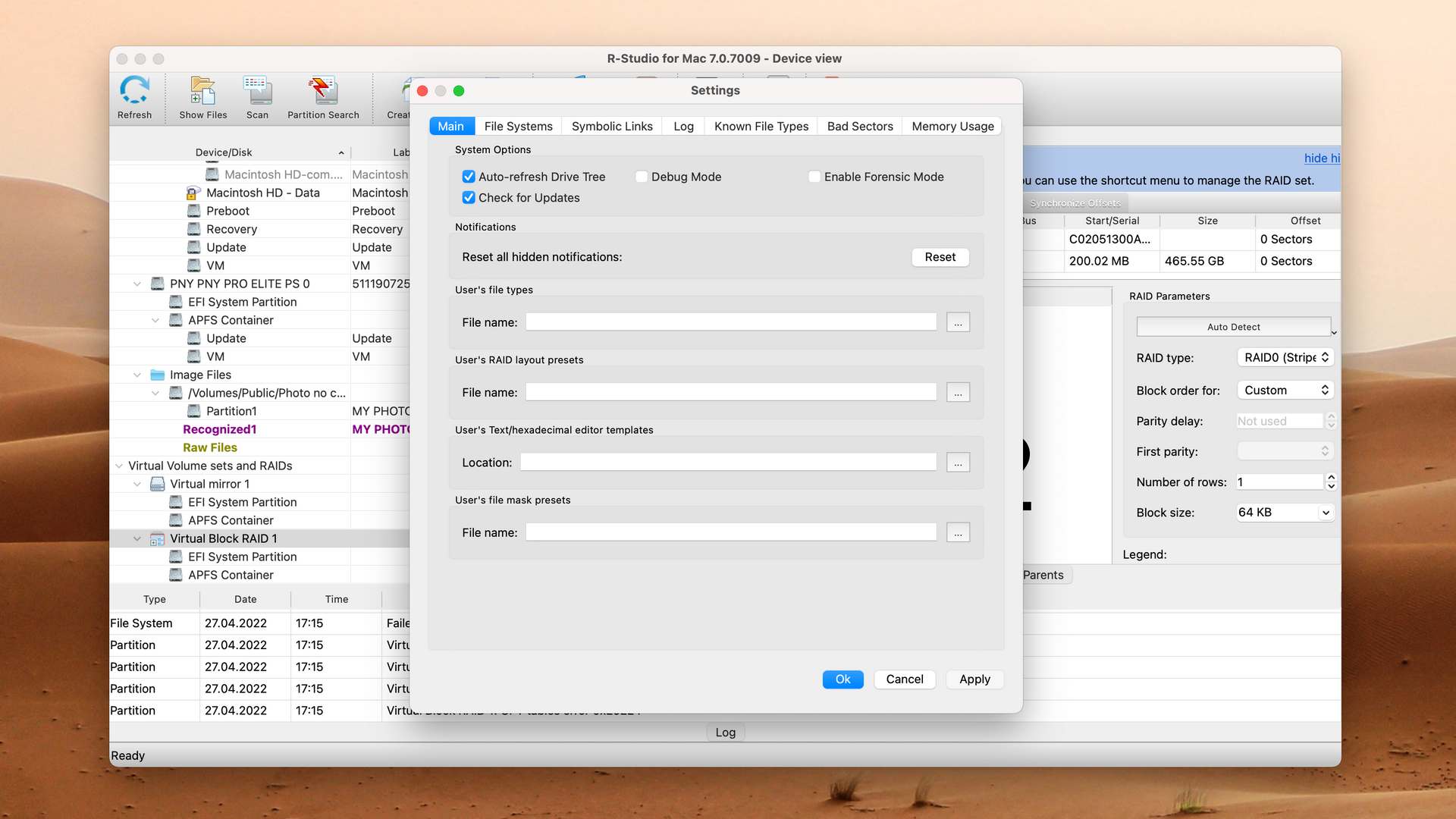
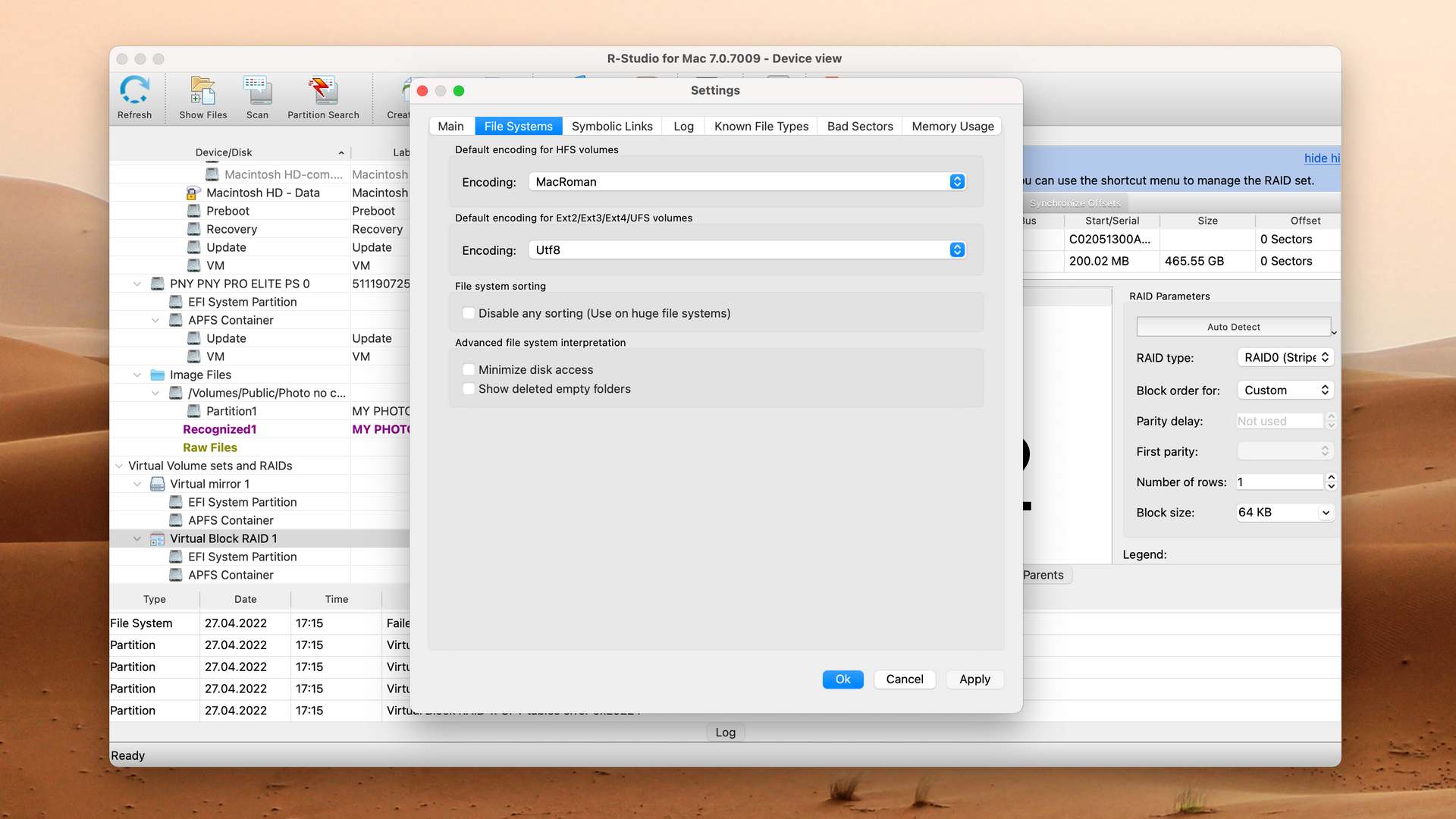
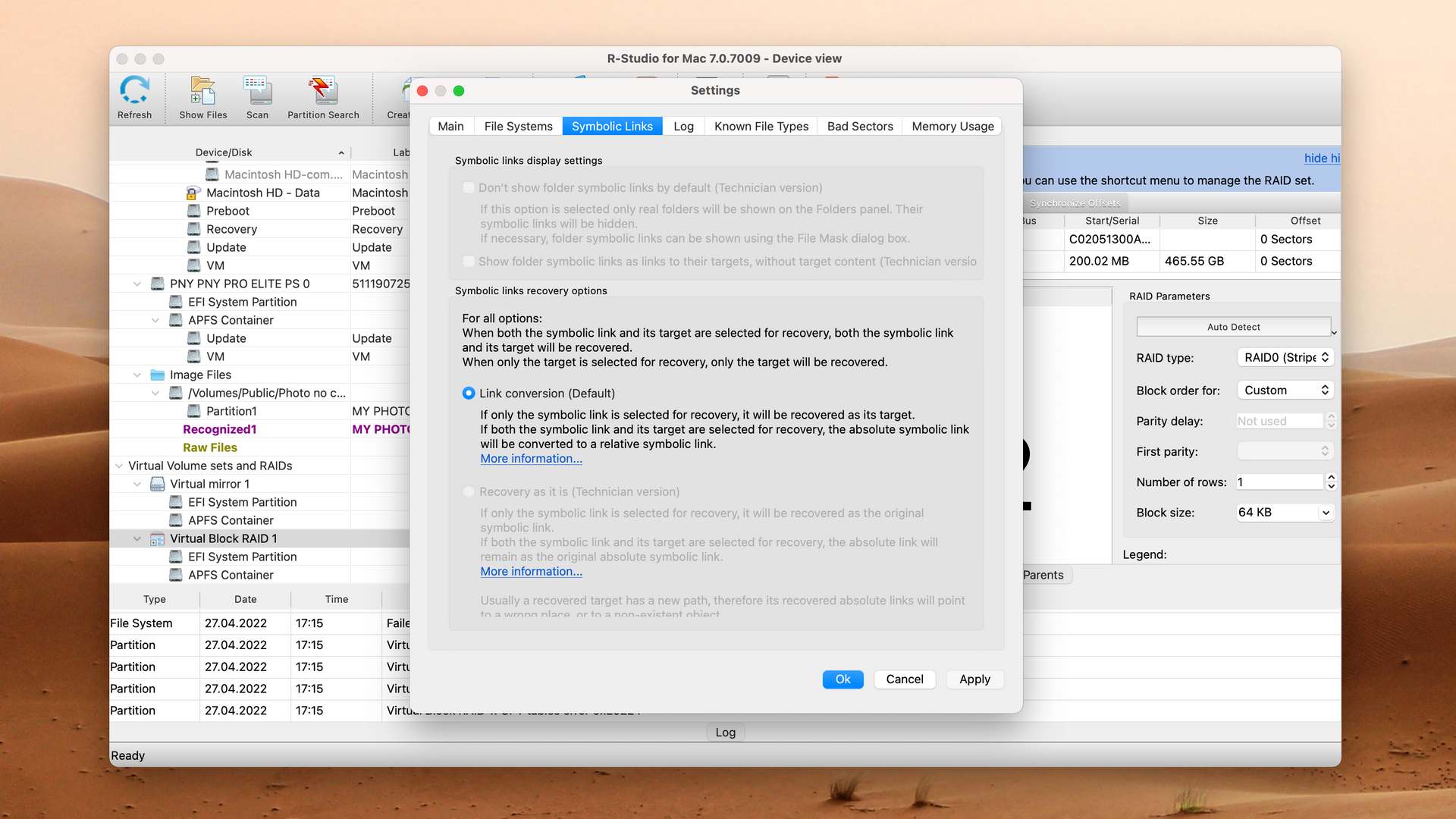
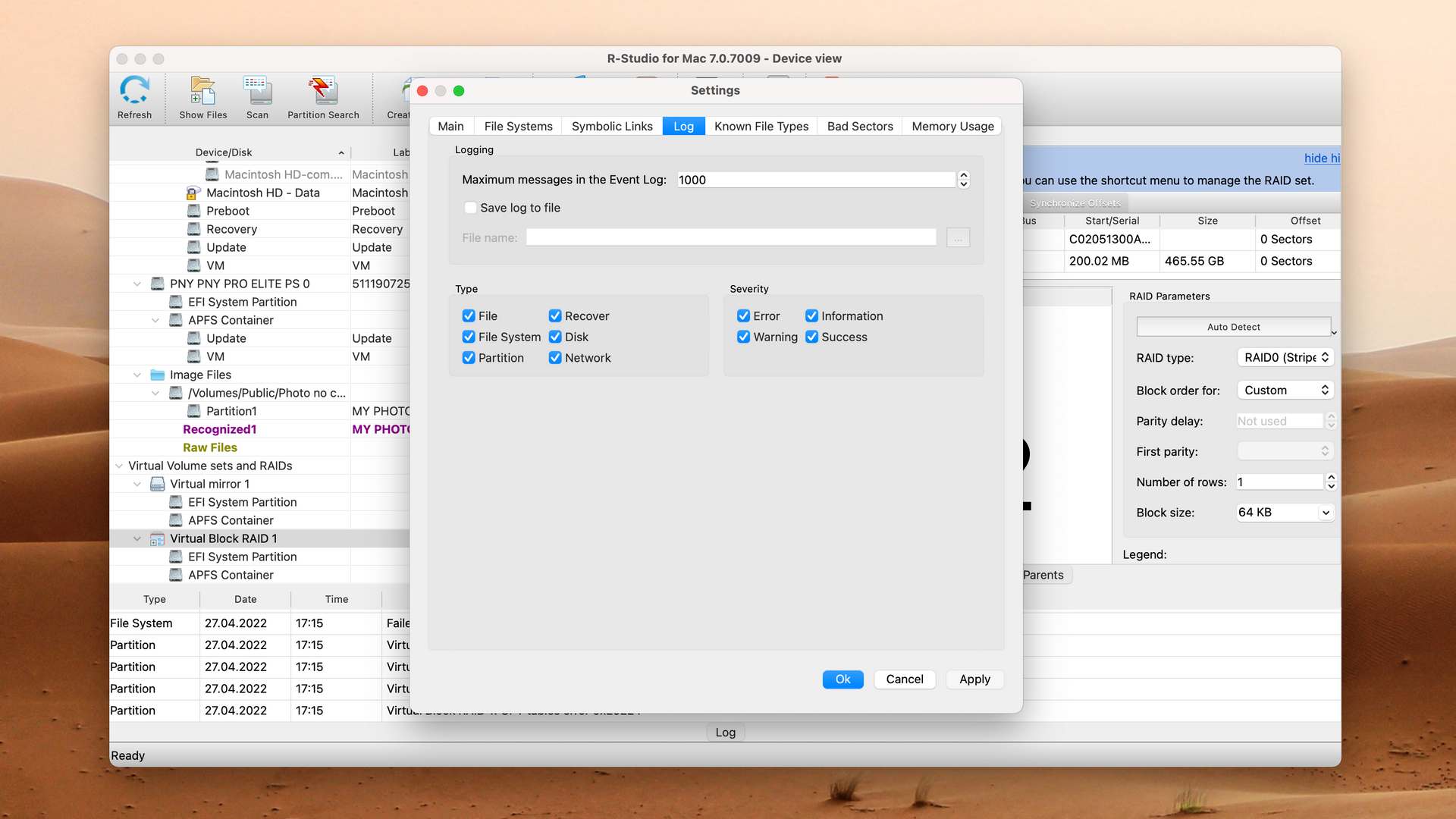
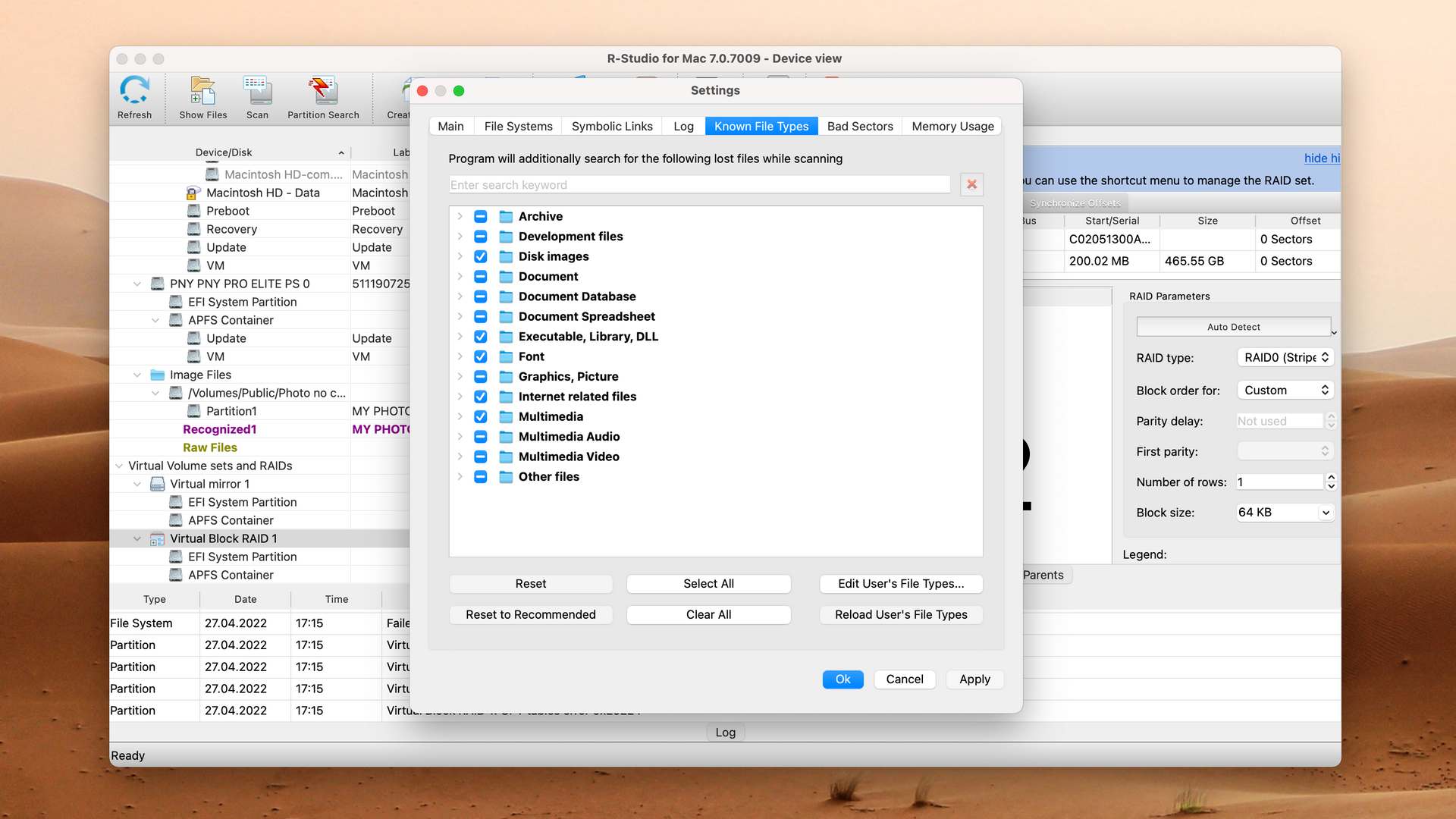
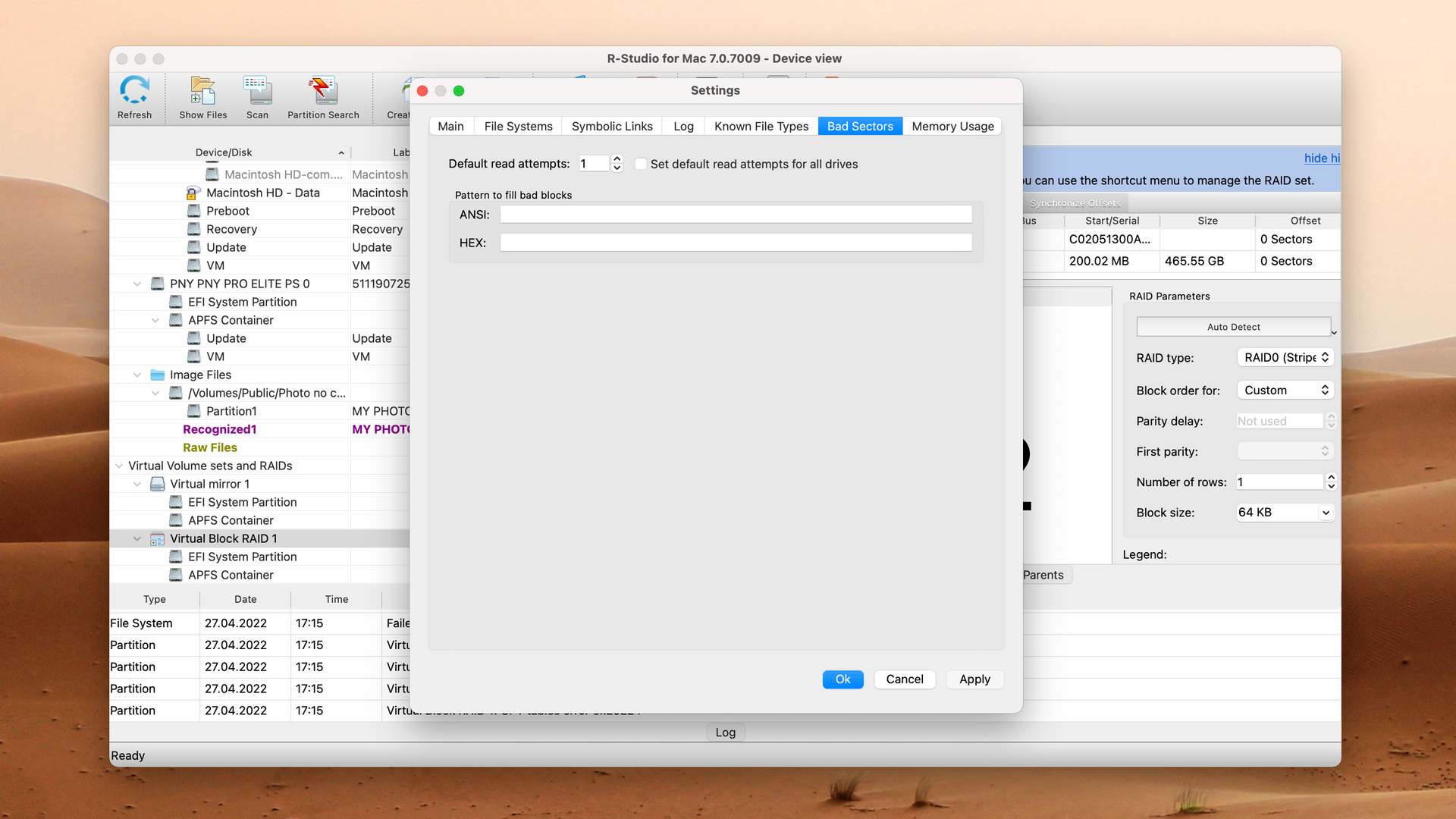
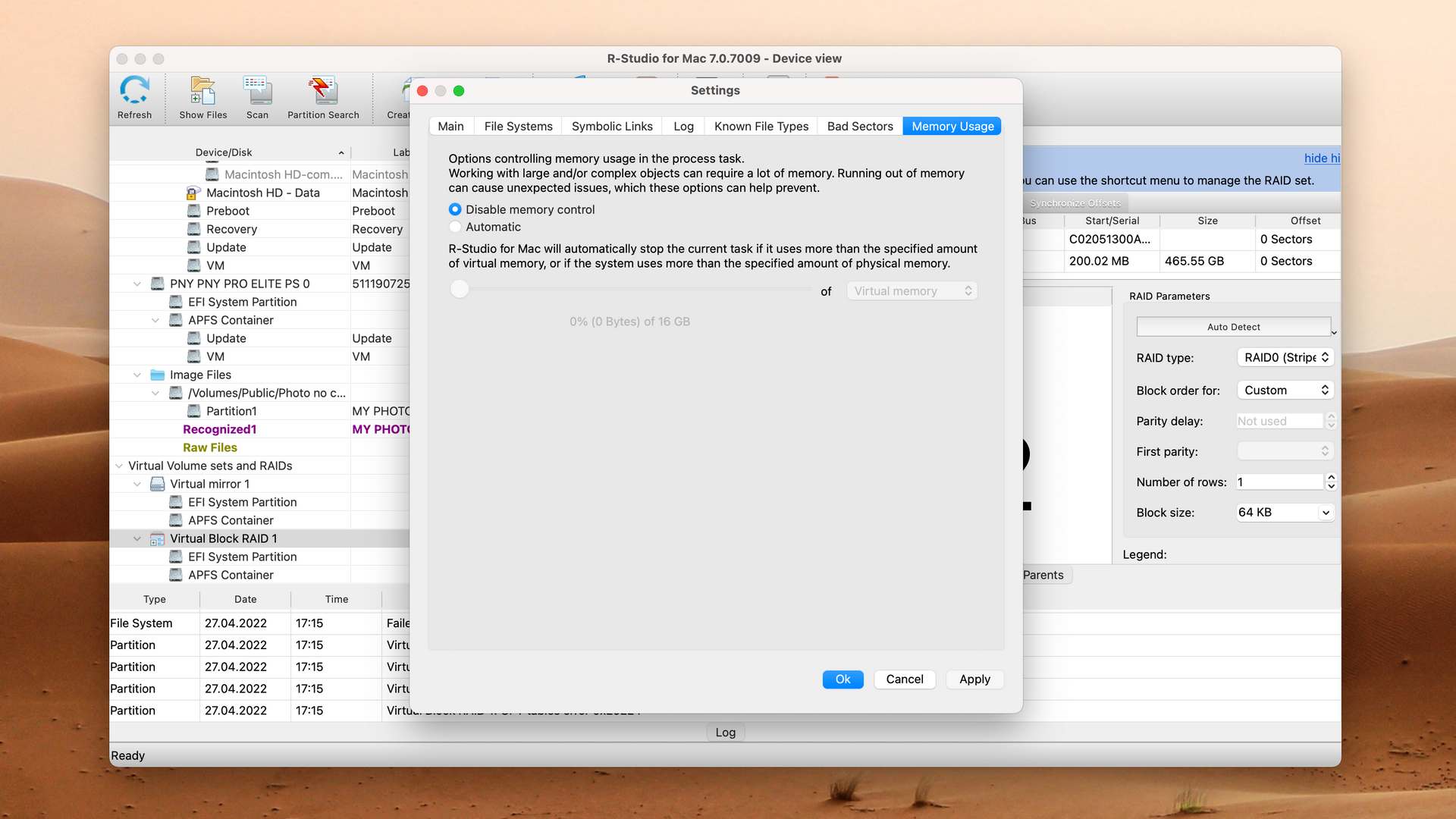
R-Studio isn’t much easier to use than DiskWarrior, but for very different reasons. Whereas DiskWarrior is outdated and unintuitive, R-Studio is packed with so many advanced features that regular Mac users can easily be confused by them. Those who can take advantage of them, however, should be able to solve just about any data recovery scenario.
Key differences: R-Studio vs DiskWarrior

| # | Feature | DiskWarrior | R-Studio |
|---|---|---|---|
| 1 | Starting price | $119.95 / Lifetime | $79.99 / Permanent |
| 2 | Scan for lost partitions | bad | good |
| 3 | The number of formats supported by deep scan | bad | good |
| 4 | Recovery from RAID1, 0, JBOD | fine | good |
| 5 | RAID reconstructor | bad | good |
| 6 | Network recovery | bad | good |
| 7 | Forensic features | bad | good |
| 8 | HFS+ directory rebuild | good | bad |
| 9 | Overall non-intrusive read-only algorithms | good | bad |
| 10 | Convenient source selection on start | good | fine |
| 11 | Mount recoverable items as disk | good | bad |
You would be hard-pressed to find a better RAID recovery and reconstruction tool than R-Studio. The software can also deliver great results when it comes to more common data loss cases, such as those involving USB flash drives and internal hard drives.
R-Studio is a good alternative to DiskWarrior because:
APFS partition recovery
Recovers lost partitions
Can recover and repair RAID arrays
Comes with forensic features
More affordable
R-Studio is a poor alternative to DiskWarrior because:
Can't rebuild HFS+ directories
Scans aren’t read-only
Not simple to deploy
Can't mount recoverable items as disk

4. PhotoRec for macOS
Overview
The Mac version of PhotoRec may not be the most appealing DiskWarrior alternative out there, but don’t let its command-line user interface discourage you from giving it a try. This data recovery software is completely free, and the results it can deliver are impressive.
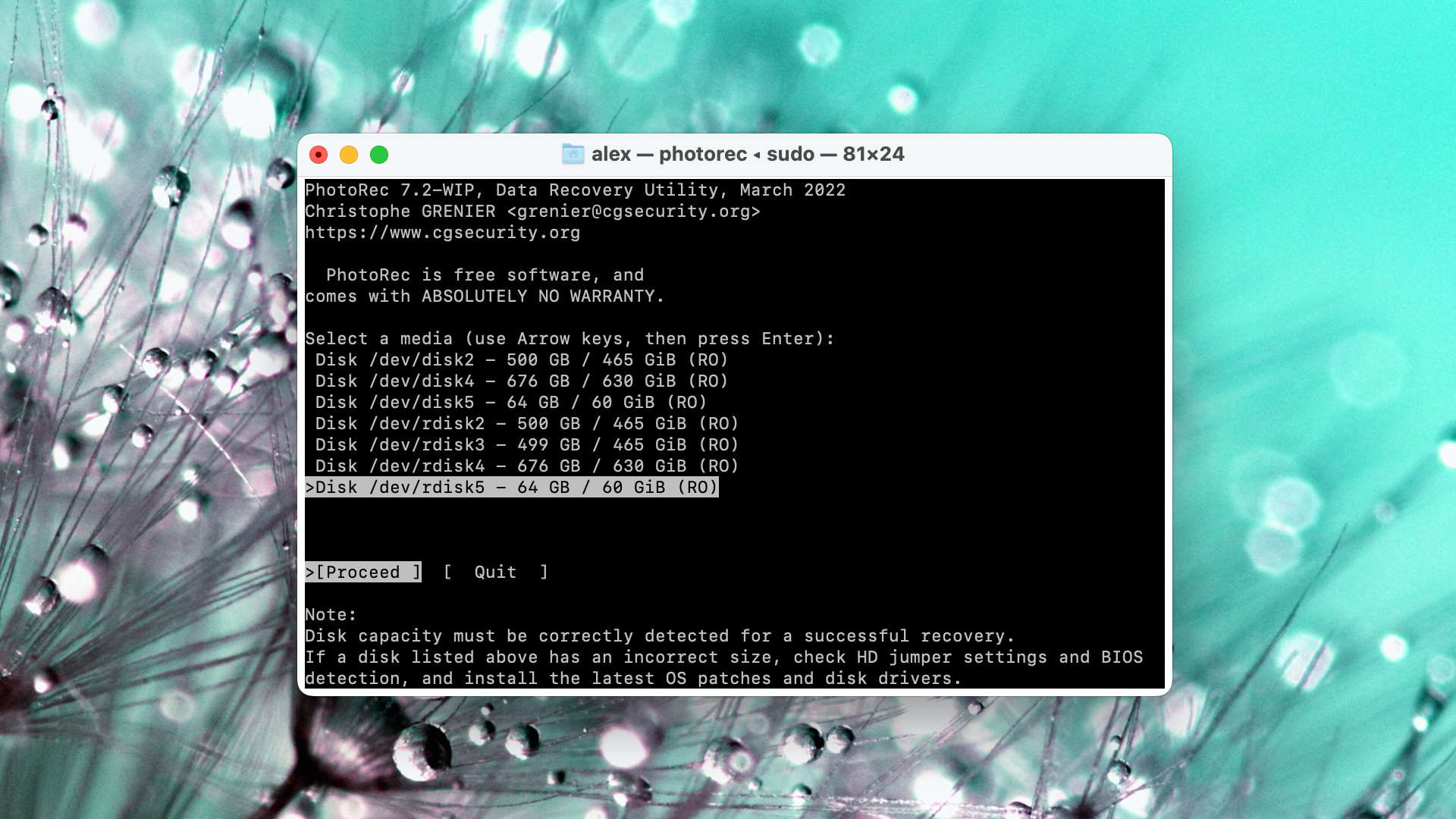
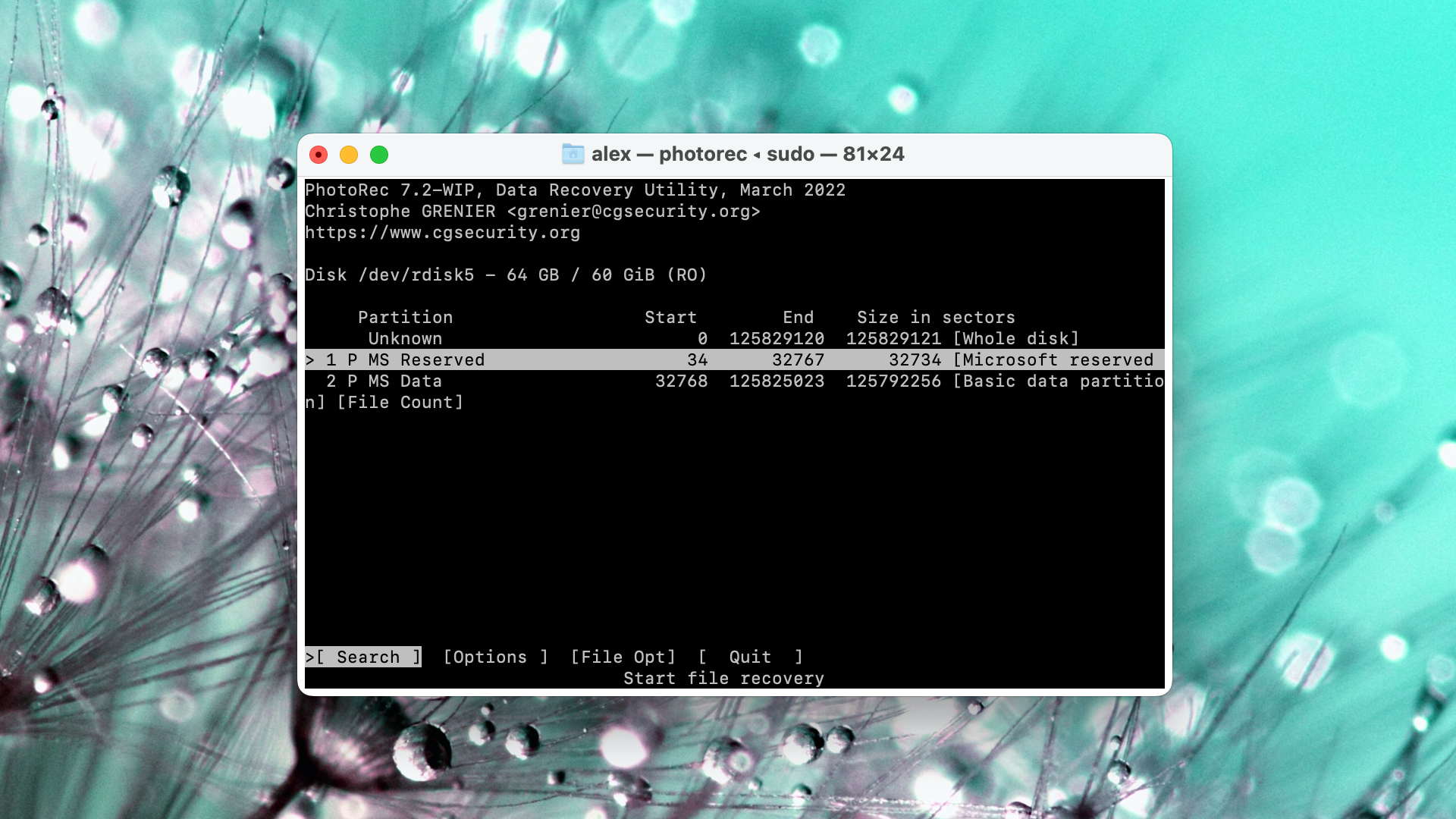
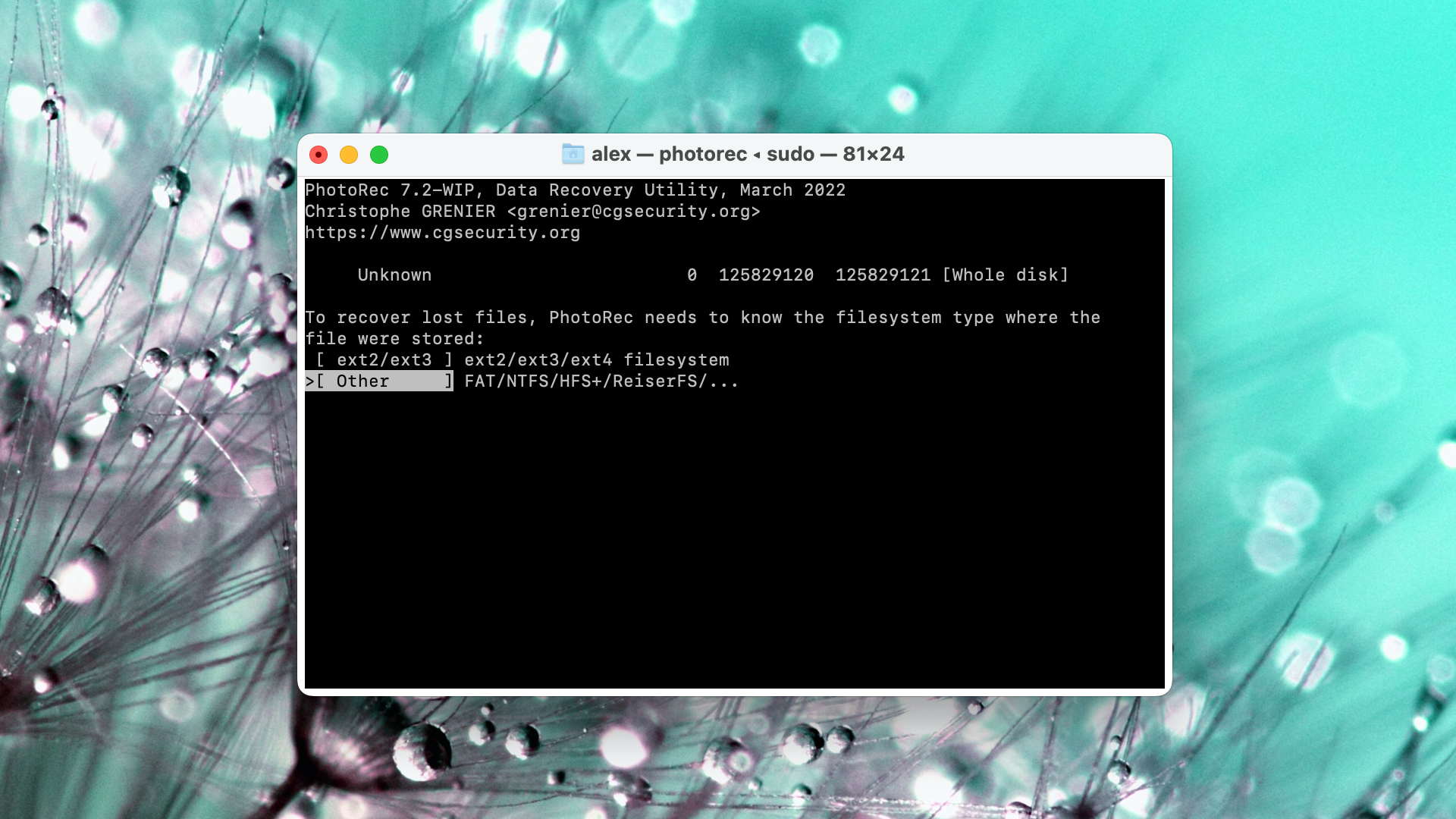
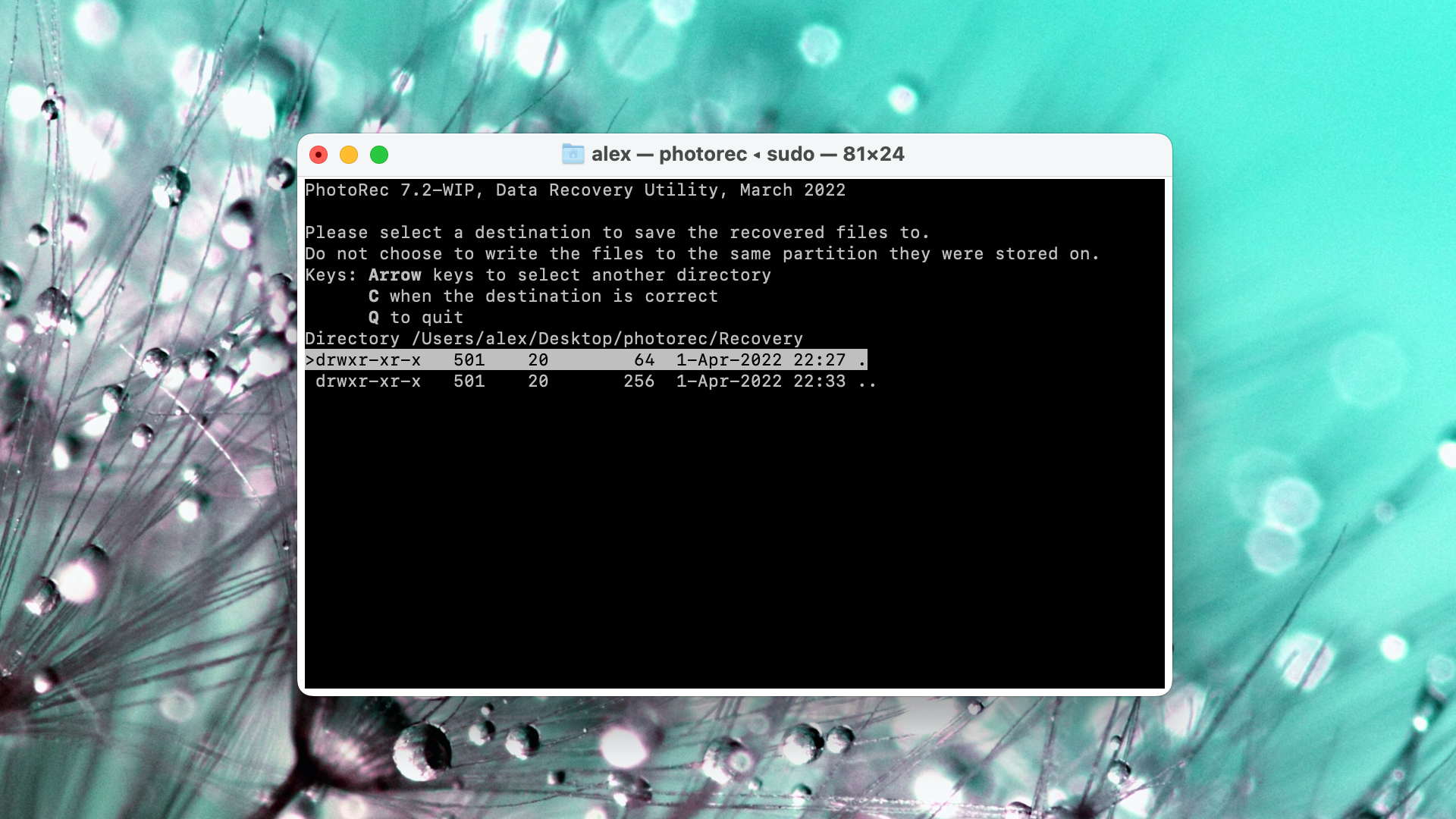
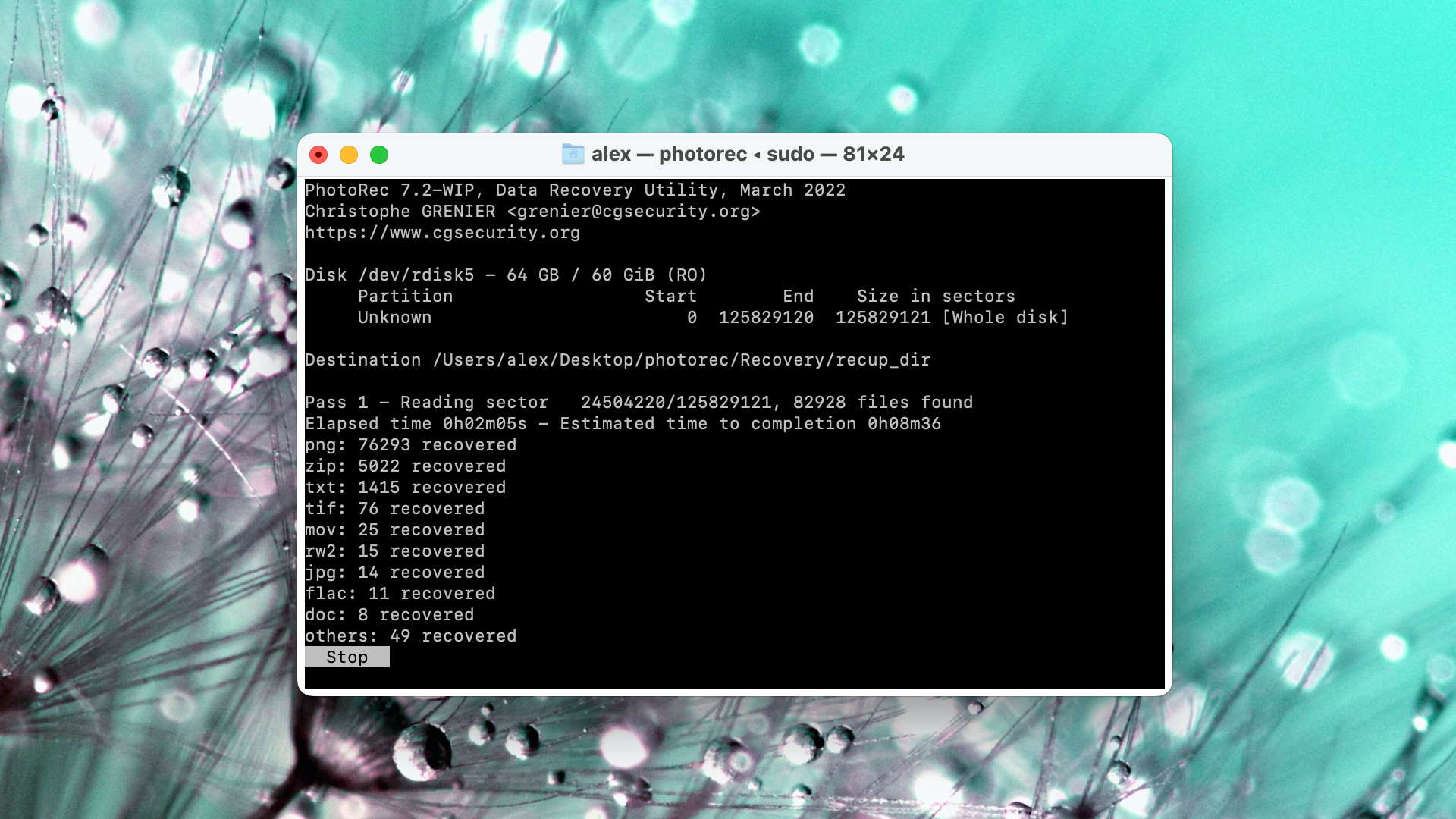
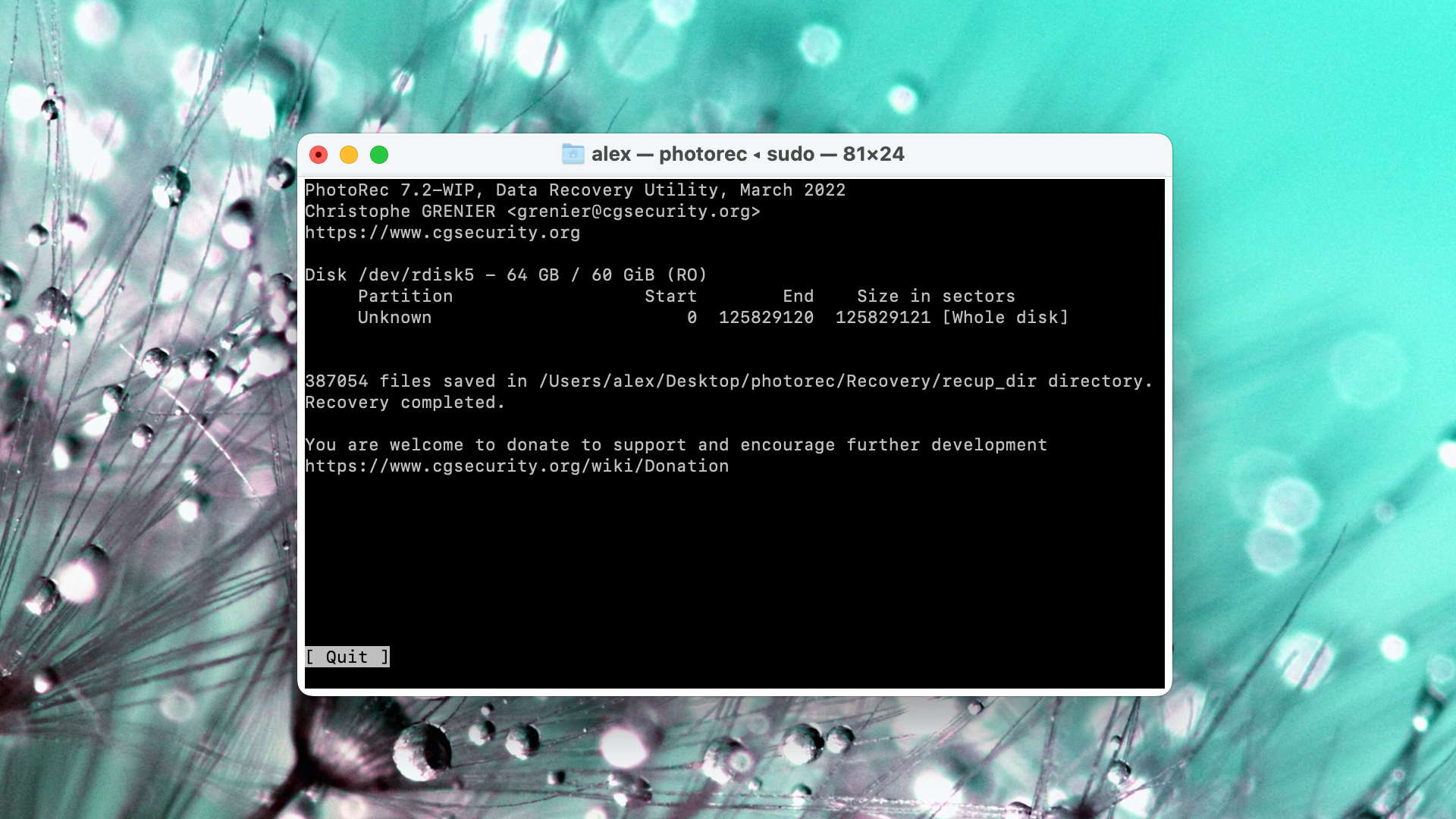
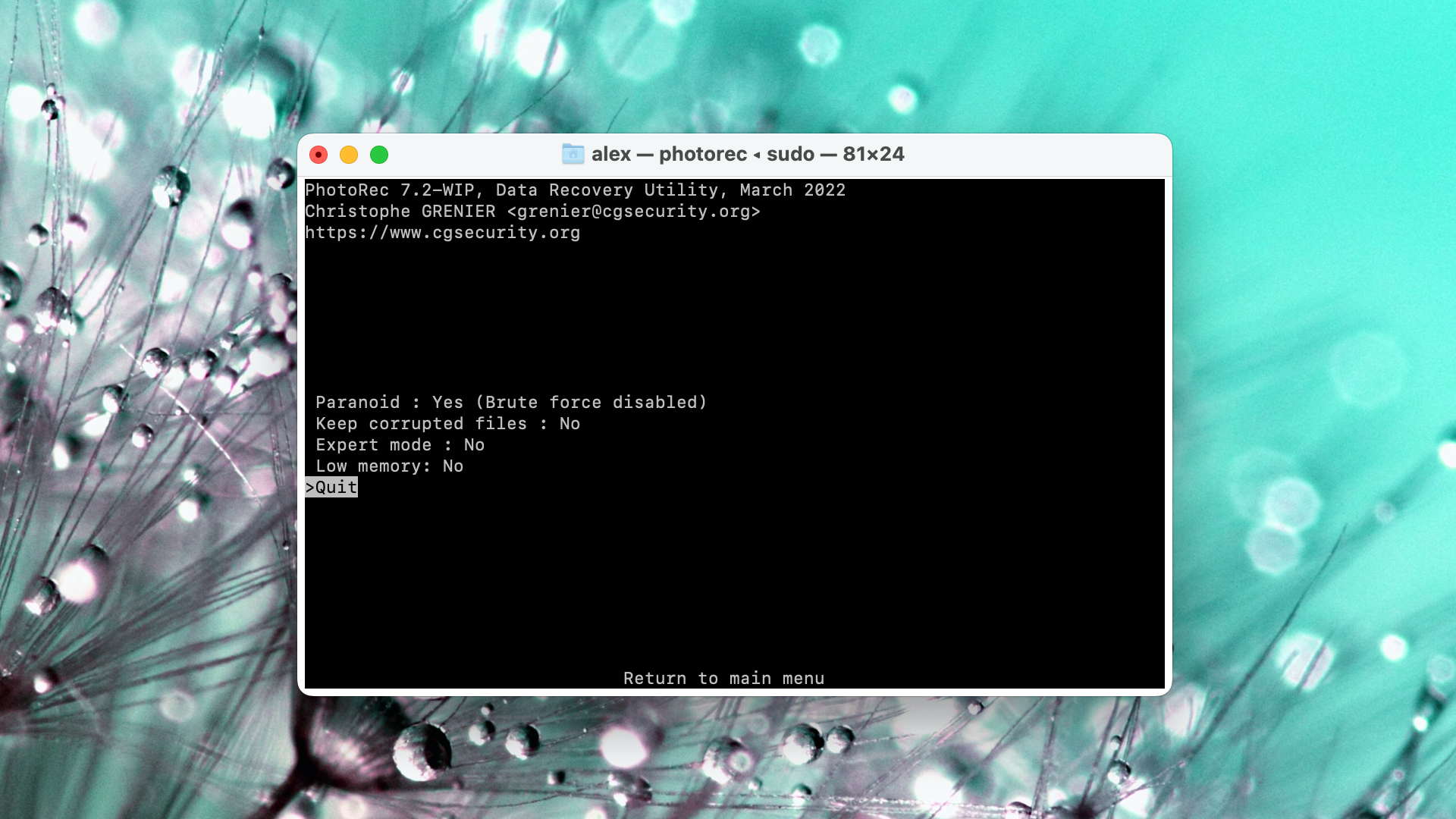
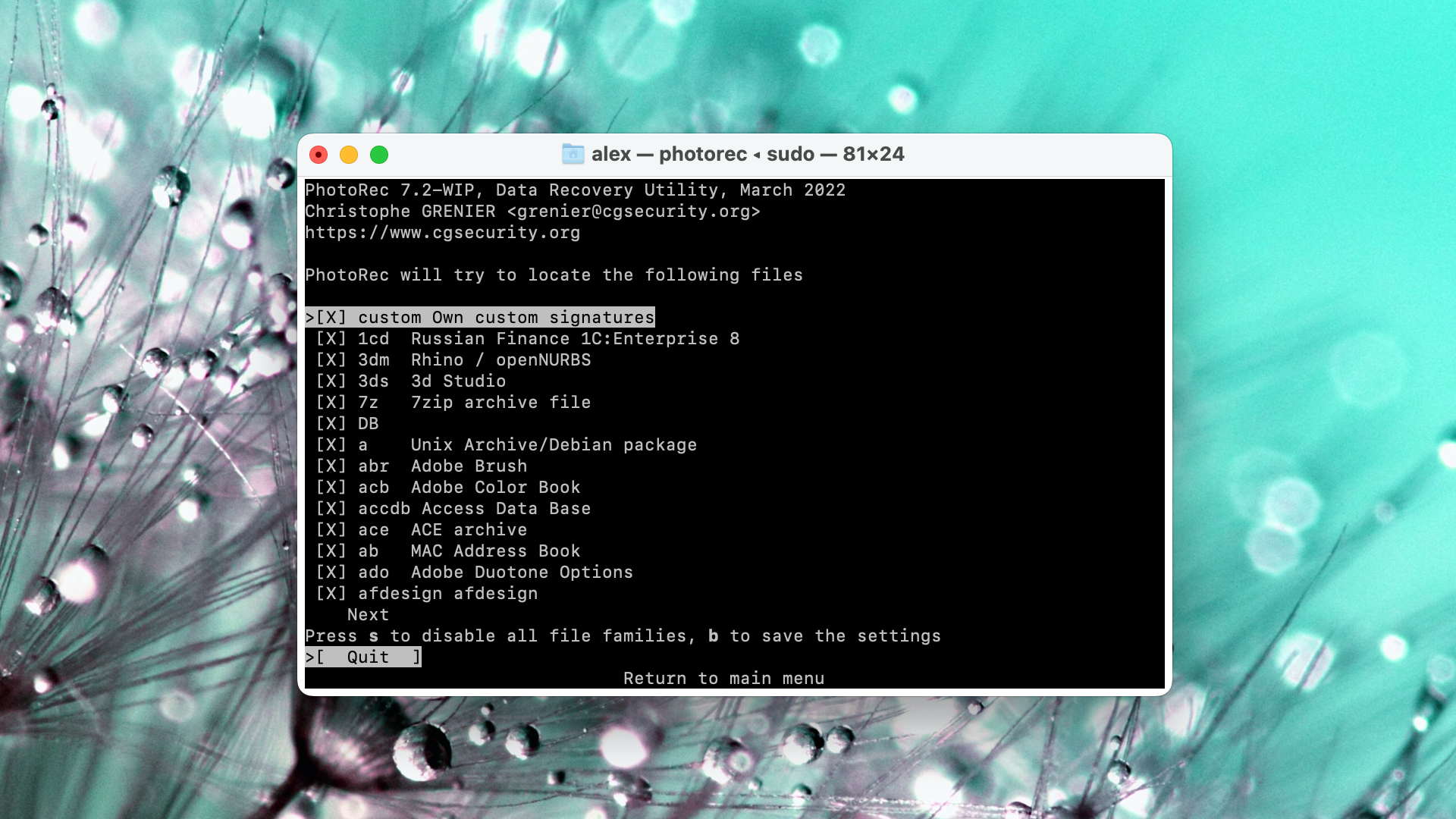
Once you have PhotoRec for macOS installed, using it to recover data is not that difficult because the entire data recovery process boils down to a series of relatively simple steps. Should you run into any issues, then you can seek help on the official discussion board. Unfortunately, PhotoRec doesn’t provide professional customer support.
Key differences: PhotoRec vs DiskWarrior

| # | Feature | DiskWarrior | PhotoRec |
|---|---|---|---|
| 1 | Starting price | $119.95 / Lifetime | Free |
| 2 | Start file recovery without interrupting the scan | bad | good |
| 3 | Raw photo recovery | base-cons | base-pros |
| 4 | Video formats recovery | base-cons | base-pros |
| 5 | HFS+ directory rebuild | good | bad |
| 6 | Bootable recovery drive creation | good | bad |
| 7 | Mount recoverable items as disk | good | bad |
| 8 | Helpdesk support | good | bad |
| 9 | Phone support | good | bad |
PhotoRec is a fantastic alternative to DiskWarrior because it's completely free and open-source. Its command-line nature does leave a lot to be desired in terms of usability, but its recovery performance makes up for it.
PhotoRec is a good alternative to DiskWarrior because:
Open source
Completely free
Supports a huge variety of file signatures
Great photo and video recovery performance
PhotoRec is a poor alternative to DiskWarrior because:
Lacks GUI
Limited disk repair capabilities
Can't create bootable recovery drives
No professional support

5. Stellar Data Recovery for Mac
Overview
Stellar Data Recovery for Mac is one of several available data recovery tools that promise simplicity without sacrificing performance. The tool is especially easy to recommend to people who want to recover videos and photos because it can repair those that have become corrupted.
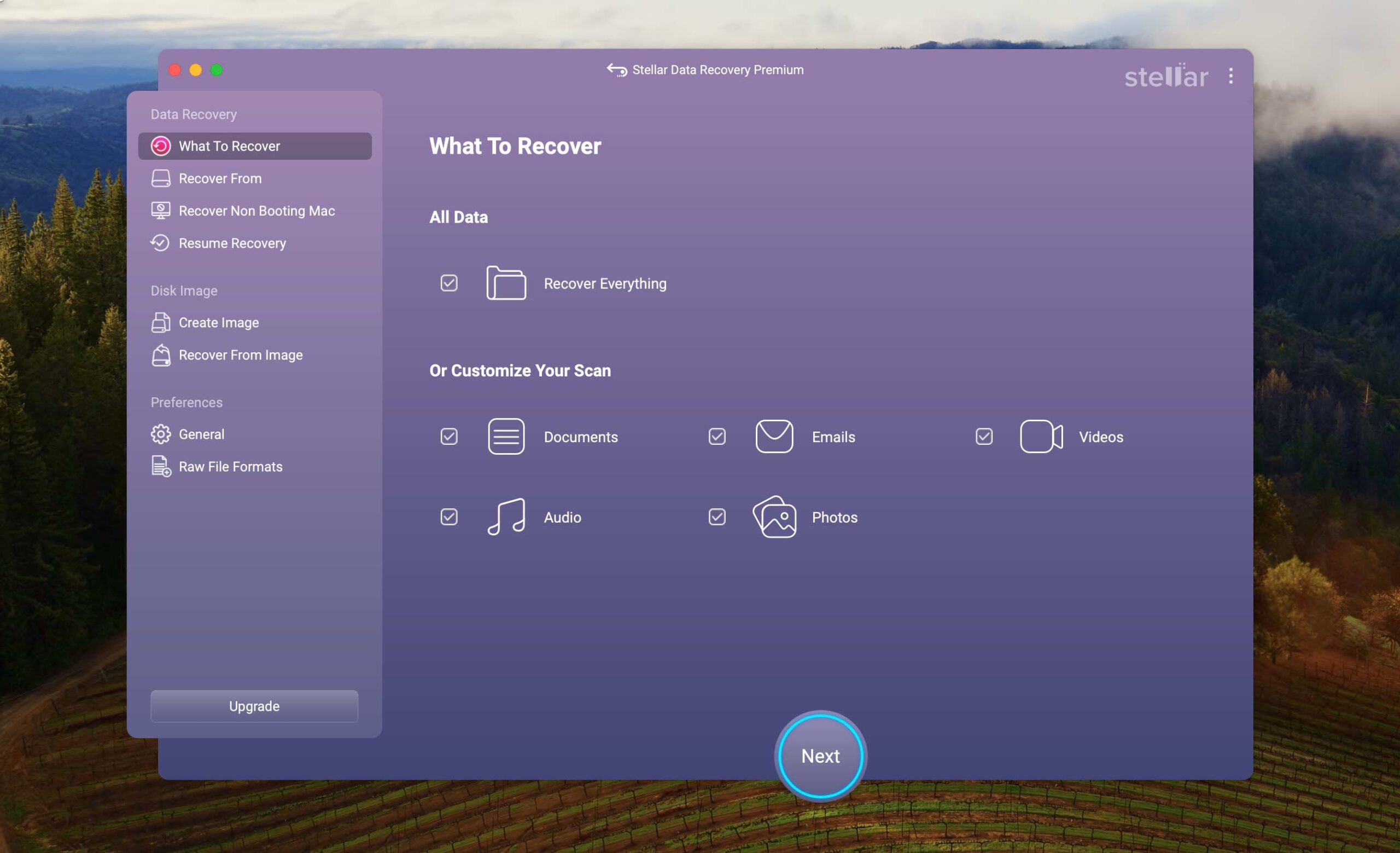
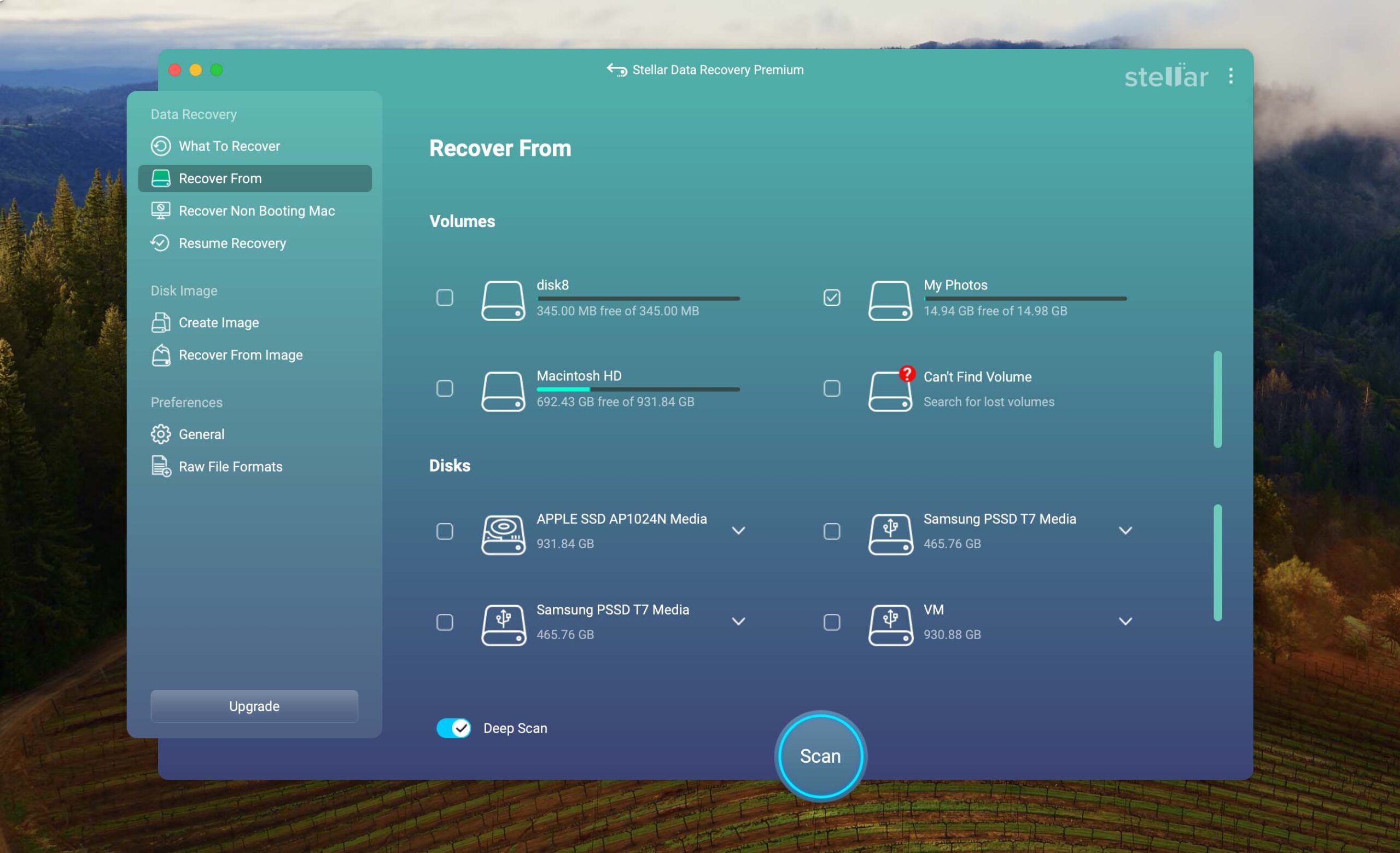
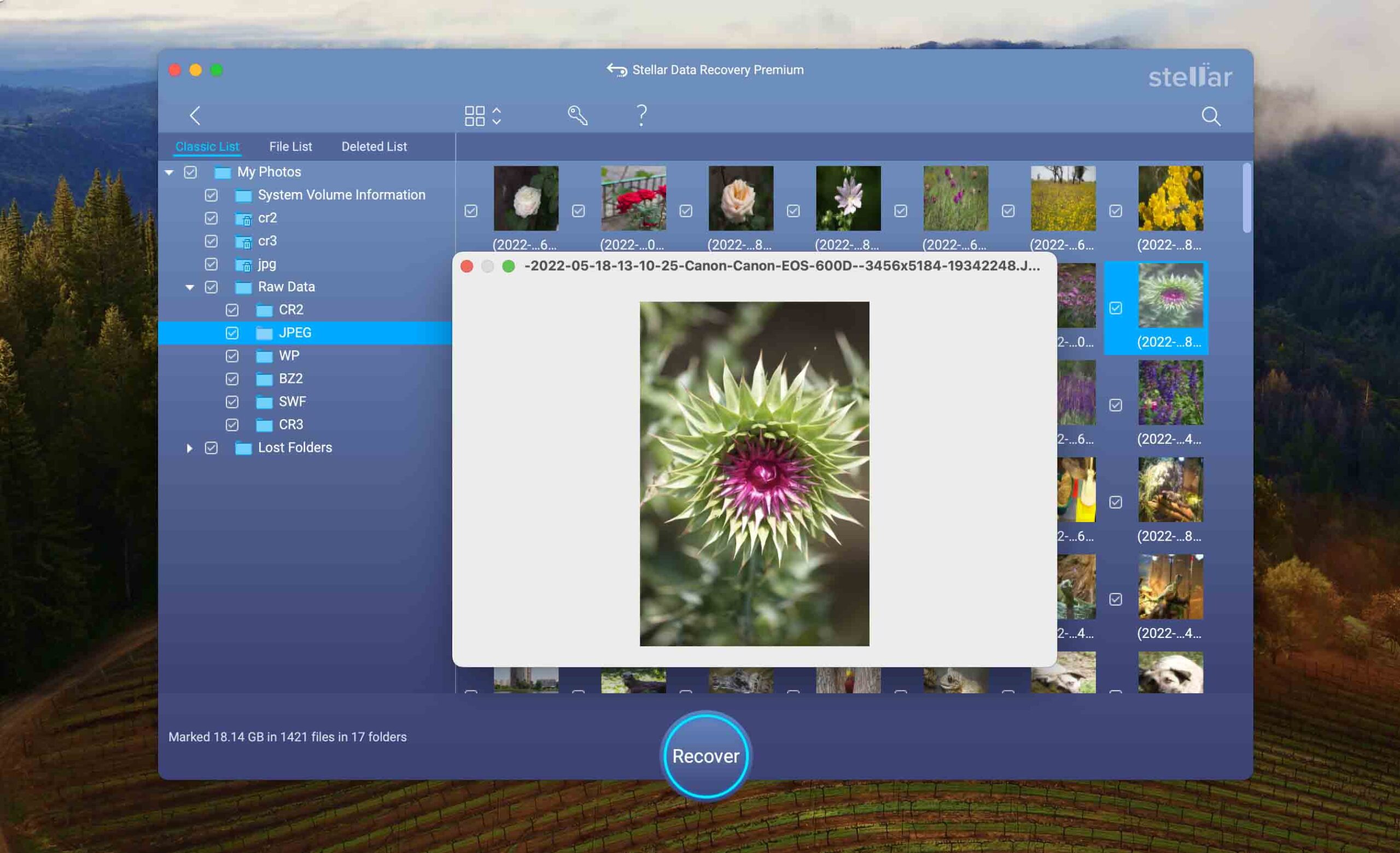
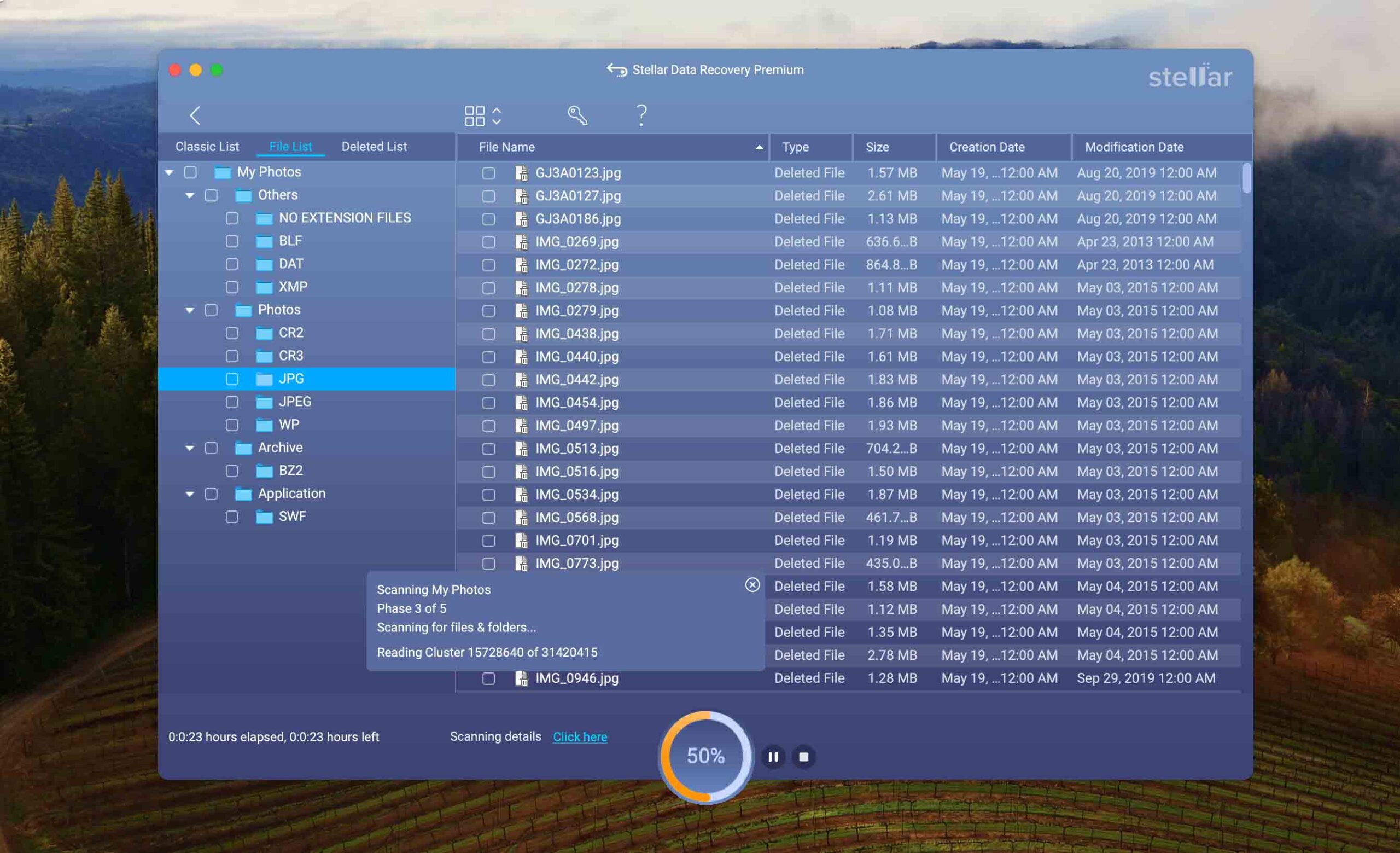
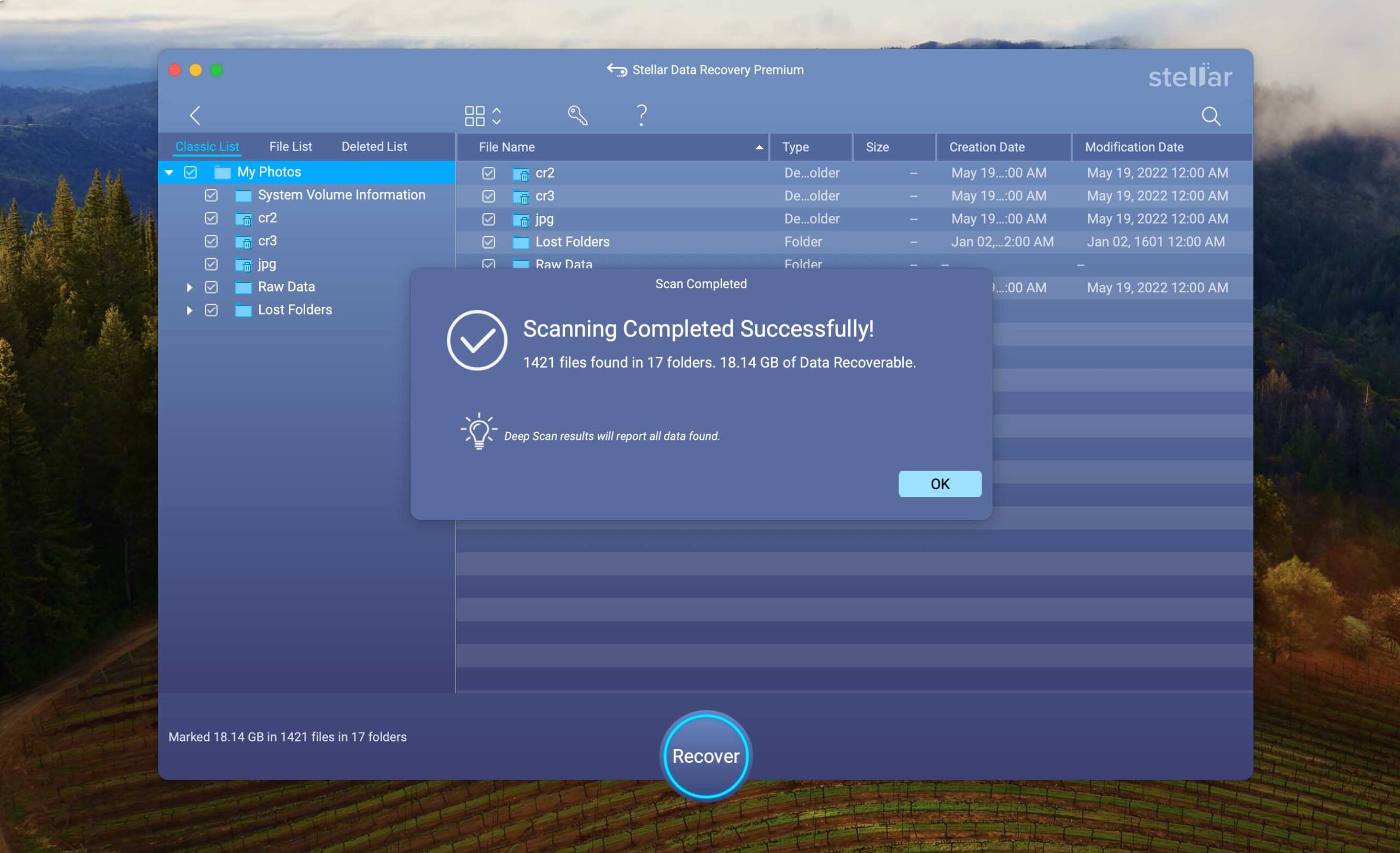
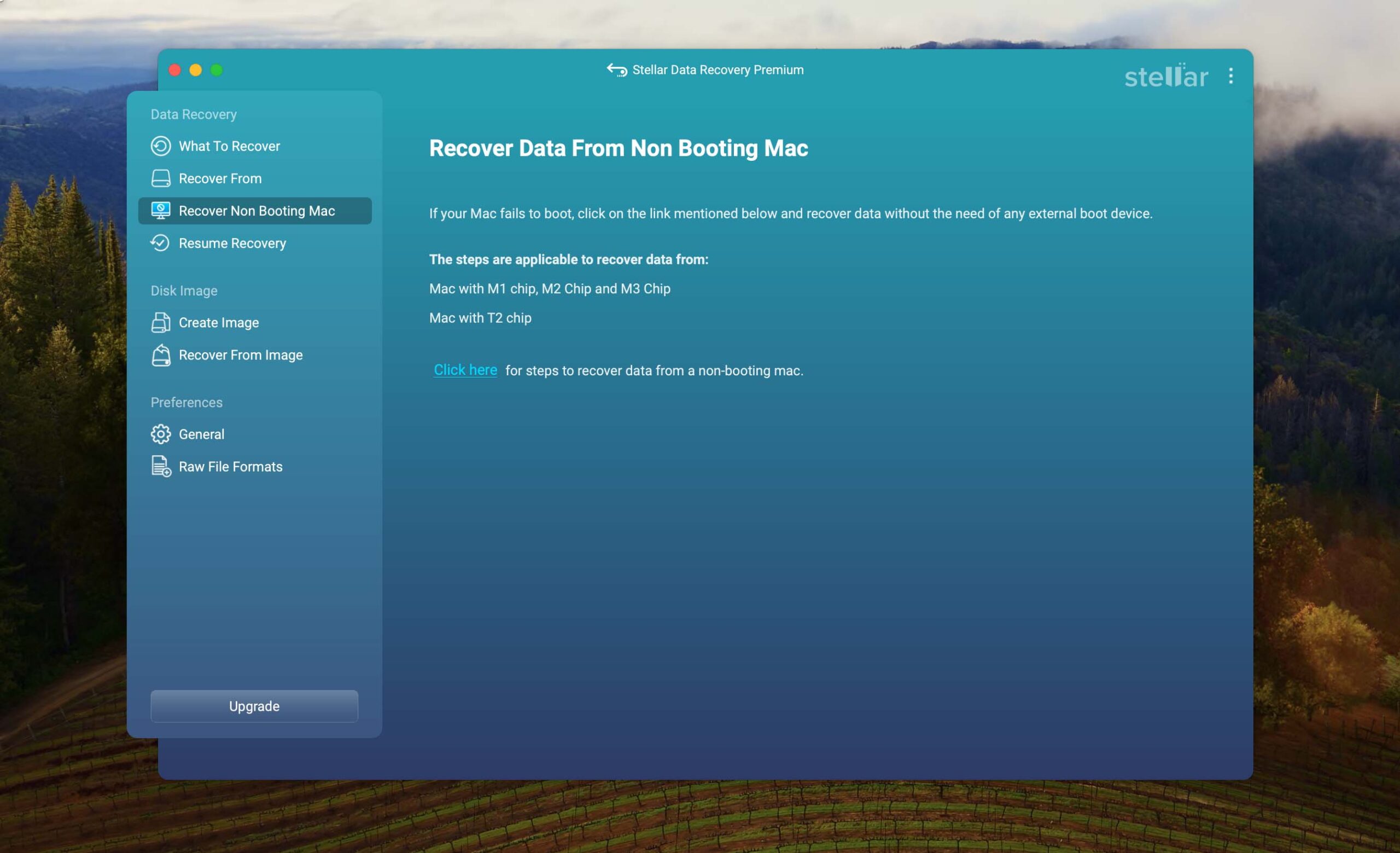
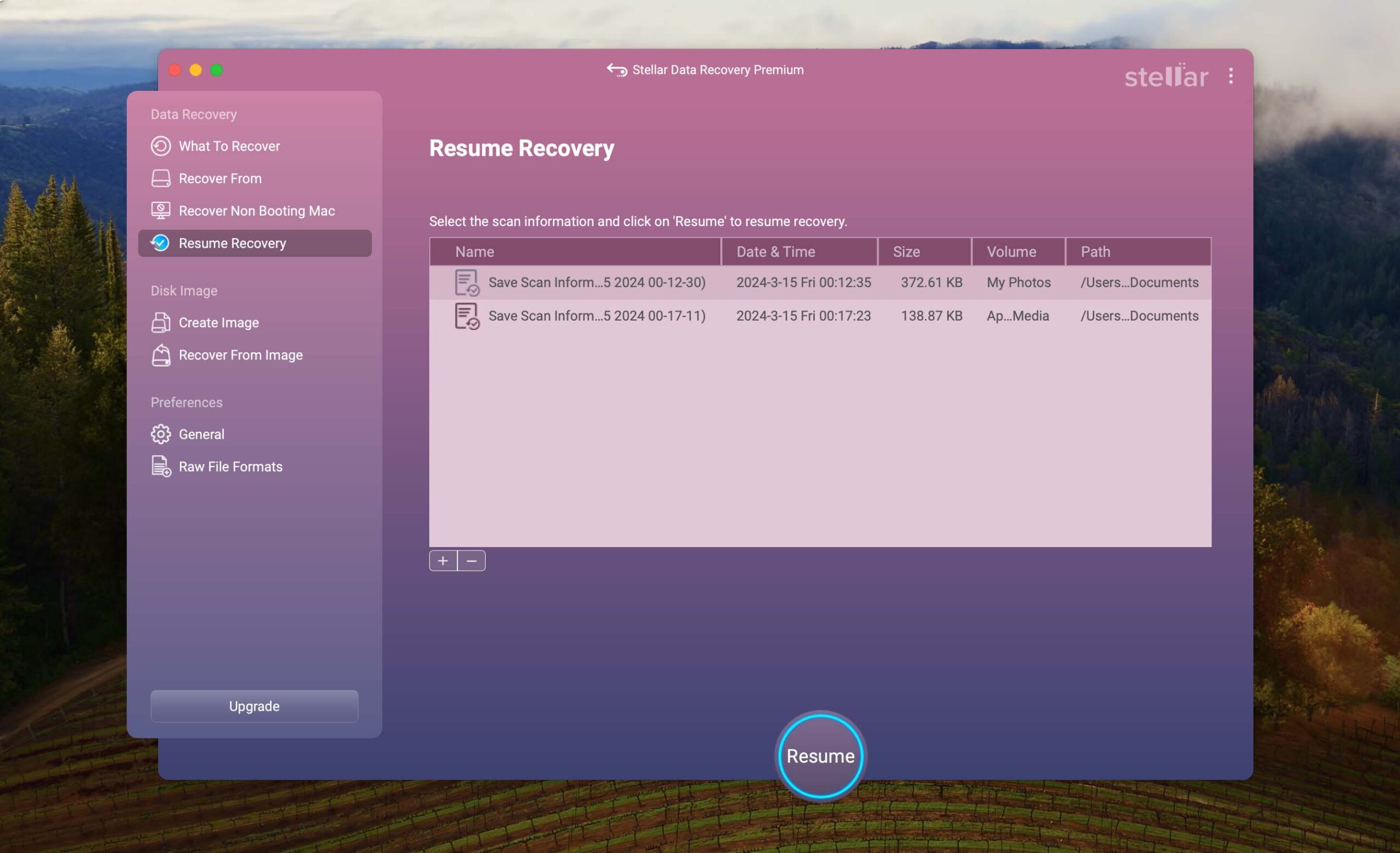
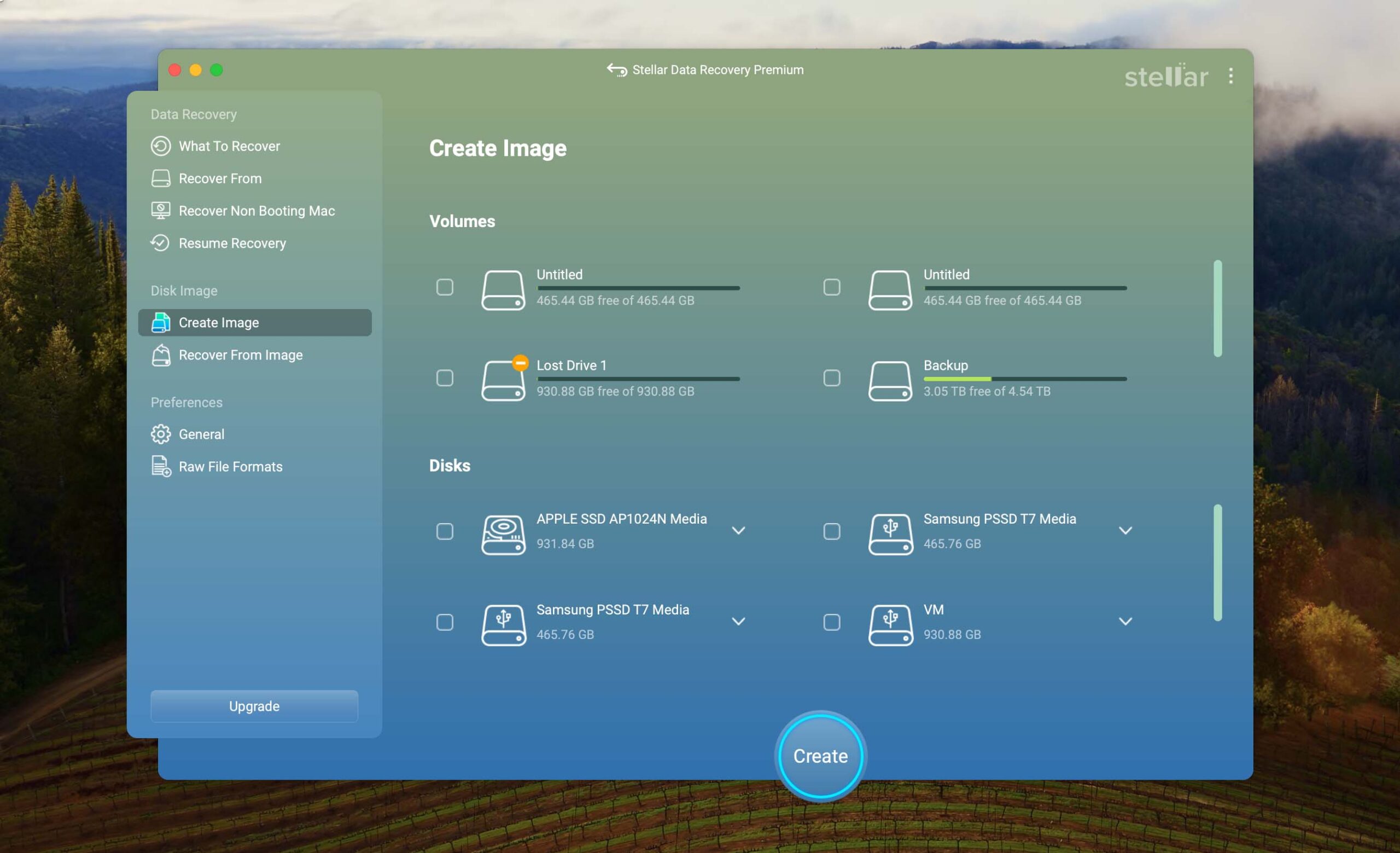
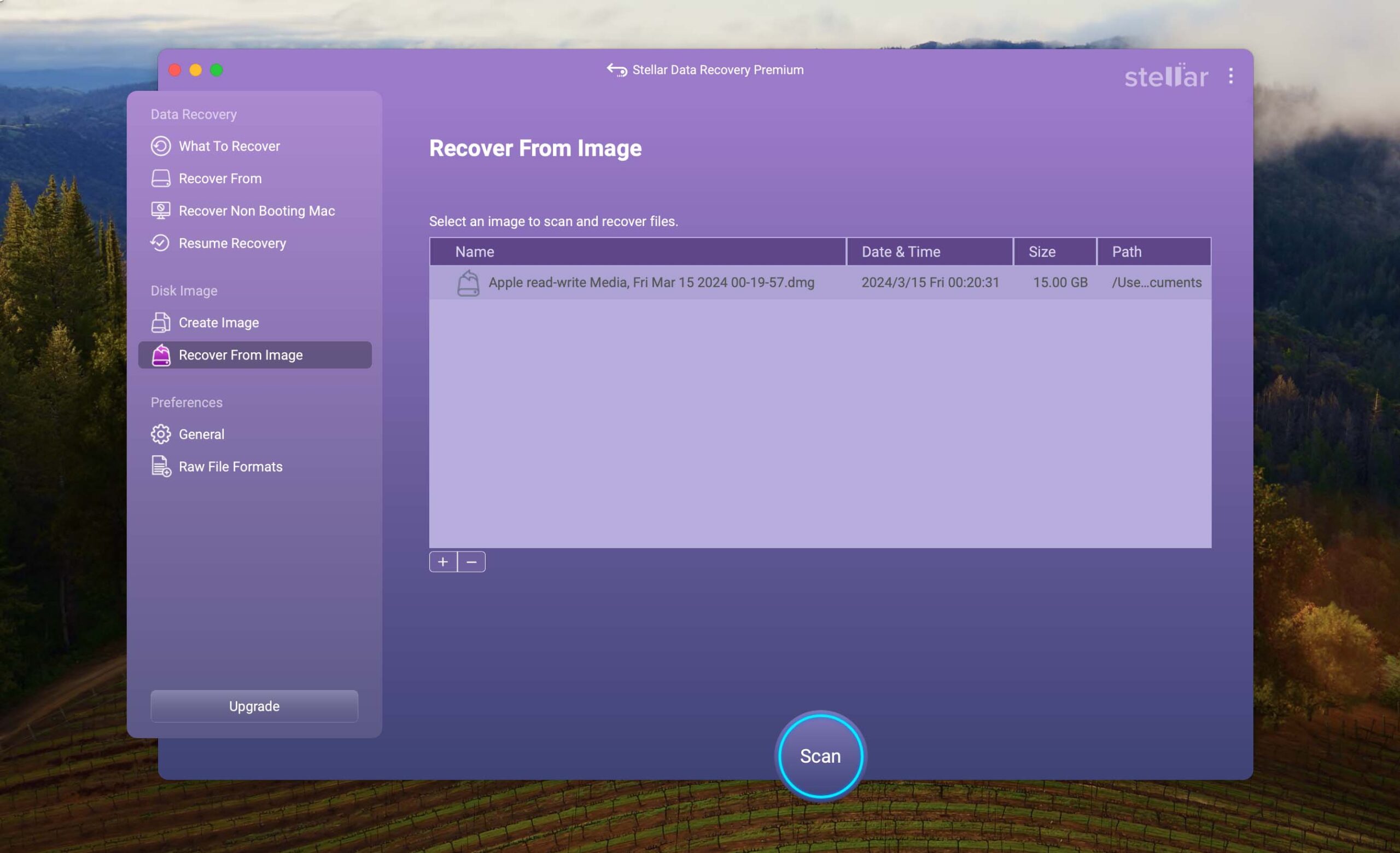
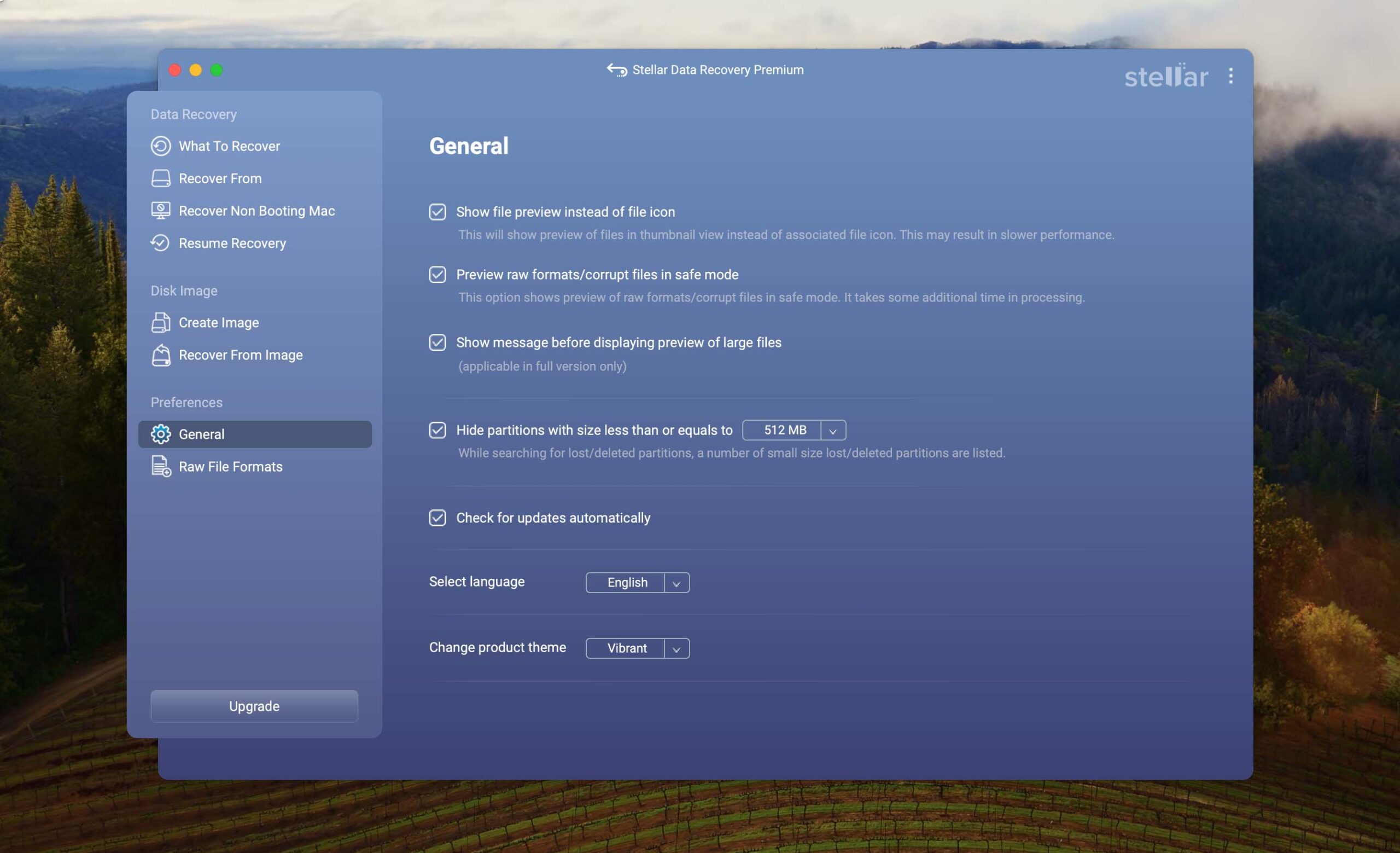
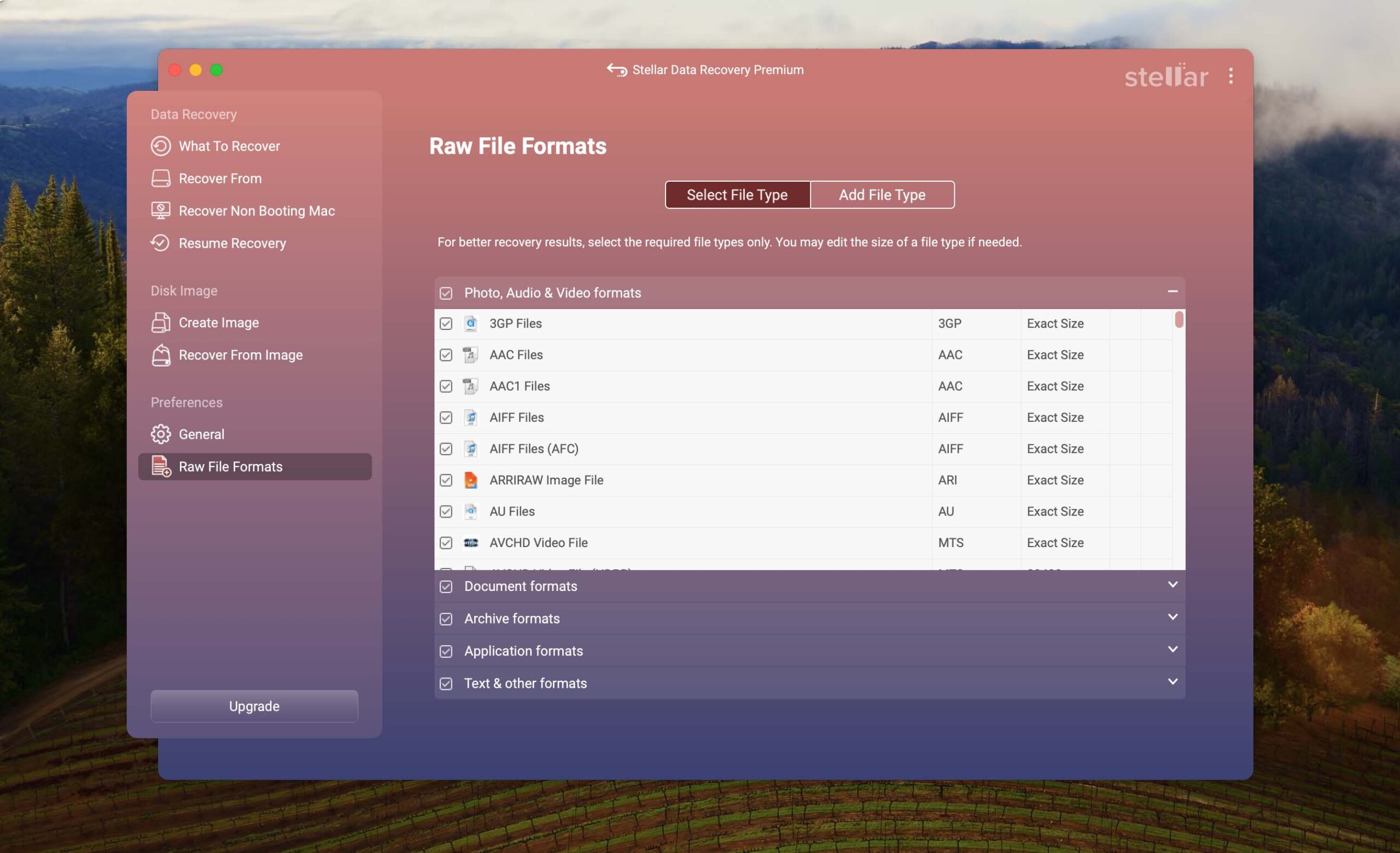
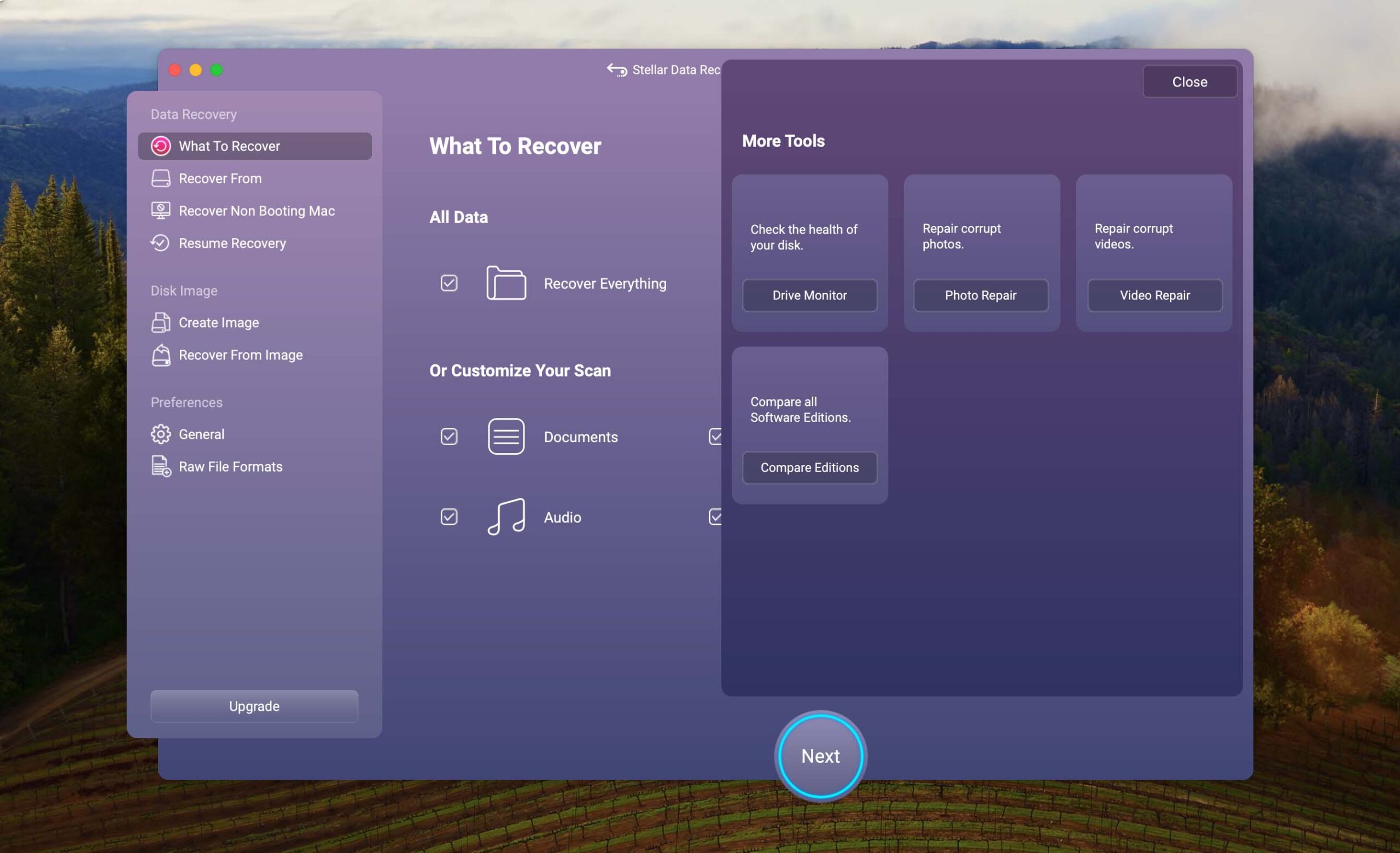
As far as premium data recovery products go, Stellar is fairly affordable, costing just $59.99. In comparison, DiskWarrior costs twice as much, or $119.95 to be exact. A free version of Stellar is available, so you can test the software before you purchase a license. Recover up to 1 GB of data, with no activation required. However, this free recovery doesn’t include files from lost partitions, nor are you able to create disk images before recovery.
Key differences: Stellar Data Recovery vs DiskWarrior

| # | Feature | DiskWarrior | Stellar Data Recovery |
|---|---|---|---|
| 1 | Starting price | $119.95 / Lifetime | $69.99 / 1 year |
| 2 | Raw photo recovery | base-cons | base-warn |
| 3 | Scan for lost partitions | bad | fine |
| 4 | Modern user-friendly interface | bad | good |
| 5 | Multiple view modes in scan results | bad | good |
| 6 | Convenient scan session management | bad | good |
| 7 | Corrupted video repair tool | bad | good |
| 8 | Corrupted photo repair tool | bad | good |
| 9 | Unmountable partitions | good | fine |
| 10 | HFS+ directory rebuild | good | bad |
| 11 | Automatic implementation of multiple appropriate scanning methods without user interaction | good | bad |
| 12 | Mount recoverable items as disk | good | bad |
Stellar Data Recovery isn't perfect, but it does deliver better performance than DiskWarrior across the board. With slightly more polish, it could rank even higher on this list of data recovery software alternatives.
Stellar Data Recovery is a good alternative to DiskWarrior because:
Great usability
Scan sessions are easy to manage
Repairs videos and photos
More affordable
Stellar Data Recovery is a poor alternative to DiskWarrior because:
Can't rebuild HFS+ directories
Can't mount recoverable items as disk
Extra user interaction sometimes required
Quick Comparison Table
| Feature | DiskWarrior | Disk Drill | EaseUS Data Recovery Wizard | R-Studio | PhotoRec | Stellar Data Recovery |
|---|---|---|---|---|---|---|
| Total Score | 47% | 100% | 79% | 76% | 68% | 68% |
| Requirements | macOS 10.8-26.0 | macOS 10.15-26.x | macOS 10.9-26.0 | macOS 10.5-15.0 | macOS 10.6-26.0 | macOS 10.13-26.0 |
| Clever in-depth scan | bad | good | fine | good | bad | bad |
| Quick scan | bad | good | good | good | bad | bad |
| Distributed as | Paid | Freemium | Freemium | Freemium | Free | Freemium |
| Trial version available | 1 | 1 | 1 | 1 | 1 | |
| Trial version limitations | No trial | Free preview | Recover up to 2 GB for free | Recover files smaller than 1024KB | Freeware. No limits | Recover up to 1 GB for free |
| Starting price | $119.95/ Lifetime | $89.00 / Annual | $89.95/ 1 month | $79.99 / Permanent | Free | $69.99/ 1 year |
| See Plans & Pricing | Pricing details | Pricing details | Pricing details | Pricing details | Pricing details | Pricing details |
| Raw photo recovery | bad | good | good | fine | good | fine |
| Video formats recovery | bad | good | good | fine | good | fine |
| Document formats recovery | bad | good | good | good | good | fine |
| S.M.A.R.T. | bad | good | bad | fine | bad | fine |
| Helpdesk support | good | good | good | good | bad | good |
| Live chat | bad | good | good | bad | bad | good |
| Phone support | good | bad | good | good | bad | good |
Which DiskWarrior Alternative Should You Choose?
2.29

4.84 111%

3.82 66%
3.68 60%

3.30 44%

3.31 44%
If you need something that’s faster, cheaper, and more effective, then Disk Drill is the go-to option. It covers every scenario that DiskWarrior misses and offers native support for APFS and Macs with Apple Silicon chips. Even better, the user interface is beginner-friendly and intuitive, making recovery a trivial process.
Need something free? PhotoRec is a free and open-source tool that has access to an extensive range of file signatures, making it an excellent option even if your file system has become corrupted. Be aware, however, that it solely relies on signature recovery and may not recover as much as other tools that utilize multiple scanners.
Should you need access to advanced features like high-level RAID recovery or the ability to work with encrypted APFS volumes, R-Studio is an excellent choice. As the most affordable option that supports network recovery, it’s ideal for technical users and professionals who are capable of navigating its in-depth interface.
Frequently Asked Questions
Let’s answer some commonly asked questions about DiskWarrior and its alternatives.
What is the best DiskWarrior alternative?
Based on our reviews, the best DiskWarrior alternative is Disk Drill for macOS for its ability to work with APFS volumes, recover more than just missing files, and offer the option to preview recoverable data before making any commitments.
Is DiskWarrior still worth it in 2026?
DiskWarrior’s latest version, 5.3, adds Apple Silicon support, but only for rebuilding external HFS+ (Mac OS Extended) disks. It still lacks proper support for APFS, which is the default file system on modern Macs.
Because of this, DiskWarrior is no longer a practical choice for most users in 2026. Its functionality is limited to older setups or very specific recovery scenarios involving HFS+ drives.
Does DiskWarrior work on the latest macOS?
Yes, with the release of version 5.3, DiskWarrior can now run on modern Macs, including those powered by Apple Silicon M1- M5 chips. However, Apple Silicon chips are not entirely supported, and you must boot from a DiskWarrior Recovery flash drive, Target Disk mode, or an external startup disk.
What is the best free DiskWarrior alternative for Mac?
The best free DiskWarrior alternative for Mac is PhotoRec, an open-source data recovery software application that lets you recover unlimited data for free. While it’s backed by a huge database of recognized file signatures, its exclusive reliance on signature-based recovery might make it less effective in certain scenarios.
Does DiskWarrior support APFS?
While APFS disks are recognized by DiskWarrior, they cannot be rebuilt. This is a documented limitation that Alsoft is aware of and working on, but there’s no telling when an update will be shipped.
Is there a DiskWarrior alternative for Windows?
DiskWarrior is only available on macOS, but there are some solid data recovery alternatives available on Windows. For example, TestDisk is a popular partition recovery tool available on Windows, macOS, and Linux, which aims to restore partitions (and their data) by addressing the underlying issue.

David Morelo is a professional content writer with a specialization in data recovery. He spends his days helping users from around the world recover from data loss and address the numerous issues associated with it.
When not writing about data recovery techniques and solutions, he enjoys tinkering with new technology, working on personal projects, exploring the world on his bike, and, above all else, spending time with his family.
- Klennet Recovery Review (Formerly Zero Assumption Recovery)
- iBeesoft Data Recovery Review – A Likable Clone With Limited Features
- DMDE Review – A Data Recovery Powerhouse or a Usability Nightmare?
- Cisdem Data Recovery for Mac Review – A Clone in Disguise
- Tenorshare 4DDiG Review – All That Glitters Is Not Gold

- Houston, Texas, United States
Nikolay Lankevich has over 15 years of strong experience in various fields and platform includes Disaster Recovery, Windows XP/7. System analysis, design, application (Inter/Intranet) development, and testing. Provided technical supports on desktop and laptops on Win-XP and Macintosh for about 2000 employees.