
5 Best Recuva Alternatives for Windows

So you picked Recuva to deal with a data loss situation, and it didn’t deliver? Or maybe you found out that Recuva doesn’t support your operating system or just can’t handle your specific storage device. Either way, you need a capable alternative data recovery software that can meet your needs better.
That’s why we’ve put together a list of the best Recuva alternatives for different recovery scenarios, operating systems, and use cases. Our list includes professional-grade tools and free options you can try right away to see which one you should choose.
Don’t have time to reach through our entire list? Here are our top 3 alternatives to Recuva. To find out more, we’ve discussed specifics for each tool further down.


What Recuva Can and Can't Do
Recuva is a free data recovery tool from Piriform Software, the same company behind the popular cleaning utility CCleaner. It lets you recover deleted files without spending anything, and there’s an optional Recuva Pro upgrade that adds virtual hard drive support, automatic updates, and priority customer support.
Despite its popularity, Recuva really works well only under a fairly narrow set of conditions:
- Recently deleted files that haven’t been overwritten yet
- NTFS, exFAT, or FAT partitions that mount normally in Windows
- Situations with no formatting and no partition loss involved
- Basic file types like documents, common image formats, and music
When these conditions are met, Recuva can often preserve original file names and folder structure. Unfortunately, there are also many scenarios where Recuva isn’t the right choice, such as:
- Formatted partitions (Recuva’s signature-based scanning covers only a small number of file formats, so recovery after formatting is unreliable compared to other tools)
- RAW or unrecognized file systems
- Unmountable or inaccessible disks
- Lost or deleted partitions
- Whole-disk recovery (Recuva can only scan individual partitions, not entire drives)
- Modern photo and video formats with complex metadata
As you can see, the number of situations that call for a different data recovery tool is quite high, so it’s worth understanding exactly where Recuva’s limitations will get in the way before you rely on it for something it wasn’t built to handle.
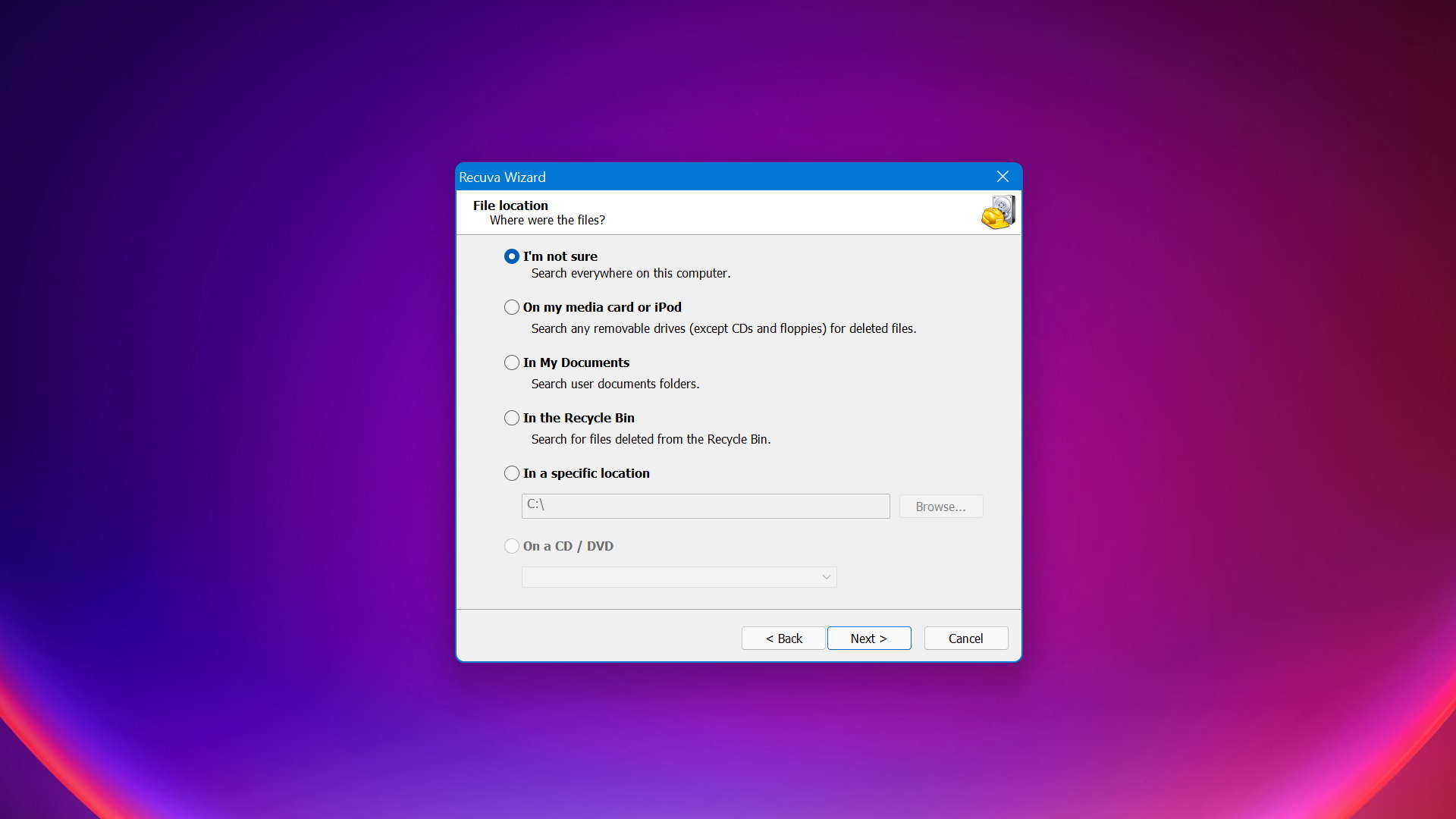
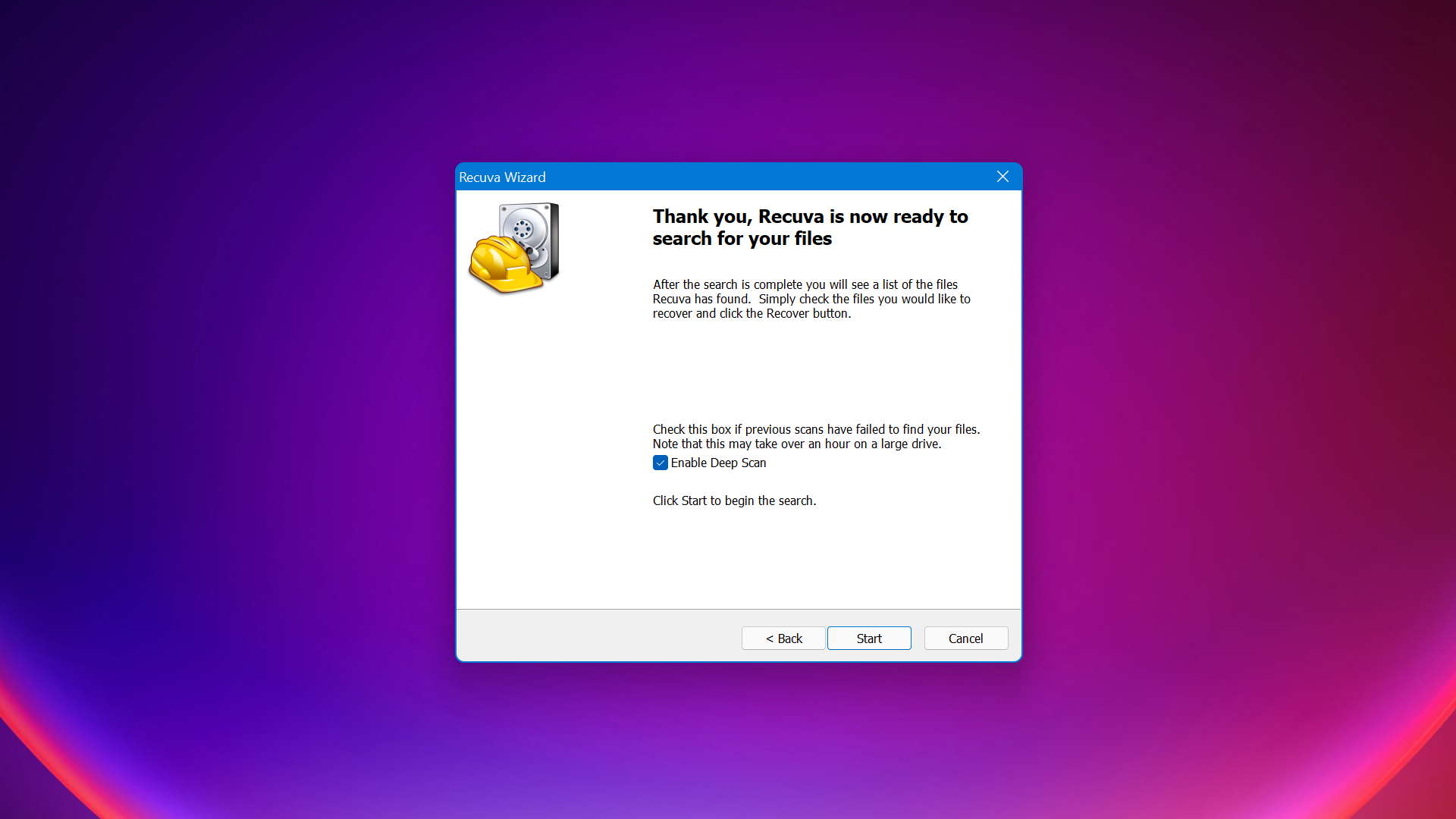

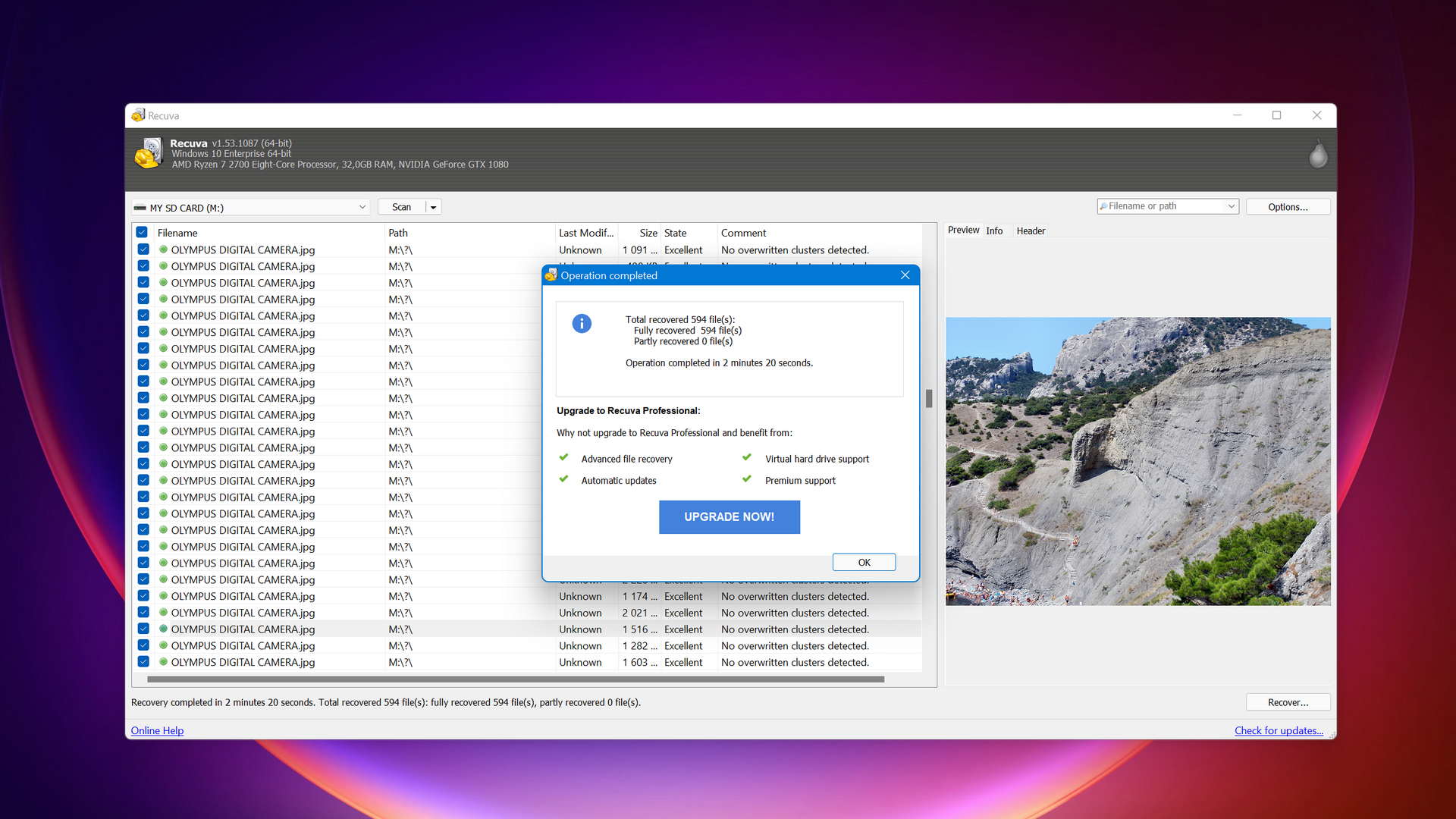
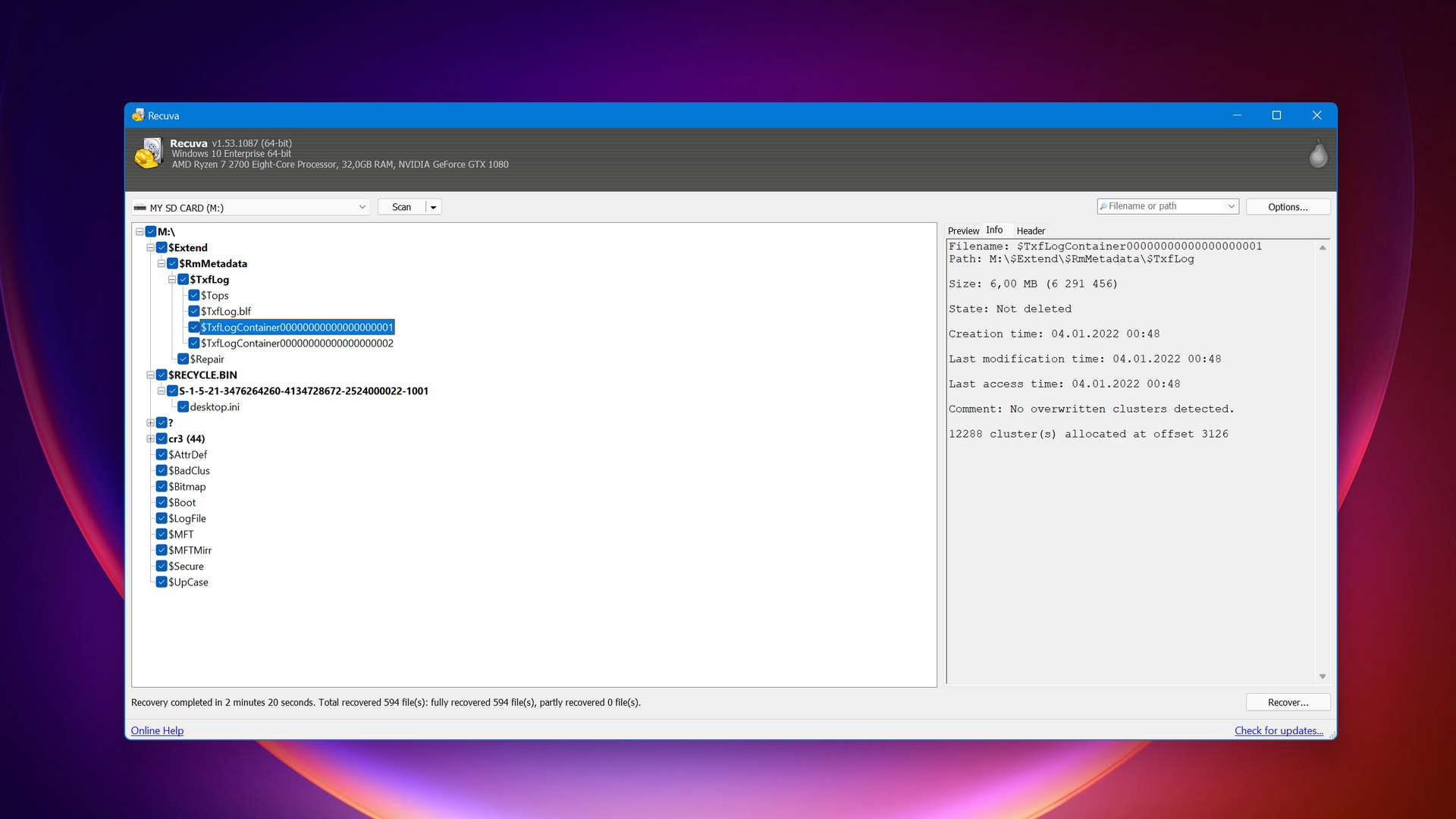
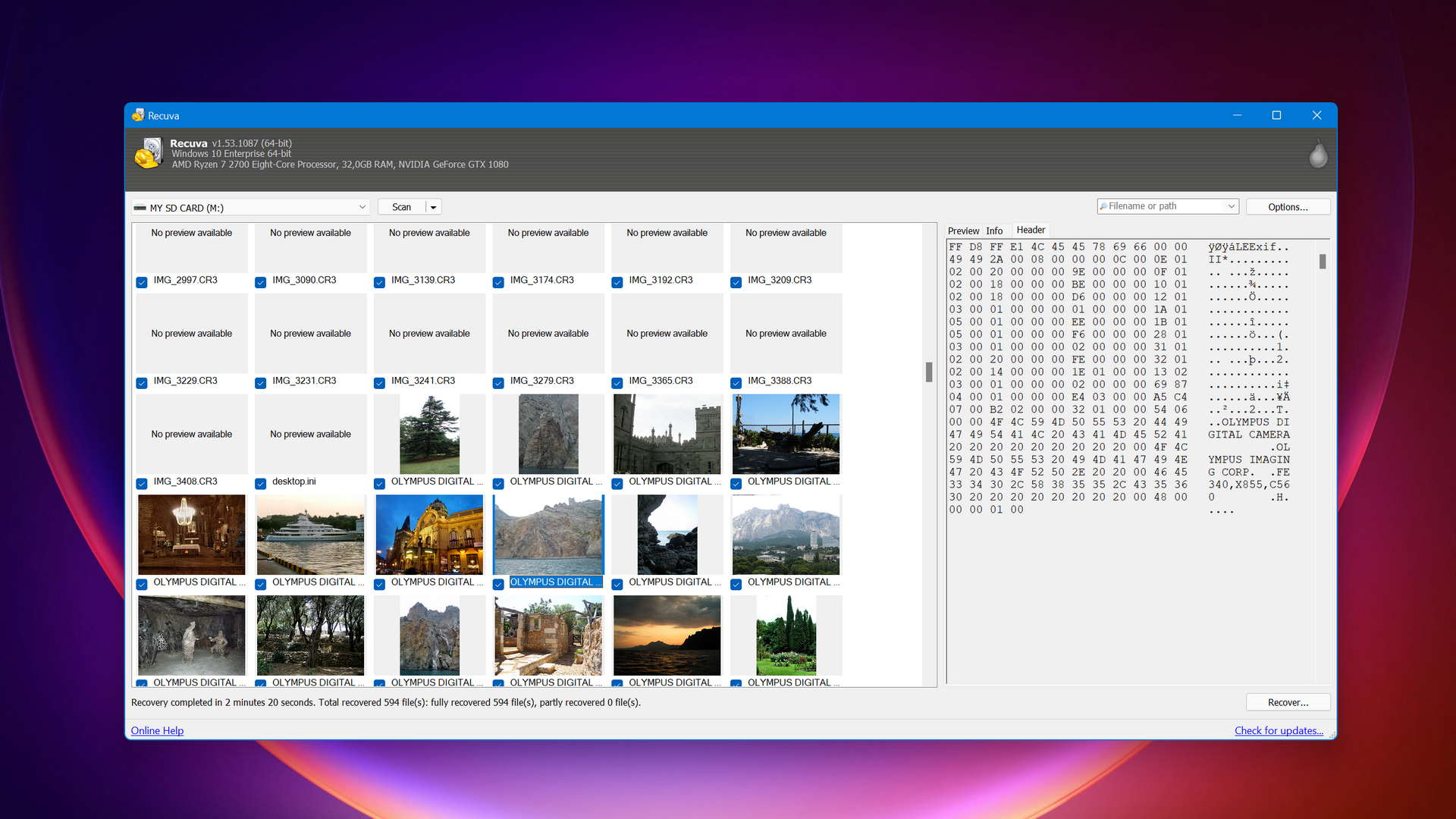
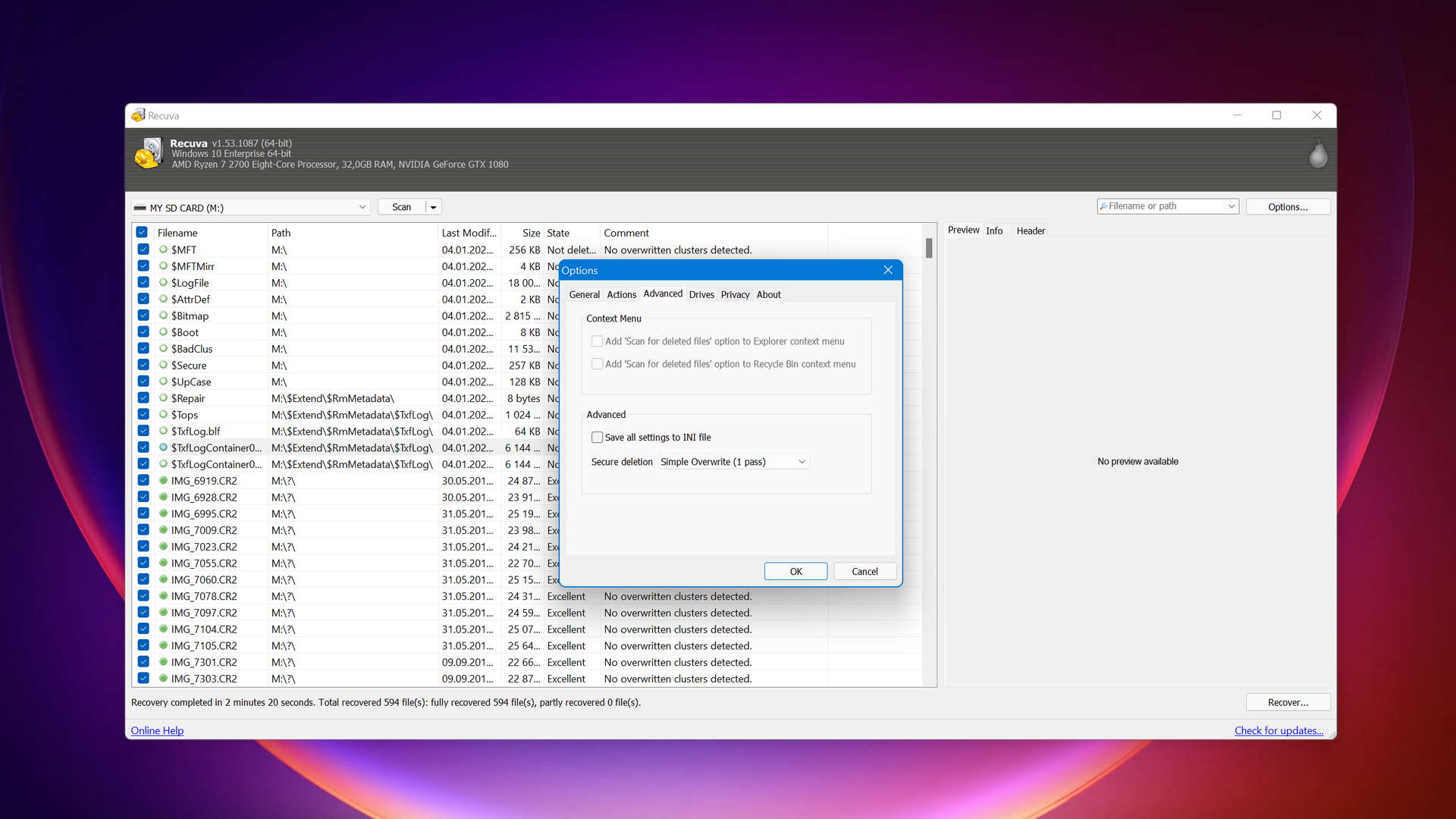
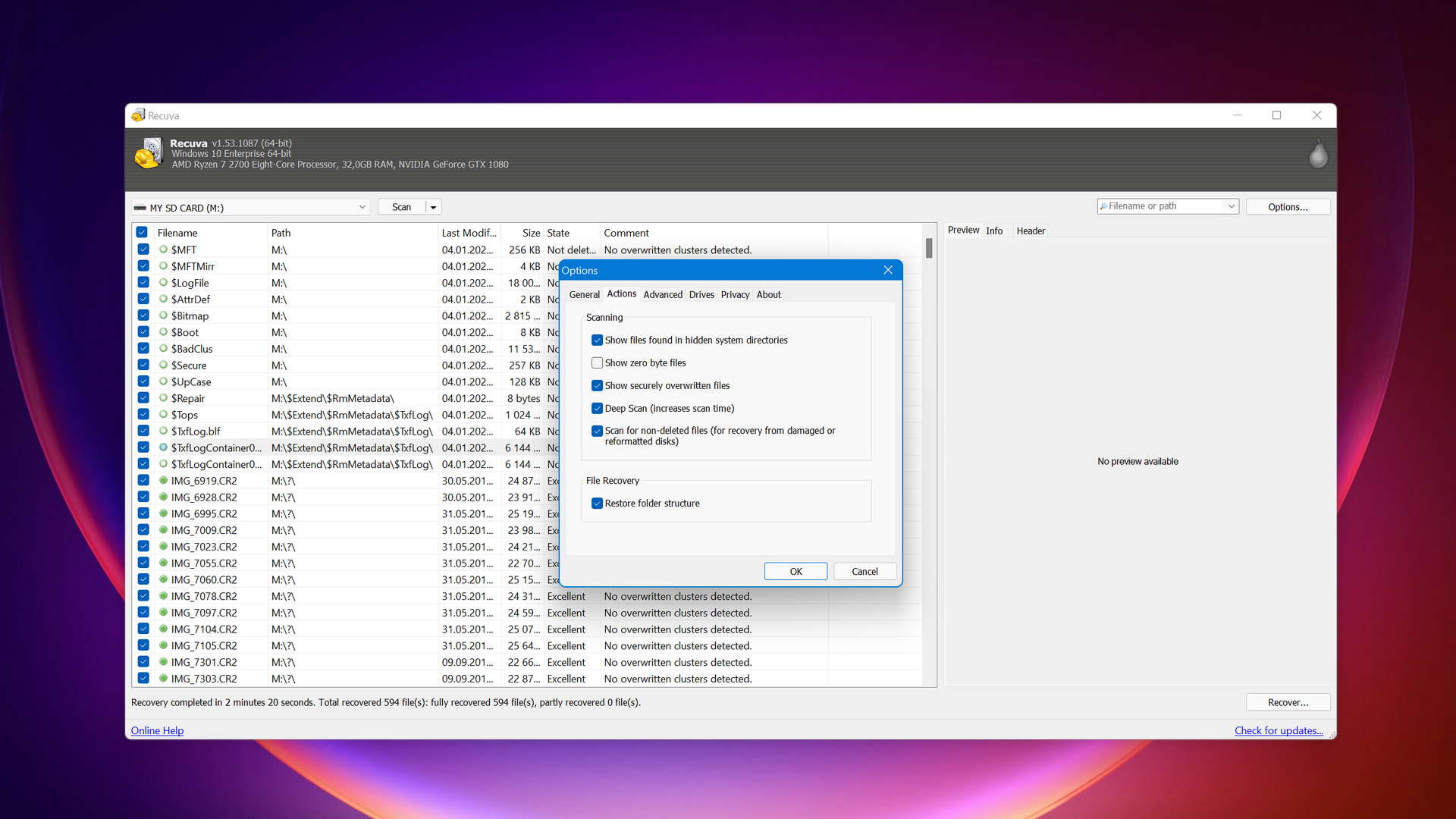
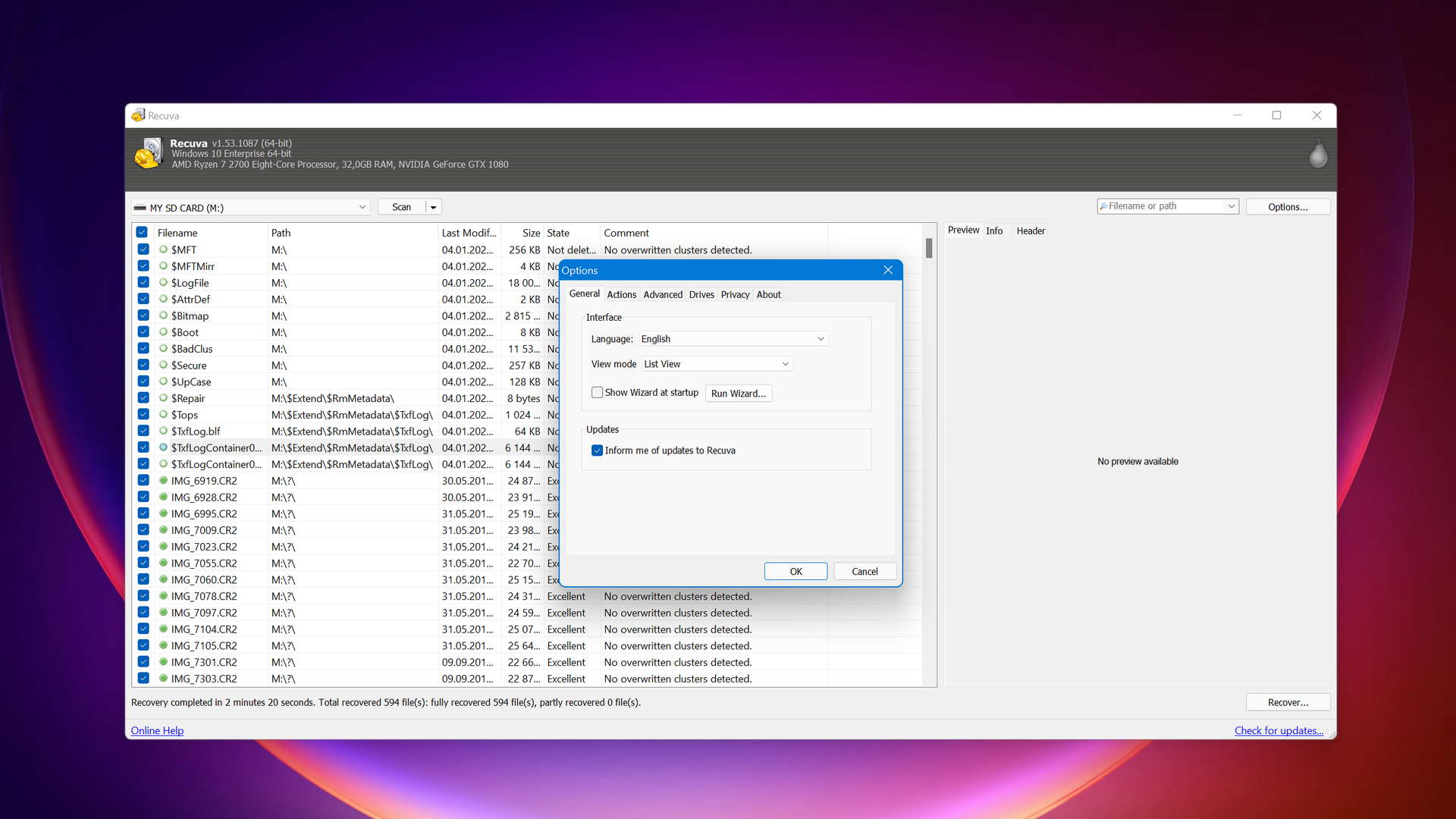
Why You Might Need a Recuva Alternative
| # | Feature | Result | Description |
|---|---|---|---|
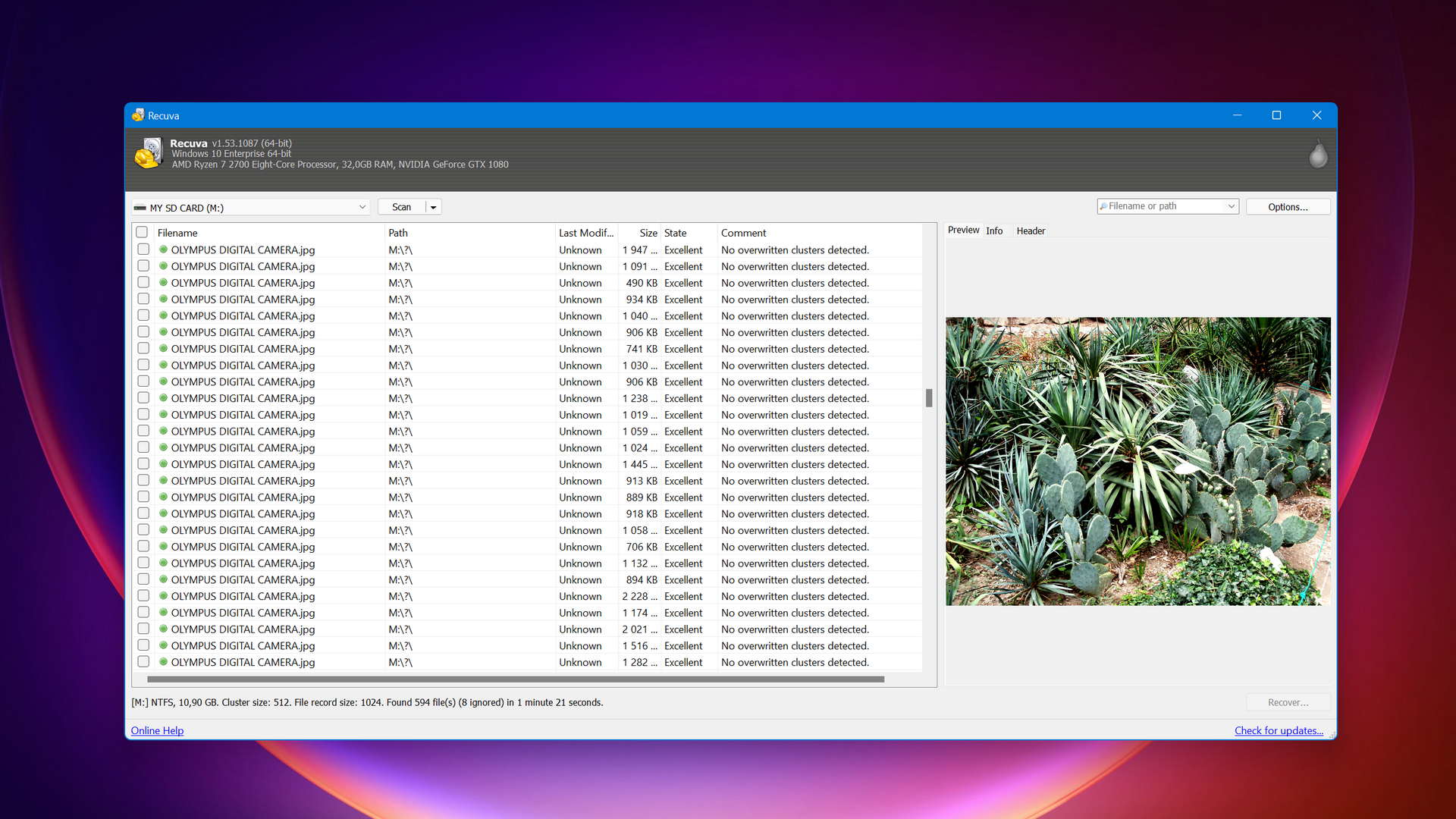
| 1 | Deep Scan | Very Limited | Recuva can't perform a true deep scan of NTFS or exFAT partitions, and it supports far fewer file signatures than other recovery tools. If the standard scan doesn't find your files, you're mostly out of luck. |
| 2 | Support for Unmountable Partitions | Not available | If your disk shows up as RAW, unrecognized, or refuses to mount, Recuva simply can't scan it at all because it has no support for unmountable partitions whatsoever. |
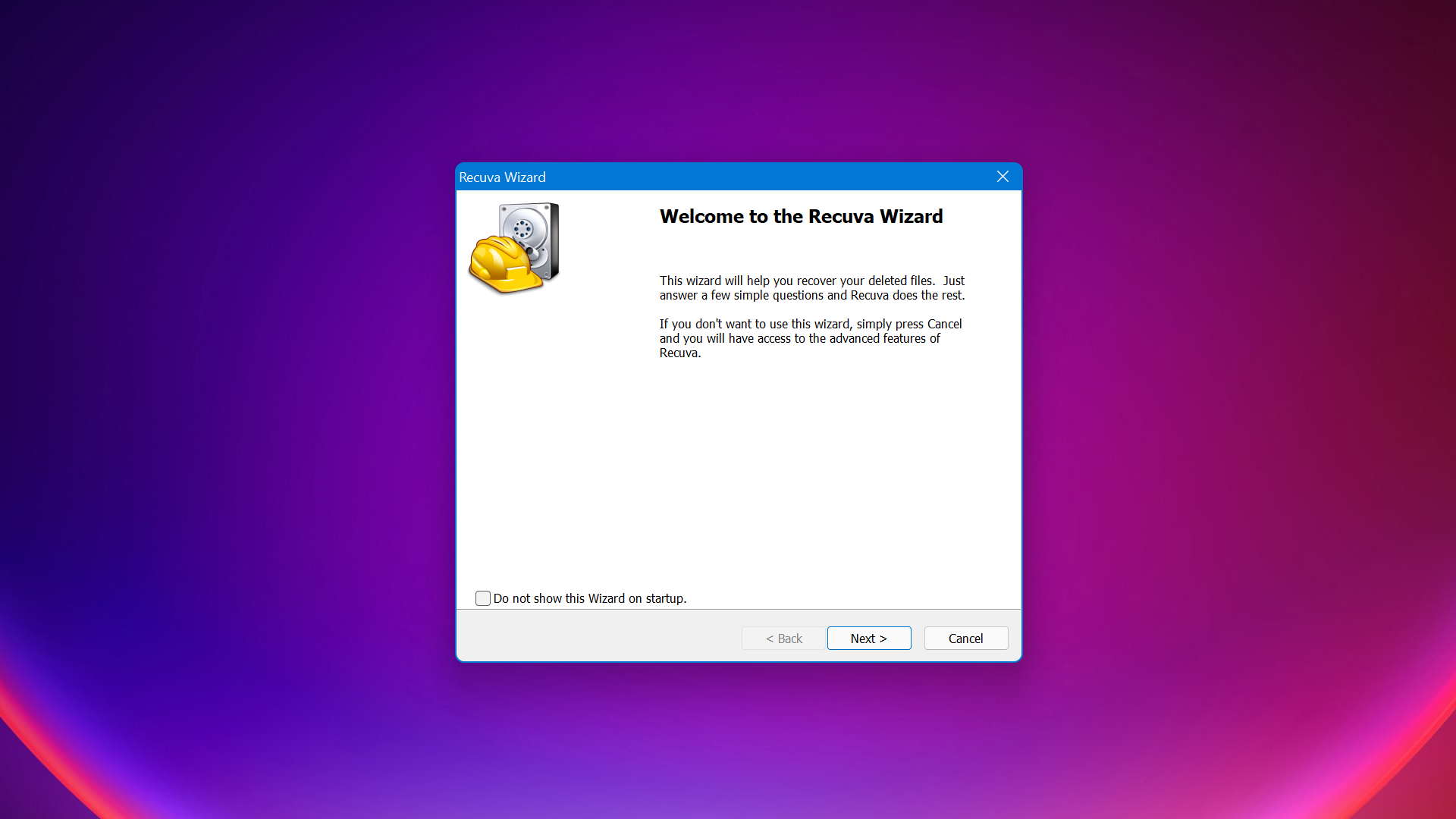
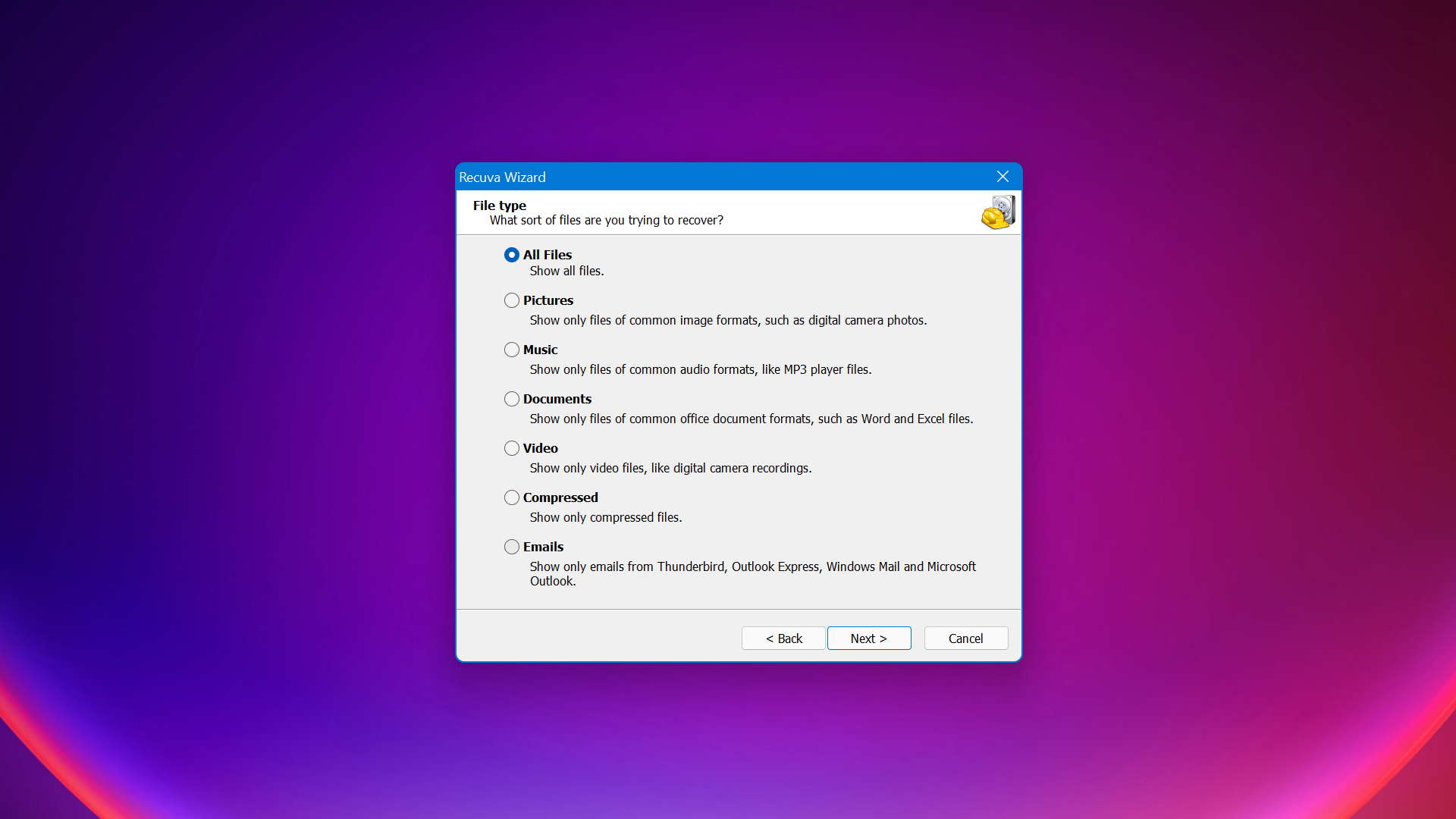
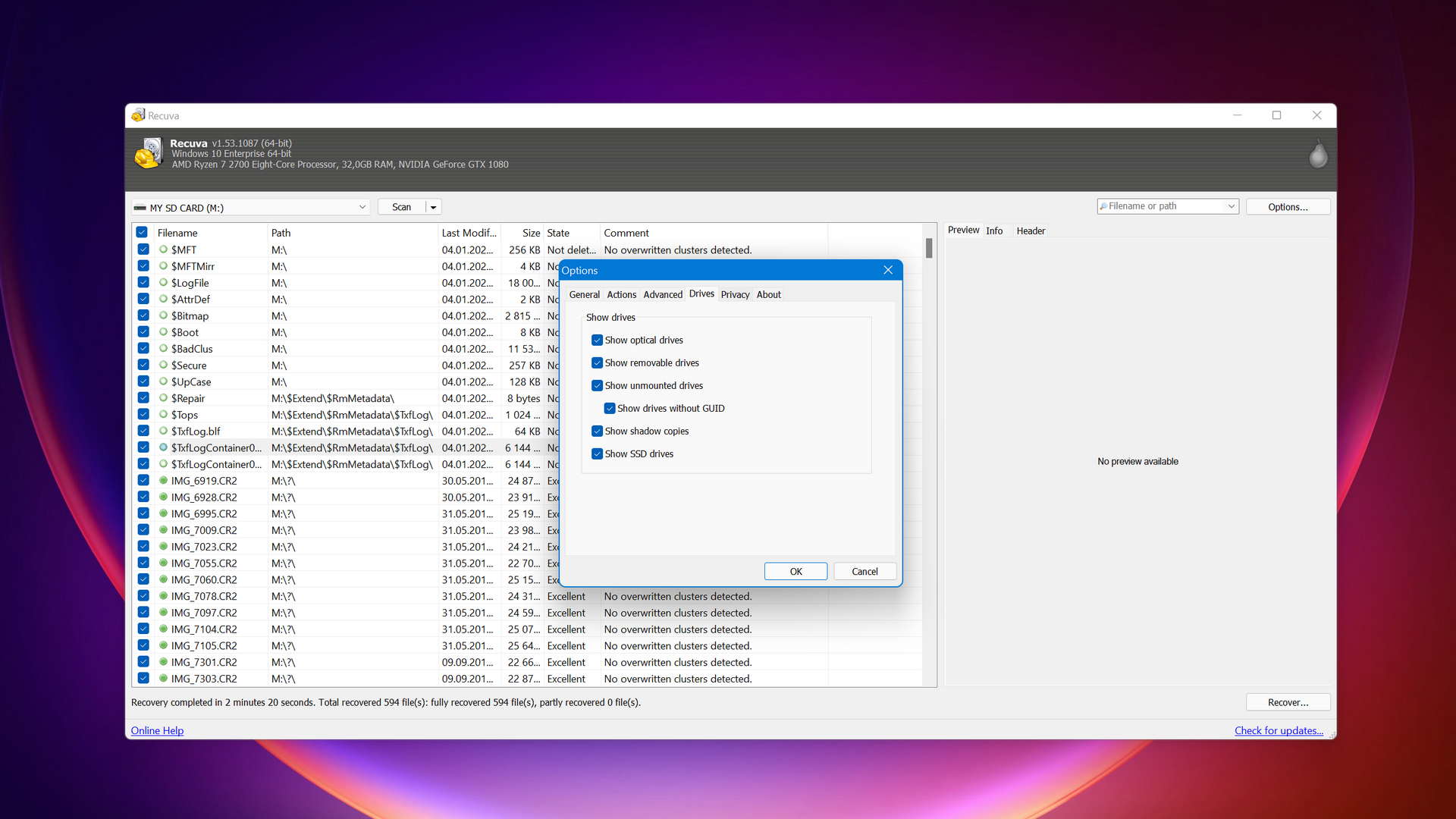
| 3 | User Interface | Outdated | The software uses an old-fashioned interface that feels clunky by today's standards, and it can make the recovery process harder than it needs to be simply because it doesn’t align with modern usability and design expectations despite otherwise being straightforward. |
| 4 | File Preview | Not supported during scan | You can't preview recoverable files while a scan is running. You have to stop the scan first, which makes validating results slow and inconvenient. |
| 5 | Corrupted File Repair | Not available | Recuva has no built-in tools for repairing corrupted photos or videos. If recovered files come back damaged, you'll need separate software to fix them. |
| 6 | Update Frequency | Rare updates | There hasn't been any meaningful development or update since June 2024, which means growing incompatibility with newer file formats and storage technologies. |
| 7 | Whole-Disk Scanning | Not available | Recuva can only scan individual partitions. It has no ability to scan a raw disk. This limitation is a serious gap when dealing with partition table damage. |
| 8 | Recovery Stability | Unstable | Users frequently report crashes when scanning modern photo and video formats, especially during recovery odds calculation. |
| 9 | Cross-Platform Support | Windows only | There's no macOS, Linux, or any other platform support. If you work across operating systems, Recuva won't help on anything besides Windows. |
| 10 | Disk Imaging | Paid feature | Disk imaging is exclusive to the paid version, and it still doesn't compensate for the missing deep scan and RAW recovery capabilities. |
In short, Recuva is a basic free data recovery tool that works best for simple undelete tasks on healthy, mounted partitions. Anything beyond that, and you’ll want a more capable alternative.
Recovery Scenarios Where Recuva Typically Fails
As a result of the above-described limitations, there are a few common real-world situations where Recuva consistently falls short.
The Drive Was Formatted or Repartitioned
When a drive gets formatted, the file system is rebuilt from scratch and all previous file references are wiped out. As a result, recovering data requires deep, signature-based scanning, which is Recuva’s major weakness. The same applies when a partition is deleted or the partition table is damaged. In such situations, Recuva won’t see the lost volumes, even though other tools would see them fine.
Recuva Finds Files but Can't Recover Them
Recuva may list files as recoverable, but when you actually try to restore them, the output is corrupted or a zero-byte file. The main reason behind this annoying problem is that lost files are often fragmented across the storage device. More capable tools handle this by analyzing file signatures at the sector level, but Recuva lacks the deeper scanning logic needed to correctly reassemble these fragments.
The Drive Has Become RAW
When Windows can’t recognize the file system on a partition, it labels the drive as RAW. Common causes of partitions turning RAW include a sudden power failure, improper ejection, or file system corruption. The problem is that Recuva requires a functioning file system to work with, so a RAW drive is a dead end. You’ll need a tool that supports raw disk-level scanning to recover data from these situations.
Top 5 Recuva Alternatives
Now that we’ve covered what Recuva can and can’t do, here are the five alternatives we recommend.
Why trust our picks? Our team specializes in testing data recovery software under real-world conditions. Every tool on this list was evaluated through hands-on testing across multiple recovery scenarios, including formatted drives, RAW partitions, and deep scan performance.
Rankings reflect real recovery results, not marketing claims or popularity alone. We also consider update frequency, usability, platform support, and the value offered by each tool's free tier.
1. Disk Drill for Windows
Overview
Disk Drill sits at the top of our list of Recuva alternatives because it’s a recovery tool that checks (almost) all the boxes. It has strong recovery performance, and it’s easy to use thanks to its clean, modern interface. All of the extra features, like byte-to-byte drive backups and data protection tools, are available for free.
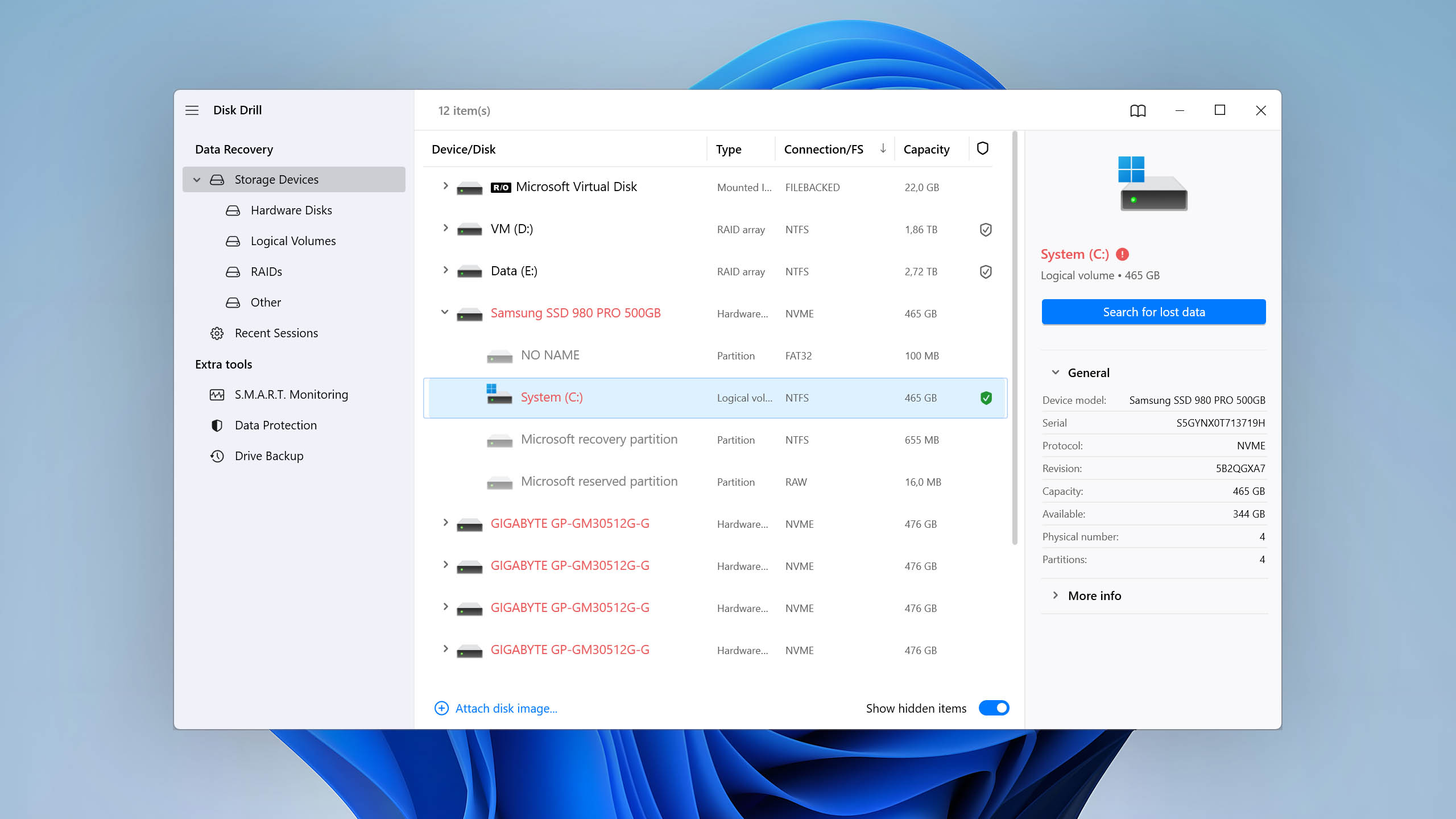
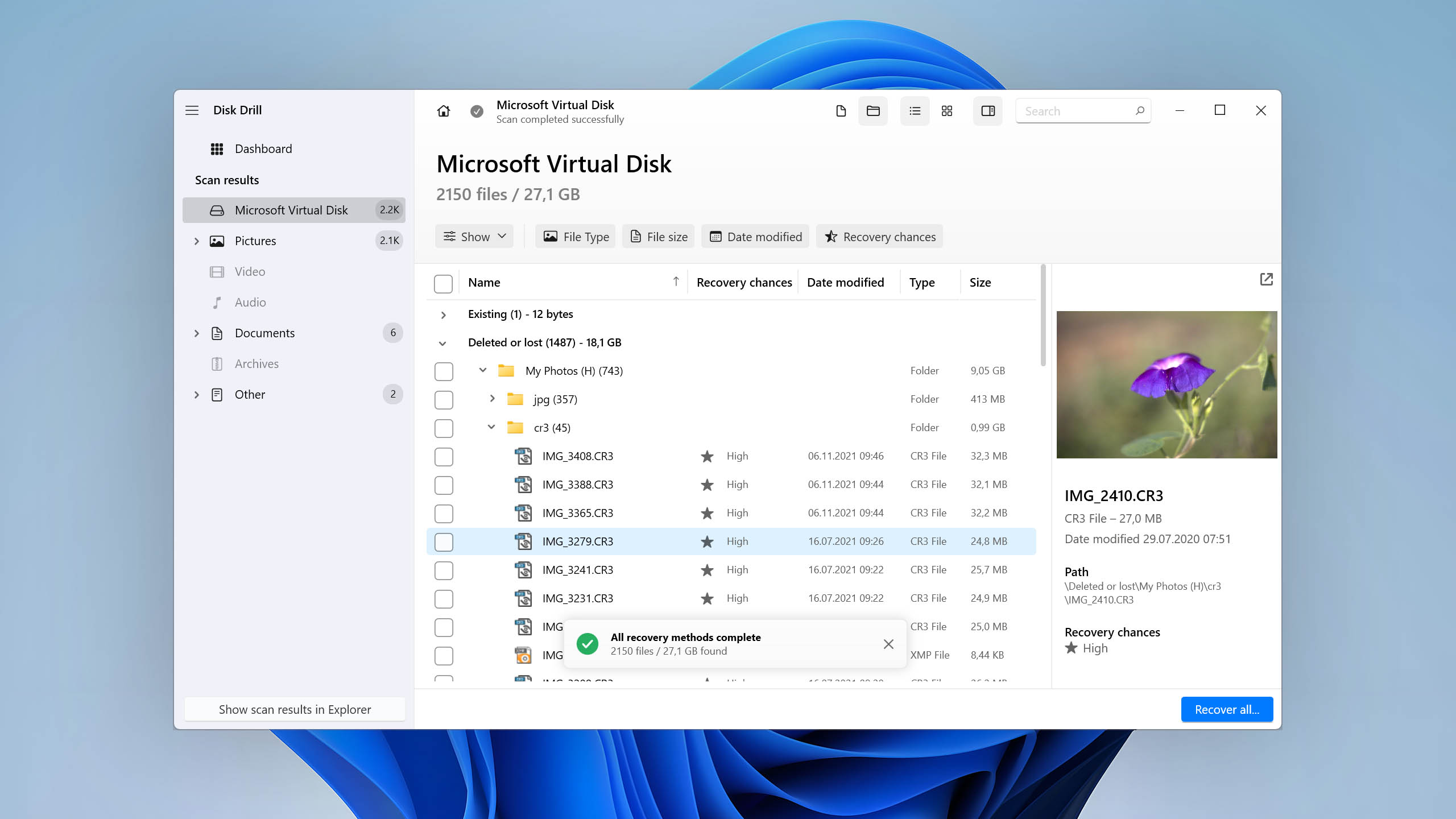
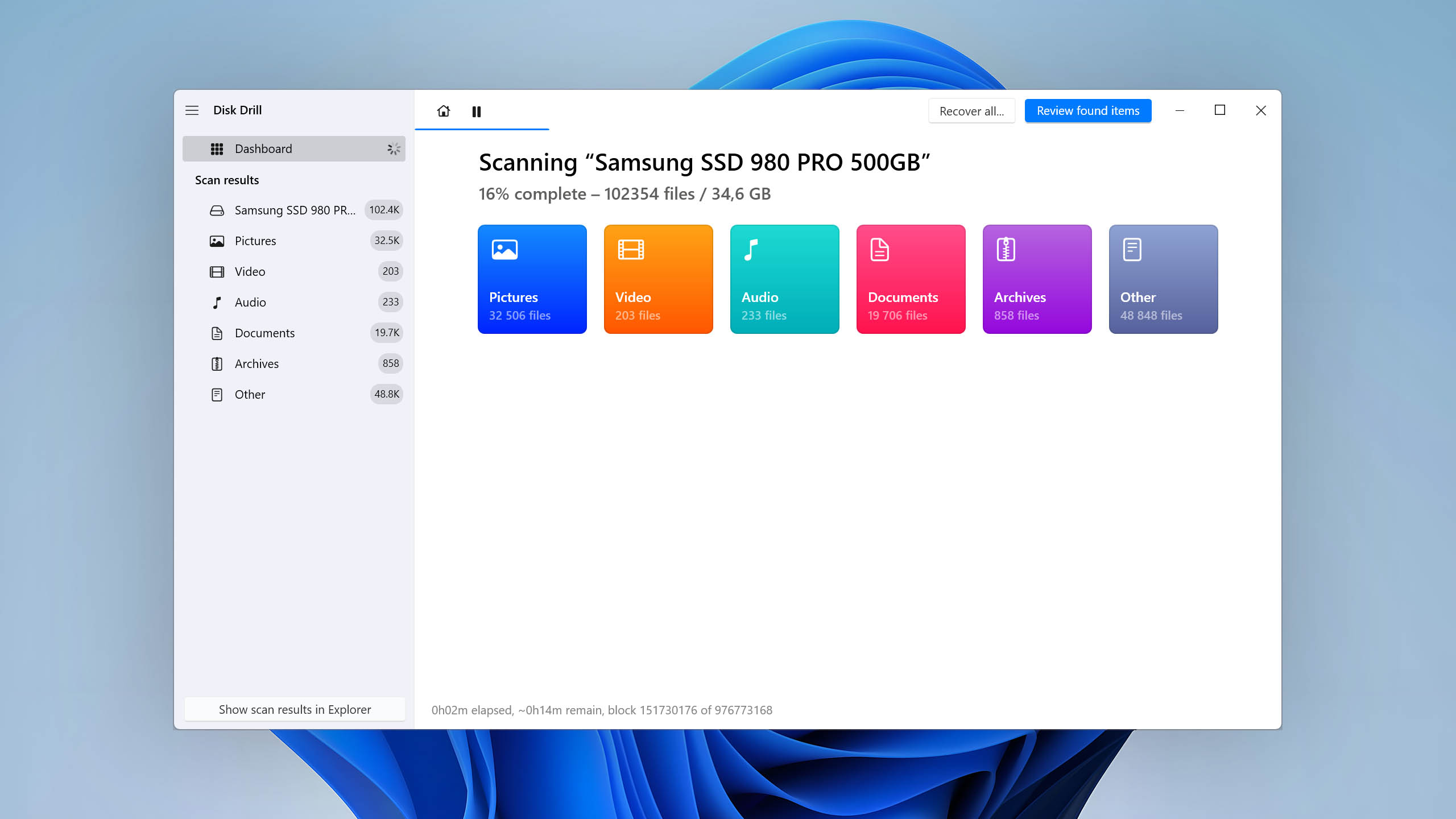
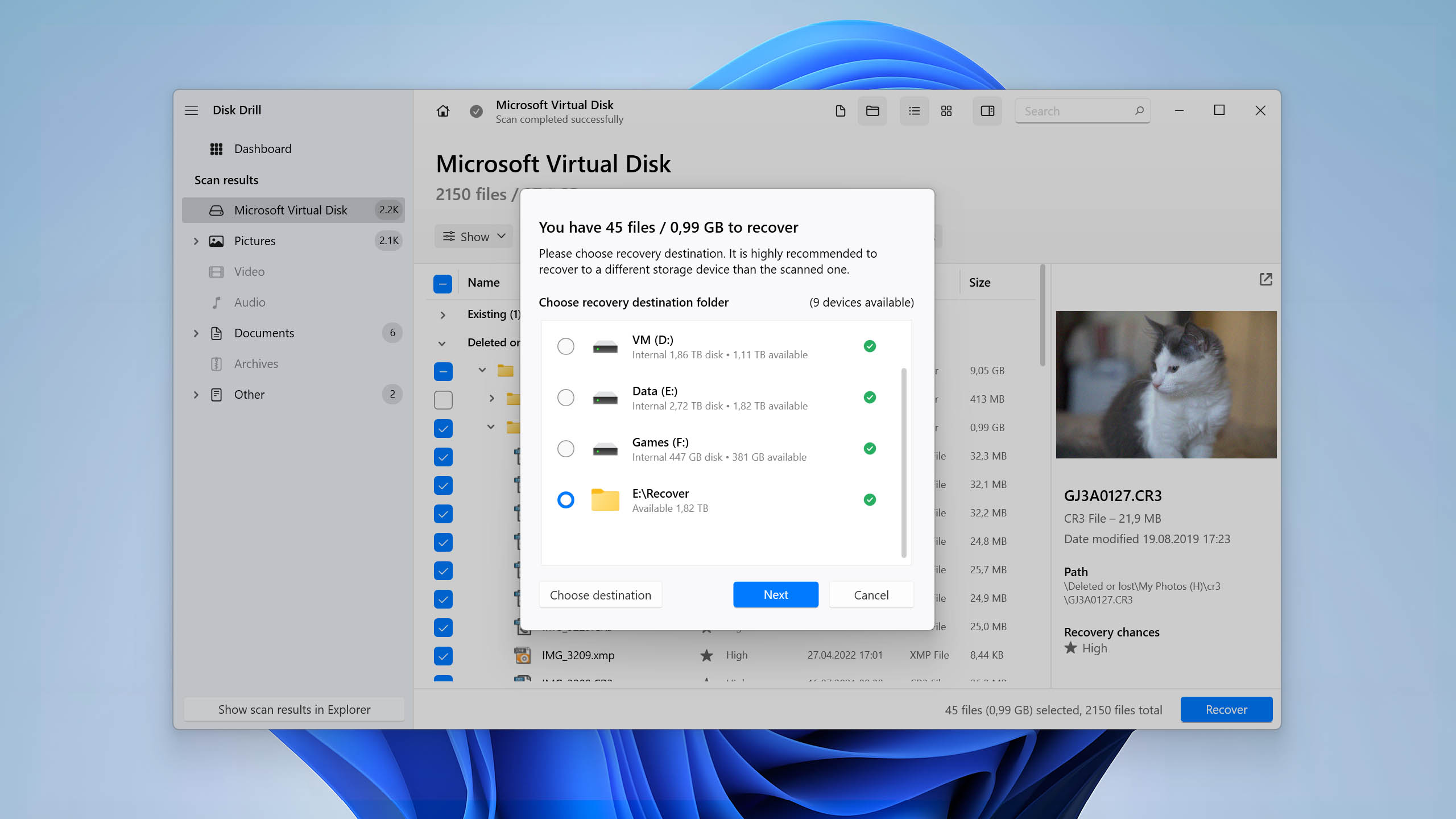
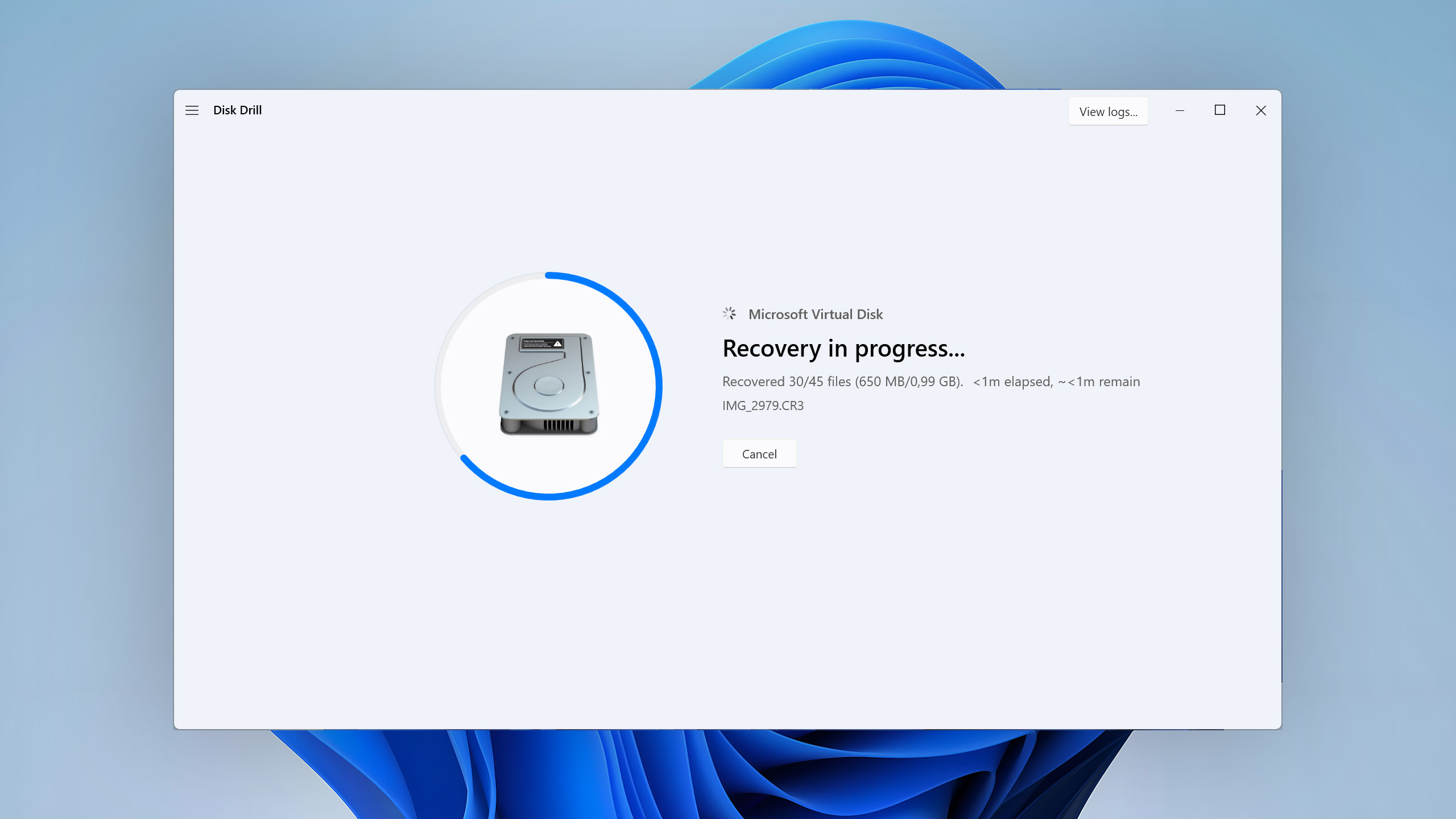
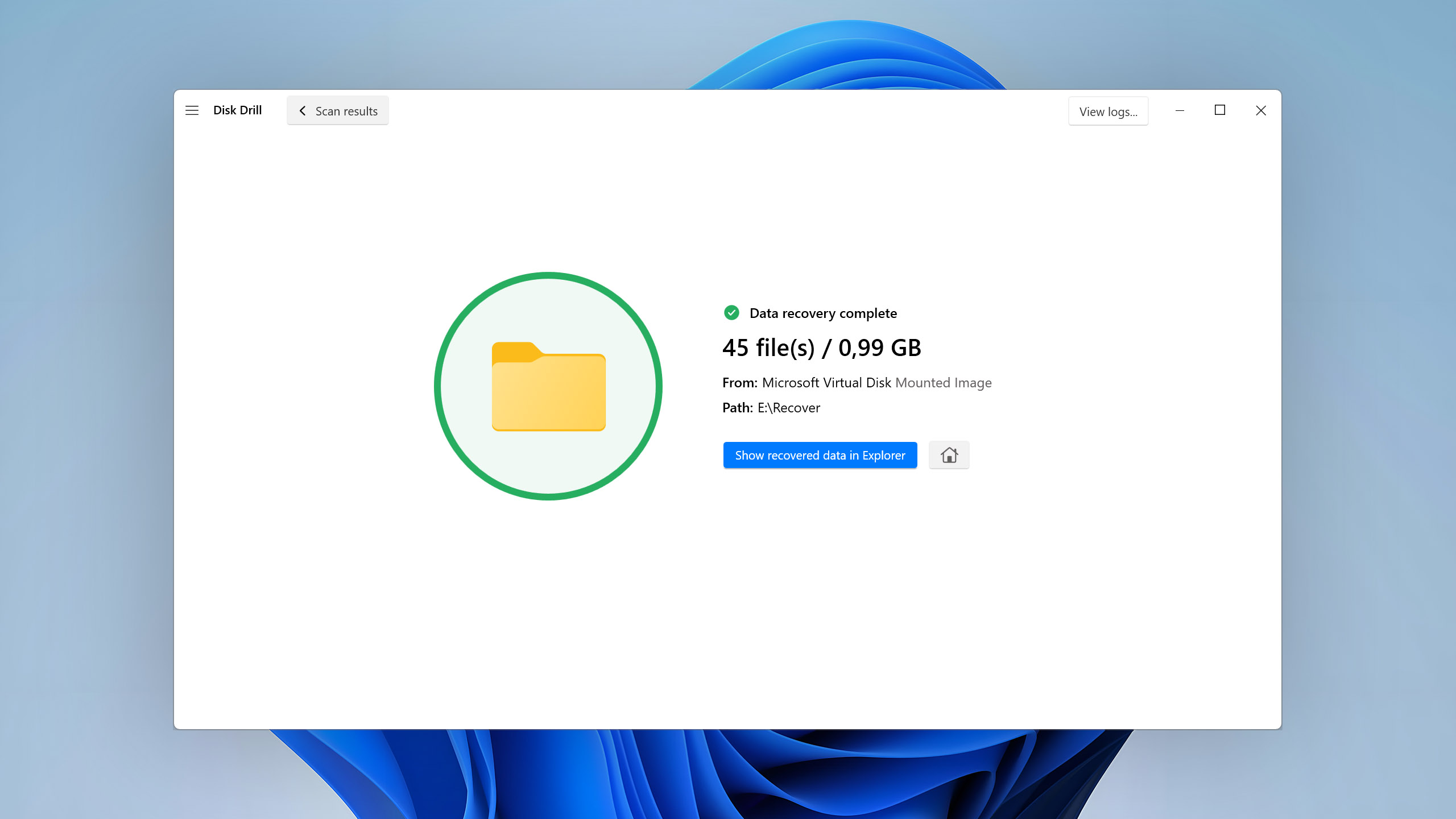

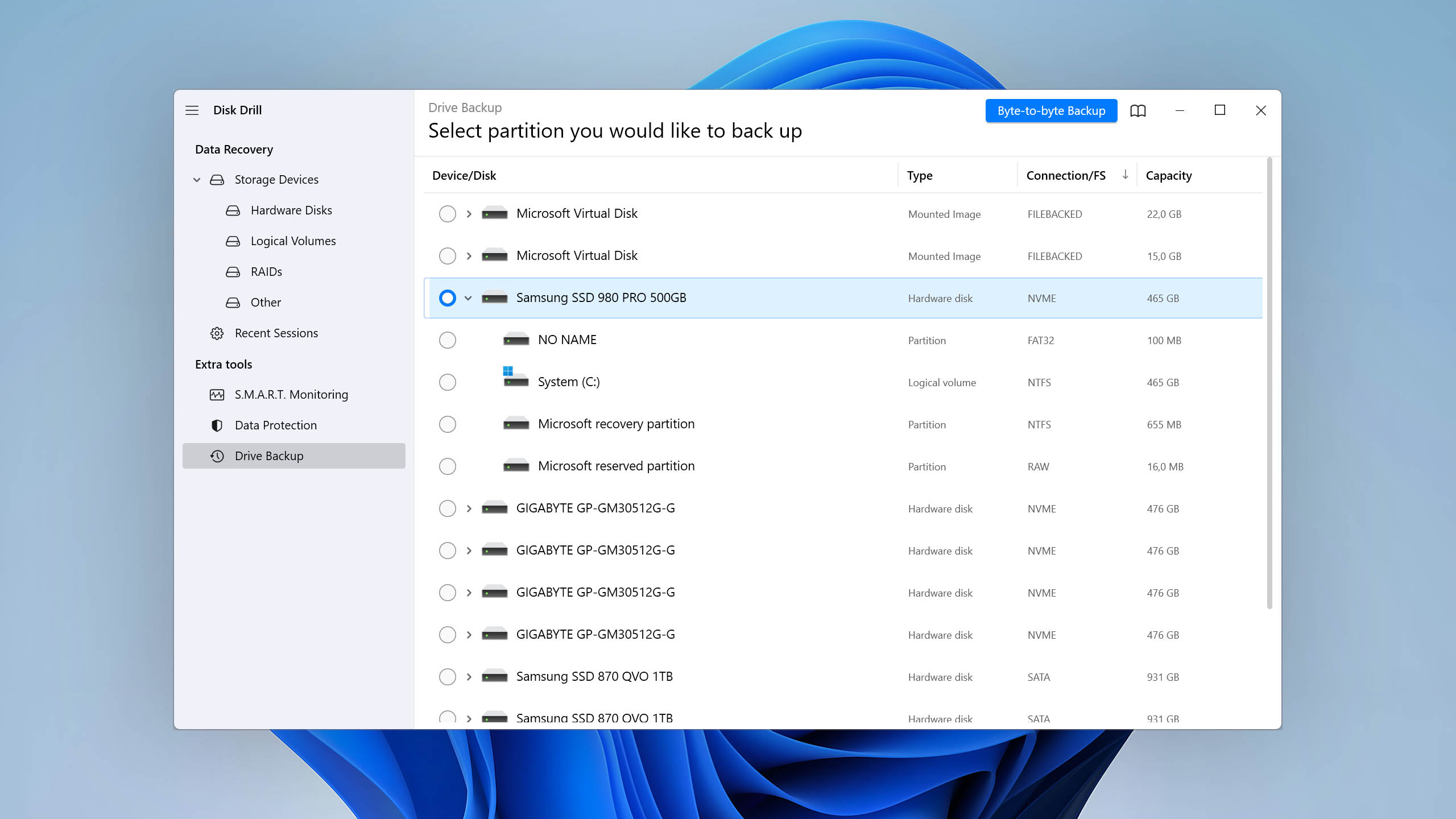
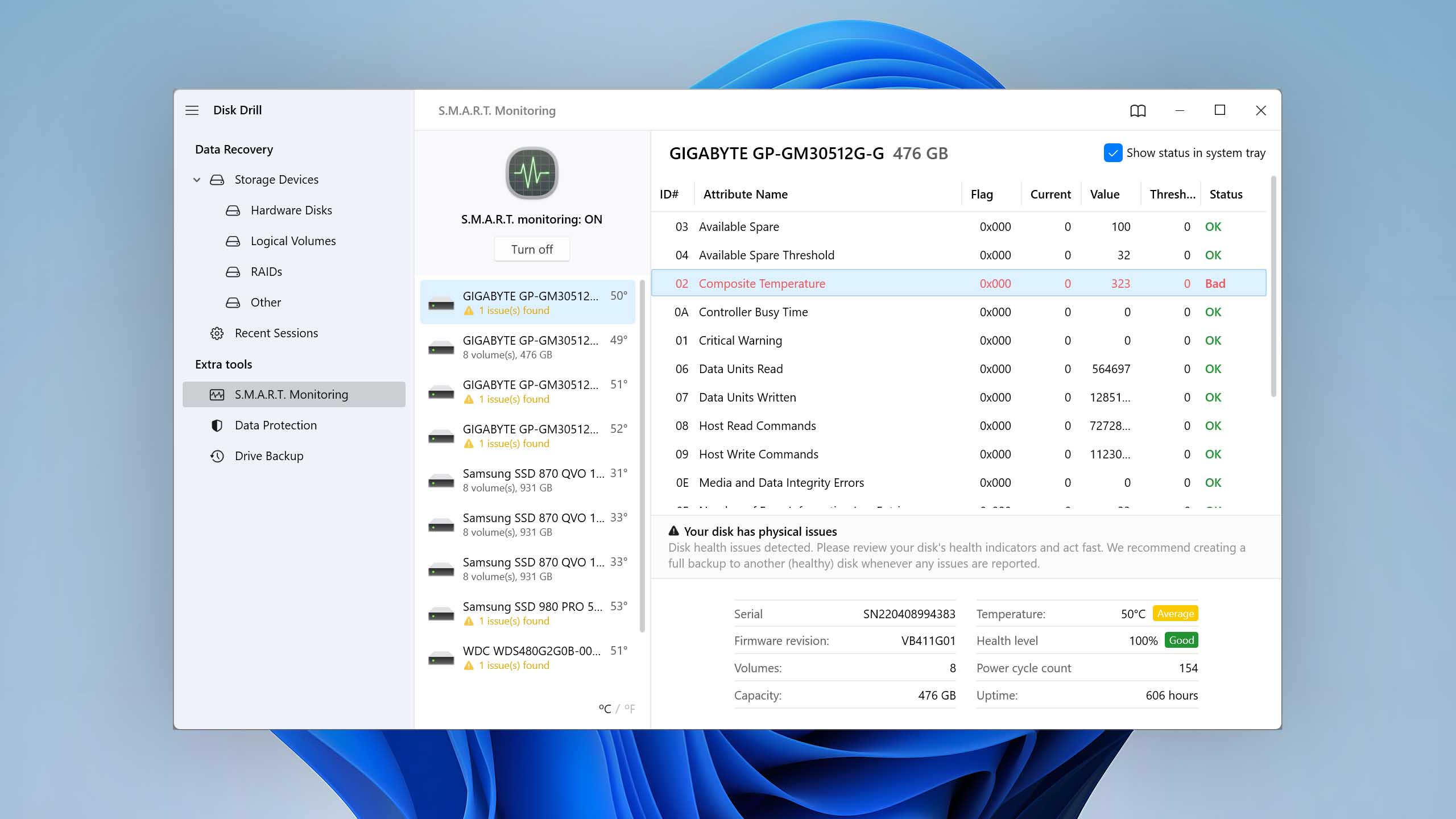
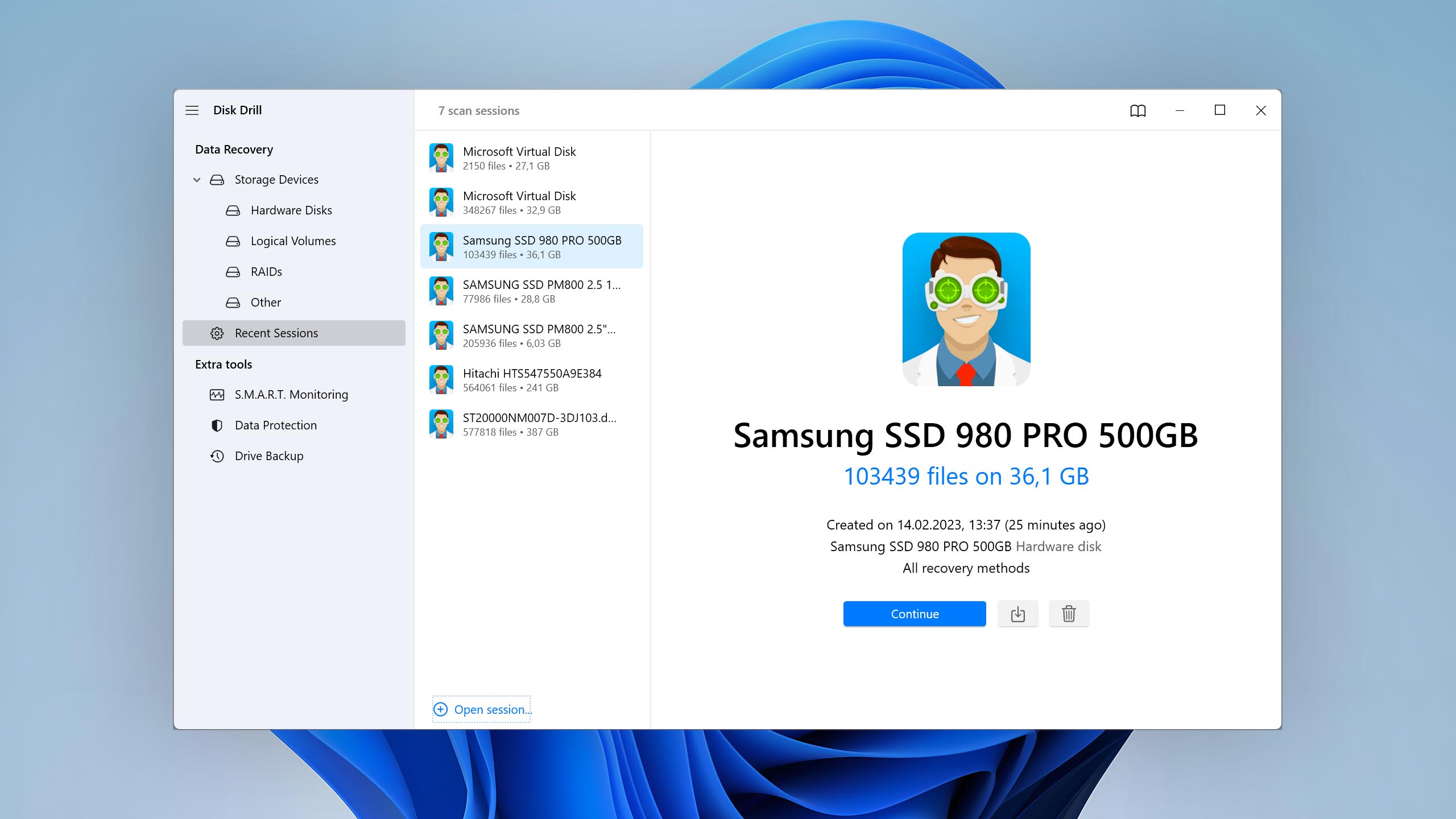

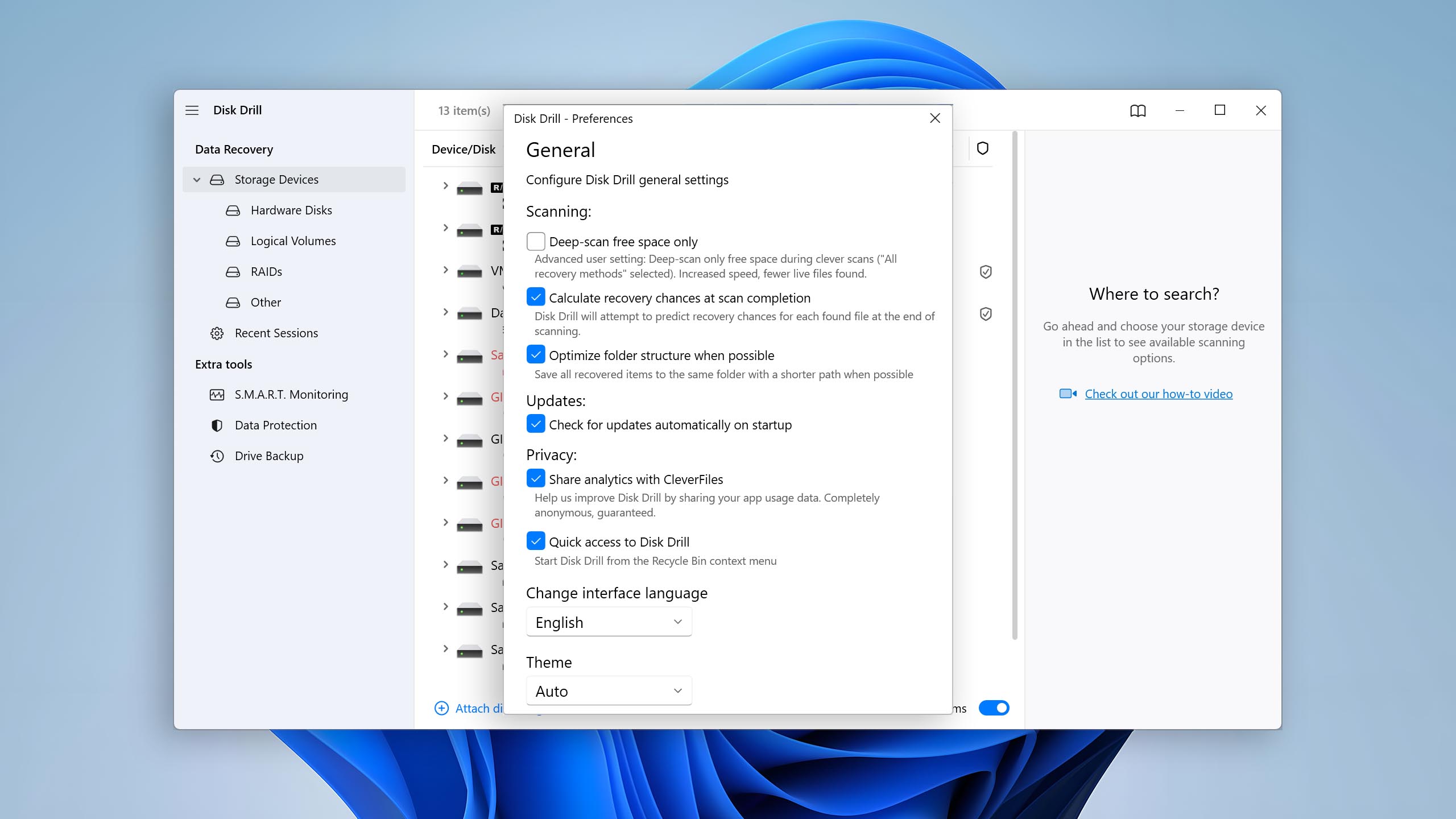
The team behind Disk Drill keeps it updated regularly, so it supports modern file types that outdated tools can miss. You can try the software by recovering up to 100 MB of data for free before needing to upgrade. During the recovery process, you can preview recoverable files and get an indication of each file’s chances of being recovered successfully.
Disk Drill 6 also introduced Advanced Camera Recovery (ACR), a specialized scanning mode built for reconstructing fragmented video files from cameras like GoPro, DJI, Canon, and others. If you’ve lost footage from an SD card or drone, ACR is currently the strongest consumer-grade algorithm available for that kind of recovery.
The main differences between Disk Drill and Recuva


| # | Feature | Recuva | Disk Drill |
|---|---|---|---|
| 1 | Starting price | $0 | $89.00 / Annual |
| 2 | exFAT partitions scan | bad | good |
| 3 | NTFS partitions scan | bad | good |
| 4 | Scan for lost partitions | bad | good |
| 5 | Unmountable partitions | bad | good |
| 6 | Preview recoverable items without interrupting the scan | bad | good |
| 7 | Mount recoverable items as disk | bad | good |
| 8 | Modern user-friendly interface | bad | good |
| 9 | Automatic implementation of multiple appropriate scanning methods without user interaction | bad | good |
| 10 | Overall non-intrusive read-only algorithms | bad | good |
| 11 | Convenient scan session management | bad | good |
| 12 | Auto-resuming scans of failing drives | bad | good |
| 13 | Data protection | bad | good |
| 14 | S.M.A.R.T. | bad | good |
| 15 | Update frequency | bad | good |
| 16 | Live chat | bad | good |
While free data recovery tools are great, they often fall short when compared to a paid solution. This is the case when you look at Recuva and Disk Drill. During our clever scan, Recuva was only able to scan our FAT32 partition. Even then, close to a quarter of the data on that partition wasn't found. Its deep scan only supports a small number of file formats too, making it less reliable in instances where a normal search doesn't yield the results you need.
In instances where you've lost an entire partition, Recuva is unable to detect them. Moreover, it cannot recover data from unmountable partitions. This can be a huge drawback, depending on the situation. On the other hand, Disk Drill is capable of searching your drive for lost partitions and recovering data from them.
Lastly, Recuva's usability could be improved greatly. As the scan proceeds, it's not possible to use any other part of the application, including file previews. It's also not possible to save scan sessions for later viewing and recovery. Both of these features are possible with Disk Drill, as well as the ability to pause and resume scans.

There are more differences to discover.
Read full Disk Drill versus Recuva comparisonDisk Drill is a good alternative to Recuva because:
Great recovery performance.
Preview files while scanning.
Save scan results for later recovery.
Features are easy to access.
Scans for lost partitions.
Deep scan supports more file signatures.
Disk Drill is a poor alternative to Recuva because:
Does not have a data shredding feature.
Limited free recovery.
2. PhotoRec for Windows
Overview
PhotoRec is a free open-source data recovery tool distributed under the GNU General Public License. It’s downloaded alongside its partition recovery brother, TestDisk. It’s supported on all major operating systems and allows the recovery of photos, videos, documents, and other files.
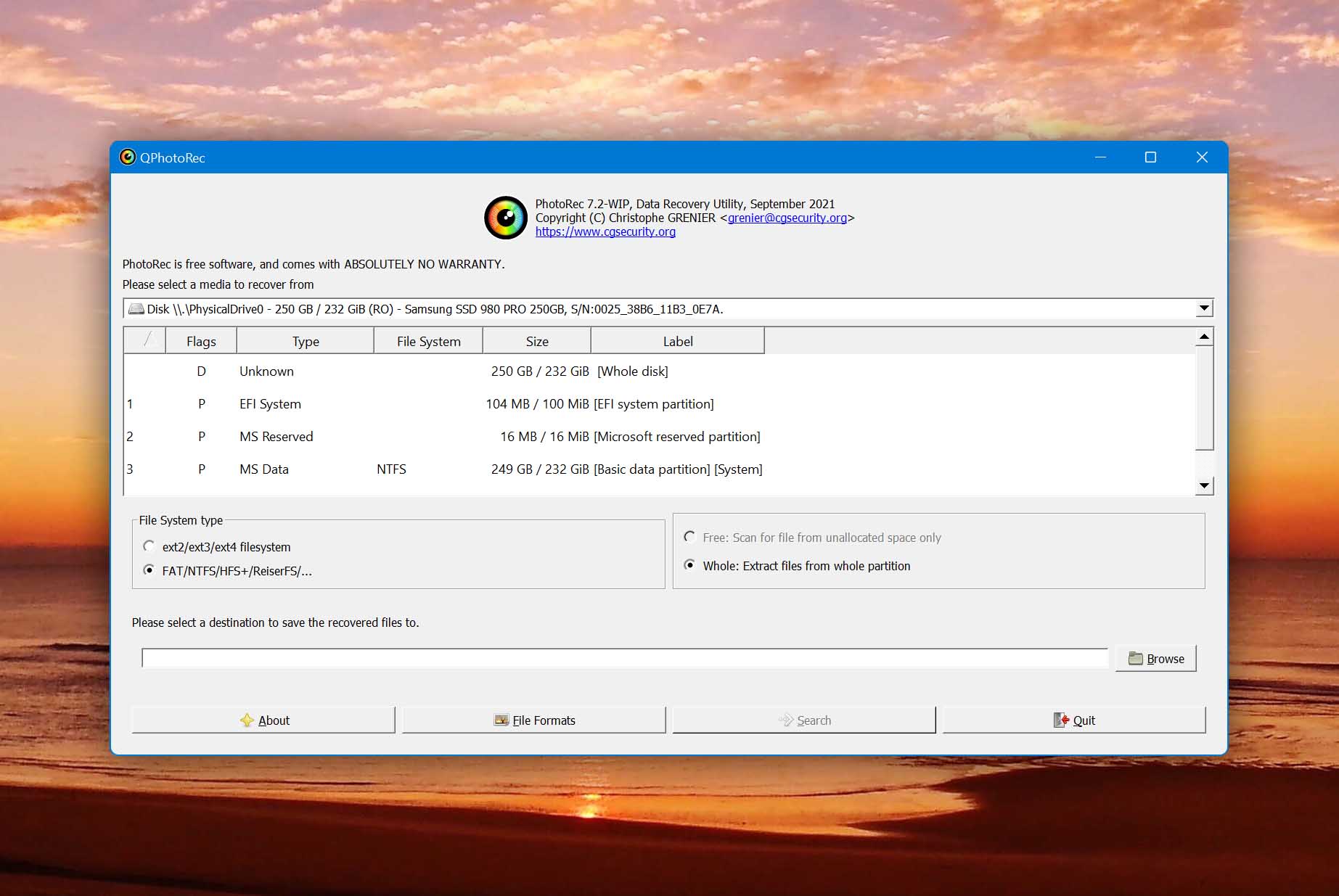
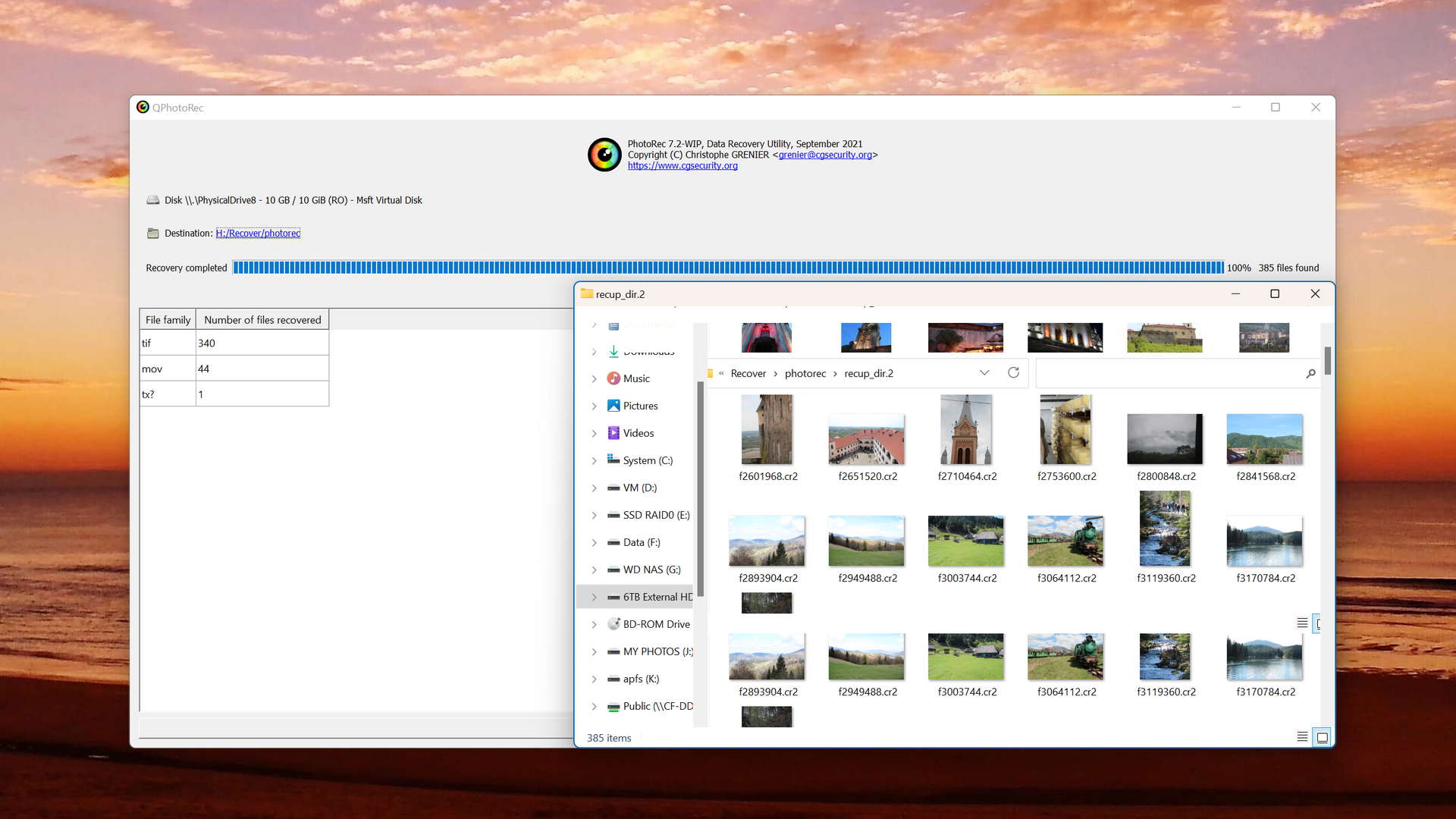
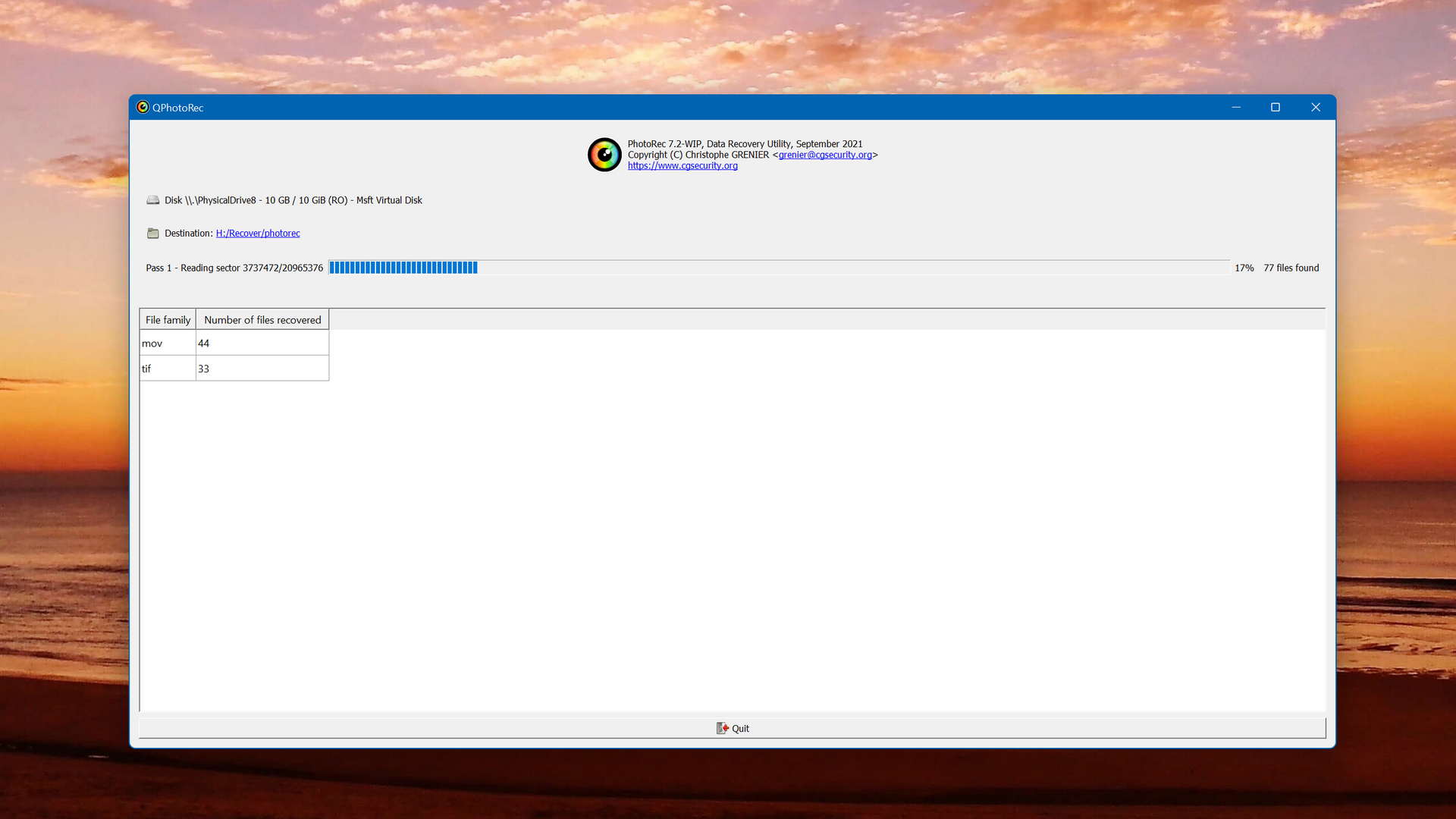
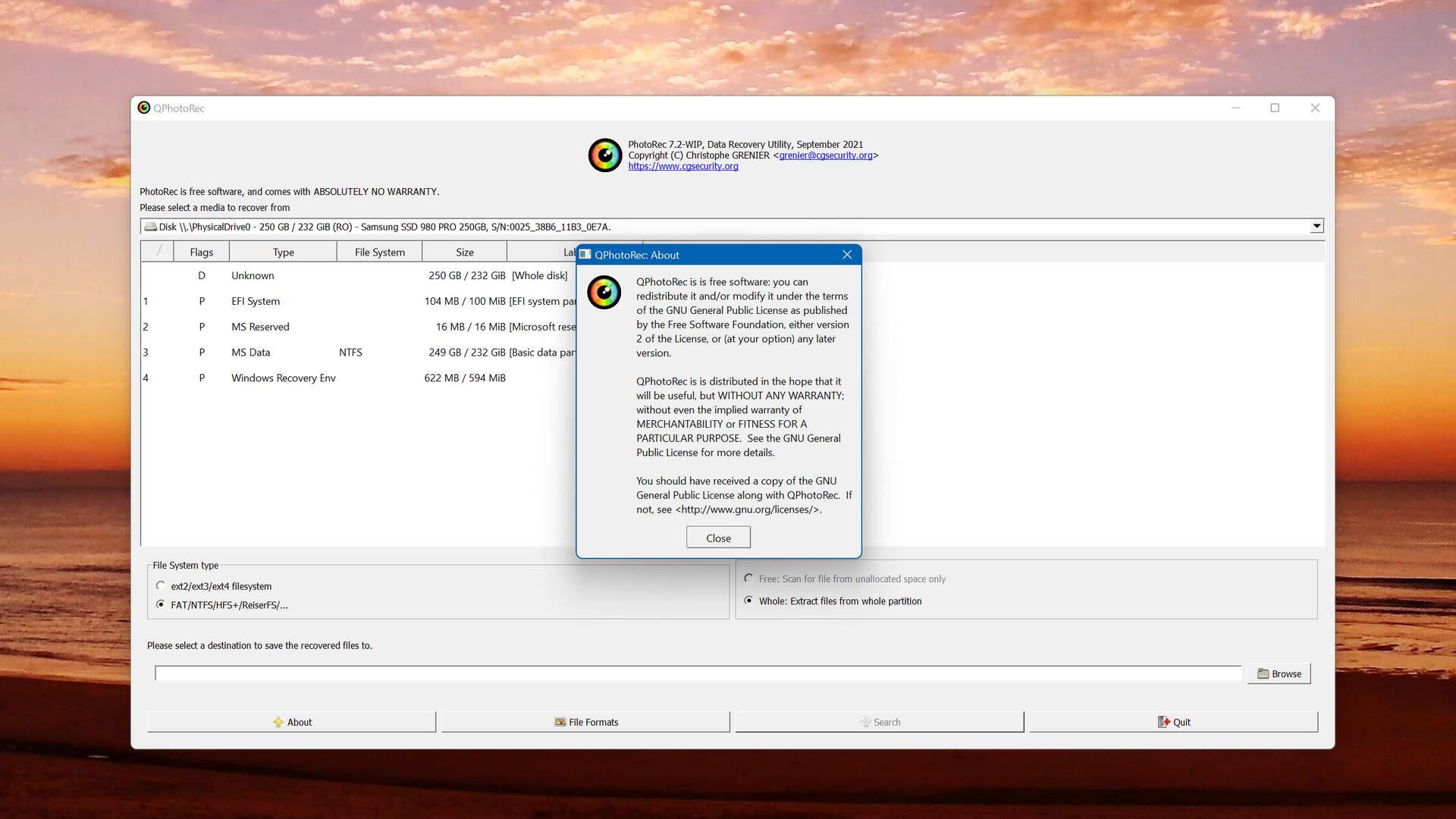
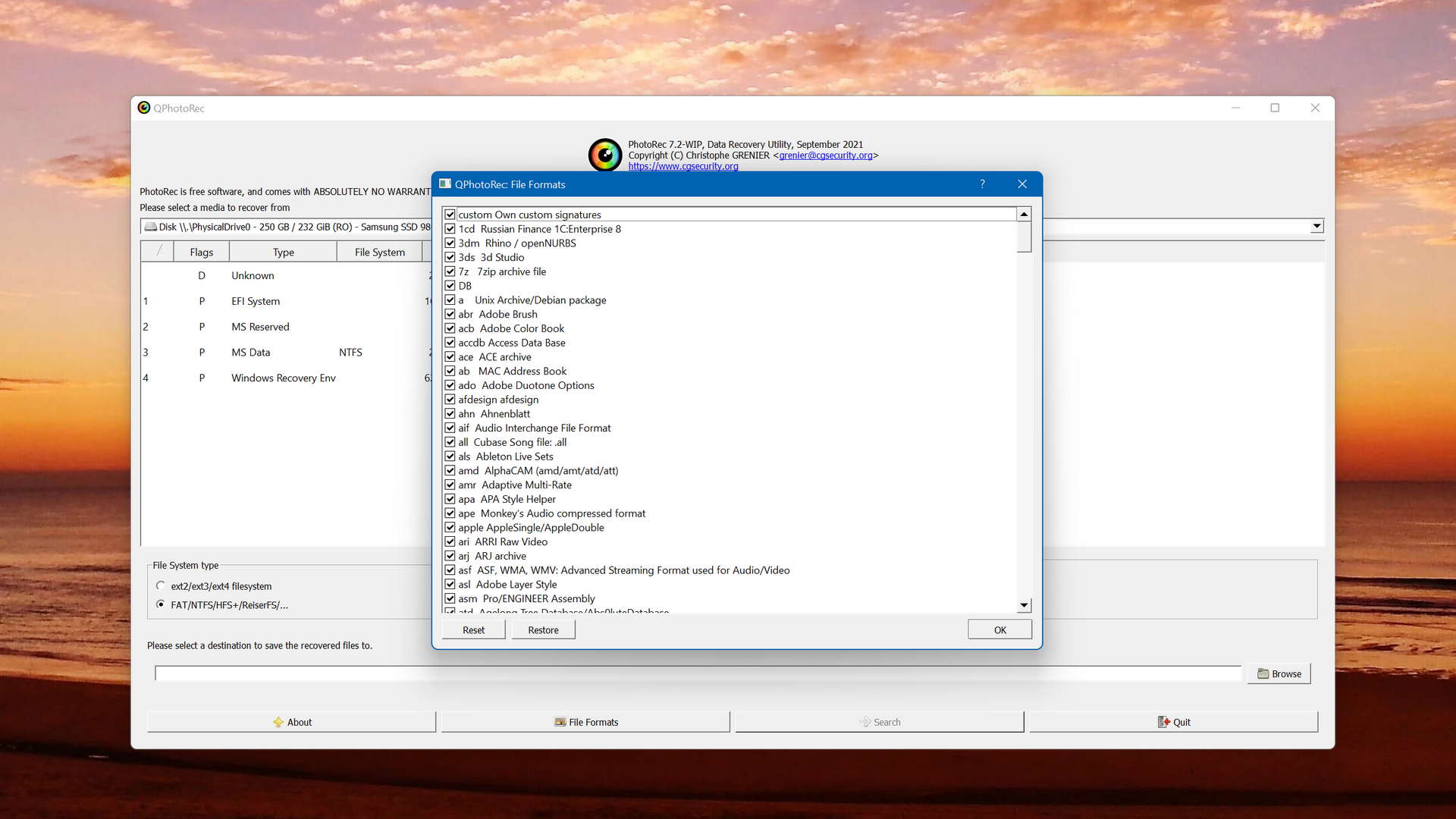
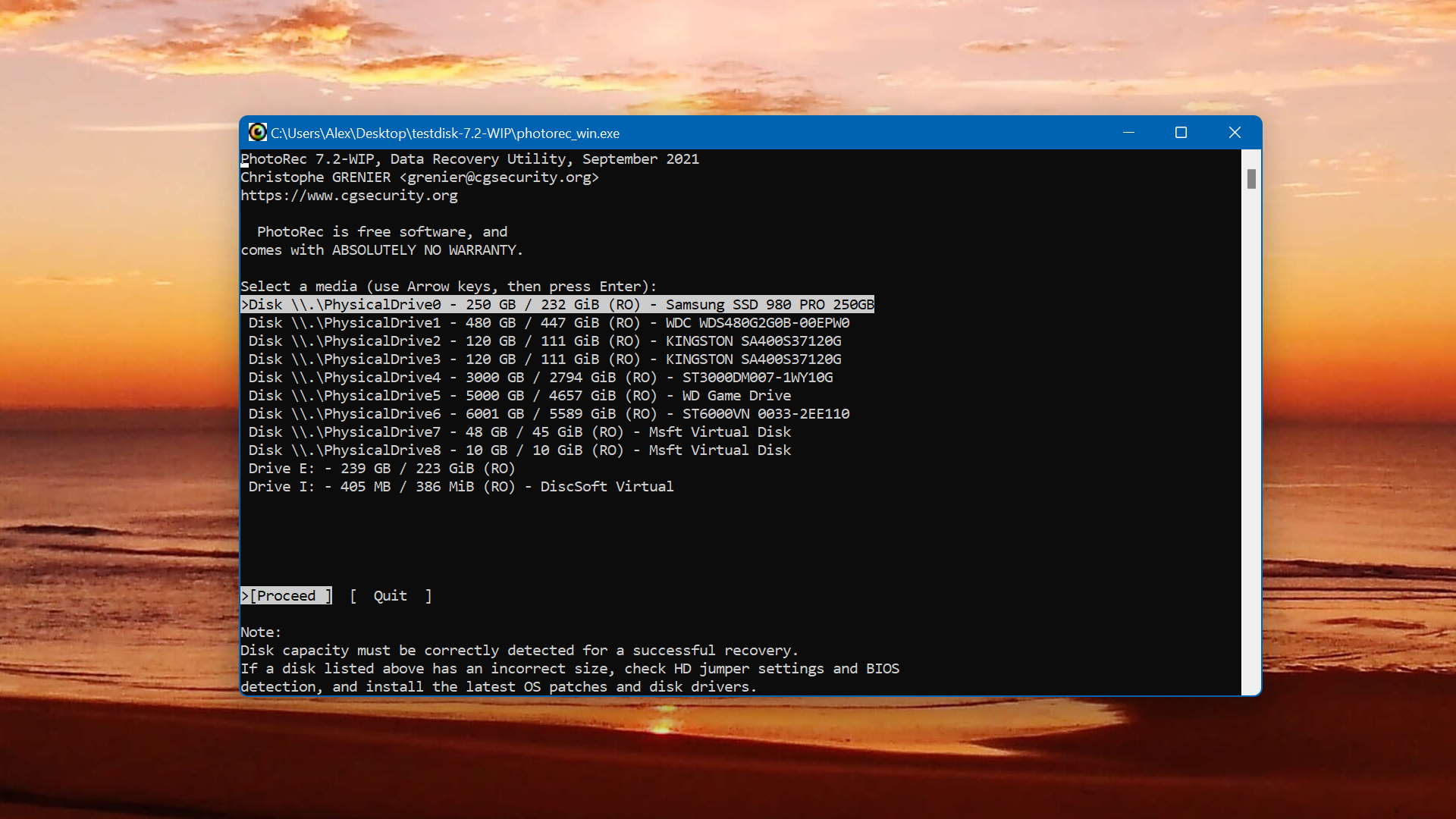
The software was developed by Christophe GRENIER. Since its release in 2008, it has become a popularly recommended free data recovery tool as it offers great recovery performance using file signatures and has excellent compatibility with most operating systems.
The main differences between PhotoRec and Recuva

| # | Feature | Recuva | PhotoRec |
|---|---|---|---|
| 1 | Is it free? | good | good |
| 2 | The number of formats supported by deep scan | bad | fine |
| 3 | Raw photo recovery | base-warn | base-pros |
| 4 | Video formats recovery | base-warn | base-pros |
| 5 | Document formats recovery | base-warn | base-pros |
| 6 | Start file recovery without interrupting the scan | bad | good |
| 7 | Scan free space only | bad | good |
| 8 | FAT32 partitions scan | fine | bad |
| 9 | Convenient source selection on start | fine | bad |
| 10 | Partial file recovery | good | bad |
| 11 | Recovery chance prediction | fine | bad |
| 12 | Easy-to-locate features | good | bad |
| 13 | Byte-to-byte device backups | good | bad |
| 14 | Secure data shredding | good | bad |
Despite also being a free solution, PhotoRec offers superior signature scanning capabilities, recovering a lot of file formats that Recuva doesn't support, such as ARW, CR3, ARI, INSV, and ACCDB. However, it is doesn't support recovery via the file system, giving Recuva a slight edge in that regard.
PhotoRec's list of recoverable file formats is much larger than Recuva's, making it much more useful in situations where you're working with lesser-known file types. Additionally, it allows users to start file recovery without interrupting the ongoing scan, which is especially useful in cases where you're scanning a large drive that could take a whole night to complete.
PhotoRec supports unmountable partitions, something Recuva does not. Moreover, it allows you to scan free space on the drive only to reduce excessive scan times. But, it doesn't allow byte-to-byte device backups or secure data shredding, both of which are available in Recuva.
There are more differences to discover.
Read full Photorec versus Recuva comparisonPhotoRec is a good alternative to Recuva because:
Free and open-source.
Great signature scanning abilities.
Support for unmountable partitions.
Recover files without stopping scan.
Portable application.
PhotoRec is a poor alternative to Recuva because:
Cannot scan by file system.
Doesn't allow partial file recovery.
No support for BitLocker-encrypted drives.
3. R-Studio for Windows
Overview
R-Studio is a very powerful data recovery tool that’s primarily targeted at data recovery enthusiasts and professionals. It includes a range of advanced features that enable the user to effectively recover their data.
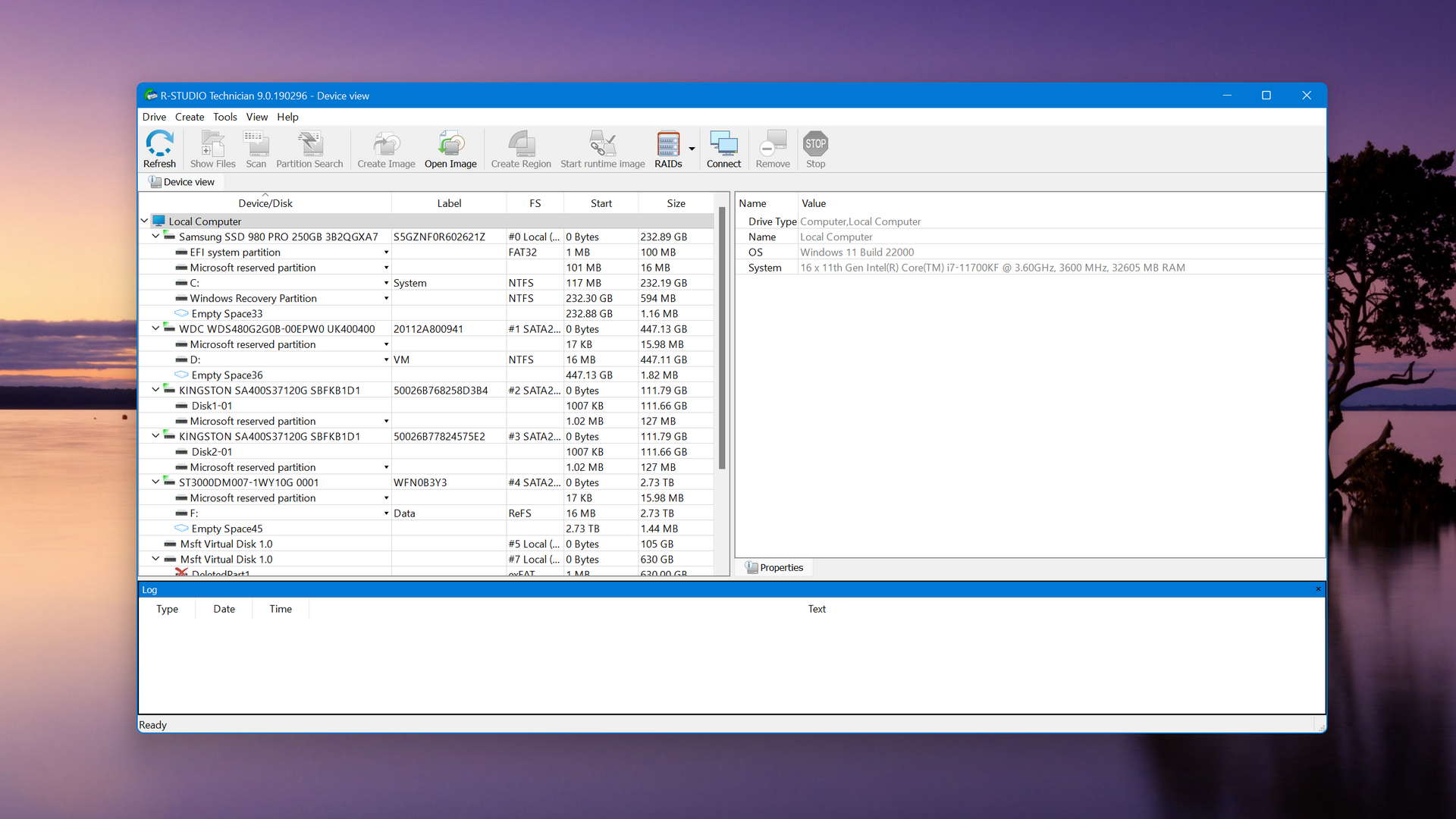
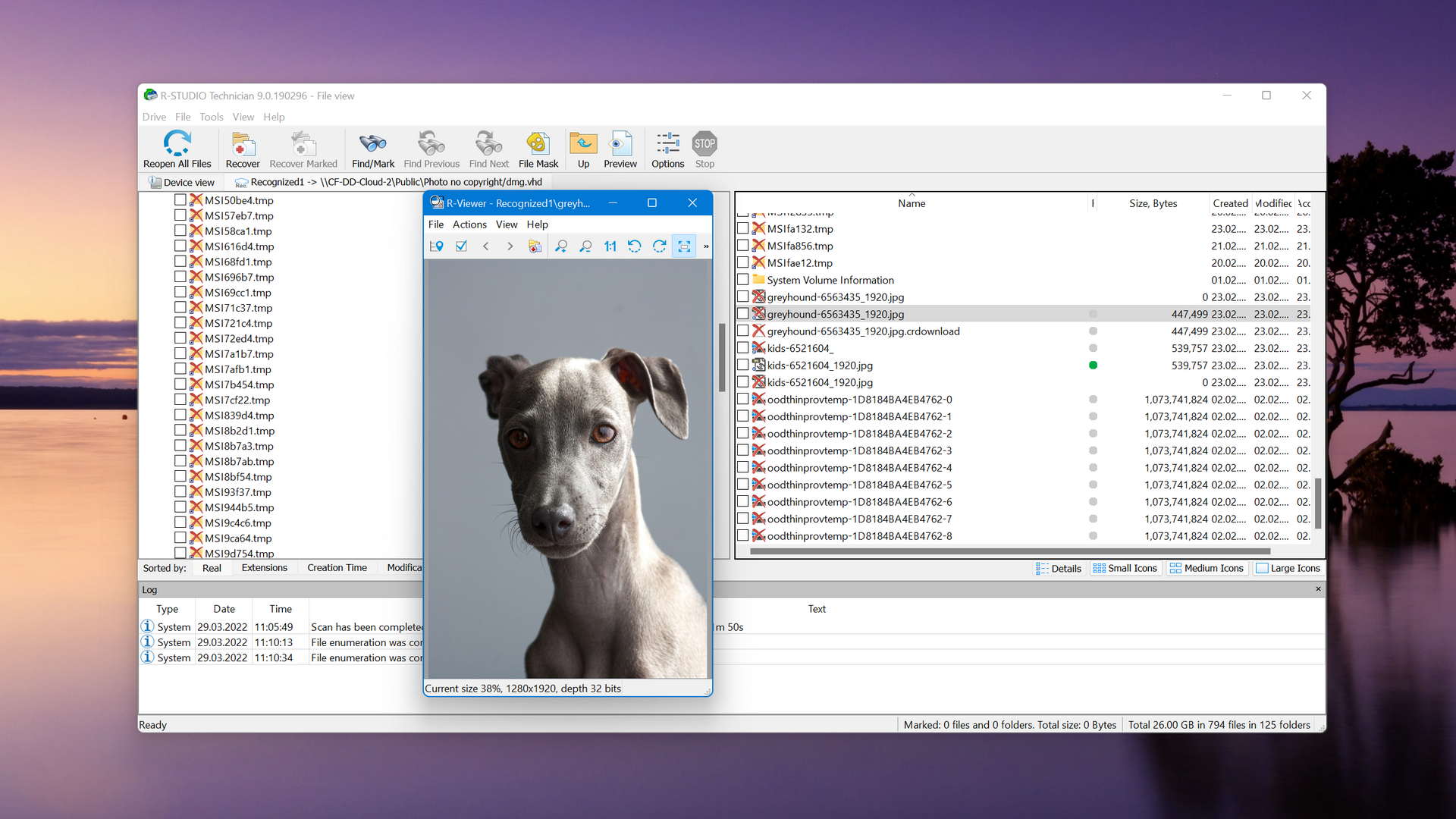
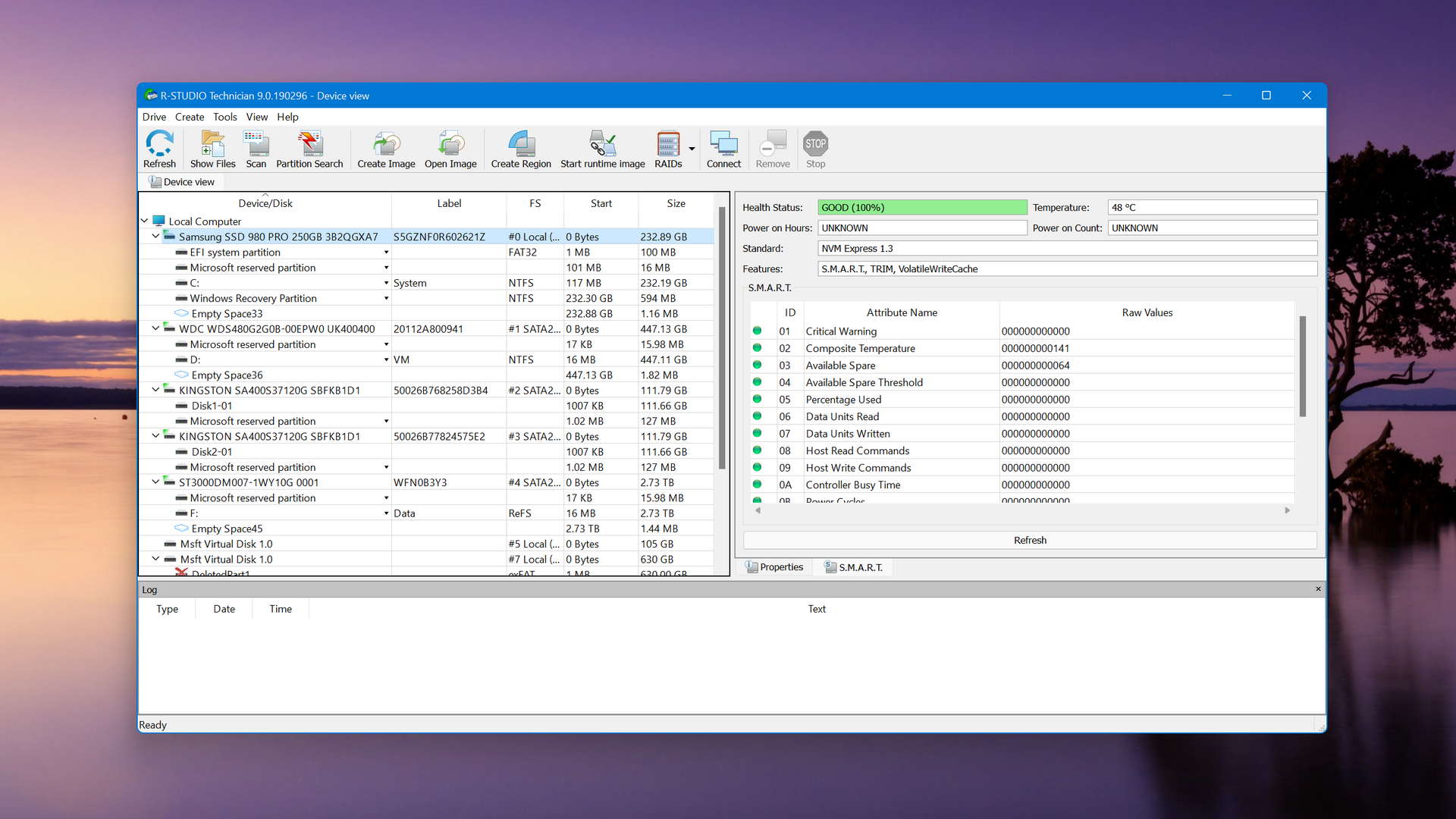
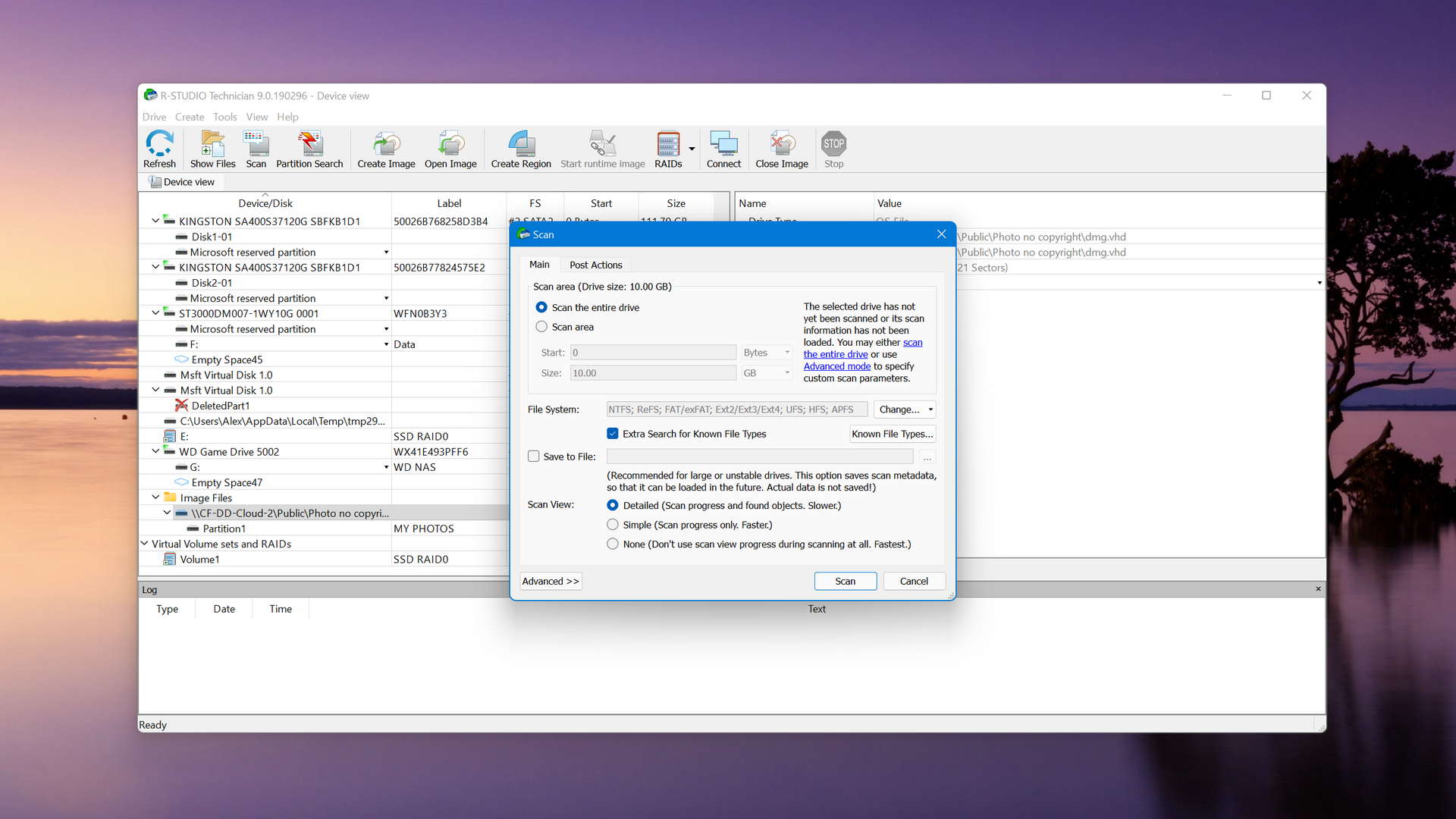
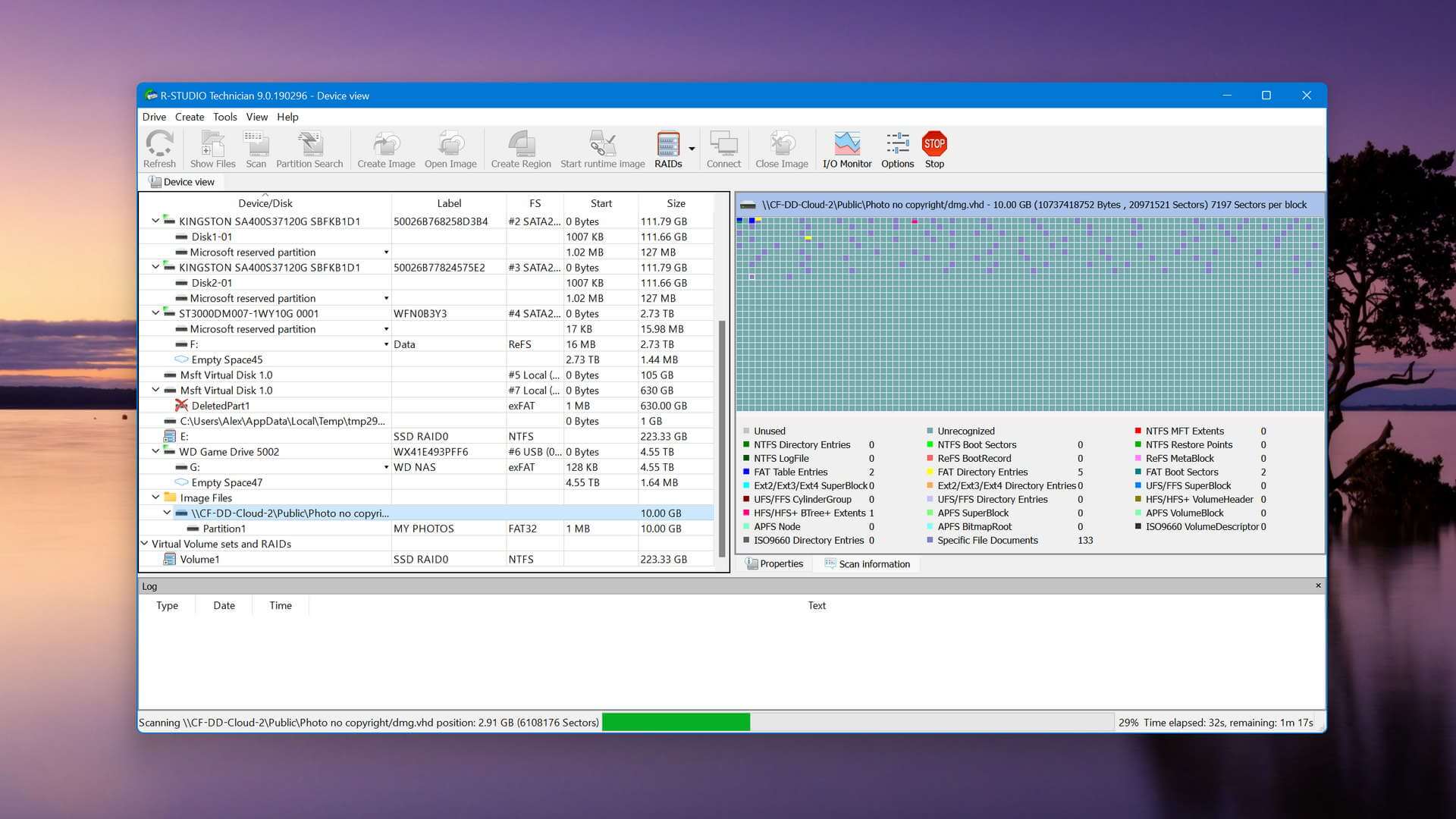
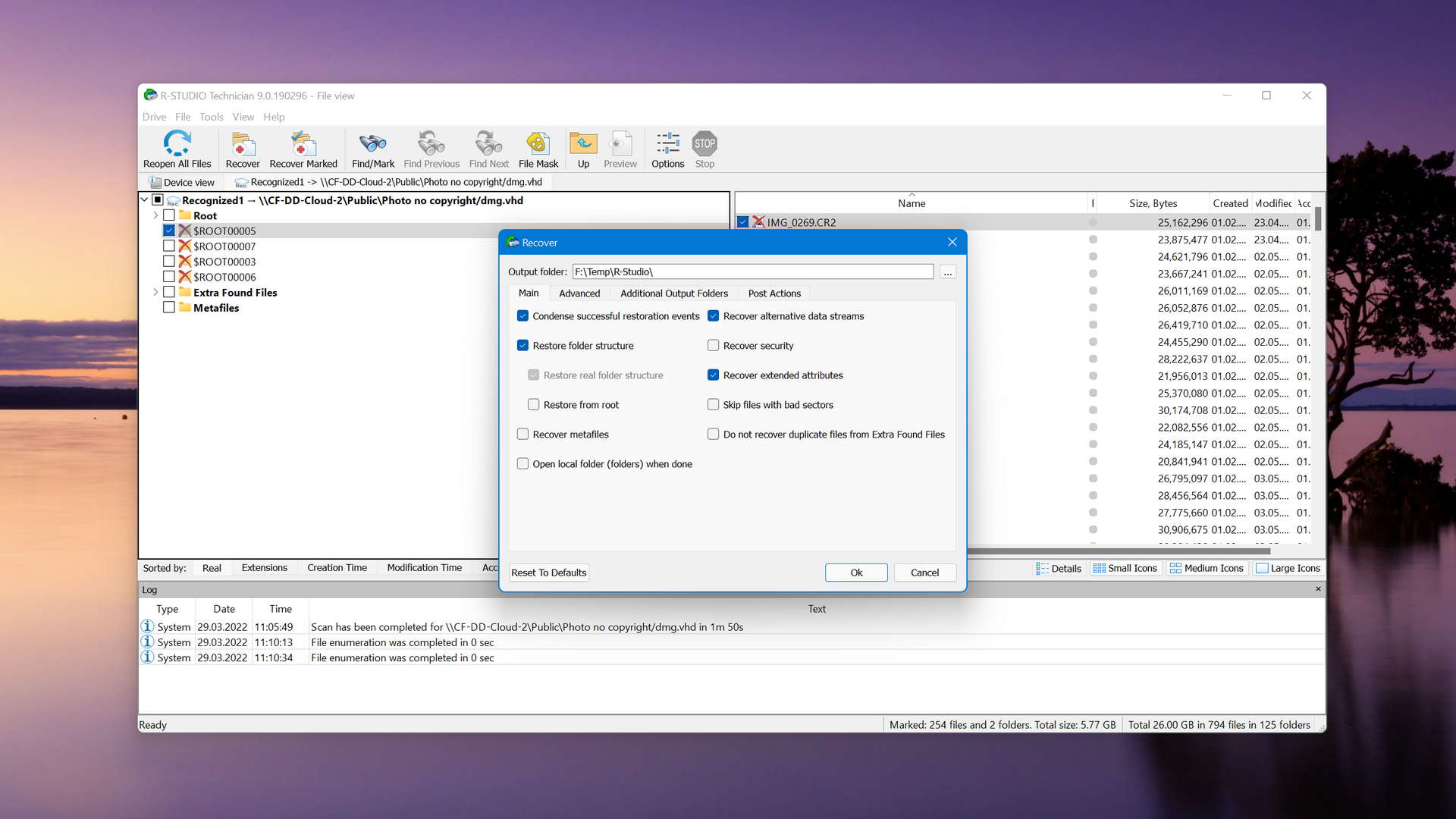
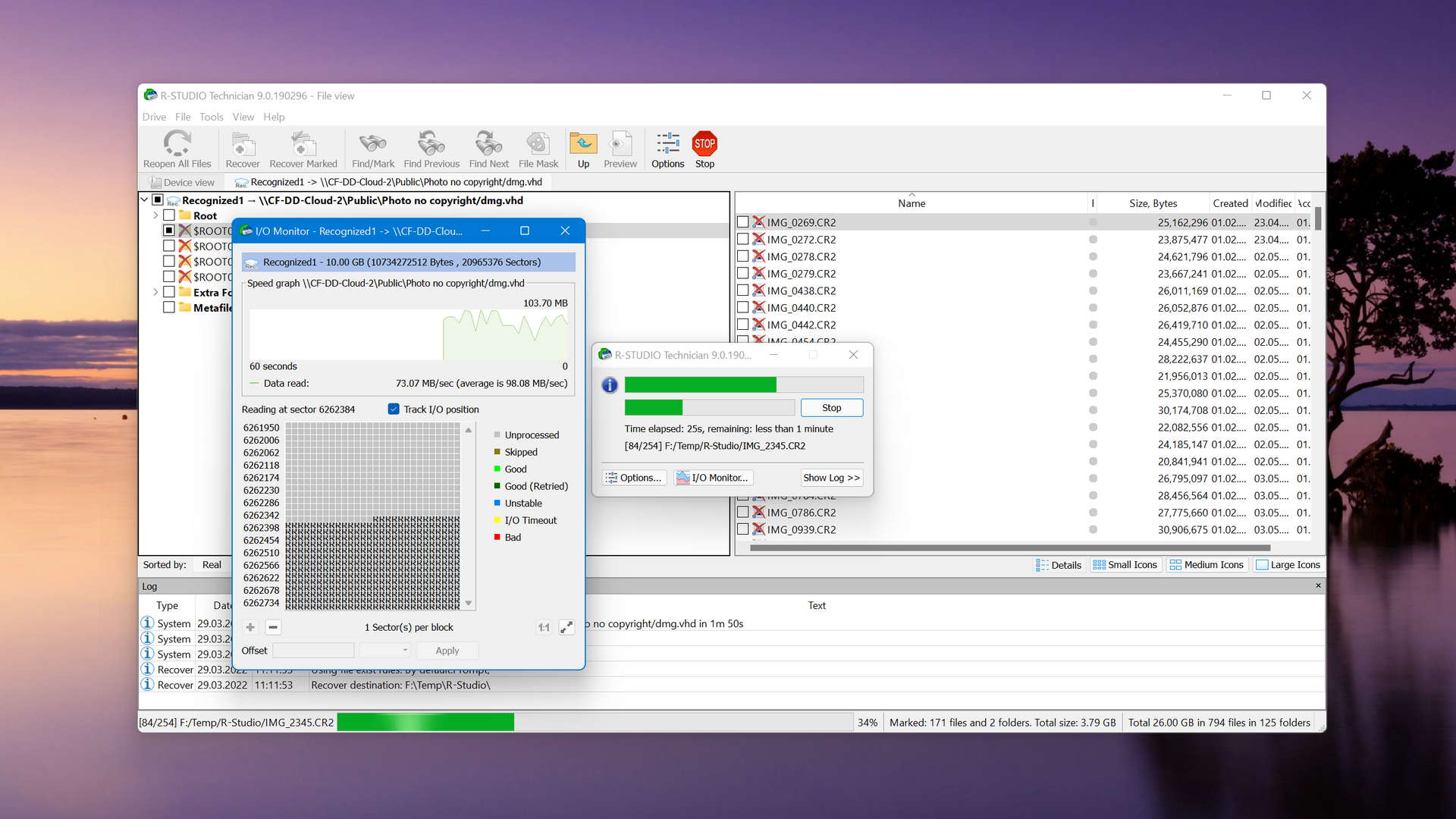
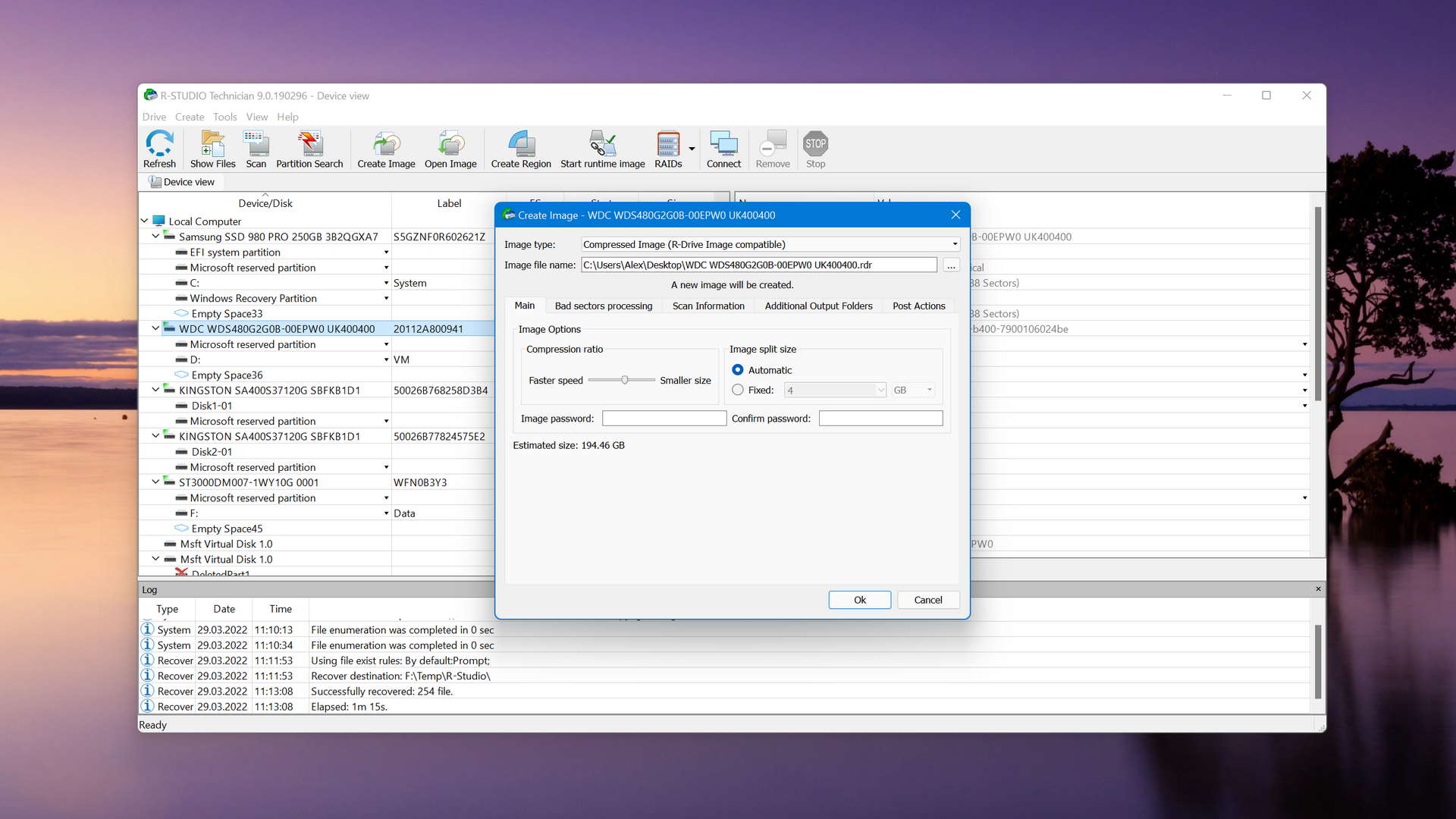
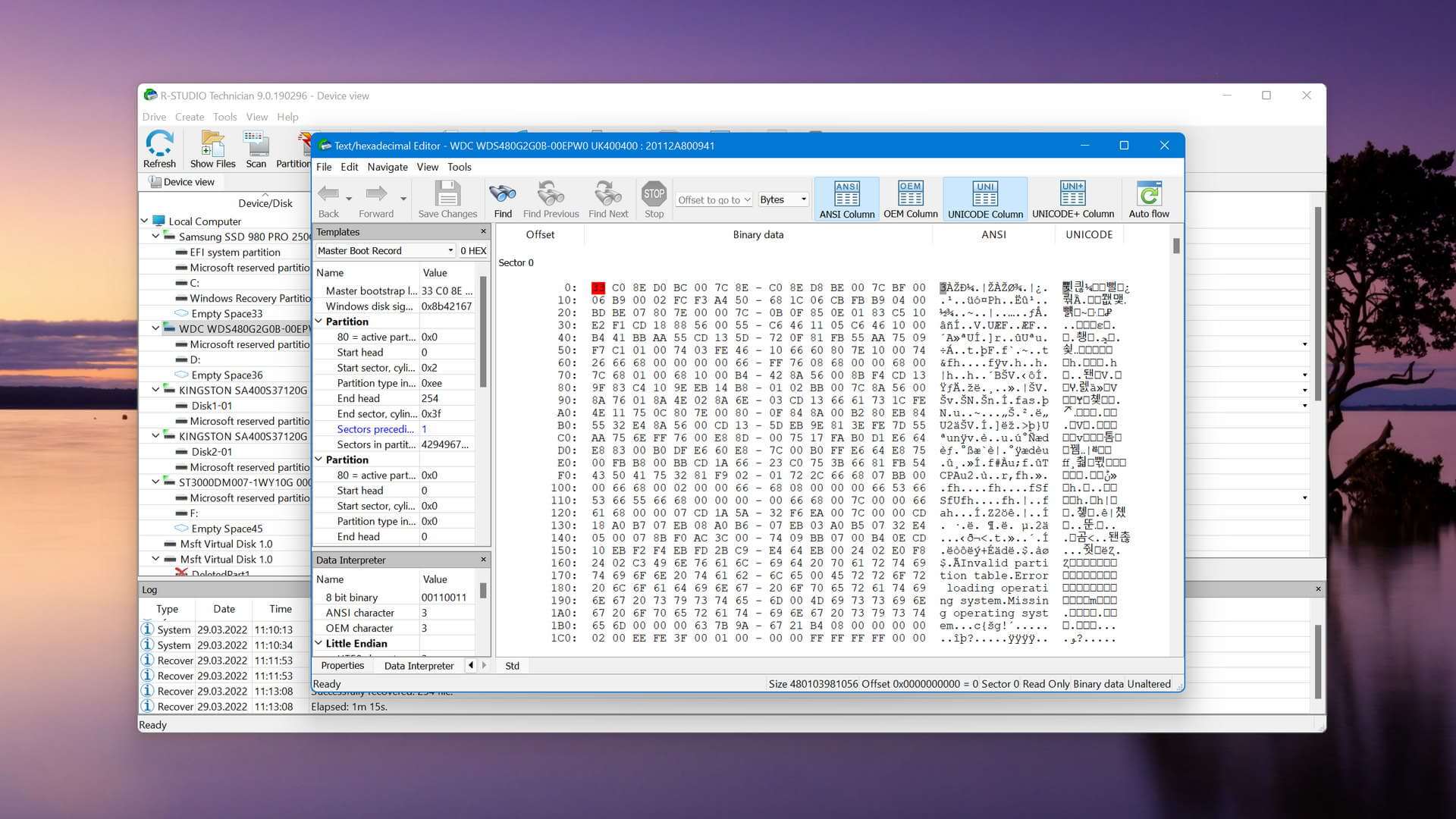
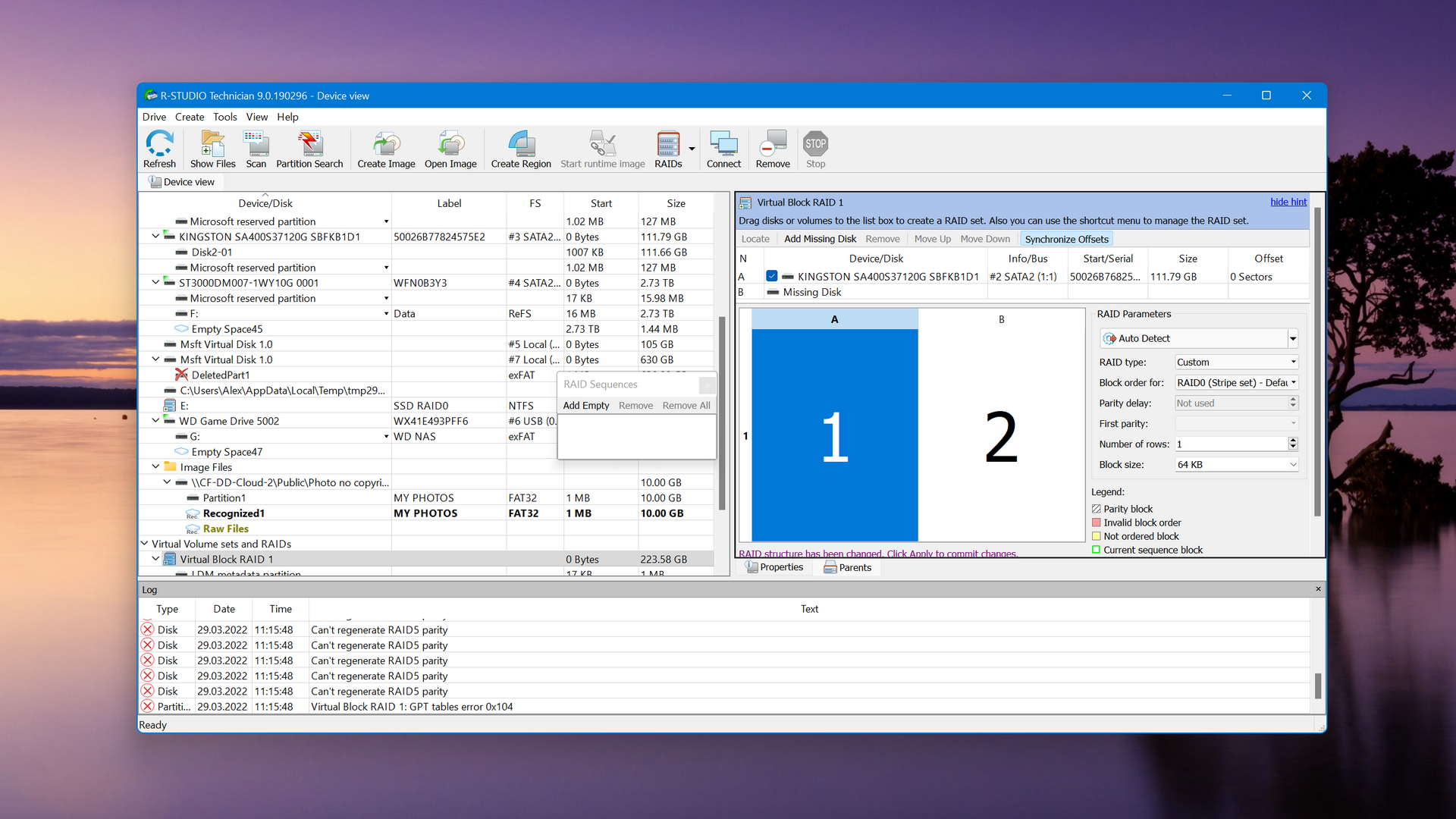
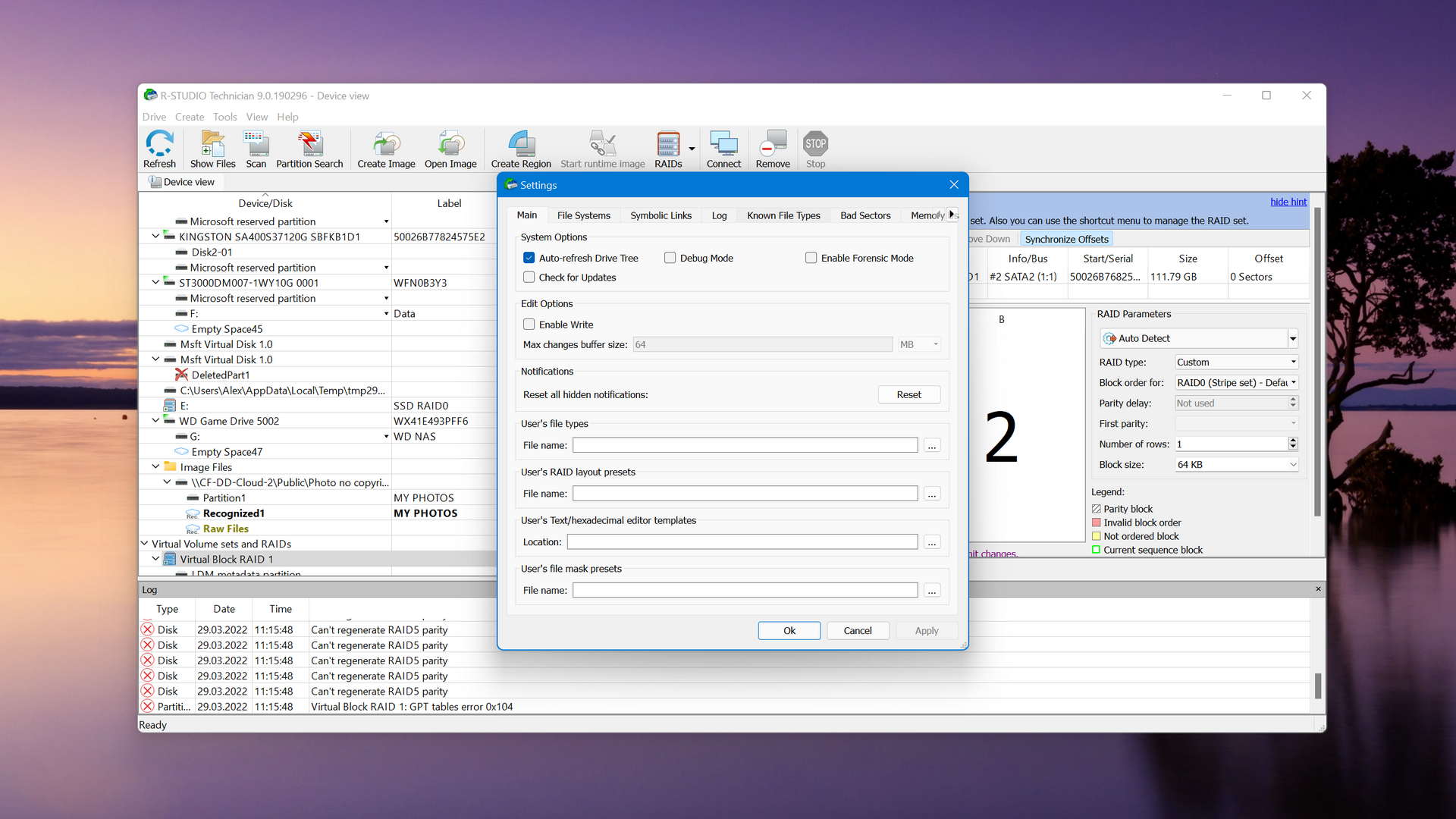
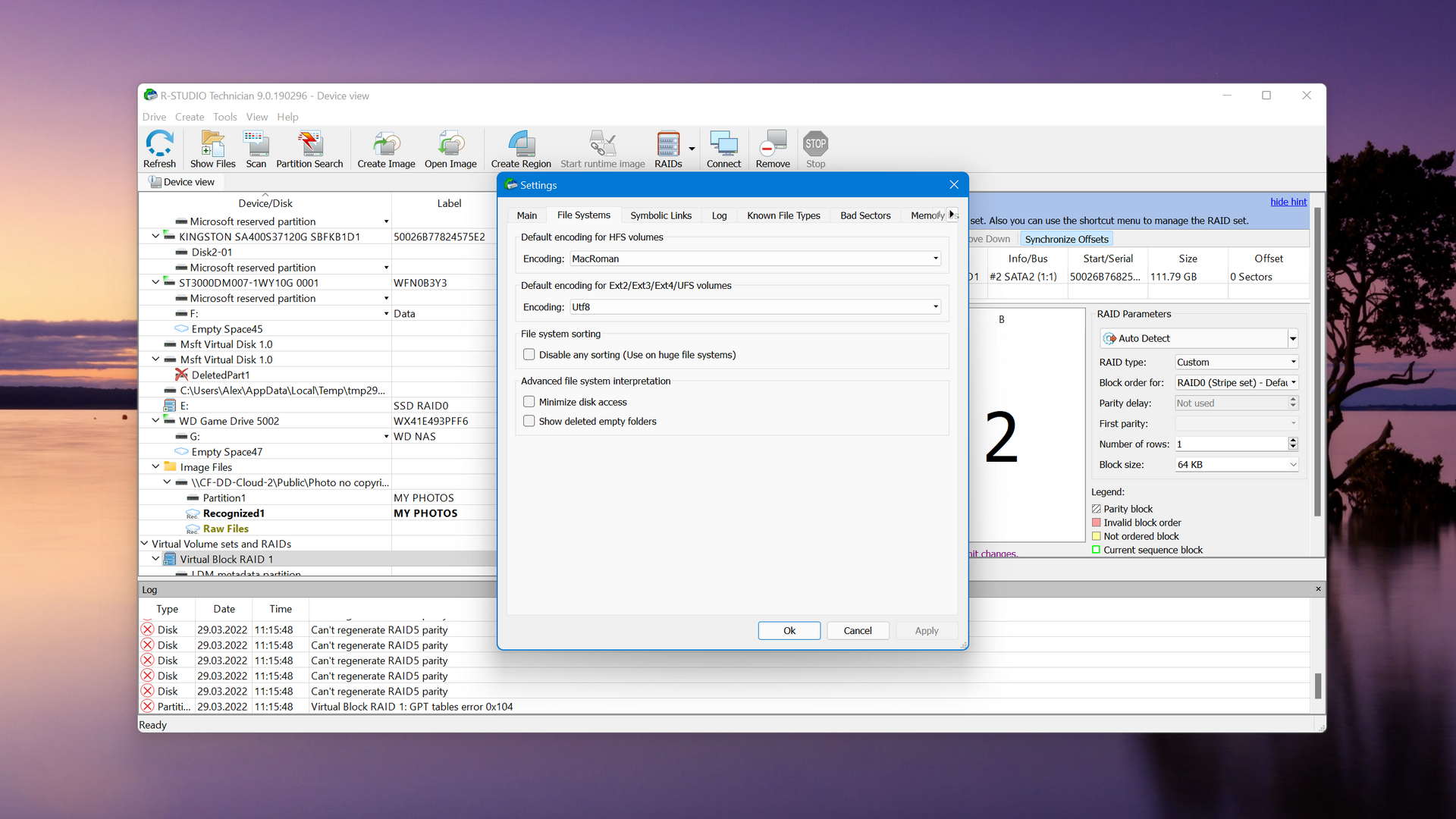

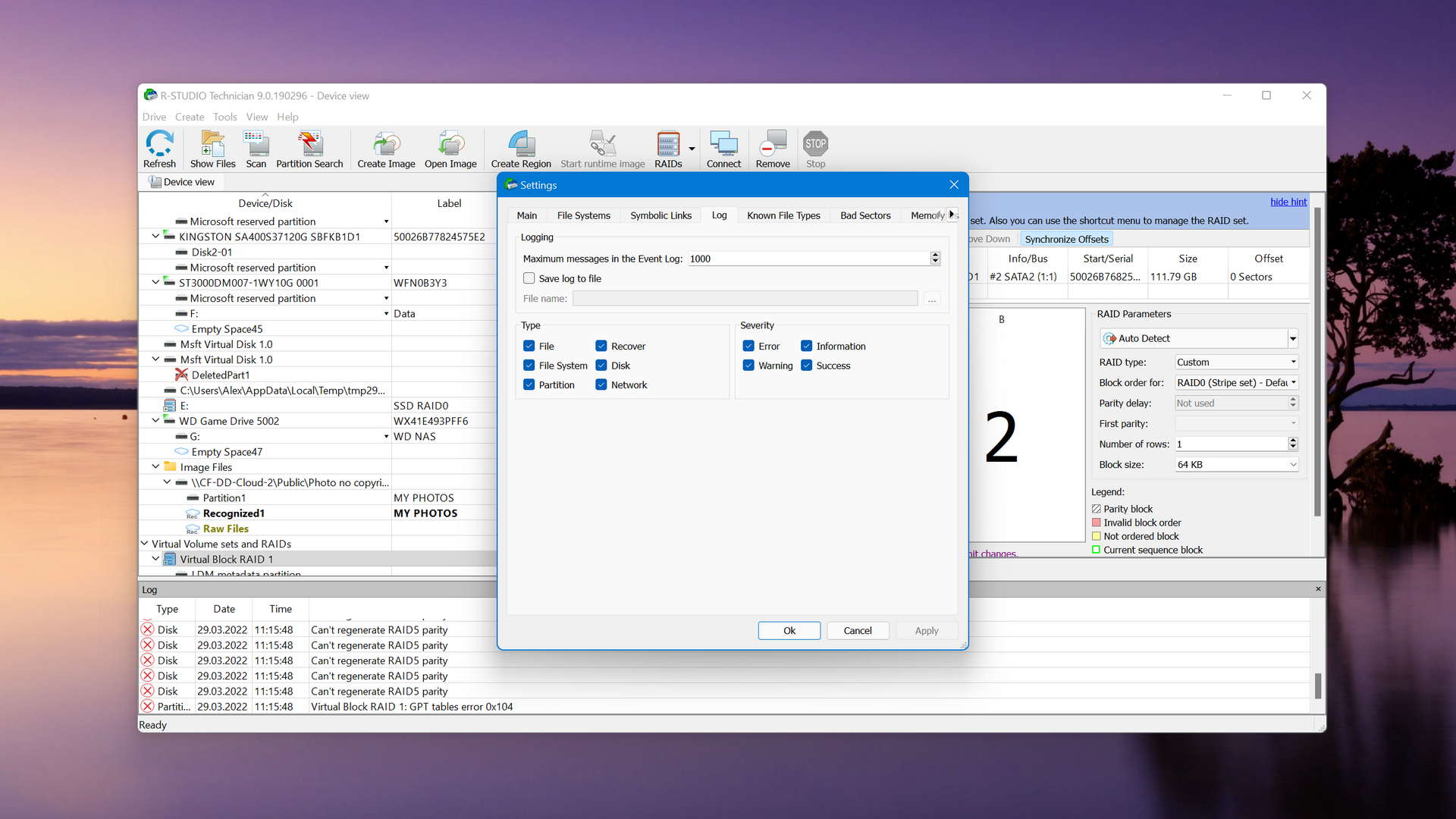
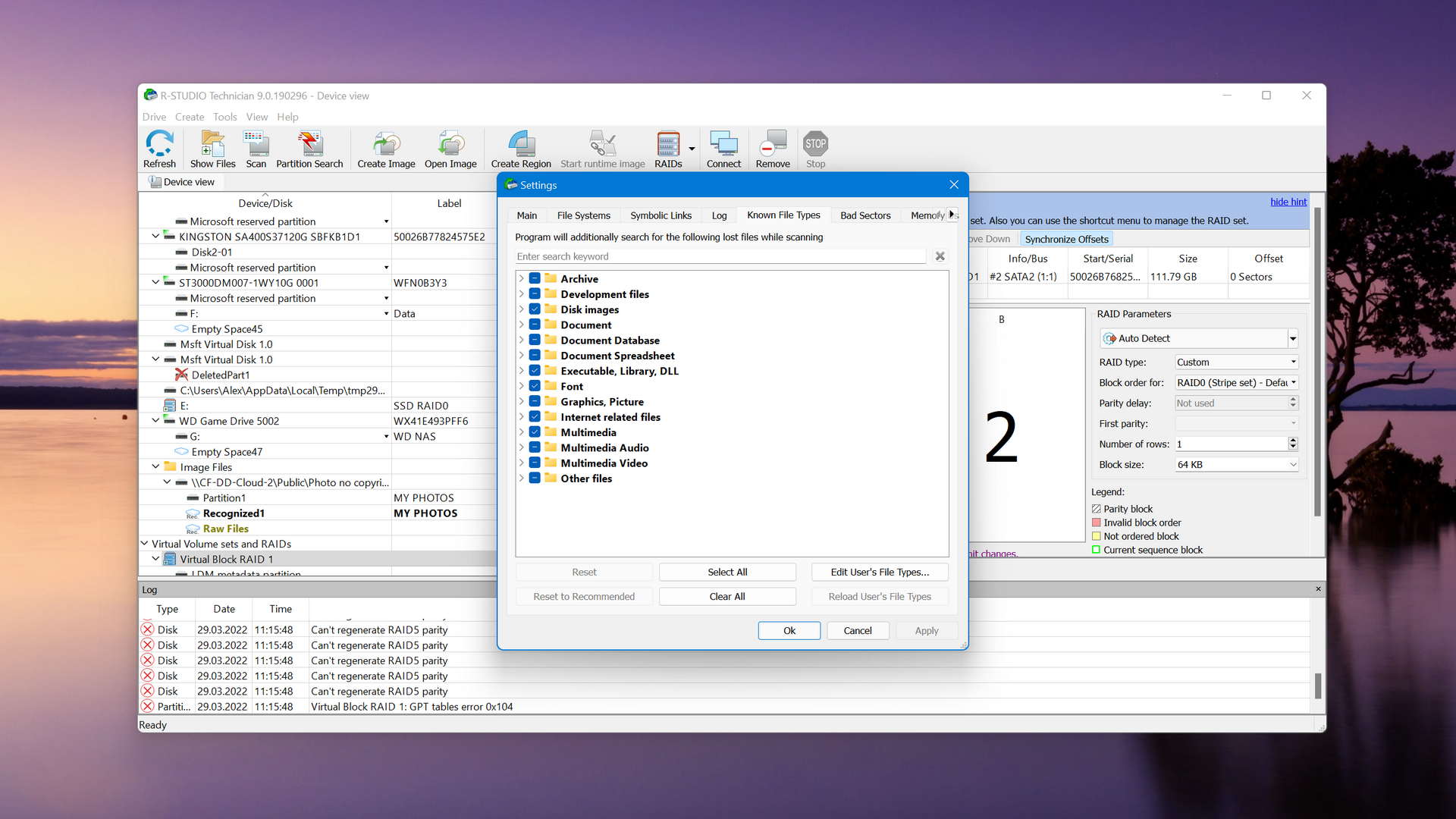

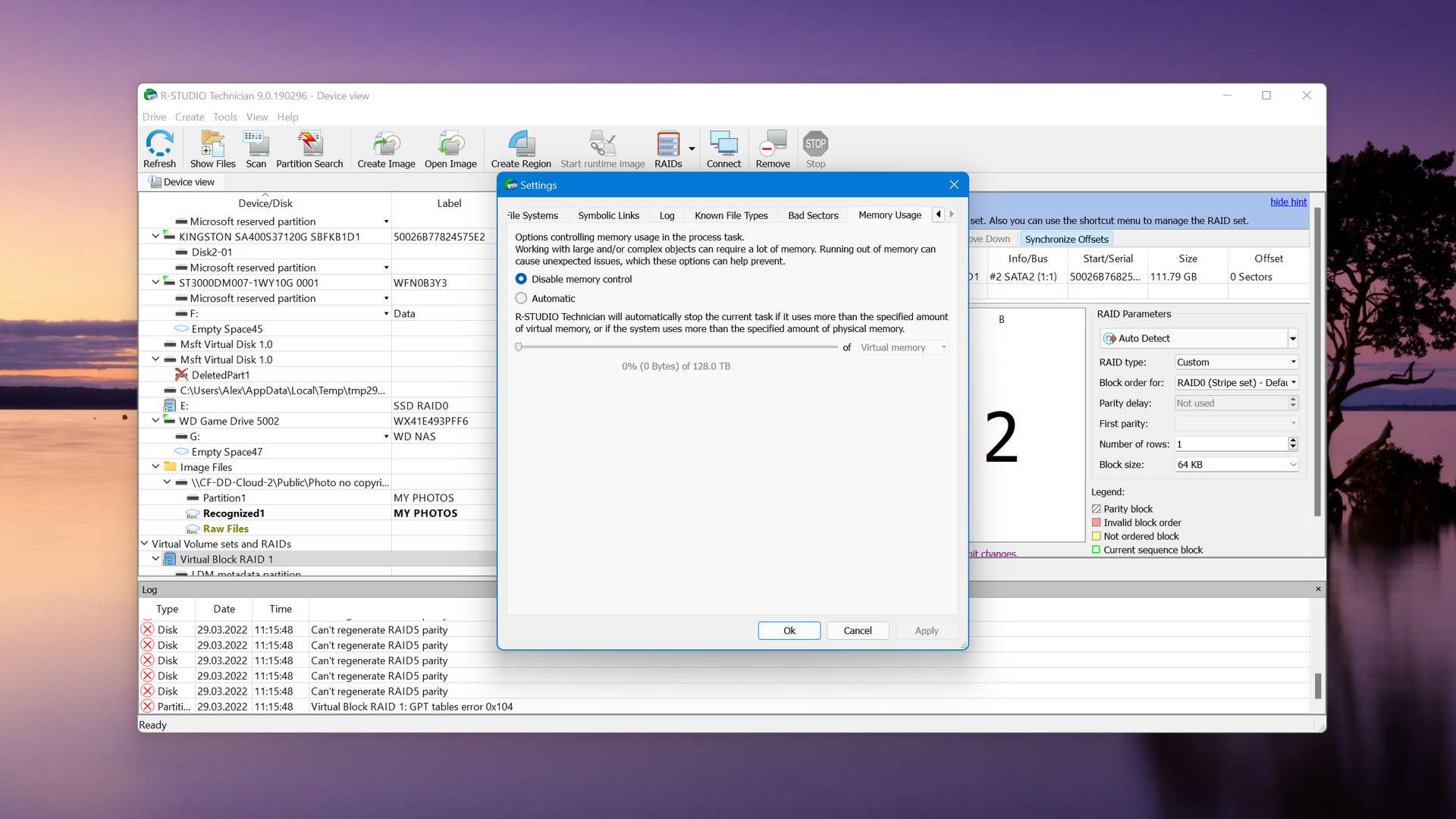
R-Studio is available on Windows, macOS, and Linux. Users can recover an unlimited number of data, so long as the files being recovered are under 1024KB. Anything above this limit will require a purchase of one of the several available licenses.
The main differences between R-Studio and Recuva
| # | Feature | Recuva | R-Studio |
|---|---|---|---|
| 1 | Starting price | $0 | $49.99 / Perpetual |
| 2 | NTFS partitions scan | bad | good |
| 3 | APFS partitions scan | bad | good |
| 4 | HFS+ partitions scan | bad | good |
| 5 | Document formats recovery | base-warn | base-pros |
| 6 | Recovery from RAID1, 0, JBOD | bad | good |
| 7 | RAID reconstructor | bad | good |
| 8 | Network recovery | bad | good |
| 9 | Bad sector management | bad | good |
| 10 | Forensic features | bad | good |
| 11 | Helpdesk support | bad | good |
| 12 | Easy-to-locate features | good | bad |
| 13 | Convenient file-by-file preview of recoverable items | good | fine |
| 14 | Windows shadow copies scanning | good | bad |
| 15 | Secure data shredding | good | good |
There's no doubt that R-Studio is an extremely effective data recovery tool. In our quick scan tests, R-Studio was able to scan and recover data from all of our partitions with great success, which included HFS+, APFS, FAT32, ExFAT, NTFS, and EXT4. Recuva only had some success recovering data from our ExFAT, NTFS, and FAT32 partitions, with about a quarter of the data on our FAT32 partition not being found at all.
R-Studio also supports more file types than Recuva. Recuva was unable to recover MXF, INSV, ACCDB, and FB2 file types, all of which were recoverable using R-Studio. Furthermore, R-Studio's deep scan resulted in the recovery of 98% of our data, whereas Recuva didn't recover any at all.
R-Studio can recover data from unmountable partitions and RAID arrays. It can scan for lost partitions, perform recovery over the network, and create bootable recovery drives. It's difficult to find something that R-Studio can't do that Recuva can. If you have important files that you need to recover and you're willing to invest money into a data recovery tool, choose R-Studio over Recuva.
There are more differences to discover.
Read full R-Studio versus Recuva comparisonR-Studio is a good alternative to Recuva because:
Advanced recovery features.
Phone and helpdesk support.
Excellent recovery performance.
Supports RAID recovery.
Allows recovery over the network.
Fast scan times.
R-Studio is a poor alternative to Recuva because:
Not free.
Complicated.

4. EaseUS Data Recovery Wizard for Windows
Overview
EaseUS Data Recovery Wizard is a very popular data recovery tool developed by CHENGDU Yiwo® Tech Development. It has been around since 2004 and continues tor receive regular updates. It’s capable of recovering your files on Windows and macOS.
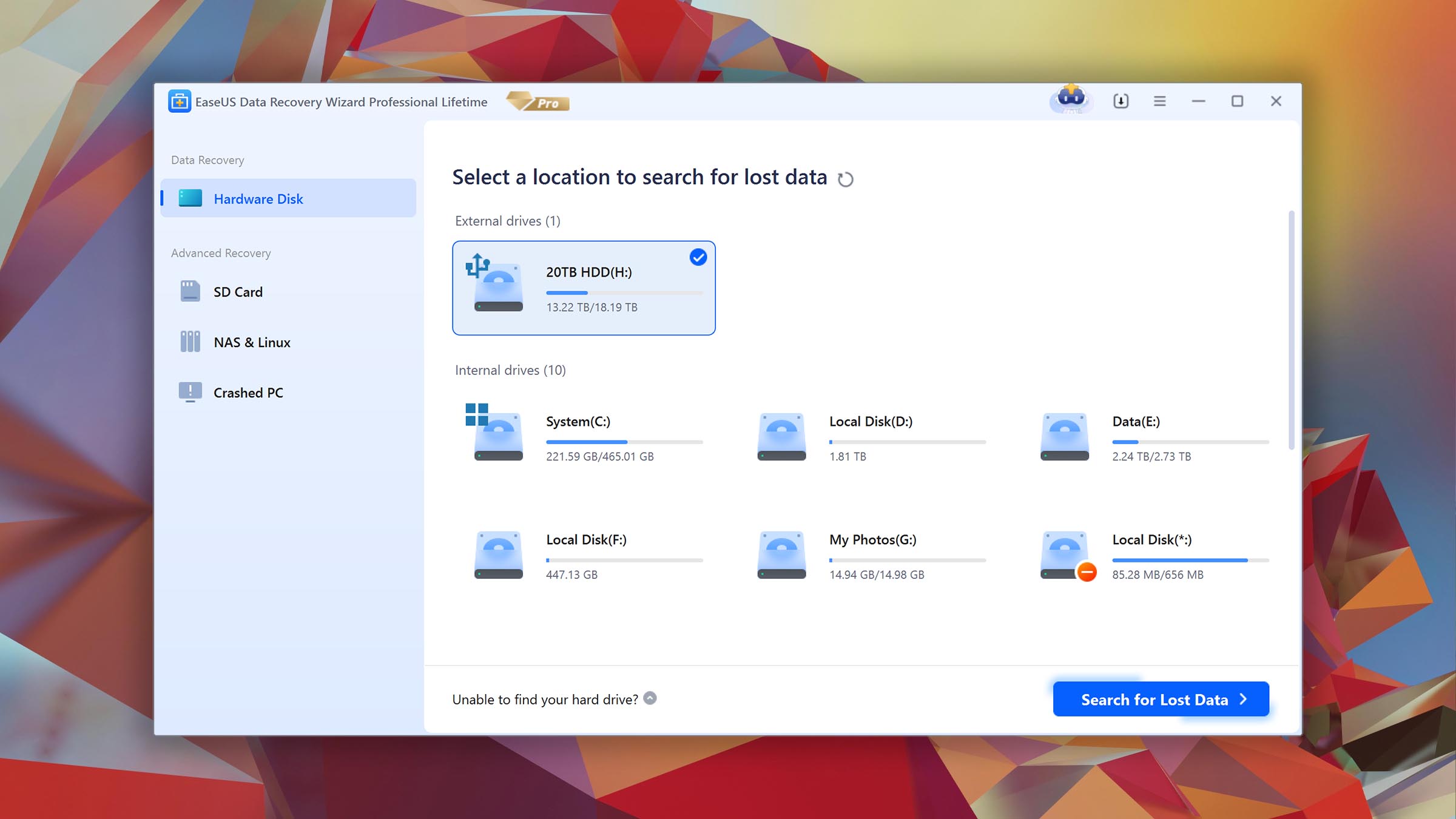
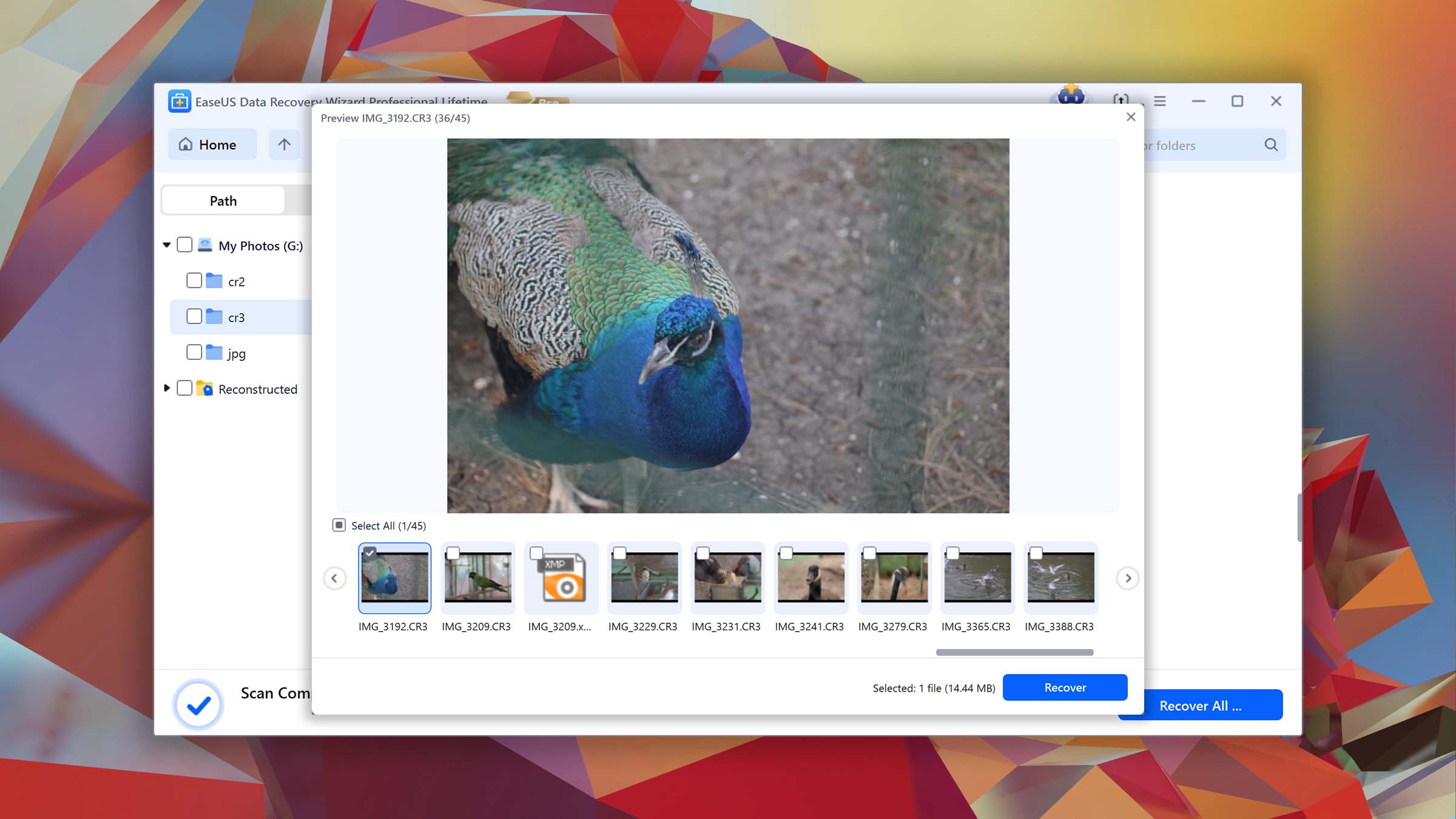
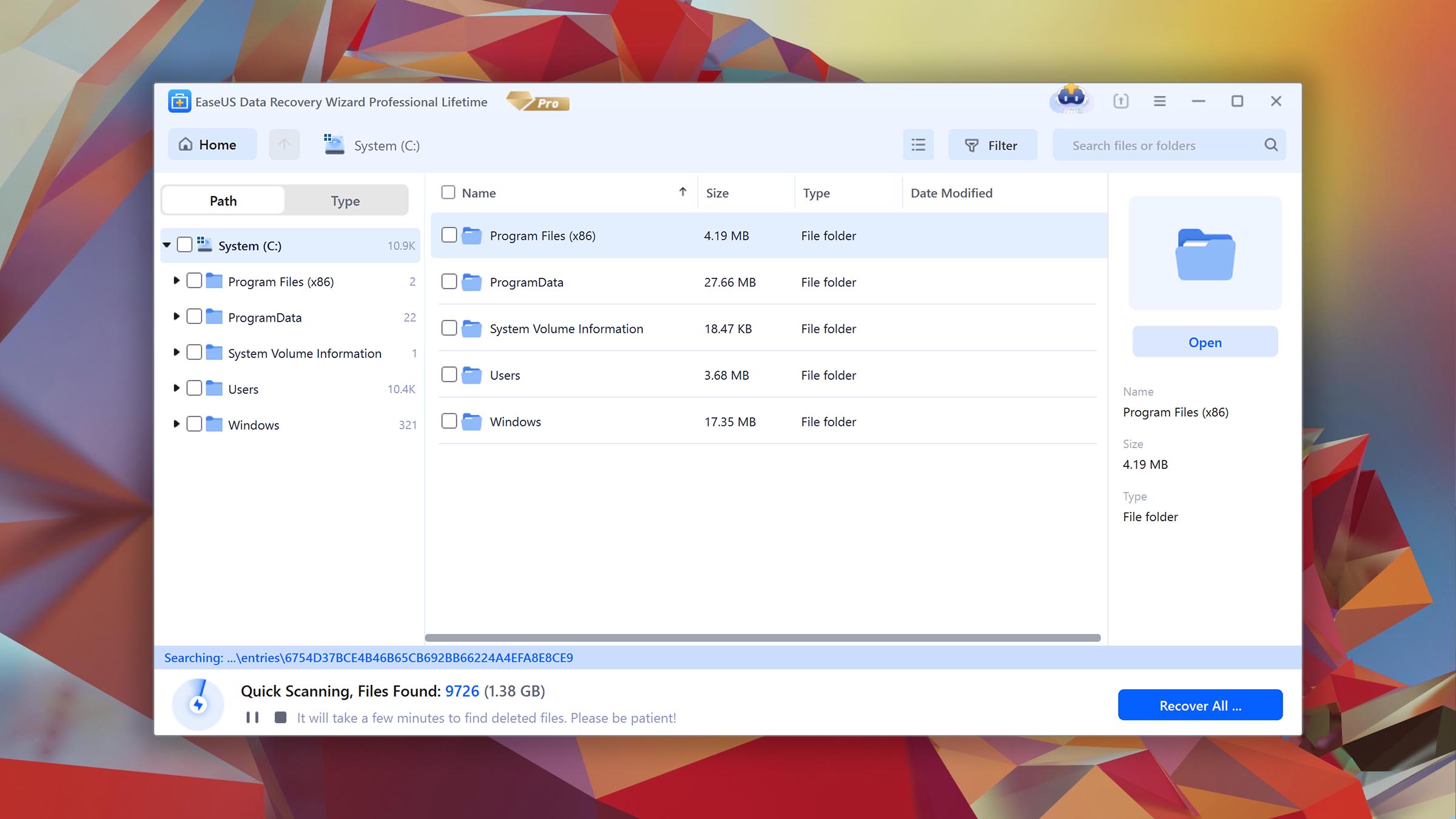
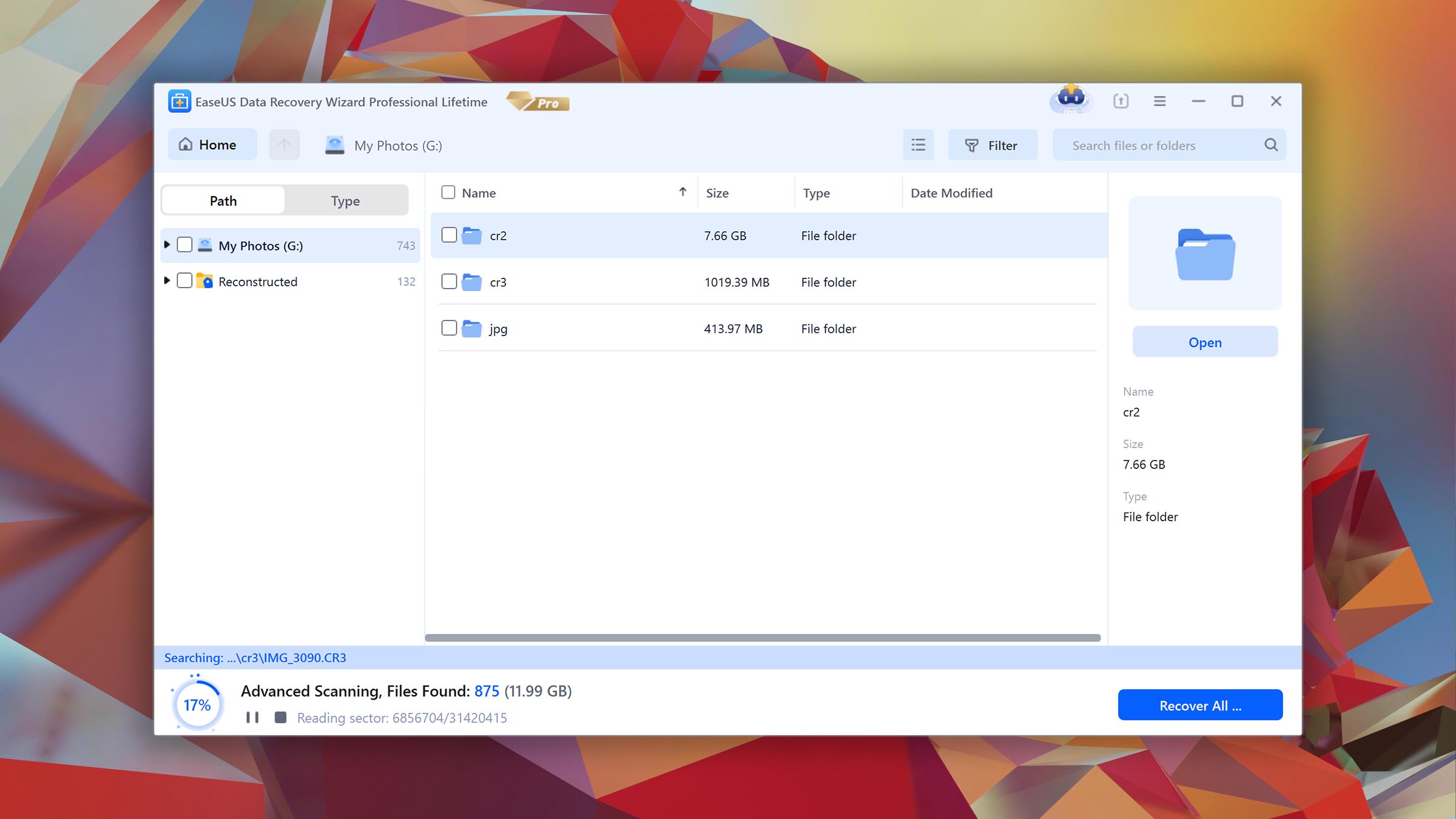
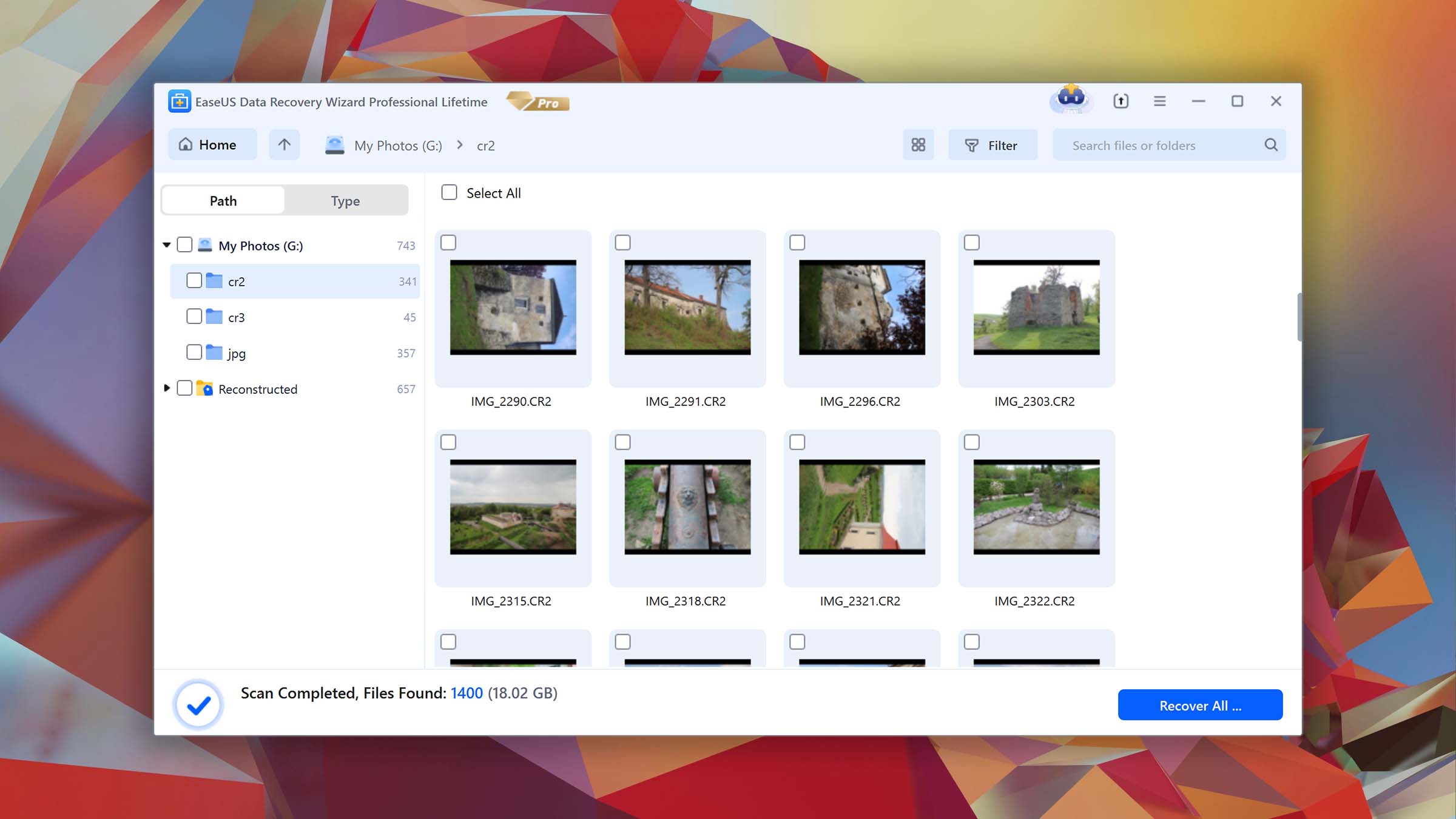
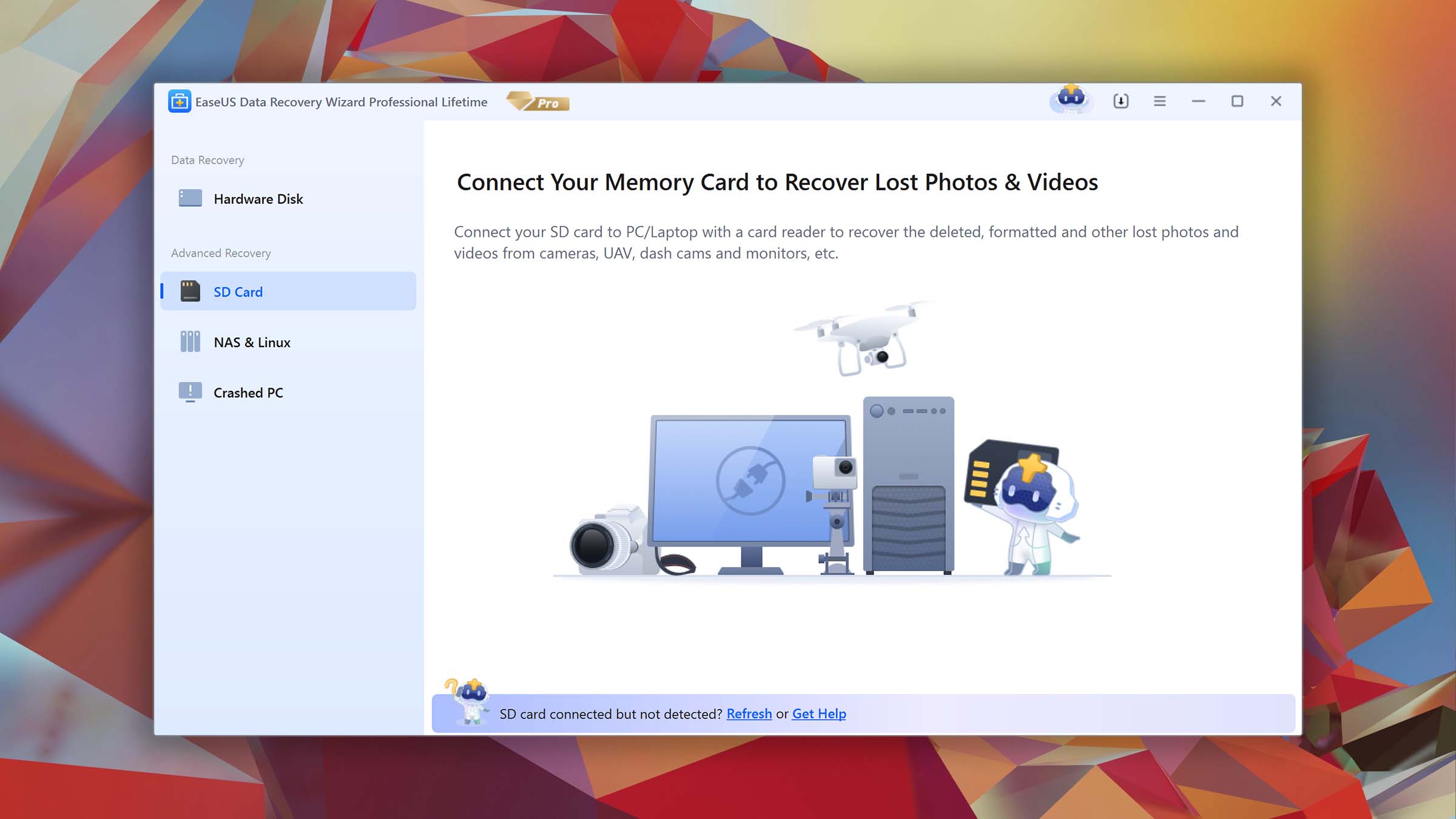
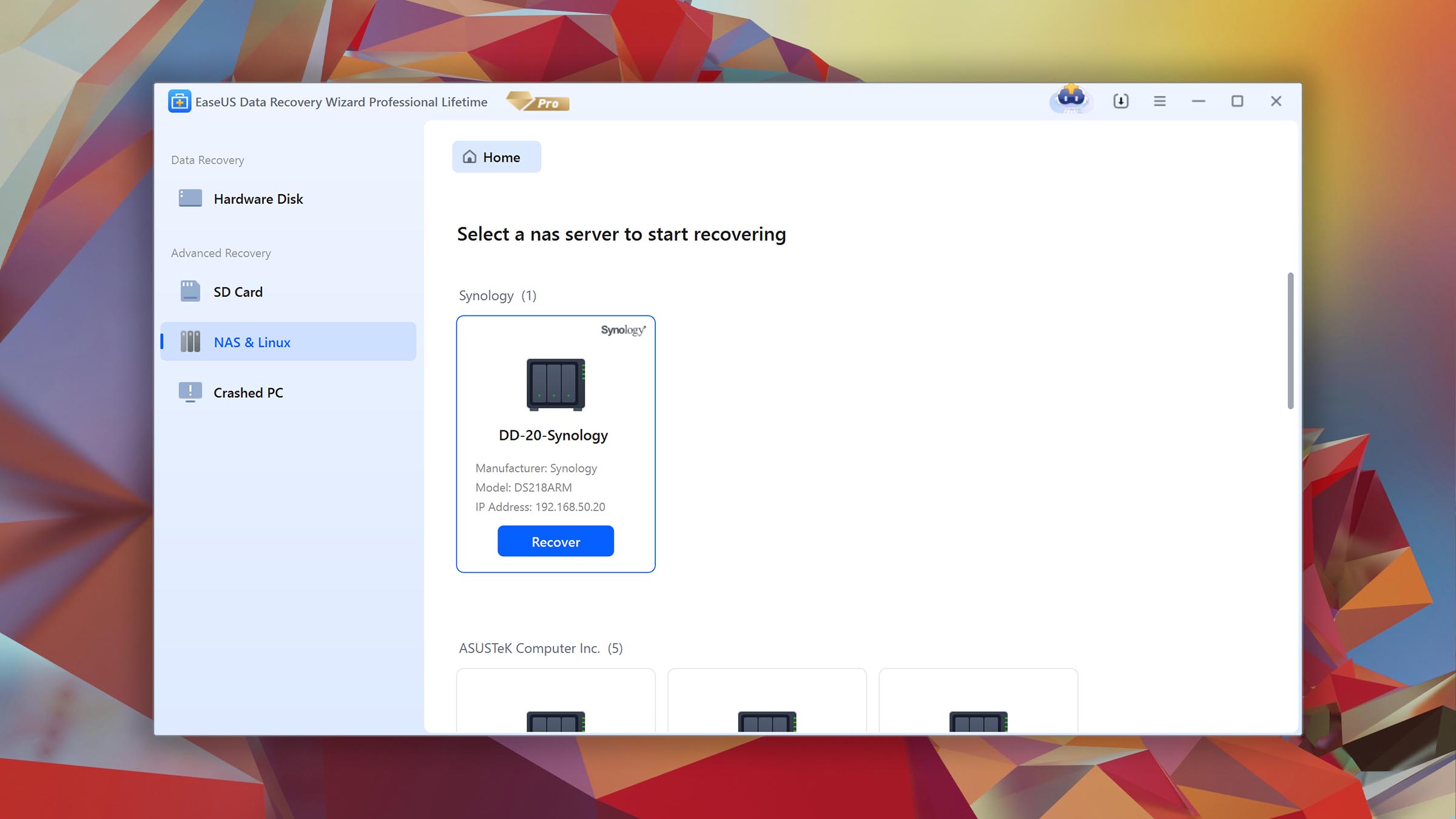
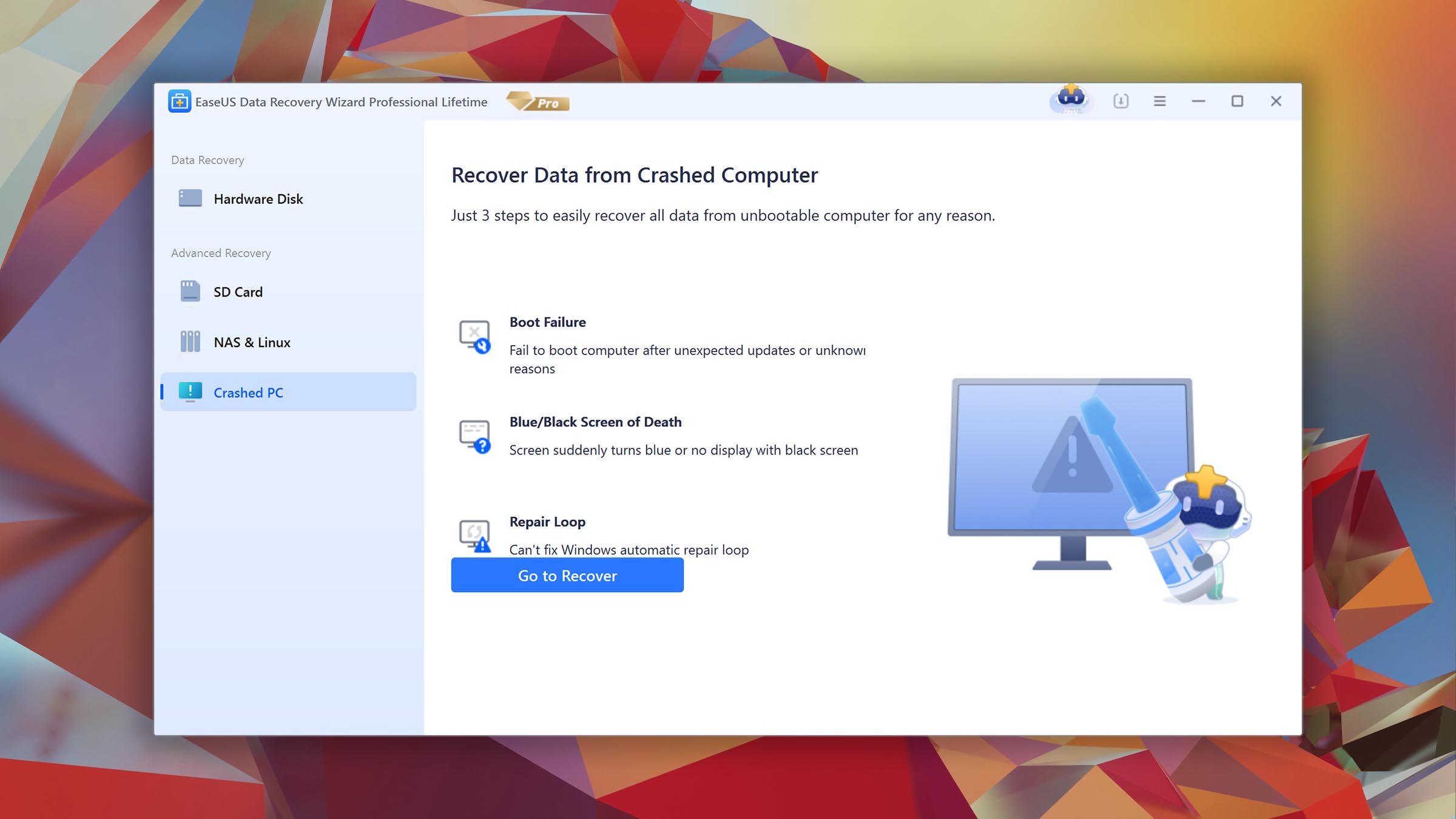
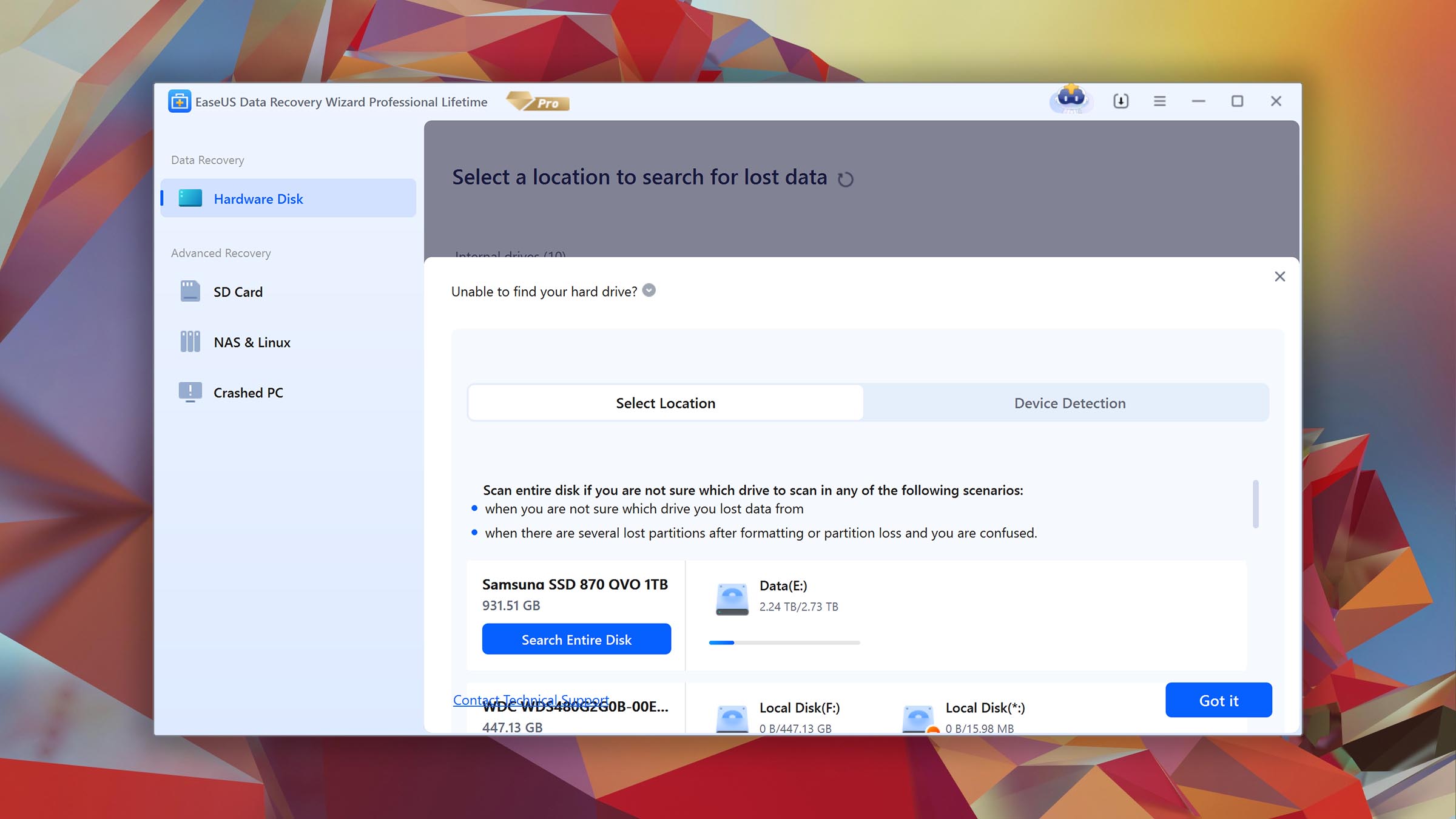
The free version offers up to 2GB of free data recovery before needing an upgrade, which is quite generous. EaseUS Data Recovery Wizard is one recovery tool among many others that EaseUS offers, such as Partition Recovery, MS SQL Recovery, and Exchange Recovery.
The main differences between EaseUS Data Recovery Wizard and Recuva

| # | Feature | Recuva | EaseUS Data Recovery Wizard |
|---|---|---|---|
| 1 | Starting price | $0 | $69.95 / 1 month |
| 2 | NTFS partitions scan | bad | good |
| 3 | Raw photo recovery | base-warn | base-pros |
| 4 | Video formats recovery | base-warn | base-pros |
| 5 | Unmountable partitions | bad | good |
| 6 | Start file recovery without interrupting the scan | bad | good |
| 7 | Bootable recovery drive creation | bad | good |
| 8 | Recovery chance prediction | fine | bad |
| 9 | Byte-to-byte device backups | good | good |
| 10 | Windows shadow copies scanning | good | bad |
| 11 | Secure data shredding | good | bad |
EaseUS Data Recovery Wizard offers great file signature recovery, as it supports more file formats than Recuva. It was able to recover several file types that Recuva was not, including SRW, RWL, SR2, X3F, INSV, and HEIC, among many others. During our clever scan tests, EaseUS was able to recover data from most of our partitions, except APFS and EXT4. Conversely, EaseUS only managed to recover some files from our FAT32 partition.
While some of the popularity of EaseUS can be attributed to its aggressive marketing, it is fairly reliable. It allows bootable recovery drive creation for when your operating system fails to boot and saves scan sessions for review at a later time. EaseUS also has a separate video repair tool that gives you a chance to fix any corrupted videos you manage to recover.
On top of all this, EaseUS has an appealing interface that's easy to use. All its features are easy to access and the recovery process is straightforward, making it an excellent choice for those who aren't familiar with recovering data. Users having trouble can always rely on the multiple support channels offered by EaseUS, whereas Recuva has very little.
There are more differences to discover.
Read full EaseUS versus Recuva comparisonEaseUS Data Recovery Wizard is a good alternative to Recuva because:
Up to 2GB of free recovery.
Excellent customer support.
Recover files during scanning.
Create bootable USB drives.
Labeled results for easier recovery.
EaseUS Data Recovery Wizard is a poor alternative to Recuva because:
Not free.
No recovery chance prediction.
5. MiniTool Power Data Recovery for Windows
Overview
MiniTool Power Data Recovery was developed by MiniTool Software. Other recovery applications from the company include MiniTool Partition Wizard and MiniTool ShadowMaker. MiniTool Software has been present in the industry since 2001, creating new applications and maintaining existing ones.
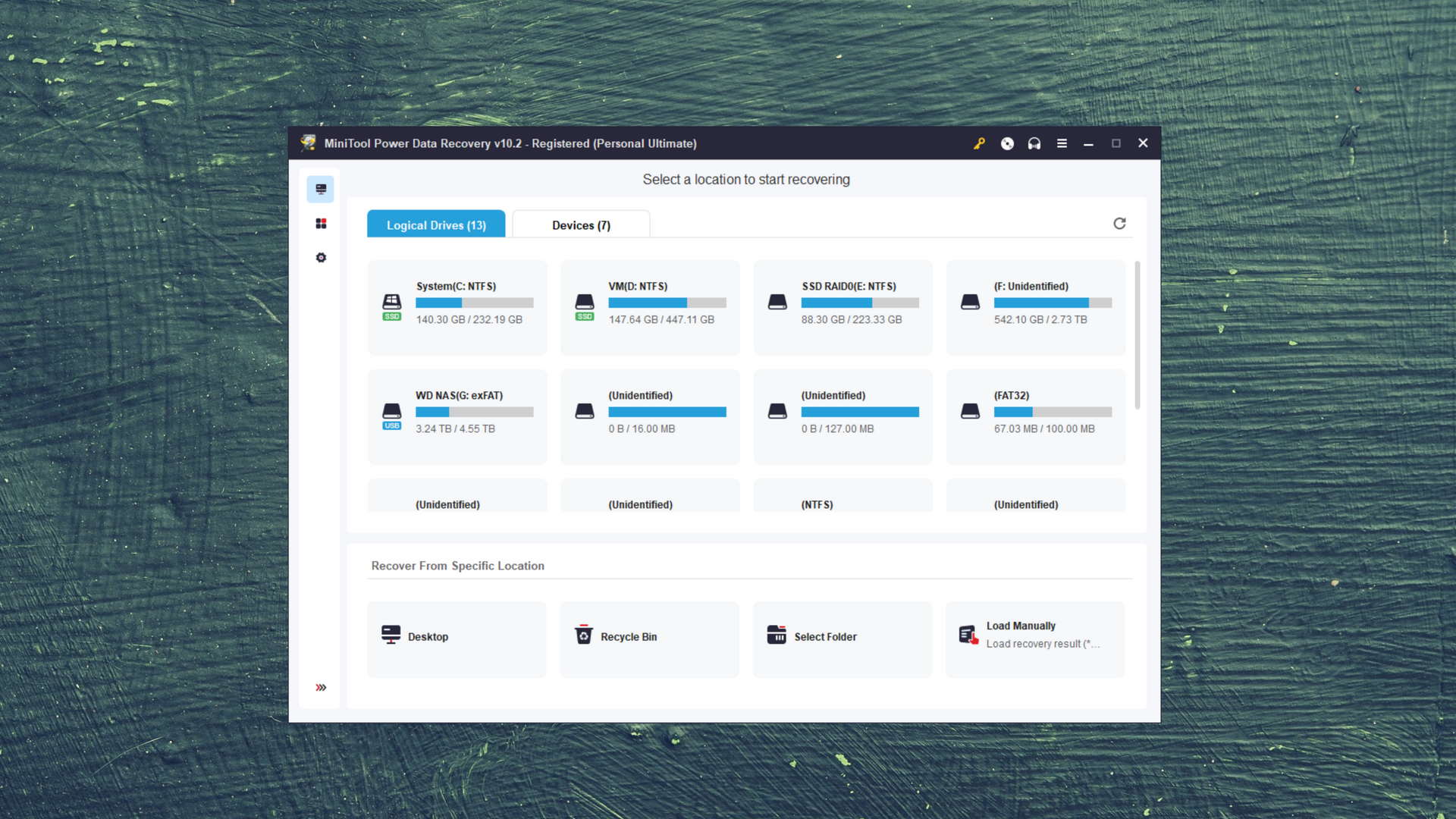
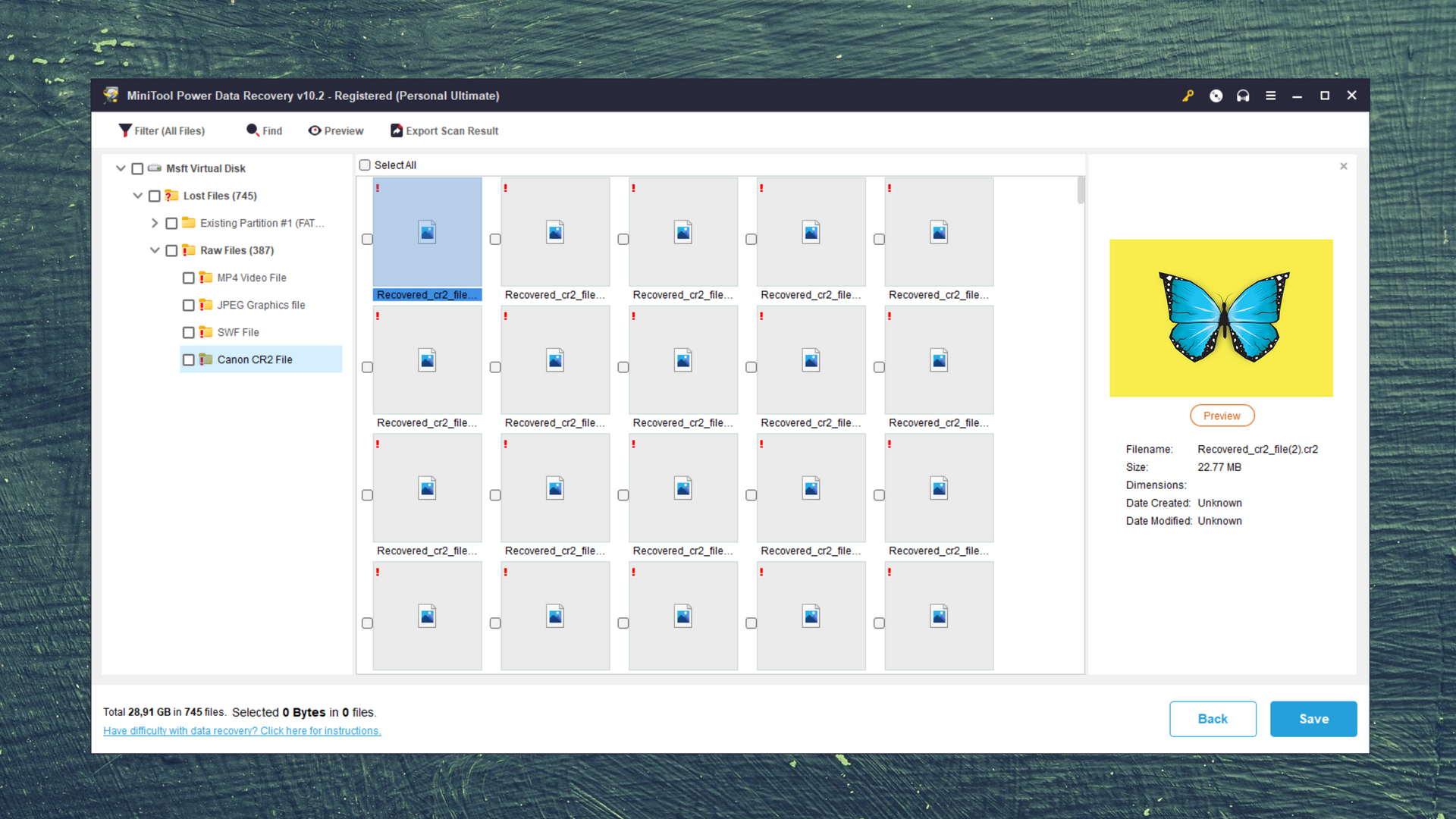
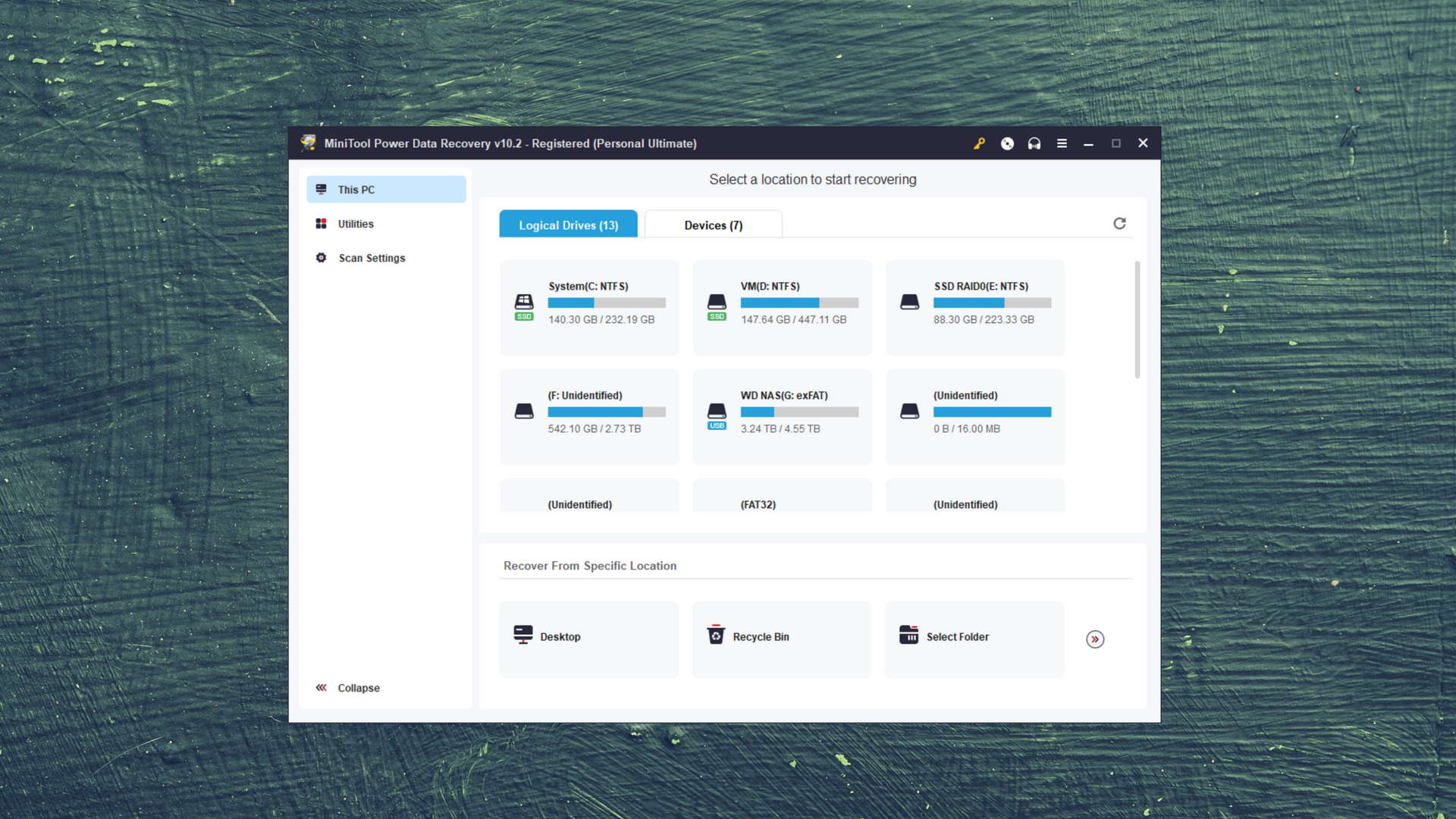
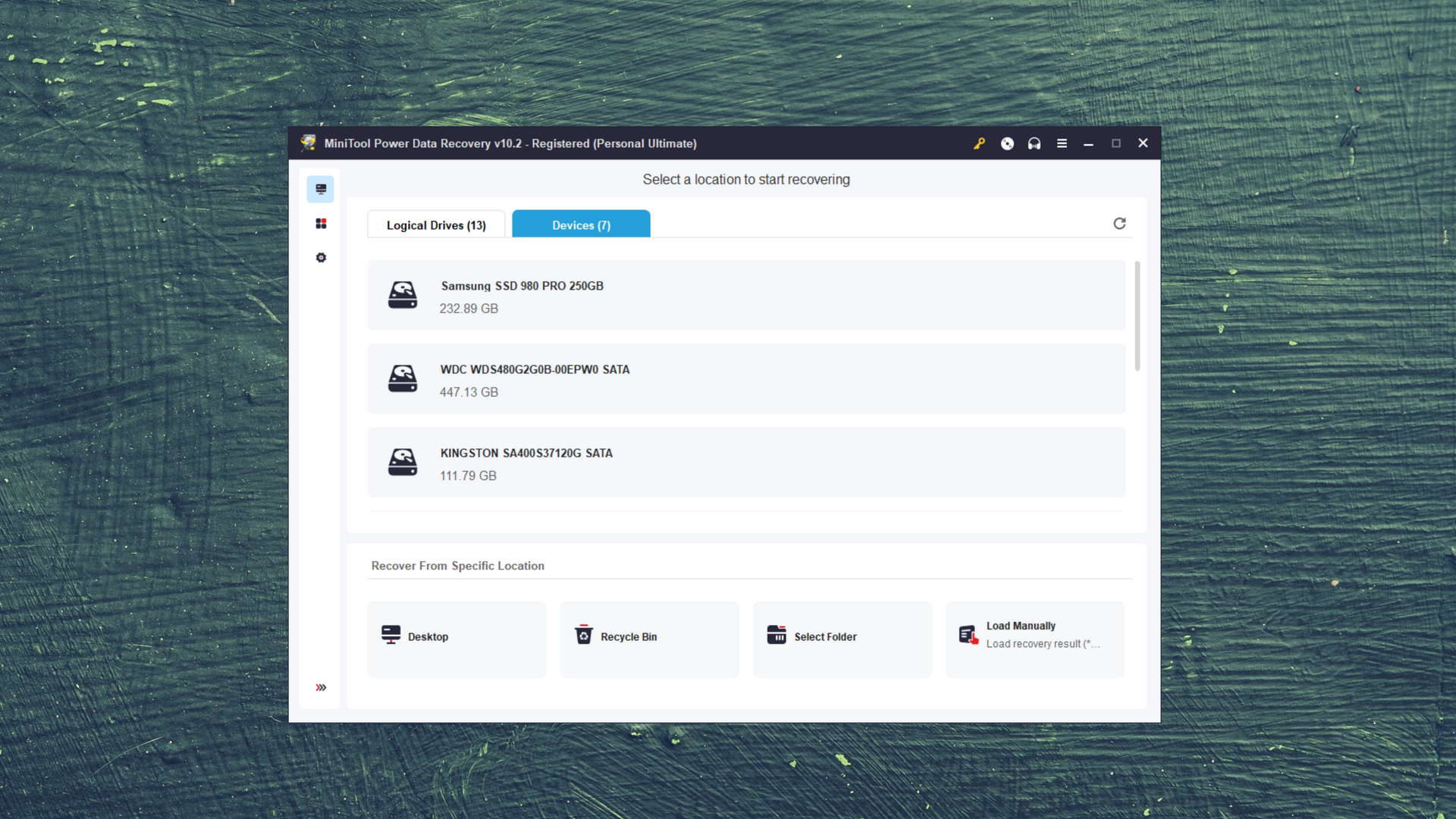

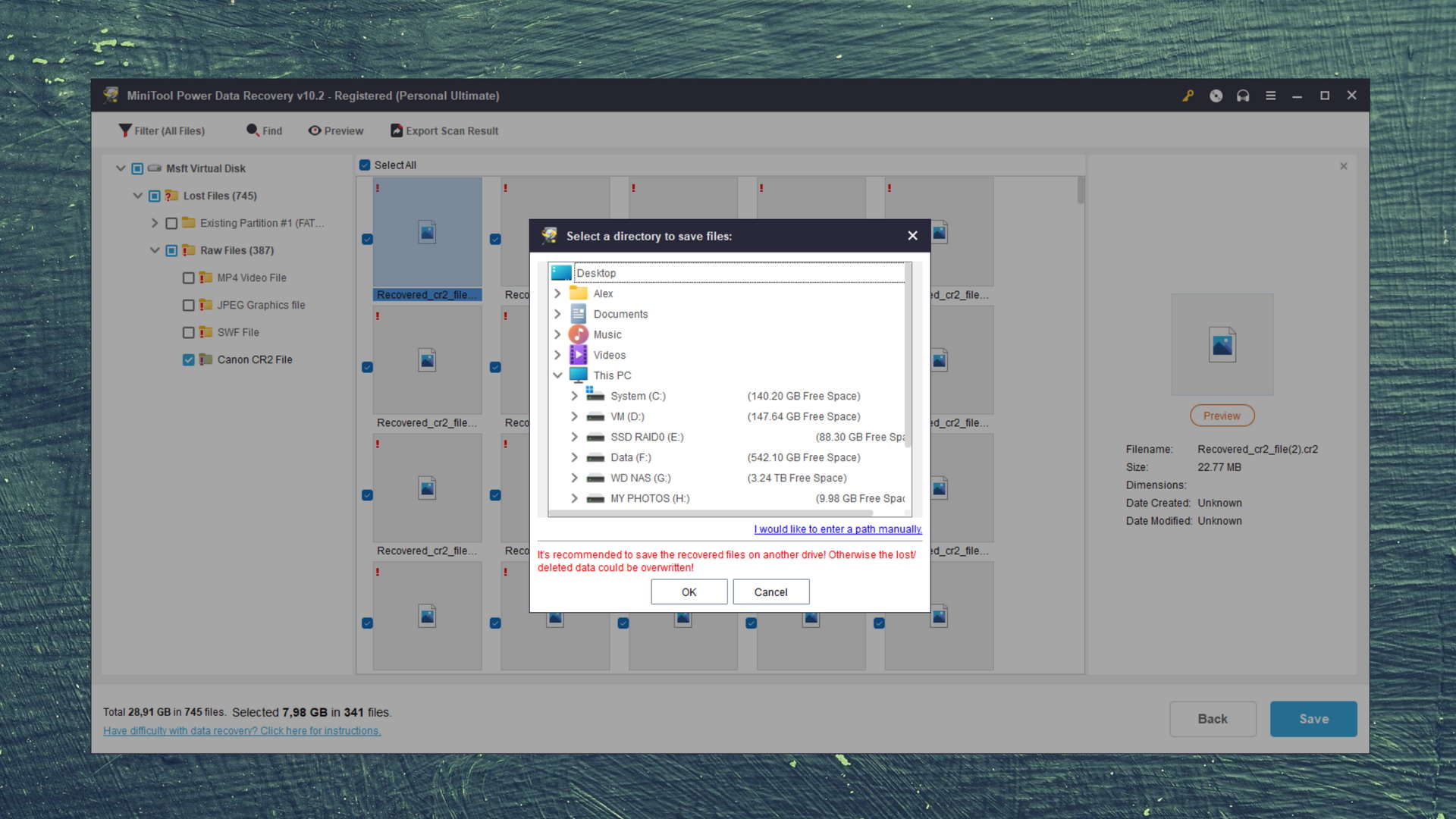
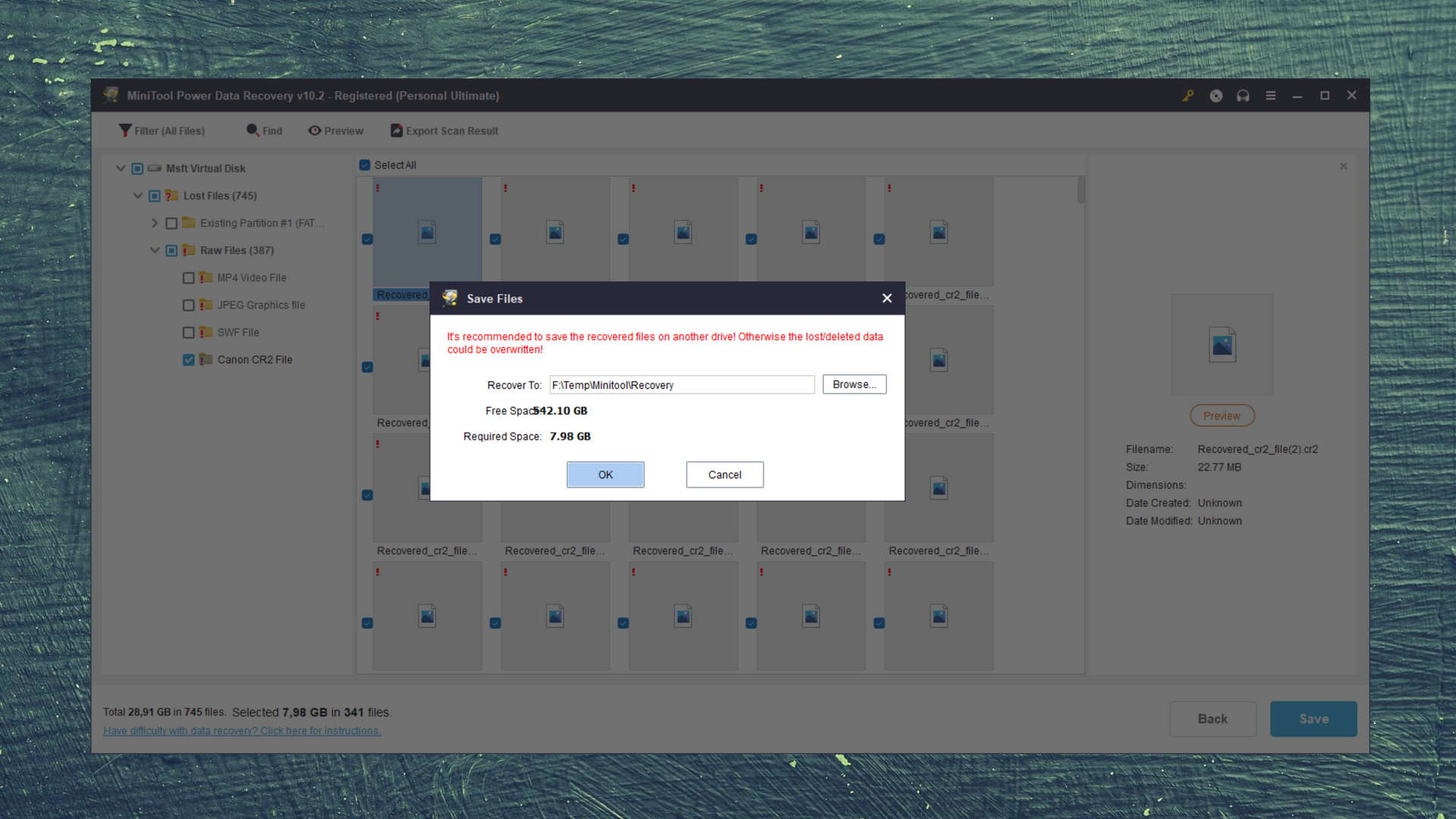
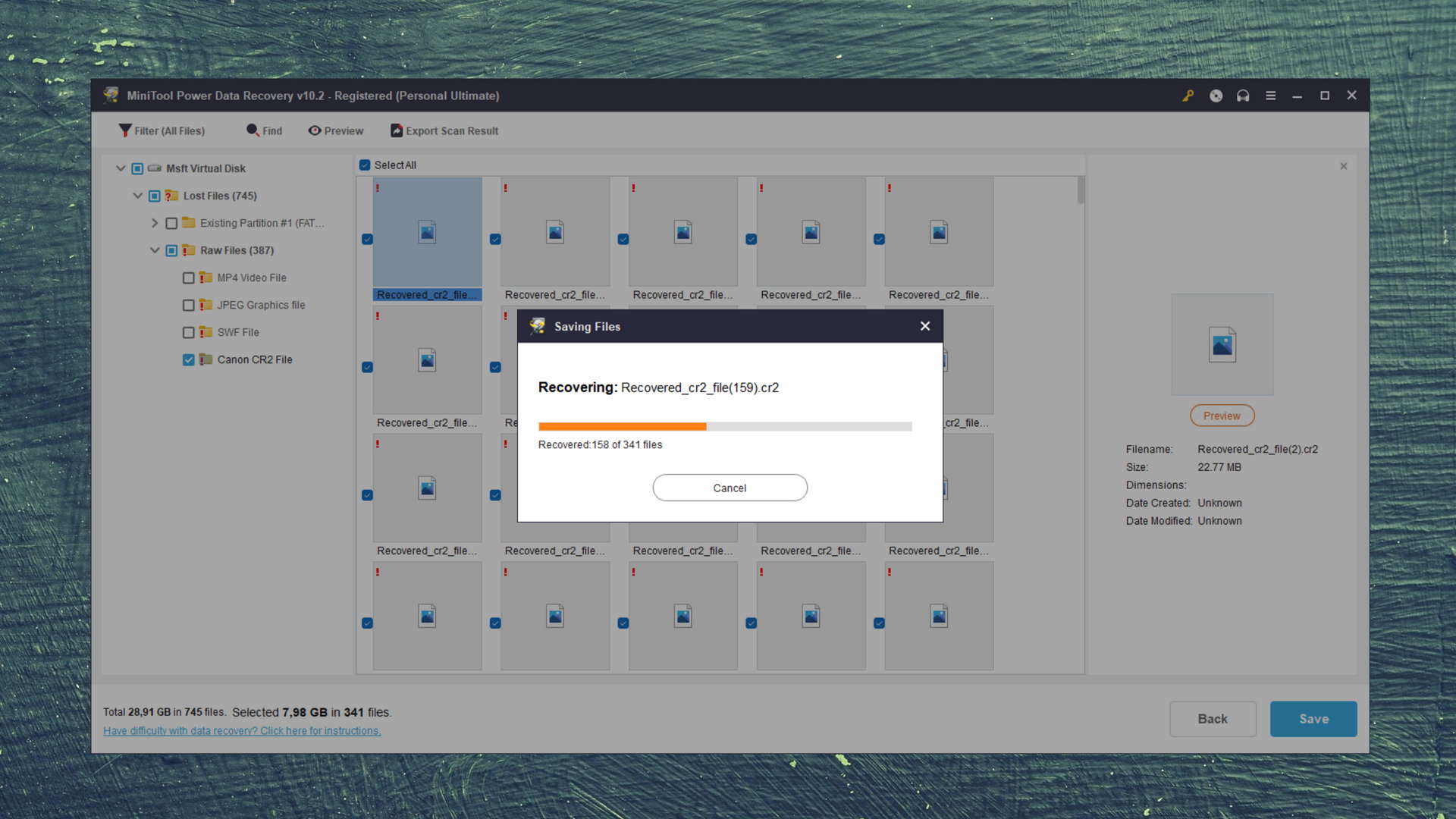
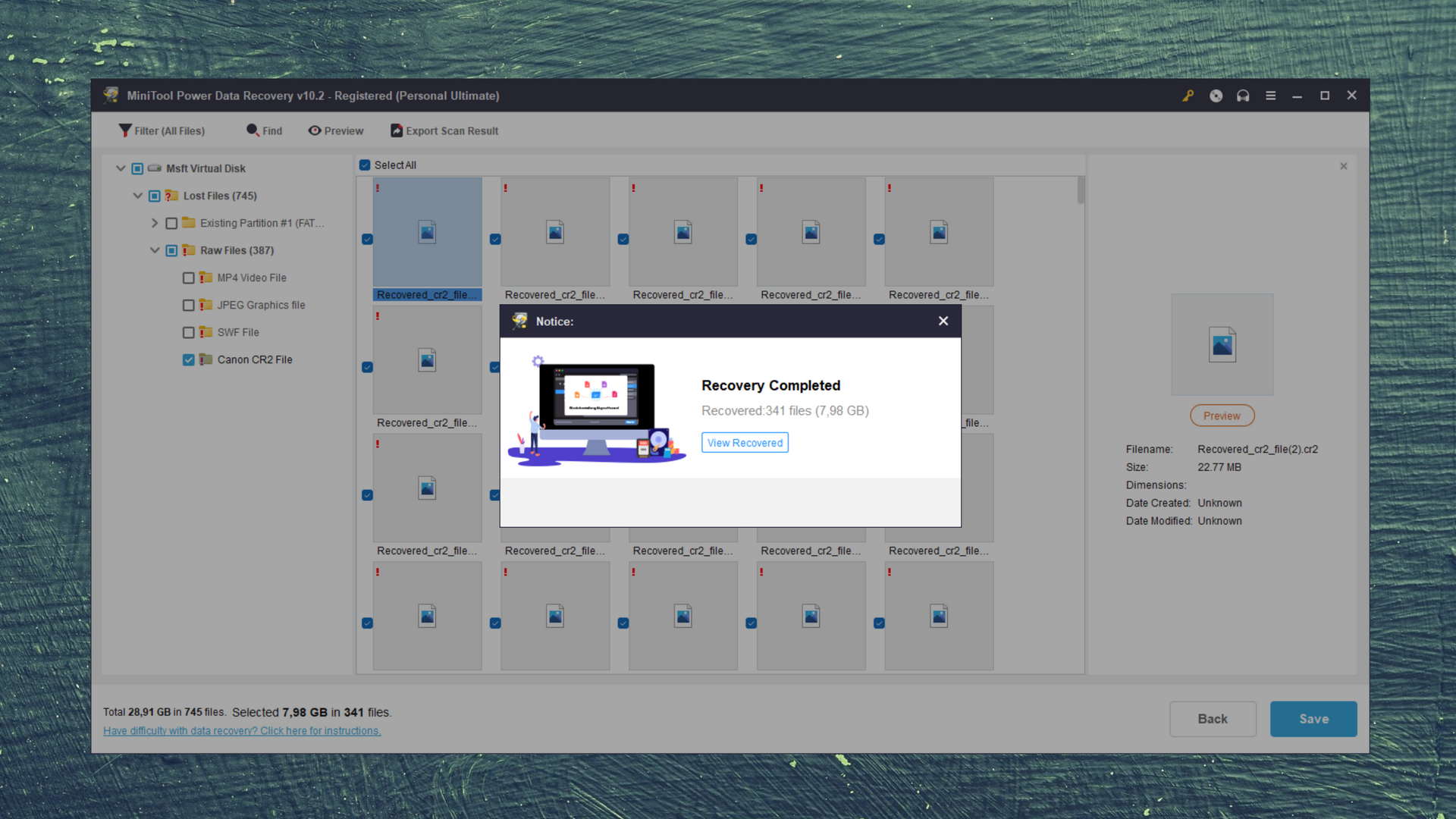
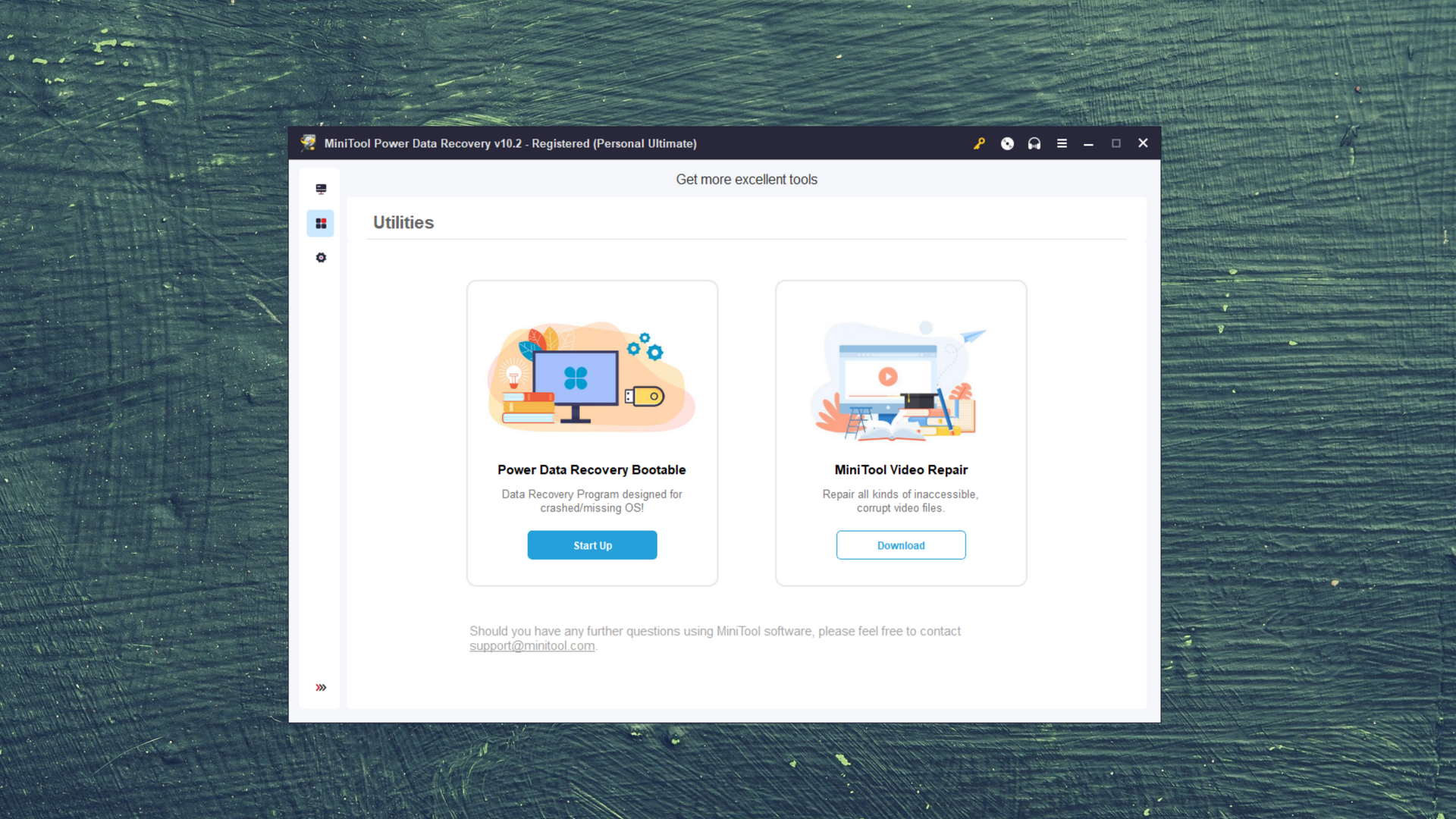

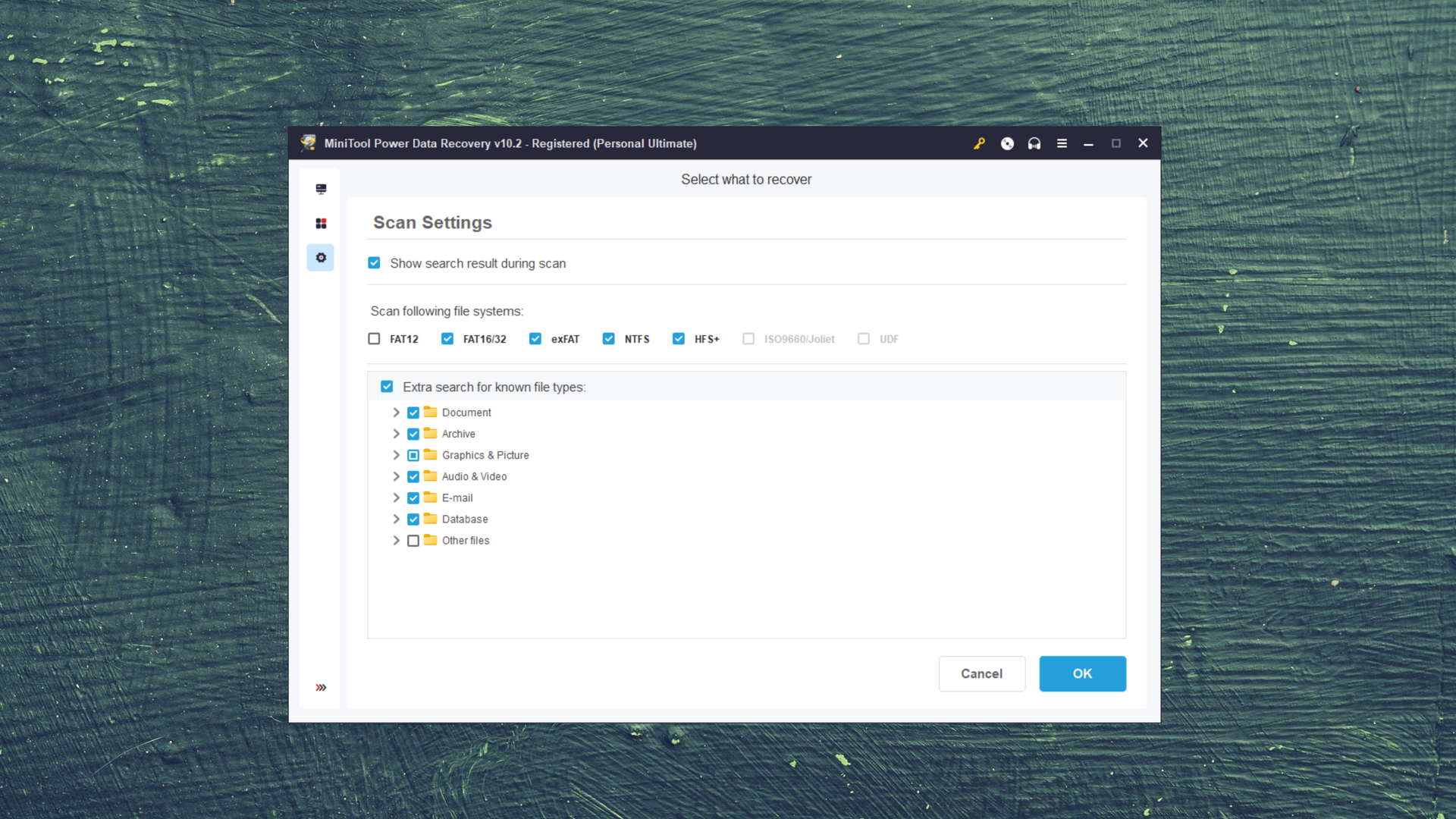
MiniTool Power Data Recovery is available on Windows only. It can recover your data from many devices and serves as a data recovery solution for almost any data loss situation.
The main differences between MiniTool Power Data Recovery and Recuva
| # | Feature | Recuva | MiniTool Power Data Recovery |
|---|---|---|---|
| 1 | Starting price | $0 | $69.00 / 1 month |
| 2 | exFAT partitions scan | bad | fine |
| 3 | NTFS partitions scan | bad | good |
| 4 | Recovery from RAID1, 0, JBOD | bad | good |
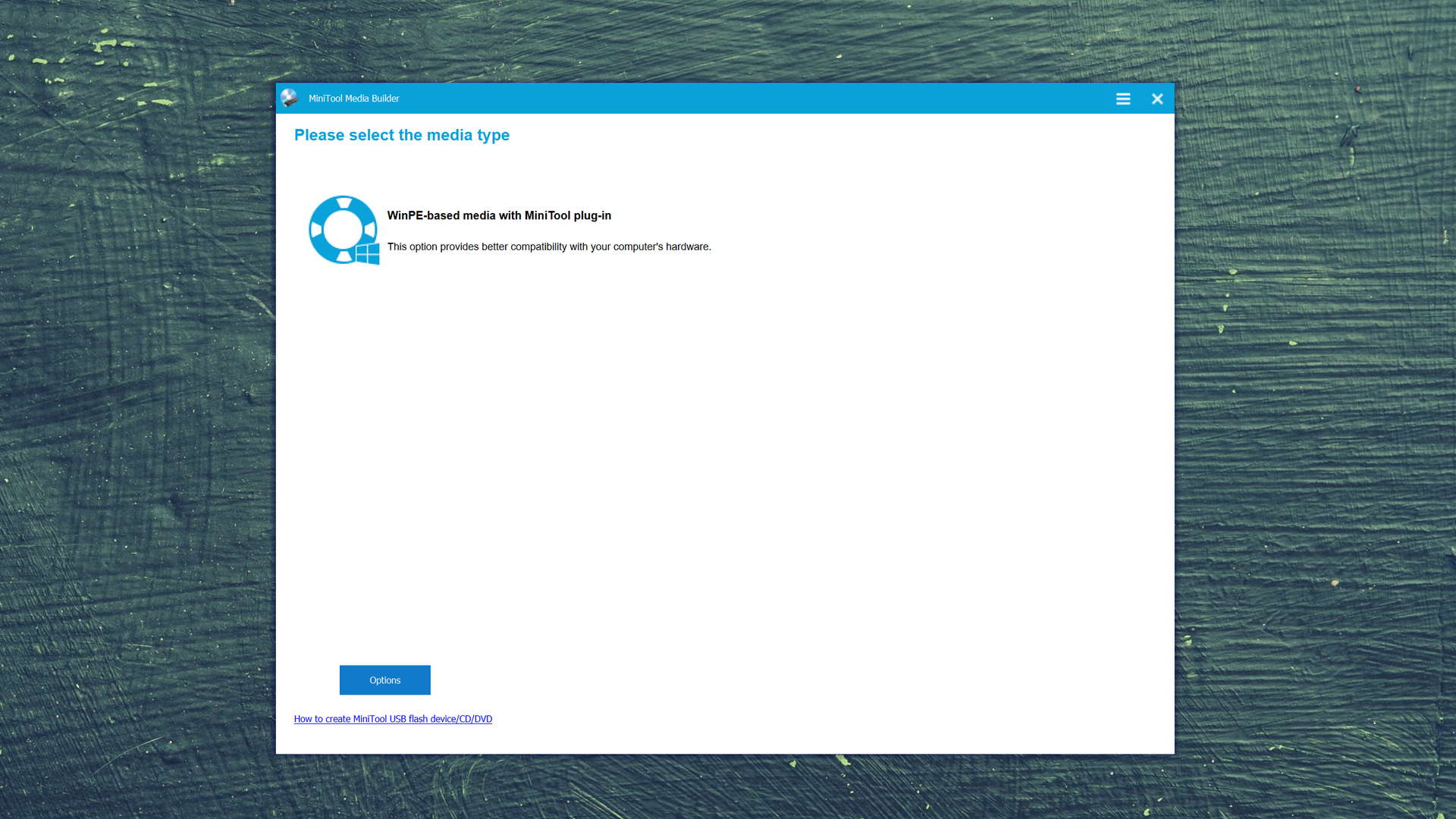
| 5 | Bootable recovery drive creation | bad | good |
| 6 | Automatic implementation of multiple appropriate scanning methods without user interaction | bad | good |
| 7 | Start file recovery without interrupting the scan | bad | good |
| 8 | Preview recoverable items without interrupting the scan | bad | good |
| 9 | Phone support | bad | good |
| 10 | Byte-to-byte device backups | good | bad |
| 11 | Disk images: scan and recovery | good | bad |
| 12 | Recovery chance prediction | fine | bad |
| 13 | Recovered files' labeling | fine | bad |
| 14 | Secure data shredding | good | bad |
| 15 | Built-in updater | good | bad |
MiniTool Power Data Recovery outperformed Recuva in our clever and quick scan tests. Deep scan results show that it was able to recover 86.9% of our data, while Recuva was unable to recover any. During our real-life recovery challenge, it demonstrated its ability to recover more data thanks to its support for more file types, including MDB and TIFF.
MiniTool Power Data Recovery allows recovery from RAID arrays, something Recuva does not. It also supports unmountable partitions. When scanning, it also automatically runs other scan types to give you a higher chance of discovering additional lost data. In instances where your operating system is damaged, you can create a bootable recovery drive to use for recovery.
In terms of support, MiniTool offers an extensive knowledge base, alongside customer support channels such as helpdesk, live chat, and phone support. Recuva only offers limited support, seeing as it's a free application.
There are more differences to discover.
Read full MiniTool versus Recuva comparisonMiniTool Power Data Recovery is a good alternative to Recuva because:
Bootable drive creation.
Recovery from soft RAID setups.
Better overall support for NTFS.
Perform recovery while scanning.
Corrupted video repair feature.
MiniTool Power Data Recovery is a poor alternative to Recuva because:
Costly licenses.
Cannot create byte-to-byte backups.
| Feature | Recuva | Disk Drill | PhotoRec | R-Studio | EaseUS Data Recovery Wizard | MiniTool Power Data Recovery |
|---|---|---|---|---|---|---|
| Starting price | $0 | $89.00 / Annual | $0 | $49.99/ Perpetual | $69.95/ 1 month | $69.00/ 1 month |
| exFAT partitions scan | bad | good | bad | fine | fine | fine |
| NTFS partitions scan | bad | good | bad | good | good | good |
| Scan for lost partitions | bad | good | bad | good | bad | fine |
| Intact data preview | bad | good | bad | bad | good | good |
| Unmountable/RAW partitions | bad | good | good | good | good | good |
| Byte-to-byte drive backups | good | good | bad | good | good | bad |
| RAID recovery | bad | good | bad | good | fine | good |
| Secure data shredding | good | bad | bad | good | bad | bad |
| Recovery chance prediction | fine | good | bad | good | bad | bad |
| Modern user-friendly interface | bad | good | bad | bad | good | bad |
| S.M.A.R.T. reporting | bad | good | bad | good | bad | bad |
| Update frequency | bad | good | bad | fine | fine | fine |
Which Recuva Alternative Should You Choose?
Disk Drill is the best alternative to Recuva for Windows. It handles recovery scenarios that Recuva simply can’t, including formatted drives, RAW and unmountable partitions, and lost partition detection. Its interface is modern and easy to navigate, allowing users to quickly locate missing files and preview them without stopping the scan. On top of that, Disk Drill receives regular updates that keep it compatible with the latest file formats and storage technologies.
If you’re on a tight budget and need a completely free option, PhotoRec is worth trying. It has strong signature-based scanning and runs on Windows, macOS, and Linux. The tradeoff is a command-line interface and no file system recovery.
For professionals or advanced users, R-Studio offers the widest range of features, including RAID recovery, network scanning, and forensic capabilities. However, it’s far from beginner-friendly, and the large number of paid versions (each with slightly different capabilities) doesn’t help ease the experience for casual users.
3.04

4.67 53%
3.88 27%
3.86 26%

3.36 10%
3.27 7%
Frequently Asked Questions
We’ve answered some of the most commonly asked questions about Recuva that we found on the web. Check them out below.
Is Recuva actually free?
Yes, Recuva’s standard version is completely free and lets you recover an unlimited amount of data without paying. There is a paid version of Recuva that adds disk imaging, automatic updates, and priority support.
What is the best alternative to Recuva?
Disk Drill is the best overall alternative to Recuva for Windows (mainly but certainly not only) because it covers a much wider range of recovery scenarios, including formatted drives, RAW partitions, and lost partition detection, all of which Recuva can’t handle. The free version lets you recover up to 100 MB of data and preview everything the scan finds before committing to a purchase.
Is PhotoRec better than Recuva?
In many recovery scenarios, PhotoRec can recover more files than Recuva. This is mainly because PhotoRec uses signature-based recovery, which allows it to find files even when the original file system is damaged or missing.
However, PhotoRec is more difficult to use. It runs in a command-line style interface and doesn’t restore original file names or folder structures. Recuva, on the other hand, is far more beginner-friendly and works well when files were recently deleted from a healthy drive.
Is EaseUS better than Recuva?
It depends on what you’re looking for. For basic recovery, Recuva is a good free option, but EaseUS tends to perform better when deeper scanning and more advanced recovery capabilities are required.
Is there an open-source alternative to Recuva?
Yes. One of the most well-known open-source alternatives to Recuva is PhotoRec. It’s completely free and works on Windows, macOS, and Linux.
Does Recuva work on Mac?
Recuva isn’t available for macOS, so if you’re on a Mac you’ll need a different tool, such as Disk Drill, R-Studio, or PhotoRec. When choosing a Mac alternative to Recuva, make sure it supports Mac-specific file systems like APFS and HFS+. For a full breakdown of the best options, check out our guide to the best macOS alternatives to Recuva.

- 48 publishings
- Auckland, New Zealand
Jordan Jamieson-Mane is a content writer with a focus on technology-related content. He has spent much of his life studying and working with all types of technology. During his time as a writer, he has written countless articles in the field of data recovery, breaking down complex topics into articles that are easy to understand.
When he's not writing articles on data recovery, Jordan enjoys traveling the world, reading books, and building websites.
- LC Tech FILERECOVERY Professional Review – Can It Compete with Modern Recovery Tools?
- UFS Explorer Review – A Powerful Recovery Tool With Lots to Offer
- Cisdem Data Recovery for Windows Review – A Capable Copy
- AnyRecover Data Recovery Review – A Polished Solution for Basic Users
- iBoysoft Data Recovery Review: Not Much to Offer

- Houston, Texas, United States
Nikolay Lankevich has over 15 years of strong experience in various fields and platform includes Disaster Recovery, Windows XP/7. System analysis, design, application (Inter/Intranet) development, and testing. Provided technical supports on desktop and laptops on Win-XP and Macintosh for about 2000 employees.